













 AIIllustrative image: AI-generated
📱 Sending push notifications via Google FCM and PHP: 2026 guide
You install an app, and a day later you forget about it. User retention is one of the most pressing challenges in mobile development: without an external trigger, people simply won't remember to open the app again.
Push notifications solve this problem directly. One short signal on the lock screen, and the user returns to your content or action. Since June 2024, Google has completely shut down the legacy FCM API version along with server key authentication. Only the HTTP v1 API with OAuth 2.0 works now.
Below is a step-by-step guide to setting up Firebase Cloud Messaging and sending cross-platform push notifications via PHP: from creating a project to receiving notifications on Android and iOS.
What is FCM and why the old API was shut down
💡 Quick overview:
- Create a Firebase project and get a JSON key
- Set up the client SDK and obtain an FCM token
- Install
kreait/firebase-phpvia Composer - Send a push notification to a topic with a single call
- Receive the notification on the device in 1-3 seconds
Firebase Cloud Messaging (FCM) is Google's cross-platform service for sending notifications to Android, iOS, and web. It's free, has no strict quotas on message count, and works through a single server API.
FCM's predecessor, Google Cloud Messaging (GCM), used a scheme with device registration IDs and a server key. Developers stored tokens in their own database and sent notifications in a loop. FCM added topics (thematic channels): a device subscribes to /topics/news, and the server sends a message to the entire group at once without iterating through tokens.
In June 2023, Google announced the deprecation of the legacy HTTP API, and as of mid-2024, it has been completely shut down. The old endpoint https://android.googleapis.com/gcm/send no longer accepts requests. Instead of a server key, you now need an OAuth 2.0 token obtained from the JSON file of a Firebase service account. Migration details are available in the official FCM documentation.
Note that the Instance ID API (iid.googleapis.com) for managing topic subscriptions has also been deprecated. The modern approach is subscribing on the client via the Firebase SDK or managing subscriptions through the Firebase Admin SDK on the server.
Step 1: Creating a project in Firebase Console
Go to Firebase Console under your Google account. Click "Create a project," set a name, and wait for initialization.
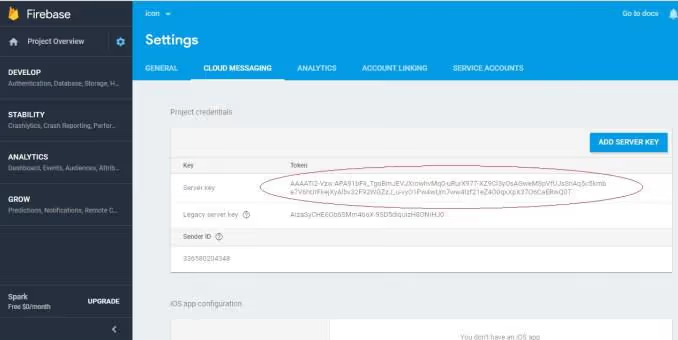
After creating the project, go to Project Settings → Service Accounts. Click "Generate new private key," and a JSON file with credentials will download. Save it to a protected folder on your server (outside document root): this is how the PHP client will obtain the OAuth 2.0 token for the HTTP v1 API.
Also in Project Settings → Cloud Messaging, add iOS APNs certificates if you plan to send notifications to Apple devices. Without this step, push notifications won't work on iOS.
Step 2: Setting up the client SDK
For the server to know where to send notifications, the client app must obtain an FCM token and send it to your server. Setup for both platforms is covered in Firebase documentation; here are the key points.
iOS
Define the device registration URL, the endpoint of your PHP script that accepts the token:

Minimal Firebase SDK integration in an iOS app:
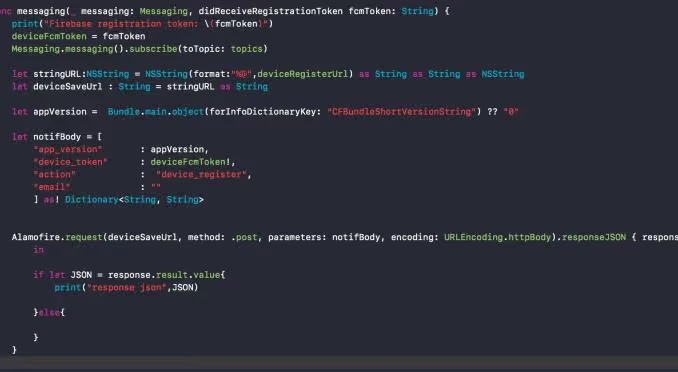
On each launch, the app calls Messaging.messaging().token(), gets the current FCM token, and sends it to your registration URL. The token may change when the app is reinstalled, so don't save it permanently; update it on every launch.
Android
The logic is the same: set the server endpoint URL for token registration:

Firebase SDK integration on Android:
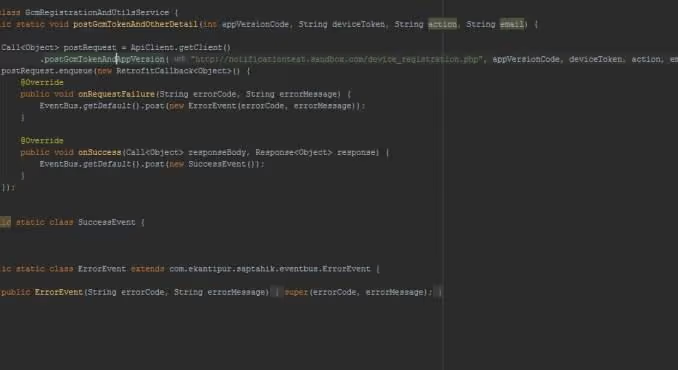
On Android, the token also updates when the app is reinstalled or data is cleared; keep this in mind when designing your server's device table.
Step 3: Installing the PHP library and authentication
To work with the HTTP v1 API through PHP, you need a library that handles obtaining the OAuth 2.0 token from the service account JSON file. The most mature option as of mid-2026 is kreait/firebase-php. Installation via Composer:
1 composer require kreait/firebase-php
The send_push.php file with client initialization:
1 <?php 2 require_once __DIR__ . '/vendor/autoload.php'; 3 4 use Kreait\Firebase\Factory; 5 use Kreait\Firebase\Messaging\CloudMessage; 6 use Kreait\Firebase\Messaging\Notification; 7 8 $factory = (new Factory) 9 ->withServiceAccount('/путь/к/serviceAccountKey.json'); 10 11 $messaging = $factory->createMessaging();
Verify that the path to the JSON key is absolute and the file is readable by the PHP process. Never place the JSON key in a public website folder; if accessed directly through a browser, an attacker would gain full access to your Firebase project.
Step 4: Sending a notification via HTTP v1 API
Now for the actual sending mechanism. The code below takes the notification title and text from a form, builds the payload, and sends it to the specified topic:
1 <?php 2 require_once __DIR__ . '/vendor/autoload.php'; 3 4 use Kreait\Firebase\Factory; 5 use Kreait\Firebase\Messaging\CloudMessage; 6 use Kreait\Firebase\Messaging\Notification; 7 8 $factory = (new Factory) 9 ->withServiceAccount('/путь/к/serviceAccountKey.json'); 10 11 $messaging = $factory->createMessaging(); 12 13 $topic = 'my-app'; 14 15 $notification = Notification::create( 16 $_POST['title'] ?? 'Новое уведомление', 17 $_POST['summary'] ?? '' 18 ); 19 20 $message = CloudMessage::withTarget('topic', $topic) 21 ->withNotification($notification) 22 ->withData([ 23 'action' => 'models', 24 'model_id' => '2701', 25 ]) 26 ->withHighestPossiblePriority(); 27 28 try { 29 $result = $messaging->send($message); 30 echo "Уведомление отправлено. ID: " . json_encode($result); 31 } catch (\Kreait\Firebase\Exception\MessagingException $e) { 32 echo "Ошибка отправки: " . $e->getMessage(); 33 }
Key points explained:
CloudMessage::withTarget('topic', $topic)sends to a topic; to send to a specific device, replace it withwithTarget('token', 'DEVICE_TOKEN').->withData([...])contains custom data for deep linking: when tapping the notification, the app opens a specific screen (in this example, a model page).->withHighestPossiblePriority()sets high priority, and the notification is delivered immediately; for silent background events, usenormal.MessagingExceptioncatches validation, authentication, and network errors; always wrap the send call in try/catch.
This code fully replaces the deprecated combination of curl + Authorization:key=SERVER_KEY + the gcm/send endpoint, which stopped working in 2024.
Form for manual sending
For quick testing, here's a simple HTML interface:
1 <form method="POST" action="send_push.php"> 2 <input type="text" name="title" placeholder="Заголовок уведомления" required> 3 <textarea name="summary" placeholder="Текст уведомления" required></textarea> 4 <button type="submit">Отправить push</button> 5 </form>
In practice, such a form is just a debugging tool. In a production project, the $messaging->send() call is integrated into business logic: publish a news item → notify subscribers of the /topics/news topic.
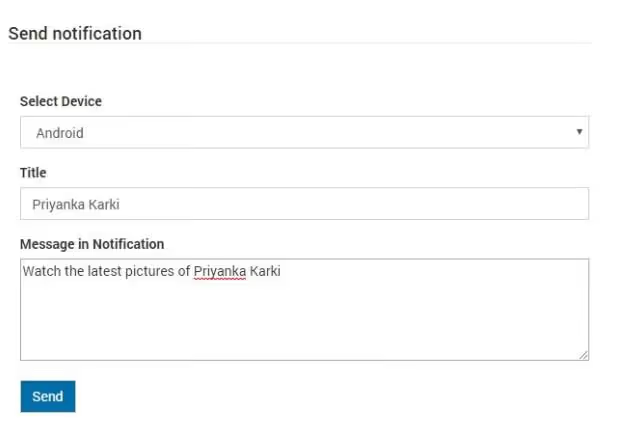
Step 5: Verifying notification receipt
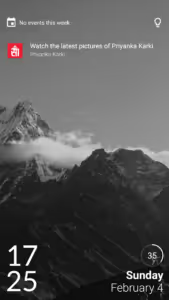
After sending, the notification appears on the lock screen within 1-3 seconds. The title and body are those passed to Notification::create(). Tapping the notification launches the app, and through the data payload, you pass parameters to navigate to the appropriate screen.
Topics provide flexible audience segmentation. Want to separate users by platform? Create /topics/ios-news and /topics/android-news. By geography? /topics/users-europe. By language? /topics/lang-ru. Combine however you like: topics are free and have no limits on quantity.

Video: complete setup walkthrough
This 20-minute tutorial shows end-to-end Firebase Cloud Messaging integration with a PHP backend: from creating a project in the console to sending and receiving a push notification on a real device.
⁉️🤔 Frequently asked questions
Do I have to pay for Firebase Cloud Messaging?
FCM is completely free. Google doesn't charge for sending push notifications and doesn't impose strict quotas on message count. At very high volumes (millions per hour), throttling may kick in, but for a typical app with an audience of up to hundreds of thousands of users, there are no limitations.
Is using the kreait/firebase-php library mandatory?
No, but it's the most well-maintained PHP package for Firebase as of mid-2026. The alternative is working with the HTTP v1 API directly via Guzzle and
google/authfor obtaining the OAuth 2.0 token. However, in that case, you'll need to manually manage token lifetime, refresh it, and track authentication errors.kreait/firebase-phphandles this automatically.
How do I send notifications to a specific device rather than an entire topic?
Replace
withTarget('topic', $topic)withwithTarget('token', $deviceToken), where$deviceTokenis the FCM token received from the client app. The token is unique to each app installation on a specific device.
What should I do if notifications aren't reaching iOS?
Check three things: (1) the APNs certificate is uploaded in Firebase project settings (Cloud Messaging → Apple app configuration), (2) the key
FirebaseAppDelegateProxyEnabledwith valueYESis added toInfo.plist, (3) the device is not in Do Not Disturb mode. Also note that the iOS simulator doesn't receive push notifications; test only on a physical device.
Can I send a silent notification without showing it to the user?
Yes, use a data-only message: pass only
->withData([...])without->withNotification(...). Such a message wakes the app in the background for data synchronization but doesn't show a visual notification. On iOS, add thecontent-availableheader with value1for background processing.
What has changed and how to avoid breaking notifications in 2026
Google has been progressively tightening FCM security requirements. The main change is the shutdown of the legacy HTTP API with server key authentication. If your PHP code still calls https://android.googleapis.com/gcm/send or https://fcm.googleapis.com/fcm/send with an Authorization: key=... header, notifications haven't been going out since mid-2024.
Switching to the HTTP v1 API with OAuth 2.0 via a service account solves this problem completely. The kreait/firebase-php library handles obtaining and refreshing the token, so you don't need to write refresh logic manually. Store the service account JSON key outside document root and exclude it from your repository via .gitignore.
With topics and data payloads, you get flexible routing: news goes to /topics/news subscribers, personal messages go by token, and silent sync happens through data-only messages. All this functionality is free and works on Android, iOS, and web from a single PHP script.
Check the current notification sending code in your project right now. If it still uses Authorization: key=, update to the HTTP v1 API. Post any questions and integration nuances in the comments.

A professional team of writers and editors specializing in creating quality content.