













 AIIllustrative image: AI-generated
🚀 How to install Chrome extensions on Android in 2026: Edge, Firefox and alternatives
You're used to an ad blocker, password manager, and a couple of extensions for productivity on desktop. You open Chrome on Android, and there are no extensions. Google fundamentally refuses to add them to the mobile version.
Previously, Kiwi Browser solved this problem. In early 2025, the project officially shut down, with the developer announcing there was no more time for maintenance. The extension code moved to Microsoft Edge Canary, and users were left without a workhorse.
Below are three current ways to run Chrome extensions on Android in 2026. From official support in Edge to the Firefox add-on ecosystem.
💡 Quick overview:
- Download Microsoft Edge from Google Play, open the menu → "Extensions" and enable what you need with a single toggle, it's the only browser with official Chrome Web Store support on Android
- Install Firefox and go to "Add-ons": uBlock Origin, Dark Reader, and Privacy Badger work without developer mode workarounds
- If you need Chrome extensions outside the Edge catalog, try Yandex Browser or Brave: both open access to the Chrome Web Store, but compatibility isn't guaranteed
Method 1: Microsoft Edge, official Chrome extension support

Since March 2025, Microsoft Edge for Android (stable version 134+) includes a full-featured extension store. This is the direct successor to Kiwi Browser: the extension support code migrated from Kiwi directly into Edge.
Step 1. Download Microsoft Edge. The browser is free, available on Google Play, and takes about 100 MB. Don't confuse it with Edge Dev or Canary, you need the stable version.
Step 2. Open the extensions menu. Three dots at the bottom of the screen → "Extensions". You'll see a list of two to three dozen verified extensions, Microsoft manually selects compatible ones. Among them: NordVPN, Browsec VPN, Immersive Translate, Tampermonkey, and others.
Step 3. Enable any extension with a toggle. The extension downloads and activates instantly. The icon appears in the toolbar next to the address bar.
Step 4. What didn't make the catalog, through Chrome Web Store. Edge supports installation from the Chrome Web Store: open chrome.google.com/webstore directly in Edge, find the extension, and click "Add to Chrome". Warning: not all desktop extensions work correctly on a mobile screen, the interface may break or be missing.
Limitations. At launch, the catalog had about 20 extensions. By mid-2026, the list has grown but still doesn't match the full Chrome Web Store. Some catalog extensions can only be installed manually through the website, and there's no guarantee the interface is adapted for phones.
Method 2: Firefox, its own add-on ecosystem

Firefox for Android doesn't run Chrome extensions. But it has its own add-on catalog that covers most user scenarios by functionality: ad blocking, dark mode, password manager, anti-tracking, and background playback.
What's available: uBlock Origin (ad blocking), Dark Reader (dark mode for any site), Privacy Badger (anti-tracking), Bitwarden (password manager), SingleFile (page saving), Video Background Play Fix (background YouTube playback), and dozens of others.
How to install: menu → "Add-ons" → "Add-ons for Firefox" → search → "Add". The whole process, four taps, without developer mode workarounds.
Pro: Firefox add-ons are tested specifically for the mobile version, the interface doesn't break on narrow screens like it happens with desktop Chrome extensions. Con: if your workflow relies on specific Chrome extensions (say, SEO tools like Detailed or Aira), Firefox may simply not have equivalents.
Method 3: Chromium browsers with built-in Chrome Web Store support

If Edge doesn't work for some reason and the Firefox ecosystem doesn't cover your extensions, there's a third path. Several Chromium browsers for Android still open access to the Chrome Web Store:
Yandex Browser. Chrome Web Store extension support is available through the "Add-ons" menu → catalog. The browser is actively developed, updated monthly. Best option for Russian-speaking users: translated interface, Alisa voice assistant, integration with Yandex services.
Brave. Built-in ad and tracker blocker covers the need for uBlock Origin out of the box. For everything else, Chrome Web Store support through "Brave Shields" → "Extensions". Privacy focused: no ads, no data collection.
Mises Browser. Less known but with quick extension support. Target audience, users who need access to Web3 and crypto wallets through extensions (MetaMask works without issues).
Flow Browser. Minimalist browser with Chrome Web Store support and built-in ad blocker. Takes less than 15 MB, an option for budget devices.
Common downside: on all these browsers, extension installation goes not through an official curated store but directly from the Chrome Web Store. Desktop extension interface on a mobile screen, a lottery. About every other one works.
❗ Kiwi Browser: how it worked before
Until January 2025, Kiwi Browser was the main answer to "how to install Chrome extensions on Android". An open-source project, a Chromium build with native Chrome Web Store support, over seven years the browser reached more than 10 million installations.
Below is the original installation process that no longer works. We're including it for context: if you encounter old Kiwi Browser instructions in search results, know they're outdated.
Step 1. Download Kiwi Browser from Google Play. Free.
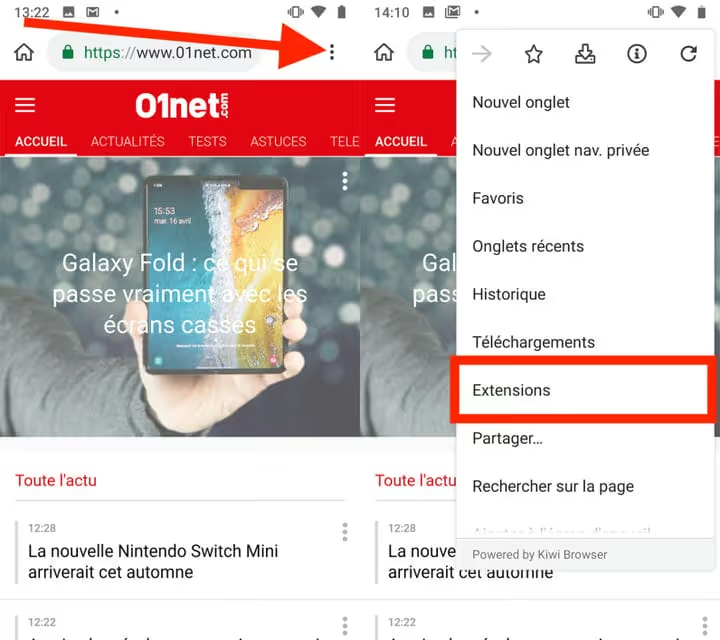
Step 2. Open Kiwi Browser, tap the three-dot button to bring up the main menu, and go to the Extensions section. Alternative entry, directly type chrome://extensions in the address bar.
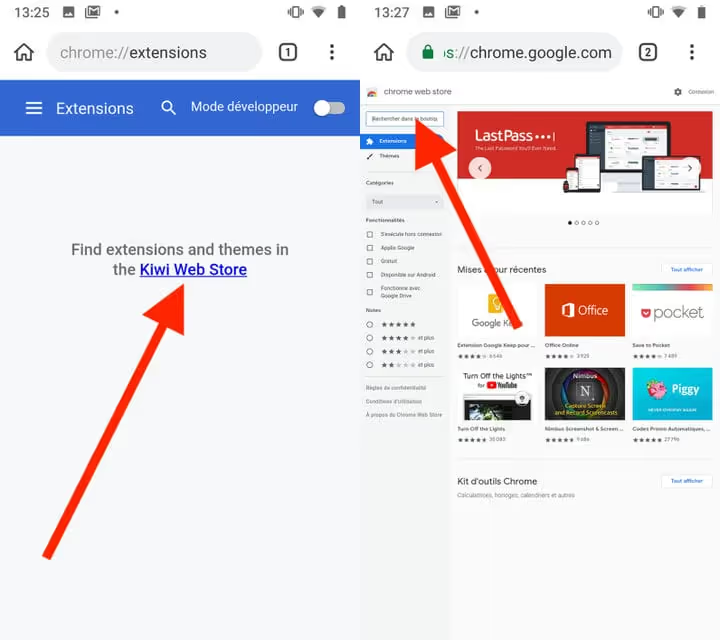
Step 3. Tap the Kiwi Web Store link, the browser automatically redirected to the Chrome Web Store home page. Find the needed extension through search, tap Add to Chrome, and confirm installation.
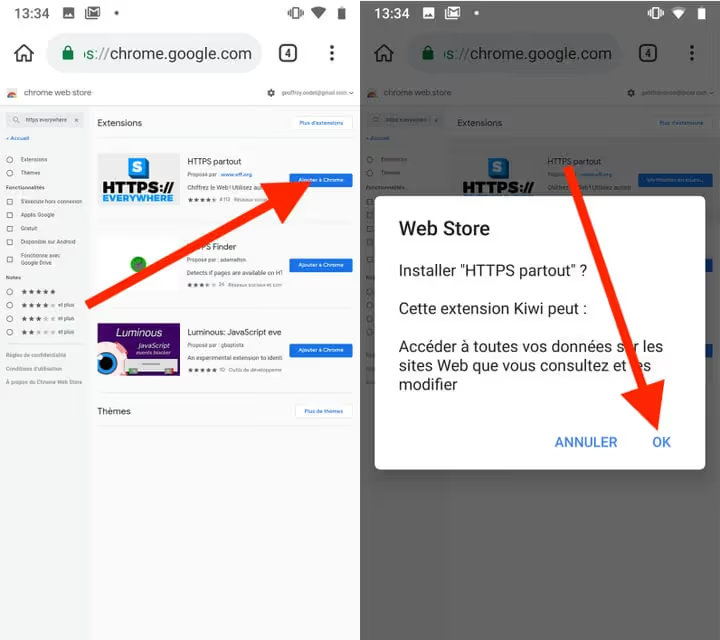
Extensions for desktop Chrome weren't designed for mobile browsers, some of them didn't work in Kiwi Browser even in its best years. Kiwi is now removed from Google Play. The extension support code is integrated into Microsoft Edge, not a separate fork. If you're still using Kiwi, the browser isn't receiving security updates, immediate migration to Edge or Firefox is recommended.
Browser comparison
Browser | Chrome extensions | Own catalog | Active updates | Size |
|---|---|---|---|---|
Microsoft Edge | Yes (Chrome Web Store + own catalog) | Yes, 20+ verified | Monthly | ~100 MB |
Firefox | No (own add-ons) | Yes, 50+ add-ons | Monthly | ~80 MB |
Yandex Browser | Yes (Chrome Web Store) | Yes, add-on catalog | Monthly | ~120 MB |
Brave | Yes (Chrome Web Store) | No (built-in blocker) | Monthly | ~90 MB |
Mises | Yes (Chrome Web Store) | No | Monthly | ~70 MB |
Flow | Yes (Chrome Web Store) | No (built-in blocker) | Irregular | ~15 MB |
Kiwi Browser | Yes (shut down) | No | Project shut down | ~60 MB |
Visual demonstration of installing extensions on Android, from launching the browser to your first ad blocker:
⁉️🤔 Frequently asked questions
Why doesn't Google add extensions to Chrome for Android?
The reason isn't officially stated, but technical analysts agree on three factors: security (extensions are the main attack vector on desktop Chrome), control over the mobile ecosystem, and conflict with Google's business model (ad blockers installed through extensions hit revenue). At the same time, it's technically possible, Kiwi Browser proved it back in 2018.
Is Microsoft Edge safer than Kiwi Browser?
Yes, for two reasons. First, Edge receives monthly security updates from Microsoft, while the shut-down Kiwi has had no updates since January 2025. Second, the Edge extension catalog is manually reviewed: Microsoft selects compatible and safe extensions. With manual installation from the Chrome Web Store, the risks are the same as in Kiwi.
Which extensions definitely work on Android through Edge?
As of mid-2026, these work stably: uBlock Origin, Bitwarden, Dark Reader, Tampermonkey, Violentmonkey, Browsec VPN, NordVPN, Immersive Translate, SingleFile. Don't work or work with errors: LastPass (autofill issues), most SEO extensions (desktop interface), Session Buddy (requires sidebar).
Can you sync extensions between desktop and Android?
In Microsoft Edge, yes, partially. The extension list syncs through a Microsoft account, but each extension's settings and state (enabled/disabled) don't. You'll need to install and configure extensions separately on each device, even in the same account.
Do you need root access to install extensions?
No. All described methods work on standard Android without root privileges, bootloader unlocking, or third-party APK installation. Browsers are downloaded from Google Play, the extension installation process takes exactly as many steps as described in the instructions above.
Take Edge or wait for Chrome: what to install in 2026
Short answer: Microsoft Edge. It's the only browser with official Chrome Web Store extension support on Android, live updates, and a verified catalog. Firefox is the best choice if you need an ad blocker, dark mode, and password manager without ties to the Google ecosystem.
If Edge doesn't suit you due to Microsoft policy or design, Yandex Browser gives almost the same compatibility level for Russian-speaking users. Brave is for those who value privacy above all. And it's time to delete Kiwi Browser: a browser without security updates on Android is a hole the size of the operating system itself.
Have you tried installing extensions through Edge on Android? Write in the comments which extensions worked for you and which didn't. A live compatibility list is more useful than any review.

A professional team of writers and editors specializing in creating quality content.