













 AIIllustrative image: AI-generated
⌨ How to open Microsoft Edge using a keyboard shortcut
Every time you reach for the mouse to launch a browser, that's an extra movement. Dozens of such movements add up over a day, and over a month, hours of lost time. Meanwhile, Windows has been able to launch any application with a keyboard shortcut since ancient versions; you just need to assign it once.
Microsoft Edge is built into Windows 10 and 11 by default, its icon already sits on the taskbar, and a shortcut exists in the Start menu. But truly quick access comes only from a personally assigned combination, say, Ctrl+Alt+E for Edge, Ctrl+Alt+W for Word, Ctrl+Alt+T for Telegram. Your hand stays on the keyboard, your thought process isn't interrupted.
Below is a step-by-step breakdown of the method. It requires no third-party utilities, no administrator rights, and no registry editing. It works identically in Windows 10 and Windows 11.
💡 Quick overview:
- Place a Microsoft Edge shortcut on your desktop (if it's not already there)
- Open the shortcut's "Properties," go to the "Shortcut" tab and click in the "Shortcut key" field
- Press any key (Windows will add the Ctrl+Alt prefix) and save via "Apply" → "OK"
1. Place the Edge shortcut on your desktop
A shortcut on the desktop is a mandatory requirement: Windows allows you to assign a keyboard shortcut ONLY to icons that are located specifically on the desktop (or in a folder within it). A shortcut on the taskbar or in the Start menu won't work for this method.
The quickest way to get an Edge shortcut on your desktop:
- Press
Winand start typing "Edge." - When Microsoft Edge appears in the results, right-click on its icon.
- Select "Open file location," and a folder with the original Edge shortcut will open.
- Copy this shortcut (Ctrl+C) and paste it onto your desktop (Ctrl+V).
If Edge is already pinned to the taskbar, there's an even simpler way: hold Shift, right-click the Edge icon on the taskbar, and select "Create shortcut." Windows will immediately place it on your desktop.
The finished shortcut looks like a blue-green letter "e," the standard Microsoft Edge icon based on Chromium. Make sure the shortcut points to msedge.exe and not to the old EdgeHTML (the legacy version that Microsoft retired long ago).
2. Open "Properties" and find the "Shortcut key" field
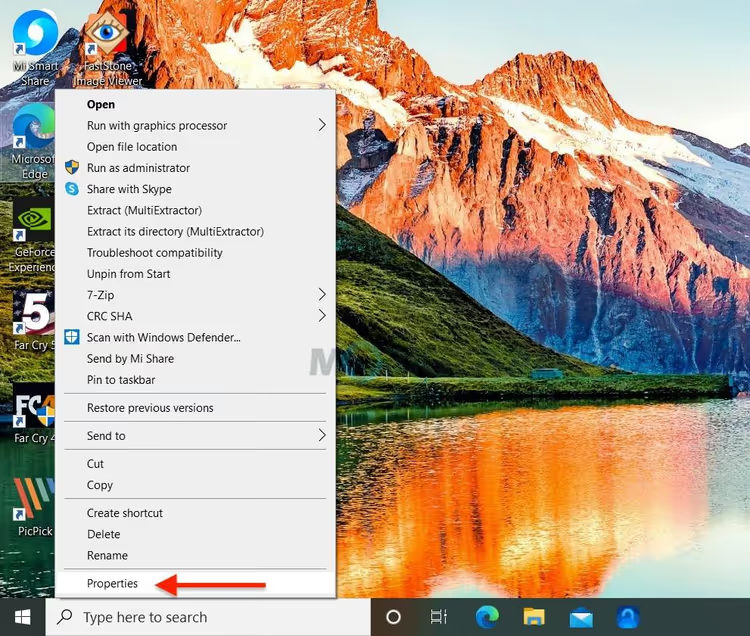
Right-click the Edge shortcut on your desktop and select the bottom item: "Properties." A window with several tabs will open; we're interested in the second one, "Shortcut."
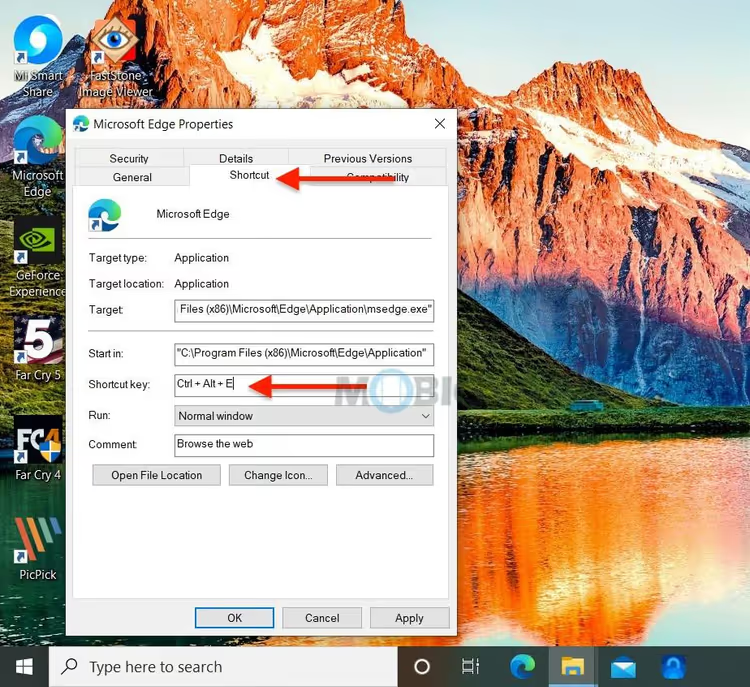
This window has six fields. From top to bottom: target folder (where the shortcut leads), target object (path to msedge.exe), additional launch parameter, working folder, "Shortcut key" and "Run" (maximized/minimized). The "Shortcut key" field is the fourth text field. If the shortcut was just created, it will say "None."
A detail to note: Windows automatically adds the Ctrl+Alt prefix to any key you press. This means you cannot assign a single key, only a three-key combination: Ctrl+Alt +. This protects against accidental triggers and conflicts with system shortcuts.
3. Assign the shortcut and save
Click in the "Shortcut key" field (or press Tab four times from the first "Target" field). Now press any key, for example, E (for Edge). The field will show Ctrl + Alt + E:
What you can use as a key:
- A letter: it makes sense to choose the first letter of the program's name: E for Edge, W for Word, T for Telegram. Latin letters are more reliable since keyboard layout doesn't affect triggering.
- A number: if letters are already taken, digits 0-9 work too.
- An F-key (F1-F12): convenient, but check that it's not already used by the system or your graphics card driver.
- Special keys (Insert, Delete, Home, End, PgUp, PgDn): exotic, but they work too.
What NOT to do:
- Don't use keys already taken by popular programs. For example, Ctrl+Alt+S is often intercepted by GeForce Experience, and Ctrl+Alt+D by DisplayFusion. If you pressed the combination and nothing happened, try a different letter.
- Don't try to "override" system shortcuts like Ctrl+Alt+Del; Windows won't give them up, and the field will simply ignore the attempt.
Once the key is chosen, click "Apply," then "OK." The window will close. The shortcut starts working immediately; no restart is needed. Minimize all windows (Win+D) and test it: press Ctrl+Alt+E, and Edge should launch.
4. What to do if the shortcut doesn't work
Five quick checks:
The shortcut is not on the desktop. Windows looks for hotkeys ONLY among shortcuts on the desktop. If you moved the shortcut to a folder, the combination stopped working. Return it to the desktop.
The shortcut is INSIDE a folder on the desktop. This also works; Windows scans not only the desktop itself but also first-level folders within it. However, it's better to keep the shortcut visible: less chance of forgetting about it and accidentally deleting it.
Conflict with another program. Some applications intercept Ctrl+Alt combinations globally, before Windows can pass the keypress to the shortcut. Open Task Manager (Ctrl+Shift+Esc), go to the "Startup" tab, and temporarily disable suspicious programs. If it starts working, you've found the culprit; assign a different key.
The shortcut points to a nonexistent file. This happens after Edge updates or folder relocations. Right-click the shortcut → Properties → "Shortcut" tab → check the path in the "Target" field. For Edge, the standard path is: C:\Program Files (x86)\Microsoft\Edge\Application\msedge.exe.
The "Shortcut key" field got reset. A rare bug: Windows sometimes loses assigned shortcuts after major updates (feature updates). Check the field; if it says "None" again, reassign it. Prevention: after a Windows feature update (once a year, in autumn), check your hotkeys.
5. Alternative: taskbar without additional setup
If setting properties seems like an extra step, Windows has a built-in "zero-configuration" method. Pin Edge to the taskbar, and it will receive a number from left to right (starting with 1, after the Start button). Press Win+<number>, and the application will launch.
For example, Edge is second on the taskbar after File Explorer: Win+2 launches it instantly. No desktop shortcuts needed, no property settings, just simple math. The method's limitation: the number is strictly tied to the position on the taskbar. If you drag the icon, the number changes.
Comparison of the two approaches:
Method | Keys | Pros | Cons |
|---|---|---|---|
Shortcut properties | Ctrl+Alt+ | You choose the letter yourself, easy to remember (E=Edge) | Only works with desktop shortcuts |
Taskbar | Win+ | No setup required, works "out of the box" | Tied to position; move the icon and the number changes |
Both methods work simultaneously; you can use either or both.
6. Built-in Edge shortcuts worth knowing
Besides launching the browser, it's useful to keep in mind several hotkeys within Edge itself. They work inside an open window and save clicks:
Ctrl+T: new tabCtrl+Shift+T: restore the last closed tabCtrl+W: close the current tabCtrl+L: go to the address barCtrl+Shift+N: new InPrivate windowCtrl+D: add page to bookmarksCtrl+H: open historyCtrl+J: open downloads
The full list is on the official Microsoft page: Keyboard shortcuts in Microsoft Edge.
⁉️🤔 Frequently asked questions
Does this method work in Windows 11?
Yes, the method is completely identical in Windows 10 and Windows 11. The "Properties" window interface hasn't changed since Windows 7, and the "Shortcut key" field is present in all current versions. The instructions are universal. The only difference: in Windows 11, shortcuts may be hidden by default; enable icon display through "Settings" → "Personalization" → "Themes" → "Desktop icon settings" if you don't see the familiar icons.
Can I assign a shortcut WITHOUT Ctrl+Alt?
No, Windows strictly requires the Ctrl+Alt prefix. There's no way to bypass this with built-in tools. If you absolutely need a different combination (for example, Ctrl+Shift+E), you'll have to use a third-party utility: Microsoft PowerToys (Keyboard Manager) or AutoHotkey. PowerToys is free, installs from the Microsoft Store, and lets you set ANY combination without Ctrl+Alt, whether Ctrl+Shift+E or a single F9.
What if the "Shortcut key" field is inactive (grayed out)?
Most likely, you opened the properties of the original
.exefile, NOT a shortcut. For executable files, the "Shortcut key" field is indeed absent. Check: the "Properties" window title should show the shortcut name (for example, "Microsoft Edge - Shortcut"), not just "msedge.exe." Look for the icon on your desktop with a small arrow in the lower-left corner; that's a real shortcut. An.exefile also has a "Shortcut" tab, but the "Shortcut key" field is missing from it.
Can I assign one shortcut to multiple programs?
No. If two shortcuts on the desktop have the same combination assigned, Windows will launch only one of them (which one is unpredictable; usually the one whose shortcut was created earlier). Check your other desktop shortcuts: right-click → Properties → "Shortcut" tab → "Shortcut key" field. For all shortcuts except Edge, it should say "None." One combination, one program.
The shortcut stopped working after a Windows update. Is this normal?
Yes, this happens after major feature updates (once a year, in autumn). Windows sometimes resets assigned hotkeys for shortcuts. The solution is simple: open the shortcut properties again, check the "Shortcut key" field (it says "None" again), and reassign the key. The shortcuts themselves aren't deleted; only the key binding resets. Check your hotkeys after every major update; it takes thirty seconds.
Do you really need a hotkey for a browser?
If you launch the browser once in the morning and don't close it until evening, maybe not. But the typical scenario looks different: opened Edge, worked, closed it; twenty minutes later needed a link from an email, opened it again; another hour later, checking documentation. Three to four launches a day, and each pair of "hand from keyboard to mouse, click on icon, hand back" steals 3-5 seconds. Over a year, that adds up to an hour and a half of pure time, just launching the browser.
The shortcut method is free, takes a minute, and requires no additional installation. You can also assign hotkeys to your email client, messenger, VS Code, terminal, and build your own "keyboard launch panel." Windows has offered this capability for over 20 years; people just rarely remember it.
Try it right now: Win+D, right-click the Edge shortcut, Properties, "Shortcut" tab, click in the "Shortcut key" field, letter E, Enter. Done.

A professional team of writers and editors specializing in creating quality content.