













 AIIllustrative image: AI-generated
🖱 How to remap mouse buttons with AutoHotkey and speed up your workflow
You bought a mouse with extra buttons, but you only use the left, right, and scroll wheel. The buttons under your thumb sit idle, even though they could close tabs, switch between them, duplicate clicks, and open developer tools. Month after month you reach for the keyboard for shortcuts that the mouse could handle on its own.
The problem is not a "wrong" mouse. The problem is that the manufacturer's stock software either cannot bind complex actions to a button or glitches when the active window changes. The solution is to send "blank" signals from the buttons and intercept them with a script that understands the application context.
💡 Quick overview:
- Assign virtual keys F13-F24 to extra mouse buttons through the driver: they do nothing in the system, but the script "hears" them
- Install AutoHotkey and write a script: each application gets its own set of actions, from closing a tab to holding Alt in Photoshop
- Use Window Spy to hook into any exe file: the method works in browsers, code editors, video players, anywhere
What is AutoHotkey and why does your mouse need it
AutoHotkey (AHK) is a free, open-source automation language for Windows. It can intercept key presses and mouse button clicks, send arbitrary combinations to the active window, and distinguish applications by executable name. This last feature makes it the ideal layer between "dumb" hardware and software: the same mouse button does different things in Chrome, Photoshop, and on the desktop.
At the time of writing, the current version is AHK v2.0, which is faster, stricter about syntax, and has removed deprecated commands like #NoEnv. The scripts below are written for v2, but the logic transfers to v1 as well (it is still supported for backward compatibility).
An alternative without scripts is XMBC (X-Mouse Button Control), a utility with a graphical interface. It also distinguishes applications, supports up to 10 layers per profile, and requires no code at all. The downside: zero portability between computers, and capabilities are limited to what the developer built in. AHK is more flexible, and the script can be copied along with the rest of your system settings.
Step 1: bind buttons to virtual keys F13-F24
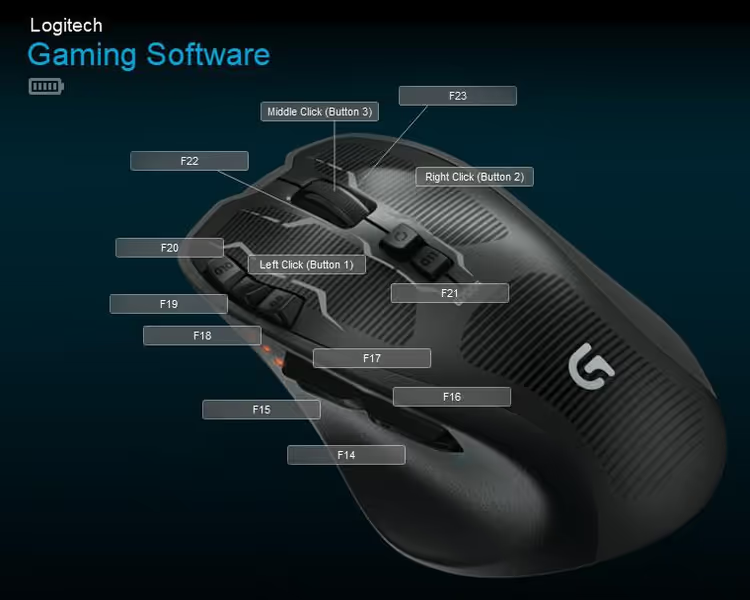
Regular function keys (F1-F12) are taken; they do something in every application. But Windows also knows F13-F24, real scan codes that no program hooks by default. They are ideal as "dummies": the mouse driver sends F15 to the system, the system passes it to no one except our AHK script.
Binding through the mouse driver
Open your mouse's proprietary software: Logitech G Hub, Razer Synapse, SteelSeries Engine, or a universal tool. Find the button assignment tab and for each extra button choose "Assign keystroke" or "Keystroke assignment". Enter F13, F14, F15…, one for each button. Do not worry that keys F13-F24 do not physically exist on the keyboard: the driver will send the scan code, and Windows will accept it.
How do you "press" F15 if there is no such key? Save this AHK snippet to a file called send.ahk and run it:
1 ; send.ahk — emulates pressing F15 after 5 seconds 2 Sleep 5000 3 Send "{F15}" 4 ExitApp
Run it, quickly switch to the mouse driver window, click in the "Assign keystroke" field, and after 5 seconds AHK will send F15 and the driver will register it. Repeat for each button, changing the F-key number.
Step 2: install AutoHotkey and create a basic script
Download AHK from the official website (choose version v2.0). After installation, create a text file with the .ahk extension, for example mouse.ahk. Basic script header:
1 ; mouse.ahk — basic AHK v2 setup 2 #Requires AutoHotkey v2.0 3 SendMode "Input" 4 SetWorkingDir A_ScriptDir 5 SetTitleMatchMode 2 6 #MaxHotkeysPerInterval 300 7 #InstallMouseHook
Breakdown: SendMode "Input" is the fastest and most reliable method for sending keystrokes; SetTitleMatchMode 2 searches for a substring in the window title (part of the name is enough); #InstallMouseHook enables low-level mouse button interception.
Auto-start at Windows startup
Press Win+R, type shell:startup, and the startup folder will open. Hold Alt and drag mouse.ahk into this folder: a shortcut will be created. The script will launch with the system. It is convenient to edit .ahk files in Sublime Text or Notepad++, both of which highlight AHK syntax.
Step 3: write a script for the browser
The browser is a testing ground for mouse buttons. Here is a layout covering the main navigation actions:
1 ; Chrome / any Chromium-based browser 2 #HotIf WinActive("ahk_exe chrome.exe") or WinActive("ahk_exe msedge.exe") 3 ; Ctrl+W = close tab 4 F14::Send "^w" 5 ; Ctrl+Shift+C = developer tools (inspect element) 6 F22::Send "^+c" 7 ; Ctrl+PageDown = next tab 8 F16::Send "^{PgDn}" 9 ; Ctrl+PageUp = previous tab 10 F17::Send "^{PgUp}" 11 ; Alt+Left = back in history 12 F18::Send "!{Left}" 13 ; F5 = reload tab 14 F20::Send "{F5}" 15 ; Ctrl+Shift+T = restore closed tab 16 F23::Send "^+t" 17 #HotIf
Copy the block into mouse.ahk, replacing the F-key numbers with the ones you assigned in the driver. After saving the file, press Ctrl+R (Reload script) from the AHK tray menu; the new bindings will work instantly without restarting the browser.
#HotIf limits the block's scope; the buttons only work when Chrome or Edge is in focus. Switch to File Explorer, and those same F14-F23 can do something else or nothing at all.
Step 4: script for Photoshop and a graphics tablet
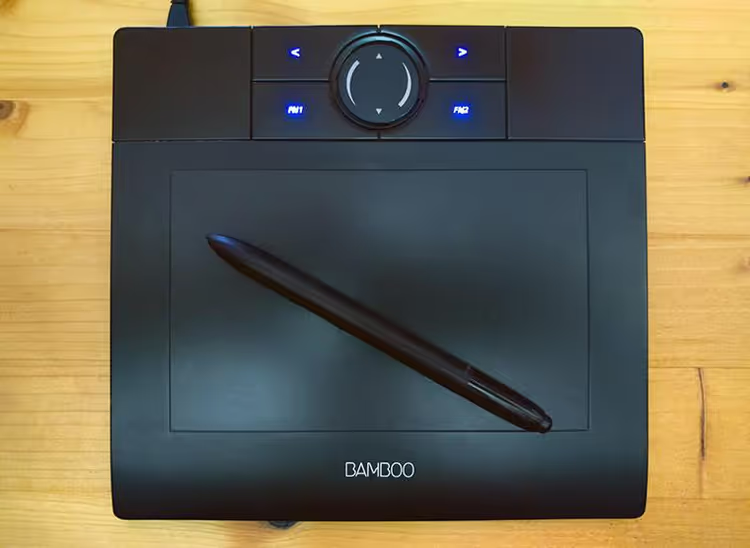
A more complex example: Photoshop, where buttons do not just send a combination but hold a modifier key. This is invaluable when working with a Wacom pen; buttons on the pen enable the color picker and canvas dragging:
1 ; Adobe Photoshop 2 #HotIf WinActive("ahk_exe photoshop.exe") 3 ; Hold Alt = color picker (while button is pressed) 4 F14:: 5 { 6 if !GetKeyState("Alt") 7 Send "{Alt down}" 8 } 9 F14 Up::Send "{Alt up}" 10 11 ; Alt+Ctrl+Z = step backward (instead of simple Undo) 12 F16::Send "!^z" 13 14 ; Shift+Ctrl+Z = step forward 15 F17::Send "+^z" 16 17 ; Hold Space = canvas dragging 18 F18:: 19 { 20 if !GetKeyState("Space") 21 Send "{Space down}{Click down}" 22 } 23 F18 Up::Send "{Space up}{Click up}" 24 25 ; Ctrl+S = save 26 F19::Send "^s" 27 28 ; Ctrl+N = new document 29 F20::Send "^n" 30 31 ; Alt+Shift+Ctrl+S = Export → Save for Web 32 F23::Send "!+^s" 33 #HotIf
Note the F14:: construct with curly braces; this is a multi-line hotkey. GetKeyState("Alt") guards against holding the modifier repeatedly if the button jitters. F14 Up:: triggers on release and returns Alt to its original state.
The same approach applies to any software that needs modifiers: Figma (Space for the drag hand), Blender (Shift for precise movement), DaVinci Resolve (Alt for copying a clip).
Step 5: global default actions
When none of the applications is in focus, the buttons do something universal:
1 ; Global bindings (work everywhere without a specific #HotIf) 2 F14::Send "{Backspace}" ; back (like a browser button) 3 F15::Send "{Click 2}" ; double click 4 F19::Send "{MButton}" ; middle button (easier than clicking the wheel) 5 F21::Send "#d" ; Win+D = minimize all windows (boss key)
Double click with a single button is a personal favorite of the original method's author. After a week of use, a physical double-click feels puzzling: why tap twice when you can tap once?
Alternative without code: X-Mouse Button Control
If scripts are not your path, consider X-Mouse Button Control (XMBC). It is a free utility with a graphical interface that does the same thing: profiles for specific .exe files, up to 10 layers per profile, layer switching via hotkey.
XMBC pros: installs in a minute, configuration is selecting an action from a dropdown, no code required. Cons: less flexibility (you cannot write a condition with GetKeyState), and the configuration lives in the registry and rarely survives a move to another computer. For basic scenarios ("close tab," "switch track"), an excellent choice. For multi-level constructs with held modifiers, only AHK will do.
How to target any application with Window Spy
To add support for a new program, you need to find out the name of its executable file. In the tray, right-click the AHK icon and select Window Spy. Click on the target program's window; Window Spy will show:
- Window Title, the window title (you can target by this)
- ahk_exe, the process name (for example
firefox.exeorcode.exeornotion.exe) - ahk_class, the window class (useful for distinguishing dialogs within an application)
Add a new block to mouse.ahk:
1 #HotIf WinActive("ahk_exe firefox.exe") 2 F14::Send "^w" 3 ; ... your actions 4 #HotIf
Save, Ctrl+R to reload the script, done. The technique is universal: video players (VLC, PotPlayer), messengers (Telegram, Discord), IDEs (VS Code, PhpStorm), file managers, anything that has an .exe.
Bonus: controlling music with global media keys
If your keyboard lacks multimedia buttons, the mouse can replace them. The following actions are global and do not require detecting the player window:
1 ; Media control — works always 2 F18::Send "{Media_Prev}" ; previous track 3 F19::Send "{Media_Play_Pause}" ; pause / play 4 F20::Send "{Media_Next}" ; next track 5 F22::Send "{Volume_Down}" ; volume down 6 F23::Send "{Volume_Up}" ; volume up 7 F14::Send "{Volume_Mute}" ; mute
Works with any player that listens to system media events: Spotify, YouTube Music (PWA), AIMP, foobar2000, even the built-in Windows player.
⁉️🤔 Frequently asked questions
Why use F13-F24 if AHK can intercept mouse clicks directly?
AHK distinguishes mouse buttons as
XButton1andXButton2; that is only two extra buttons. Gaming mice can have 8-12, and the driver still acts as an intermediary. The "driver → F13-F24 → AHK" chain scales to any number of buttons, and the driver does not try to perform the action itself; it simply sends the key code. If the AHK script crashes, the mouse buttons will stop doing anything rather than start executing unexpected macros from the driver.
Does the method work on Windows 11?
Yes. F13-F24 are standard USB HID scan codes; they are not tied to a Windows version. AHK v2.0 officially supports Windows 10 and 11. On ARM versions of Windows (Surface Pro X), some mouse drivers may not emit virtual keys, but Logitech G Hub and Razer Synapse work without issues.
What if the mouse driver does not allow assigning F13-F24?
Some office mice with stripped-down software are limited to F1-F12. Two options: try the X-Mouse Button Control utility, which can assign F13-F24 regardless of the mouse model, or use
XButton1/XButton2directly in AHK. Only two buttons, but enough to get started.
Can the script be transferred to another computer?
Yes. Copy the
mouse.ahkfile and the folder with AutoHotkey Portable (available on the official website). Reassign the buttons in the mouse driver on the new PC to the same F-keys; everything will work without changes to the script code.
Does AHK slow down the system?
When idle, AHK consumes less than 5 MB of RAM and 0% CPU; the official documentation confirms a minimal footprint. The hook fires only when a tracked key is pressed; the rest of the time the script sleeps. For comparison, Razer Central's proprietary software "weighs" 200-400 MB when idle.
Is it worth the effort
Initial setup takes about 20 minutes: bind buttons in the driver, copy snippets, adjust F-key numbers to your liking. After that, the script lives for years and moves from computer to computer along with the rest of your config. Two payoffs.
First: saving micro-movements. Closing a tab without Ctrl+W (one press instead of two), switching tabs without Ctrl+Tab, the color picker in Photoshop without lifting the pen from the tablet. Hundreds of operations accumulate over a day, each one trivial on its own, together amounting to hours over a year.
Second: the "magic" effect. When a colleague looks at your screen and cannot understand how you switch between windows without touching the keyboard, it makes an impression. Behind it is no magic, just 40 lines of AHK and half an hour of setup.
If you work with a mouse for 6+ hours a day, configure the buttons. The first week feels unfamiliar, the second feels comfortable, and after a month you will stop understanding how people live without it.
Here is a video that walks through the method from installation to the first script:

A professional team of writers and editors specializing in creating quality content.