














📥 How to download an entire YouTube channel with yt-dlp
Why archive a YouTube channel
Watching on YouTube is a compromise. You depend on ads, algorithms, buffering, and sudden content removals. The platform does not guarantee that the video you need will still be available in a month, let alone a year.
A local archive solves these problems outright. No ads, neither on desktop nor on mobile. Full control over playback speed, seeking, and subtitles. Videos are available offline: on a plane, in the subway, or at a cabin with poor reception.
Another advantage is dual subtitles. A player like PotPlayer can display two languages simultaneously, one on top and the other at the bottom. For language learners this replaces a textbook. And for content collectors, it is a way to preserve what YouTube may delete at any moment.
A volume button hidden behind an extra click. A watch indicator that forgets where you stopped. Endless scrolling through the "Videos" tab trying to find where you left off. All of this disappears when the files are on your drive.
💡 Quick overview:
- Install
yt-dlpand FFmpeg, two utilities, no bloat - Add their folder to the system PATH
- Create a bat file with a command for the desired channel
- The first run downloads everything; subsequent runs grab only new videos
- Set up Task Scheduler, and the archive updates on its own
yt-dlp instead of youtube-dl: what changed
The original youtube-dl was the standard for many years. But by 2020 development had slowed: releases came once every six months, bugs with YouTube signature verification lingered for weeks. In 2021 the fork yt-dlp appeared, the community rallied around it, and today it is the primary tool.
As of 2026, yt-dlp has 171,000 stars on GitHub and is updated weekly. It is faster, handles formats more intelligently, and supports more sites. All the old youtube-dl options still work here; the commands are interchangeable.
If you already had youtube-dl installed, simply replace the exe file with yt-dlp.exe. All your bat files will keep working.
Setting up yt-dlp on Windows
There is no installation in the usual sense. You download two exe files and add their path to environment variables. From there, it is the command line.
What to download
- yt-dlp, download the Windows x64 exe from the official GitHub release
- FFmpeg, grab a prebuilt Windows package from gyan.dev (the release builds section, file
ffmpeg-release-essentials.zip)
Where to put them
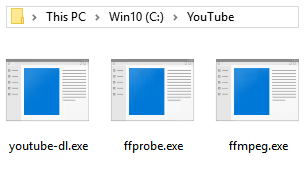
Create a folder, for example C:\YouTube. Place the following there:
yt-dlp.exeffmpeg.exeandffprobe.exe(from the FFmpeg archive, thebinfolder)
Add to PATH
Press Windows+R, paste the following, and press Enter:
1 C:\Windows\system32\rundll32.exe sysdm.cpl,EditEnvironmentVariables
- In the "User variables" section, double-click the
Pathentry - Click "New" and paste the folder path:
C:\YouTube - Close all windows by clicking "OK"
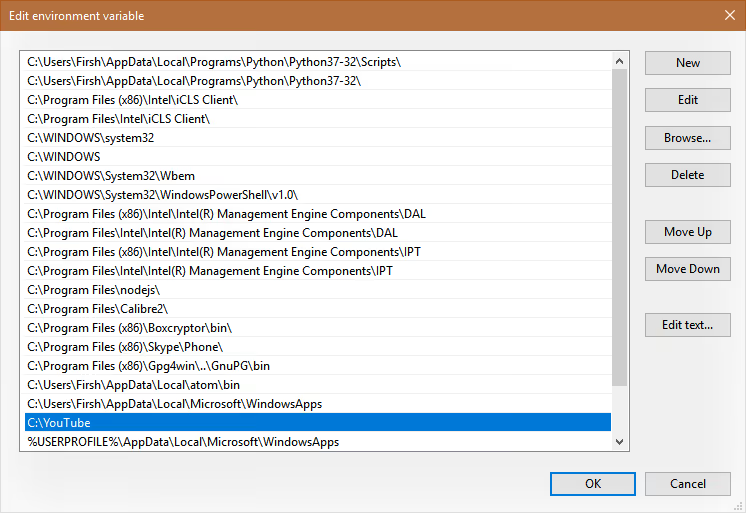
Verification: Windows+R, type yt-dlp --version and press Enter. If you see a version number, everything works.
Key yt-dlp options for downloading a channel
At first glance the documentation looks intimidating. But downloading a channel only requires five or six parameters. Let's go through the important ones.
Video format: --format
The heart of the entire command. By default yt-dlp picks not the highest resolution but the best bitrate, which is often 720p. Let's fix that:
1 --format "bestvideo[height<=2160]+bestaudio/best"
First the best video up to 4K and the best audio are grabbed separately, then FFmpeg merges them into a single file. If you want strictly Full HD, replace 2160 with 1080.
Download archive: --download-archive archive.txt
Prevents downloading the same video twice on each run. Every successfully downloaded video is recorded in a file, and on the next pass yt-dlp skips it. The file can be shared across different channels because the identifiers inside are unique.
File names: --output
1 --output "%(uploader)s/%(upload_date>%Y-%m-%d)s %(title).100s [%(id)s].%(ext)s"
What this gives you:
- Videos are organized into folders named after the channel
- The filename starts with a date like
2026-06-16 - The title is truncated to 100 characters (protection against excessively long names)
- The video ID is preserved for quick lookup on YouTube
Other important options
1 --restrict-filenames # only ASCII in names — avoids conflicts with non-Latin characters in titles 2 --merge-output-format mkv # Matroska container — flexible and reliable 3 --ignore-errors # don't stop if a single video fails 4 --no-playlist # for single videos — prevents accidentally downloading an entire playlist 5 --write-subs # save subtitles 6 --sub-langs en,ru # subtitle languages
Downloading an entire channel: the bat file
Typing the command manually every time is inconvenient. Create a bat file, and the channel downloads with a single click.
Create a text file named job-<channel name>.bat in the C:\YouTube folder:
1 cd /D "%~dp0" 2 yt-dlp https://www.youtube.com/@colinfurze ^ 3 --format "bestvideo[height<=2160]+bestaudio/best" ^ 4 --download-archive archive.txt ^ 5 --output "%%(uploader)s/%%(upload_date>%%Y-%%m-%%d)s %%(title).100s [%%(id)s].%%(ext)s" ^ 6 --restrict-filenames ^ 7 --merge-output-format mkv ^ 8 --ignore-errors 9 PAUSE
Important details:
cd /D "%~dp0"makes the download target the same folder where the bat file resides- Double percent signs
%%are required inside a bat file (on the command line directly, use single ones) PAUSEkeeps the window open after completion so you can see whether everything downloaded- Replace the URL with your target channel
To run: double-click the bat file. Or press Windows+R, type job-colinfurze, and press Enter.
Configuration file: default settings
If you have several channels, it makes sense to extract common settings into a separate file. Create yt-dlp.conf in the C:\YouTube folder:
1 --format "bestvideo[height<=2160]+bestaudio/best" 2 --download-archive archive.txt 3 --output "%(uploader)s/%(upload_date>%Y-%m-%d)s %(title).100s [%(id)s].%(ext)s" 4 --restrict-filenames 5 --merge-output-format mkv 6 --ignore-errors
Now the bat file for a channel becomes much shorter:
1 cd /D "%~dp0" 2 yt-dlp https://www.youtube.com/@EngineeringExplained --config-location yt-dlp.conf 3 PAUSE
Convenient: to add a new channel, copy three lines and replace the URL.
A single video, a playlist, or audio only
yt-dlp is not limited to channels. Different scenarios call for their own bat files.
A single video
Create dl-single.bat:
1 @echo off 2 cd /D "%~dp0" 3 set /p video="Вставьте ссылку на видео: " 4 yt-dlp --config-location yt-dlp.conf --output "SingleDownloads/%%(upload_date>%%Y-%%m-%%d)s %%(title).100s [%%(id)s].%%(ext)s" --no-playlist !video! 5 PAUSE
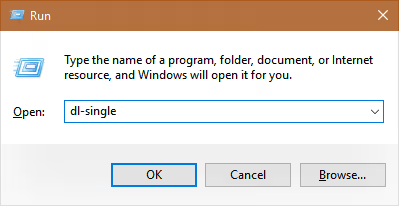
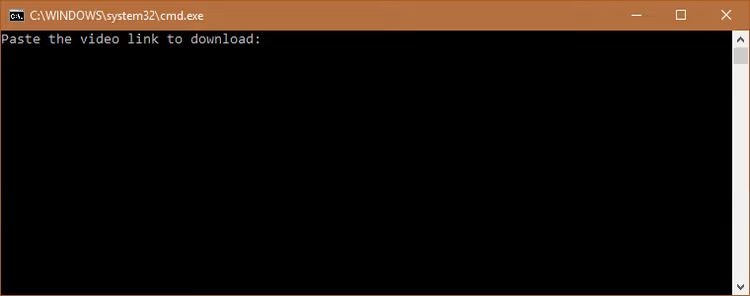
Run it, paste the link, press Enter. The video lands in the SingleDownloads folder.
A playlist
Create dl-playlist.bat:
1 @echo off 2 cd /D "%~dp0" 3 set /p video="Вставьте ссылку на плейлист: " 4 yt-dlp --config-location yt-dlp.conf --output "%%(playlist_uploader)s - %%(playlist_title)s/%%(upload_date>%%Y-%%m-%%d)s %%(title).100s [%%(id)s].%%(ext)s" !video! 5 PAUSE
Videos from a playlist are grouped into a folder named after the author and the playlist title. Unlike a channel download, where the folder is the uploader's name, here it makes more sense to group by playlist.
Audio only
For podcasts, mixes, and background listening. Create dl-music.bat:
1 @echo off 2 cd /D "%~dp0" 3 set /p video="Вставьте ссылку на видео: " 4 yt-dlp --config-location yt-dlp.conf --output "Music/%%(title).100s [%%(id)s].%%(ext)s" --format bestaudio --extract-audio --no-playlist !video! 5 PAUSE
For a music playlist, dl-mplaylist.bat:
1 @echo off 2 cd /D "%~dp0" 3 set /p video="Вставьте ссылку на музыкальный плейлист: " 4 yt-dlp --config-location yt-dlp.conf --output "Music/%%(playlist_uploader)s - %%(playlist_title)s/%%(title).100s [%%(id)s].%%(ext)s" --format bestaudio --extract-audio !video! 5 PAUSE
The output is not mp3 but Opus or M4A. These are modern codecs: higher quality at a smaller file size. Any decent player (foobar2000, PotPlayer, VLC) handles them without issues.
Automation with Task Scheduler
Once the initial archive is built, new videos on channels do not come out every day. Running downloads manually becomes tedious. Windows Task Scheduler solves this entirely.
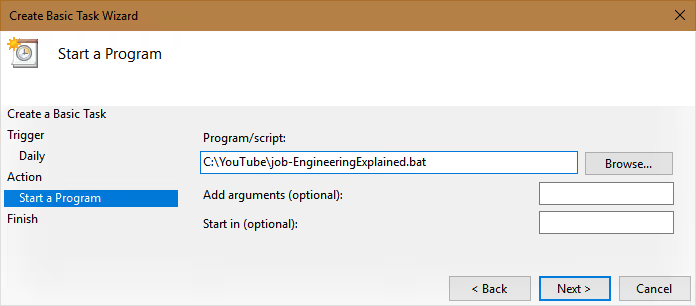
Setting up a task for one channel:
- Open "Task Scheduler" from the Start menu
- Click "Create Basic Task" in the right panel
- Give it a meaningful name: "YouTube Archive, Colin Furze"
- Trigger: weekly, during off-hours (for example, Sunday at 3:00 AM)
- Action: "Start a Program" → select
job-colinfurze.bat - At the end, check "Open the Properties dialog"
- On the "General" tab: switch to "Run whether user is logged on or not" so the task runs in the background without pop-up windows
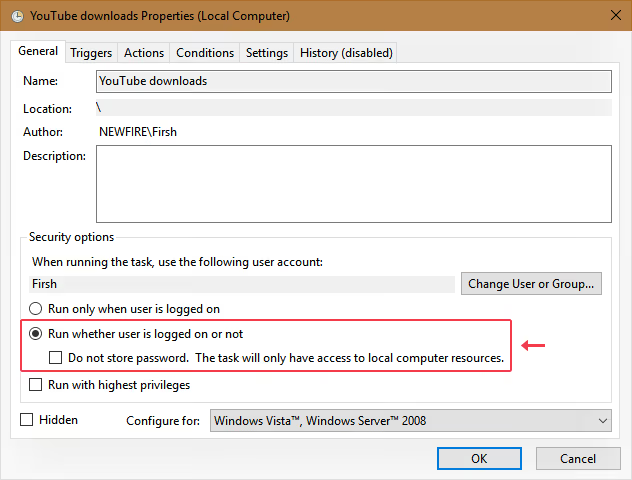
Run all channels with a single task
If you have several channels and don't need individual control, combine them into one bat file called _all-jobs.bat:
1 cd /D "%~dp0" 2 for %%x in (job-*.bat) do ( 3 @echo Запуск %%x... 4 call %%x 5 )
Now a single task in the scheduler iterates through all bat files with the job- prefix and runs them sequentially. Name a new channel's bat file with the job- prefix, and it is automatically included in the batch run.
Updating yt-dlp
YouTube periodically changes its internal logic, and older versions of yt-dlp stop working. Updating is a single command:
1 yt-dlp -U
You can set up a monthly task in Task Scheduler: action C:\YouTube\yt-dlp.exe, argument -U. Let it update on its own.
How much storage you need
Disk space is the main limiting factor. One hour of Full HD video takes between 500 MB and 1 GB depending on the codec and bitrate. A channel with 500 videos at 20 minutes each amounts to 80-170 GB.
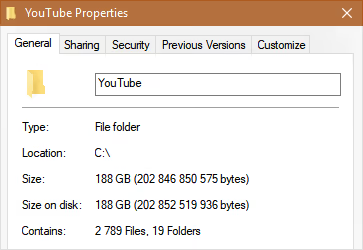
Download speed is not record-breaking either. YouTube optimizes streaming for viewing pace, not for maximum throughput. Popular videos download faster thanks to distributed caching. Expect the first run on a large channel to take several hours.
What to use for playback
The built-in Windows player is not suited for collections. Two candidates to replace it:
PotPlayer (Windows, free) opens a folder of videos as a playlist and is customizable down to the smallest detail: skins, hotkeys for everything, dual subtitles. A level of flexibility you cannot get in a browser.

VLC (cross-platform, free) is the go-to for Android and systems where PotPlayer is not available. It falls short on fine-tuning but plays any format.
If you only need a single playlist or audio
The ready-made bat files are already listed above. The scenarios:
dl-single.batfor a single video from any sitedl-playlist.batfor an entire playlist (videos grouped by author and playlist title)dl-music.batfor the audio track of a single videodl-mplaylist.batfor audio from every video in a playlist
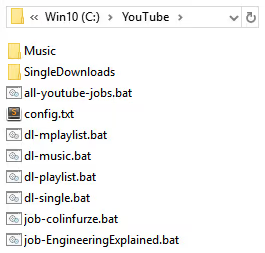
The files shown in the screenshot form the complete structure. Download yt-dlp.exe and ffmpeg.exe, place them in the same folder, and the bat files will work.

In practice everything is even simpler than it sounds on paper. Here is a video walkthrough covering installation and the first yt-dlp run on Windows in 15 minutes:
⁉️🤔 Frequently asked questions
Is yt-dlp free?
Yes. It is an open-source project under the Unlicense, which is essentially public domain. There are no paid versions, download limits, or hidden subscriptions. The code can be used for any purpose, including commercial.
Will YouTube ban my account for downloading?
Technically, downloading violates YouTube's Terms of Service (section 4.C: "you shall not download any Content"). In practice, no bans for using yt-dlp have been documented. The tool does not crack any protection; it emulates a browser. If you are concerned, do not pass your cookies and do not log in. A single channel download at normal speed is indistinguishable from regular viewing.
Why did the video download in 720p even though I selected 4K?
By default yt-dlp picks the best bitrate, not the maximum resolution. Use
--format "bestvideo[height<=2160]+bestaudio/best", and the priority will shift to Full HD and above.
What should I do if a video is blocked in my country?
The
--ignore-errorsoption in the configuration file handles exactly this: yt-dlp will skip the blocked video and continue downloading the rest. At the end you will see a summary showing how many were downloaded and how many were skipped.
Can I download a private or unlisted channel?
No. yt-dlp only works with public content. To access private videos you need the cookies of an authorized user who has access; these are passed with the
--cookies-from-browser chromeflag.
How is yt-dlp better than online downloader services?
Online services cut quality, inject their own ads, and cannot handle entire channels. yt-dlp pulls the original files at the highest available quality, with no re-encoding and no watermarks. On top of that, full automation through bat files and Task Scheduler.
What to install and in what order
The process from installation to an automated archive fits into seven steps.
Download two files: yt-dlp.exe from the GitHub release and the FFmpeg build from gyan.dev. Place them in C:\YouTube.
Add to PATH via environment variables so the commands work from any folder.
Create a config file yt-dlp.conf with base settings: format, archive, filename template.
Make a bat file for each channel. Replace the URL in the template, and you are done.
Run it manually the first time. This is the longest part: the entire channel history is downloaded.
Set up Task Scheduler for a weekly run. New videos will be picked up automatically.
Install PotPlayer to watch the offline archive more comfortably than on YouTube.
Seven steps that turn an ephemeral YouTube channel into your personal, permanent video archive. Try it on one channel, and within a week you will wonder why you hadn't done this sooner.

A professional team of writers and editors specializing in creating quality content.