














📥 How to download an entire website with Wget on Windows
The free command-line utility Wget can mirror websites, downloading every page, every image, every CSS file and storing them in a folder on your disk. It sounds like magic, but it's pure engineering: recursive link traversal, path conversion to relative URLs, and careful preservation of structure. After creating such an archive, the site opens locally as if it were live; you simply click on any .html file.
The problem is that decent guides for Windows are almost nonexistent. Most manuals are written for Unix, and the average Windows user needs a ready-made .exe, clear commands, and protection from common pitfalls like infinite recursion or broken links. This gap is what we'll fill.
💡 Quick overview:
- Download Wget for Windows and add the utility's path to the system PATH
- Open a command prompt in your destination folder and run the mirroring command
- After downloading, fix broken links and paths using grepWin, and the archive is ready for viewing
- If recursion isn't needed, use a mode with a pre-prepared list of URLs
Why download an entire site at all
The internet isn't forever. Sites close, change owners, undergo redesigns, and lose old content. The data hoarding community on Reddit has long turned archiving into a culture, and for good reason. You can't predict when your favorite blog will disappear or when valuable documentation will move behind a paywall, but you can save it in its current form.
Scenarios range from obvious to unexpected. You're about to travel somewhere without internet access, and you need a working snapshot of an informational site. Or you collect design eras; yesterday's web with its table layouts and acid-colored buttons is already history. Even your own site makes sense to mirror periodically: it's not a backup in the traditional sense (you can't restore the database), but a static snapshot that will survive any hosting crash.
One important warning: be careful about what you download. Copyright and privacy laws still apply. Private use of a saved copy is usually legal, but publishing someone else's content without permission can create problems.
How Wget crawls a site: process mechanics
Wget starts from the URL you specify and recursively follows every internal link, theoretically to infinite depth. When properly configured, it won't break out onto the open internet and start downloading Google: the --mirror option paired with --reject-regex keeps the crawl within the target domain's boundaries. All external links remain untouched, simply text with the original URL.
Along the way, Wget grabs everything: HTML pages, stylesheets, scripts, images, fonts. Then it converts internal links to relative paths, which allows the archive to open locally with navigation working as on the live site. External links remain unchanged and continue pointing to the internet (if you have it available when viewing).
An archive, not a backup. You cannot restore a site from such a static copy because there's no database and no server logic. Wget works like a search engine crawler: it only finds pages that someone linked to. In the process, you'll see how important internal links are for content connectivity; orphan pages without incoming links won't make it into the archive.
Although Wget isn't tied to any particular CMS, it works especially well with WordPress sites. The reason is simple: standard widgets like tag clouds and monthly archives create a dense network of internal links that the bot traverses effortlessly.
Installing Wget on Windows
The Wget world historically revolves around Unix, and Windows users are guests here. If you go to the official GNU site and download the source code, you'll get a bunch of .c files, not a ready-to-run program. You need a pre-built binary:
- Go to eternallybored.org/misc/wget, an unofficial but time-tested repository of Wget builds for Windows (current version 1.21.4)
- Download the zip archive of the latest version and extract it to a separate folder. No installation is required; it's a portable utility
If you double-click wget.exe, a command prompt window will flash and immediately close. Wget is a console program; it needs an open terminal in your destination folder. And to avoid copying the .exe into every folder with future archives, add Wget to your system PATH:
- Press
Windows + R, paste and run:
1 "C:\Windows\system32\rundll32.exe" sysdm.cpl,EditEnvironmentVariables
- In the User variables section, find the
Pathvariable and click Edit... - Click New and enter the full path to the folder containing
wget.exe - Close all dialogs by clicking OK
Verification: press Windows + R again → cmd /k "wget -V". You should see the Wget version, not a message saying the command is not recognized.

Key Wget options: detailed breakdown
Most options have short single-letter equivalents, but long names are more meaningful and readable without a cheat sheet. I've selected settings proven in practice, so instead of reading the 181-page GNU Wget manual, you get an extract with an explanation of "why" for each one.
Core options
--mirror enables infinite recursion. Essentially, it's a set of other options combined under one flag. Without it, Wget will only download the specified page, not the entire site. It's --mirror that makes mirroring possible.
--page-requisites downloads all associated resources: CSS, JavaScript, images, fonts. Without this option, your archive will look like a bare HTML page without styles or images.
--convert-links rewrites links in HTML files after downloading is complete so they work locally. Absolute URLs are replaced with relative paths. This is what allows you to open index.html from disk and navigate through pages as on a live site.
--adjust-extension adds extensions to files that arrived without them. Modern sites often serve pages without .html at the end (human-readable URLs), and without this option, the browser won't understand it's looking at an HTML document. There's a catch: if the server compresses content via gzip, Wget may mistakenly give the file a .gz extension. The next option protects against this.
--compression=auto handles gzip compression on the fly. Without it, an SVG logo might be saved as logo.svg.gz and become useless for local viewing. This option isn't available in all builds; Unix users sometimes encounter its absence. The Windows build from eternallybored.org includes it.
--reject-regex "/search|/rss" prevents crawling URLs containing the specified words. Search pages and RSS feeds generate infinite chains of parameters that fill your file system with names several screens long. The regular expression here uses basic POSIX syntax, not full PCRE. Be careful: /search will cut off not only search junk but also legitimate articles with URLs like yoursite.com/search-for-extraterrestrial-life. In case of such collisions, make the pattern more specific.
Additional options
--no-if-modified-since disables checking the If-Modified-Since header. I only include this flag when the server explicitly complains in logs. If you don't plan to run again in the same folder to pick up changes, this option isn't critical.
--no-check-certificate skips SSL certificate verification. When mirroring, you're not entering passwords or transmitting confidential data, so strict certificate verification is excessive. This flag saves headaches on sites with expired or self-signed certificates.
--user-agent spoofs the browser User-Agent. Some servers detect Wget and block requests. Spoofing as a regular Chrome browser solves the problem:
1 --user-agent="Mozilla/5.0 (Windows NT 10.0; Win64; x64) AppleWebKit/537.36 (KHTML, like Gecko) Chrome/68.0.3440.106 Safari/537.36"
If blocking occurs by IP, you'll need a VPN and possibly distribution of the download across multiple machines. In this case, the --wait and --random-wait options for slowing down the request rate will also be useful.
--restrict-file-names=windows limits characters in file names to a Windows-safe set. In Unix, special characters in names are allowed, and an archive downloaded on a Linux machine may be unreadable on Windows. If you're working in Windows, the flag is applied automatically; if you're downloading on Unix but will view on Windows, specify it explicitly.
--backup-converted saves an original copy of every file that Wget modified during link conversion. This doubles the archive size. I don't use it, but I mention it in case you need a second-by-second backup of every edit.
Opening the command prompt in the right folder
Wget runs from a terminal, and the terminal must be pointing to the folder where you plan to store the archive. There are several methods, from standard to advanced:
Windows + R→cmd→ Enter, thencd /d C:\path\to\archive(the/dflag allows switching between drives)- If the path contains spaces, wrap it in quotes:
cd /d "C:\My Archive"
Faster, in one line: Windows + R → cmd /k "cd /d C:\path\to\archive". The /k flag keeps the window open after the command executes.
If you use Total Commander: Commands → Open command shell opens a terminal directly in the current folder. For Explorer, there's a registry tweak that adds an "Open command window here" option to the context menu.
Starting the download: the complete command
Putting it all together. Here's the command I use for mirroring an average website:
1 wget --mirror --page-requisites --convert-links --adjust-extension --compression=auto --reject-regex "/search|/rss" --no-if-modified-since --no-check-certificate --user-agent="Mozilla/5.0 (Windows NT 10.0; Win64; x64) AppleWebKit/537.36 (KHTML, like Gecko) Chrome/68.0.3440.106 Safari/537.36" https://example.com
The same can be written with short flags: wget -mkp -E --compression=auto -R "/search|/rss" .... But long names make the command self-documenting. A month from now, you'll open your .bat file and immediately understand what each option does.
Replace https://example.com with the actual URL of the target site and press Enter. The process can take anywhere from a few minutes to several hours, depending on the site's size and server limitations.
Post-processing: grepWin and typical fixes
After downloading, the archive almost always requires some finishing touches. The utility grepWin is a Swiss army knife for batch search and replace in text files on Windows. Here are a couple of typical scenarios:
Removing junk HTML tags. Some CMS platforms generate empty
<source>tags that interfere with rendering. In grepWin, select regex search for<source media=".*">, specify the mask*.html, and replace with an empty string.Fixing resource paths. If some paths remained absolute, grepWin will find them by a pattern like
src="https://example.com/and replace with the local equivalent.
This is just a starting point; every site has its own surprises. grepWin's strengths: instant preview before replacement, recursive folder processing, and regex support. But when the volume of edits goes beyond "find and replace," Unix tools like sed and grep offer much more flexibility. Windows versions are available through WSL or Cygwin.
Alternative: downloading from a URL list without recursion
Recursive crawling isn't always appropriate. If the site is huge but you only need a specific selection of pages, it's easier to prepare a URL list and feed it to Wget via --input-file:
1 wget --input-file=links.txt --page-requisites --convert-links --adjust-extension --compression=auto --no-if-modified-since --no-check-certificate --user-agent="Mozilla/5.0 (Windows NT 10.0; Win64; x64) AppleWebKit/537.36 (KHTML, like Gecko) Chrome/68.0.3440.106 Safari/537.36"
Note that --mirror and --reject-regex are removed: recursion isn't needed, and you control the URL list yourself.
How do you assemble such a list? One method is Google advanced search: the query site:yoursite.com "keyword phrase" returns indexed pages on the topic. Set the results to 100, arm yourself with the Copy Links extension for Chrome, and copy URLs in batches to links.txt.
Video: mirroring a site in 5 minutes
To see the entire process live, from installation to finished archive, watch this screencast:
The author goes through the process from scratch: downloading Wget, configuring options, running the command, and opening the result in a browser. I recommend watching before your first run; 7 minutes of screen time will save an hour of debugging.
⁉️🤔 Frequently asked questions
Can I restore a site from a Wget archive?
A Wget archive is a static snapshot: HTML, CSS, JS, and media files. It contains no database and no server logic. You cannot upload such a copy to a host and revive WordPress with comments and an admin panel. This is a tool for preserving content, not for backup. For full WordPress backup, use plugins like UpdraftPlus or Duplicator, which save both files and the database.
Wget is downloading too much junk. How do I limit it?
A combination of
--reject-regex(URL filter by pattern) and--reject(filter by file extensions) solves the problem. For example, adding--reject=jpg,png,gifwill skip all images. Or--reject-regex "/tag/|/category/|/page/"will cut off tag archives, categories, and pagination. The key is to test on a small subset of pages before a full run.
The server blocked my IP after I started downloading. What should I do?
Wget can be detected by User-Agent or request rate. Three levels of protection: User-Agent spoofing via
--user-agent(shown above), throttling via--wait=1 --random-wait(1-second pause plus random addition), and IP change via VPN. For large sites, you can split the download: prepare several URL lists and run Wget in parallel from different machines or VPN endpoints.
Why is Wget better than browser extensions for saving pages?
Extensions like SingleFile save a single page. Wget mirrors an entire site, with navigation, pagination, and all internal links. For a blog with 500 articles, a browser extension would require 500 manual clicks. Wget does it with one command. Additionally, browser extensions don't convert links for local navigation: you'd get 500 isolated files with no connection to each other.
The archive weighs gigabytes. How do I compress and store it?
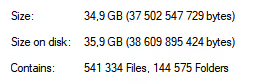
A folder with thousands of small files is inconvenient to transfer, back up, and scan with antivirus software. I pack such archives into RAR using the "Store" or "Fastest" method: speed matters more than compression ratio because HTML and media are already compressed. I always add a recovery record, which saves the day when there are bad sectors on a disk or transfer errors. The result: a single file that copies in seconds and doesn't fall apart during storage.
To download or not to download: when Wget is worth it
Wget isn't for everyday use. It's a tool for a specific task: obtaining a complete static copy of a site you care about or find useful. When there's a risk the resource will disappear, reach for Wget. When you'll be working offline, reach for Wget. When you need to preserve a "digital fossil" from the Geocities era, all the more reason.
For one-off pages, a browser extension will suffice. For full WordPress backup, use a backup plugin. But when you need specifically a self-contained, navigable archive of an entire website, Wget has virtually no alternatives, and now you know how to run it on Windows without pain.
Try it on a small site from an acquaintance or on your own blog. The first run will clarify a lot, and the second will go smoothly. And don't forget about the recovery record in your archive: let your collection outlive any hard drive.

A professional team of writers and editors specializing in creating quality content.