













📱 How to scan a QR code on your computer: all methods
You're sitting at your computer with a QR code on the screen, and you need to open it. Your hand reaches for your phone, but wait: why pull out your smartphone, photograph the monitor, and squint at a tiny screen when you have a large display right in front of you? You can scan the QR code directly on your PC, faster and without unnecessary movements.
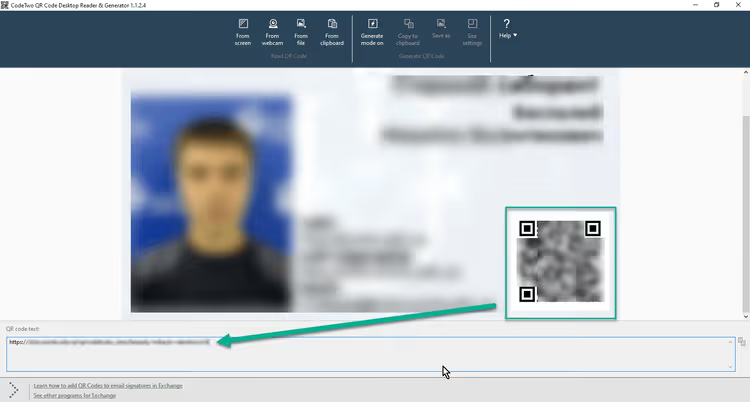
Previously, this required third-party programs like CodeTwo QR Code Desktop Reader, but the project has been discontinued and is no longer supported. Fortunately, over the past couple of years, more convenient methods have emerged: from the built-in Windows 11 feature to modern open-source utilities. Let's examine each one, from simplest to most advanced.
💡 Quick overview:
- Open Snipping Tool (Windows 11) and take a screenshot of the area containing the QR code: the link is recognized automatically
- Download barcodrod.io from the Microsoft Store to read QR codes from your webcam, clipboard, and folders
- Use the online scanner scanqr.org if you don't have installation permissions: upload a screenshot and get the result
Scanning QR codes with Snipping Tool in Windows 11
The fastest method that requires no installation whatsoever. In 2024, Microsoft added QR code recognition to the standard Snipping Tool. If you have Windows 11, you most likely already have it.
How it works:
- Open Snipping Tool by pressing
Win + Shift + Sor search for it. - Select the screen area where the QR code is visible.
- Click on the notification that appears, and the Snipping Tool window will open.
- If the tool recognized the QR code, you'll see a button with a QR icon and a link. Click it, and the link opens in your browser.
No configuration needed: detection happens automatically. This method works for QR codes on web pages, in documents, presentations, and screenshots. The only limitation is that the screenshot resolution must be sufficient for the QR code to be clear.
But if you have Windows 10 or the QR code is on a physical medium (paper, packaging, another device's screen), you need a different approach.
Scanning QR codes via webcam: the Camera app
Windows 10 and 11 include a built-in Camera app. It can recognize QR codes through your webcam: hold the code up to the lens, and the system will offer to open the link.
Steps:
- Open Camera through the Start menu.
- If the camera is in photo mode, switch to video (icon on the right side).
- Point the camera at the QR code and hold it steady without shaking.
- When the focus captures the pattern, a pop-up notification with the link will appear.
- Click the notification, and the browser opens.
This method is convenient for physical QR codes: on business cards, receipts, packaging. The drawback is that you need a webcam, and many desktops don't have one. Recognition quality also depends on lighting and camera resolution: older 720p modules may struggle with small codes.
barcodrod.io: a modern scanner for any scenario

If built-in tools aren't enough, install barcodrod.io, a free open-source tool for Windows 10 and 11. Unlike the discontinued CodeTwo, it's actively developed (the GitHub repository receives updates), contains no ads, and works completely offline.
barcodrod.io reads 17 types of barcodes, including QR, Data Matrix, UPC, and MSI. The main advantage is multiple scanning sources in one application:
- Screen capture. Capture an area through Snipping Tool directly from the program interface.
- Image file. Open a PNG or JPEG with a QR code for instant recognition.
- Folder. Batch decode all images in a selected folder, convenient for screenshot archives.
- Clipboard. Copy a screenshot with
Ctrl + C, paste it into barcodrod.io. - Webcam. Direct capture from the camera, just like in the Camera app.
The interface is minimalist, built on WinUI3, with dark and light themes. On first launch, the application downloads dependencies, then works entirely locally. Data never leaves your device or goes to third-party servers. This matters when scanning QR codes with confidential information: links to internal systems, payment details, or login credentials.
Installation: through Microsoft Store or direct download from GitHub.
Online scanners: fast, no installation required

When you don't have permission to install programs (work PC, guest computer) or just need to scan a single code once, web scanners come to the rescue. They work in any browser and require no registration.
The most popular is scanqr.org. Upload a screenshot or image with a QR code, click the button, and within a second you see the contents. Links are immediately clickable, and text data can be copied with one click.
Open-source alternatives: FreeQR.com and ScanQR.ai. The latter additionally checks links for safety before opening. This is a plus when dealing with unfamiliar QR codes: from advertising mailings, public places, or printed materials.
The common downside of online scanners is that the image is uploaded to a third-party server. For public QR codes with website links, this isn't critical. For private data, it's better to use barcodrod.io or Snipping Tool.
How to create your own QR code on PC

Besides scanning, barcodrod.io can generate QR codes. It supports 13 formats: URL, text, email, phone, Wi-Fi, vCard (business card), and others. Settings include color, margins, and error correction level (L, M, Q, H: the higher the level, the more damage the code can withstand without losing readability).
For one-time generation without installation, QR Code Generator by Bitly works well. Basic functionality is free, and you can change colors and add a logo.
The easiest way to verify your created QR code's readability is with Snipping Tool itself: take a screenshot of your code and open it in the application. If it works, you're done.
This English guide on the topic clearly demonstrates all three methods of scanning QR codes on Windows in action:
⁉️🤔 Frequently asked questions
Can I scan a QR code on Windows 10 without installing programs?
Yes. Open an online scanner like scanqr.org in your browser and upload a screenshot. Alternatively, use the Camera app, which is built into Windows 10 and recognizes QR codes through your webcam. Windows 11 additionally offers Snipping Tool with built-in recognition: select the area with the code, and the link opens automatically.
CodeTwo QR Desktop Reader stopped working. What's the replacement?
CodeTwo officially declared the program deprecated: downloads are unavailable, and there are no updates. The replacement is barcodrod.io: free, open-source, with the same modes (screenshot, file, camera, clipboard) and additional features like batch folder decoding, history, and QR generation. Install from Microsoft Store or GitHub.
Which method is safest for confidential QR codes?
barcodrod.io or Windows 11 Snipping Tool, as both work locally and data never leaves your device. Avoid online scanners for QR codes with payment links, bank card data, and internal URLs. The uploaded image is processed on a third-party server, and you don't know whether it's being logged.
What should I do if the QR code isn't recognized?
Three likely causes. First, low resolution: take a larger screenshot or move the camera closer. Second, code damage: part of the pattern is erased or overexposed (for printed codes). Third, outdated scanner: update Snipping Tool through Microsoft Store and check your barcodrod.io version. As a last resort, try two or three different tools. Their decoding algorithms differ and may handle noise differently.
Can I scan a QR code from a video or live stream?
Yes, barcodrod.io supports capture from any video source: webcam, OBS Virtual Camera, Camera app. If a QR code appears in a YouTube recording or Zoom call, pause the video at the moment the code is shown and take a screenshot, then open it in Snipping Tool or barcodrod.io.
So what should you use to scan QR codes on PC in 2026
Choosing a tool comes down to a simple matrix. Have Windows 11 and the code is on screen? Snipping Tool, one click. Need a webcam for a physical code? The Camera app is already in the system. Need to scan dozens of codes, work offline, or handle different barcode formats? Install barcodrod.io. One-time use on someone else's PC? Open scanqr.org in the browser.
The main point is that pulling out your phone is no longer necessary. All the methods above work directly on your desktop, meaning the QR code opens right where you see it: on the big screen, in the same browser, without extra devices.
Try barcodrod.io. After installation, the "Scan from Screen" button saves 10-15 seconds on every QR code. Over a week, that adds up to a minute. Over a year, an hour. It's a small thing, but your familiar workflow becomes noticeably faster.

A professional team of writers and editors specializing in creating quality content.