














🔓 How to get root privileges in WinSCP: configuring sudo for file transfers
You connect to a server as a regular user, navigate to /etc/nginx, and get "Permission denied." Configuration files, system directories, logs: all of this is locked away from an account without root privileges. And direct root login via SSH is disabled on most servers for security reasons.
WinSCP is a convenient file manager for Windows, but by default its SFTP session operates with the permissions of the user you logged in as. The SFTP protocol cannot request privilege elevation "on the fly" like a terminal can: it is not interactive during the handshake and cannot display a window for entering a sudo password.
Below are four working methods to make WinSCP run with superuser privileges, ranging from the simplest to the "Jedi" approach. Each has been tested on Ubuntu, Debian, and CentOS. Choose the one that best fits your infrastructure.
💡 Quick overview:
- ➡️ Problem: WinSCP does not grant
rootprivileges by default, even if the user hassudo. - ✅ Primary method: Replacing the SFTP server startup command in WinSCP site settings. Fast and targeted.
- 🔄 Alternative: Switching to the SCP protocol with
sudo su -as the shell. - ⚙️ Advanced: Editing
sshd_configon the server. A global solution for all connections.
Step 1: SFTP server startup command (the primary method)
The most common and elegant way to get root privileges in WinSCP is to make it launch the SFTP server as the superuser from the start. This is done by replacing the startup command in the settings for a specific connection. The server itself does not need to be reconfigured; the solution works on a per-connection basis.
Step-by-step instructions:
- Launch WinSCP and open the Site Manager.
- Select the desired connection and click Edit.
- Click Advanced… at the bottom of the window.
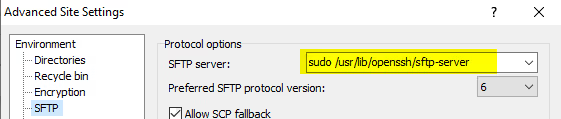
- In the left menu, go to Environment → SFTP.
- In the "SFTP Server" field, replace "Default" with the following command:
1 sudo /usr/lib/openssh/sftp-server
For older distributions, the path may differ. Typical sftp-server locations:
Distribution | Path to sftp-server |
|---|---|
Ubuntu / Debian (current) |
|
Ubuntu / Debian (older) |
|
CentOS / RHEL / Fedora |
|
Amazon Linux |
|
You can check the exact path on your server via terminal: cat /etc/ssh/sshd_config | grep Subsystem. This command shows which binary the SSH server itself uses.
The system will launch the file transfer subsystem with root privileges immediately. However, for this to work without an error, your user must be able to run sudo without a password prompt. That is covered in the next step.
Step 2: Configuring sudoers (allowing sudo without a password)
Since the SFTP handshake is not interactive, WinSCP has no way to display a window for entering a sudo password. The server will simply terminate the connection with an error if a password is requested. The solution is to grant the user permission to run the required command without a password via the /etc/sudoers file.
What to do:
- Connect to the server via SSH (using PuTTY or WinSCP's built-in terminal).
- Open the sudoers editor with
sudo visudo. Never edit/etc/sudoersdirectly: a syntax error will locksudofor the entire system, andvisudovalidates syntax before saving. - Add the following line at the end of the file (replace
usernamewith your login):
1 username ALL=(ALL) NOPASSWD: ALL
This grants the user full access without a password. A more secure option is to restrict permission to only the SFTP server startup command:
1 username ALL=NOPASSWD: /usr/lib/openssh/sftp-server
If the server has multiple administrators with different logins, a narrow configuration reduces risk: even if an account is compromised, the attacker will not get root access to everything, only the ability to launch SFTP.
Note: the requiretty option in sudoers must be disabled. Modern sudo-rs implementations do not support it by default, but on older servers, check and comment out the line Defaults requiretty if it exists.
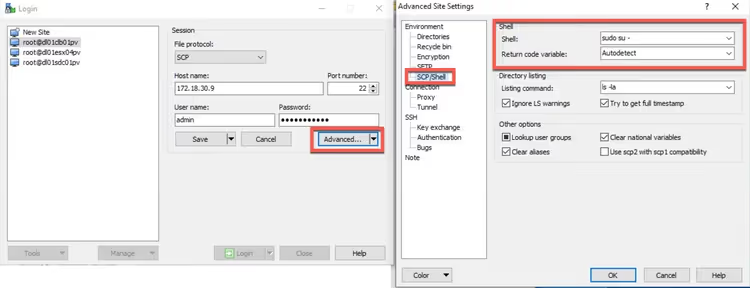
Step 3: Switching to the SCP protocol (a quick alternative)
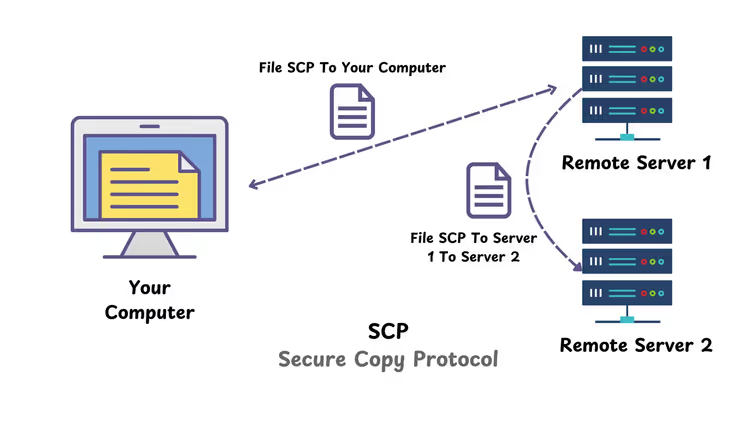
If you do not want to deal with paths to sftp-server, you can switch the data transfer protocol itself. WinSCP supports SCP, an older but reliable protocol that more easily picks up shell settings.
How to switch:
- In the WinSCP session settings, change File protocol from SFTP to SCP.
- Go to Advanced → SCP/Shell.
- In the Shell field, enter:
sudo su -
When connecting, WinSCP will execute this command immediately after login and switch the session to root mode.
| SFTP | SCP |
|---|---|---|
Root privileges | Via replacing the server binary | Via replacing the shell ( |
Speed | Higher, especially with many small files | Lower |
Resume on disconnect | Yes | No |
Reliability on older systems | Requires exact path to binary | Works "out of the box" |
Security | NOPASSWD can be limited to one command | Requires full passwordless sudo |
The SCP method is a compromise. It is easier to configure but loses to SFTP in speed and recovery capabilities after a disconnection. For one-time config edits, the difference is negligible. For regularly transferring hundreds of files, it is better to configure the SFTP method.
Step 4: Global sshd_config configuration (for advanced users)
This method is for administrators who want to configure SSH server behavior centrally. The idea: replace the Subsystem sftp line in /etc/ssh/sshd_config with a logical construct that automatically determines whether the user can run sudo without a password and launches SFTP with the appropriate privileges.
What to change:
Old line (typically):
1 Subsystem sftp /usr/lib/openssh/sftp-server
New line:
1 Subsystem sftp sudo -n true && sudo -n /usr/lib/openssh/sftp-server || /usr/lib/openssh/sftp-server
How it works:
sudo -n truechecks whether the user can runsudowithout a password (the-nflag means non-interactive).- If yes (
&&), the server launches withrootprivileges. - If no (
||), the server launches with regular user privileges.
After editing, restart the SSH service: sudo systemctl restart sshd.
Important: a syntax error in this file will completely lock you out of the server via SSH. Before editing, make sure you have a second terminal with an active session. If something goes wrong, you will be able to revert the changes. Also make a backup: cp /etc/ssh/sshd_config /etc/ssh/sshd_config.bak.
Cloud server specifics (AWS EC2, DigitalOcean)
Cloud Linux images often have preconfigured sudoers settings that can either simplify or complicate the task.
AWS EC2 (Ubuntu):
The ubuntu user on Ubuntu 18.04 and newer images often already has the necessary permissions. Check the file /etc/sudoers.d/90-cloud-init-users, which may already contain the line:
1 ubuntu ALL=(ALL) NOPASSWD:ALL
If it is there, you can skip step 2. In WinSCP settings, use the command sudo /usr/lib/openssh/sftp-server.
AWS EC2 (Amazon Linux):
On Amazon Linux, the path to sftp-server is different: /usr/libexec/openssh/sftp-server. A single-letter mistake (lib instead of libexec) will result in error code 127 (Command not found) and an immediate connection drop.
DigitalOcean (Ubuntu Droplets):
On standard DigitalOcean droplets, the root user is enabled by default but access is only via SSH key. If you created a separate user, the sudoers configuration is the same as for regular Ubuntu.
General advice for cloud: before entering a path in WinSCP, verify the file exists on the server: ls -la /usr/lib/openssh/sftp-server (or the equivalent for your distribution).
⁉️🤔 Frequently asked questions
Do I need to enable direct root login for WinSCP to work with sudo?
No. The whole point of the methods described is to use a regular account and temporarily elevate privileges via
sudo. Directrootlogin (PermitRootLogin yes) is considered a poor security practice: logs will not show which administrator actually performed an action.
Why does WinSCP show a "Command not found" error after configuration?
Most likely, the path to
sftp-serveris incorrect. In different distributions it is located in/usr/lib/,/usr/lib/openssh/, or/usr/libexec/openssh/. The exact path can be checked with the commandcat /etc/ssh/sshd_config | grep Subsystemon the server.
How secure is NOPASSWD in sudoers?
It is a compromise. Full access with
ALL=(ALL) NOPASSWD:ALLreduces protection: if an attacker gains access to the user, they also getroot. Restricting to a specific command (/usr/lib/openssh/sftp-server) is significantly safer: an outsider will not be able to run anything other than the SFTP server through this account.
Does this work with other clients like FileZilla or Cyberduck?
The principle is the same, but the configuration differs. FileZilla does not have a convenient field for the SFTP server command in its graphical interface; editing the configuration file is required. Cyberduck supports the "SFTP Server" option in connection settings, similar to WinSCP. WinSCP wins on convenience specifically in this scenario.
What should I do if files are visible but not editable?
Check the owner and permissions with
ls -laon the server. If you configured the SFTP server viasudobut the connection fell back to regular permissions, it meanssudorequested a password and did not receive a response. Recheck the NOPASSWD configuration from step 2.
Can I just change the owner of system files to my user?
This is a "dirty" workaround. System services expect their configurations to be owned by
root. Changing the owner (chown) or permissions (chmod) on system files can break services. It is better to spend five minutes configuring sudo and do things properly.
What is the difference between SCP and SFTP in the context of sudo?
SCP is simply copying over SSH: it more easily picks up the shell, so for it the command
sudo su -in the Shell field is sufficient. SFTP is a full-fledged subsystem that runs as a separate process: it requires the binary replacement trick. SFTP is faster and more feature-rich; SCP is easier to configure.
Are actions visible in logs when using sudo through WinSCP?
Yes. In
/var/log/auth.logthere will be an entry showing that userusernameelevated privileges viasudo. This is a plus: if there are multiple administrators, the logs show exactly who performed the operation. With directrootlogin, there is no such transparency.
What should I do if sudo requires TTY but WinSCP does not provide one?
Check
/etc/sudoersfor theDefaults requirettyoption. If it exists, comment it out (add#at the beginning of the line) or disable it for a specific user:Defaults:username !requiretty. Modernsudo-rsimplementations do not support this option; the issue is only relevant for older servers.
Can I run SFTP as a different user instead of root?
Yes. The command
sudo -u www-data /usr/lib/openssh/sftp-serverwill launch the session aswww-data. This is convenient when you need to edit website files without touching system directories. The sudoers permissions for this must include the-uoption:username ALL=(www-data) NOPASSWD: /usr/lib/openssh/sftp-server.
Final verdict: which method to choose
For daily server work, the first method is optimal: replacing the SFTP server command combined with a narrow NOPASSWD configuration for only sftp-server. It is secure, does not affect global settings, and works on all modern distributions.
- If you have Ubuntu / Debian and are willing to spend 5 minutes on configuration, use Step 1 + Step 2 and never revisit the issue.
- If the server is old and the path to
sftp-servercannot be found, switch to SCP (Step 3): it tolerates inaccuracies and works practically everywhere. - If you administer a dozen servers and want a unified standard, configure sshd_config (Step 4) once via Ansible or manually, but definitely with a backup.
Start with a check: log into the server via SSH and run cat /etc/ssh/sshd_config | grep Subsystem. In a minute you will know the exact path, and the first method will work on the first try. What file transfer method do you use? Share in the comments.

A professional team of writers and editors specializing in creating quality content.