













 AIIllustrative image: AI-generated
📋 How to copy text and images from a web page
Copying text from a website is a matter of a couple of clicks. Until the page blocks selection, replaces the context menu, or delivers content through <canvas>. Then a simple task turns into a technical quest.
Developers, layout designers, and content managers face this problem regularly: you need to save a fragment of someone else's layout for debugging, extract text for a technical specification, or simply grab an image for a project. But the browser won't let you.
Below is the complete algorithm, from basic copying to bypassing restrictions through DevTools. Plus tools that speed up the process and rules that protect you from copyright infringement.
💡 Quick overview:
- Select text and press
Ctrl+C(⌘+Con Mac), the universal method - For images: right click → "Copy image" or "Save image as"
- If right click is blocked, open DevTools (
F12), Sources or Application tab - For text without formatting, use
Ctrl+Shift+Vinstead of regular paste - Before publishing someone else's content, check the license and terms of use of the source site
Basic text copying
Open the page in your browser. Find the beginning of the fragment you need, hold down the left mouse button and drag the cursor to the end of the text. The selected area will be highlighted.
Copy the selected text using one of three methods:
Ctrl+C(Windows/Linux) or⌘+C(macOS)- Right click on the selection → "Copy"
- Browser menu: Edit → Copy
Paste the copied content into the target document: Ctrl+V / ⌘+V, or right click → "Paste".
With regular paste, browser formatting (fonts, colors, sizes) can migrate into the document. This interferes when you transfer text to Word, Google Docs, or a code editor. The solution is paste without formatting:
Ctrl+Shift+V(Windows/Linux, works in most programs)⌘+Shift+V(macOS)- "Paste special" → "Unformatted text" in office suites
Alternative route: copy the text, paste it into Notepad (or TextEdit in Plain Text mode on Mac), and then take it from there to the final document. Primitive, but reliable.
Copying and saving images
Method 1: through context menu
Right-click on the image on the site. In the dropdown menu, there are two key items:
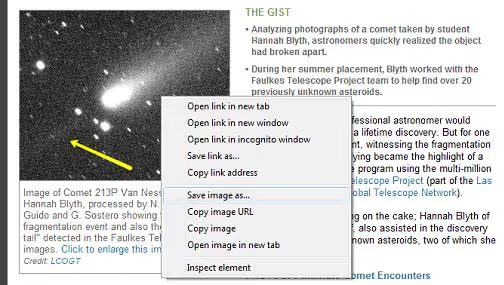
"Copy image", the image goes to the clipboard. Pasted via
Ctrl+Vinto documents, graphics editors, messengers. The image is copied at its original resolution."Save image as", opens the file save dialog. You choose the folder and name. The format is saved in the format the server delivers the image (usually JPEG, PNG, WebP, or AVIF).
In different browsers, menu items are named similarly: Chrome, "Copy image", Firefox, "Copy image", Edge, "Copy image". The logic is the same.
Method 2: drag-and-drop
Hold down the image with the left mouse button and drag it to the desktop or to a folder. Works in all desktop browsers. Faster than the save dialog, but doesn't show the file name and format before the transfer.
Method 3: copy through address bar
If right click is blocked (more on this below), but the image itself loads:
- Open DevTools (
F12), Network tab,Imgfilter. - Refresh the page.
- Find the image file in the request list.
- Right-click on it → "Open in new tab".
- From the new tab, save via right click as usual.
When a site blocks copying
Some sites disable right click, prohibit text selection, or replace the context menu. Working workarounds are arranged from simple to advanced.
Disable JavaScript. The most reliable method. Without JavaScript, the site loses the ability to intercept clicks and block selection:
- Chrome/Edge: DevTools (
F12) →⋮(three dots) → "Settings" → "Advanced" → "Privacy and security" → "Site settings" → JavaScript → block for a specific domain. - Quick method: DevTools →
⋮→ More tools → Network conditions → uncheck "Select automatically" next to User agent and try reloading the page with disabled JS through the Command Menu panel (Ctrl+Shift+P→ Disable JavaScript).
Reader mode. In Firefox and Edge, there is a built-in reader mode (book or page icon in the address bar). It discards scripts, leaving clean text and images. In Chrome, reader mode is enabled through the flag chrome://flags/#read-anything.
Extensions. For regular work with "protected" pages:
- Enable Right Click (Chrome), removes most right-click blocks in one click.
- Absolute Enable Right Click & Copy (Firefox/Chrome), forces removal of restrictions on selection, copying, and dragging.
Through source code. If the site loads text in HTML rather than rendering it on the client:
Ctrl+U, open the page source.Ctrl+F, find the desired text fragment by keywords.- Copy from the source, JavaScript blocks don't work there.
Through developer tools. Console method for those who need the entire text layer:
1 document.body.innerText
Returns all page text as a single string. For more accurate extraction:
1 document.querySelectorAll('p, h1, h2, h3, h4, li').forEach(el => console.log(el.innerText))
The result in the console can be copied by standard selection.
Tools and services
Basic copying is covered by built-in OS tools. When you need history, synchronization, or sharing, third-party tools come into play.
Pastebin (pastebin.com), the de facto standard for sharing code and text among developers. Doesn't require registration. Gives a permanent link to the fragment that you can send to a colleague. Browser plugins allow you to send text to Pastebin in one click. The Pro version adds private pastes and password protection.
Evernote (evernote.com), a full-fledged note organizer with web clipper. The Evernote Web Clipper extension saves a page or its fragment to a notebook in one click, along with text, images, and the source URL. Convenient when you copy materials for research or technical specifications.
Joplin (joplinapp.org), a free open-source alternative to Evernote with a web clipper for Chrome and Firefox. Local storage, Markdown, end-to-end encryption. Suitable for those who don't want to keep work notes in the cloud.
Notion Web Clipper, an extension for Chrome and Firefox that saves the entire page to your Notion database. Unlike simple "Ctrl+C / Ctrl+V", it pulls content cleanly, without broken formatting.
Legal side
The act of copying text or an image itself doesn't violate the law. The problem arises at the stage of using the copied content.
Copying an entire page and publishing it on your site is direct copyright infringement. This is duplicate content, for which search engines penalize both pages.
Copying a fragment with attribution (indicating the source), in most jurisdictions, is permissible under fair use, if the fragment is small and used for analytical, educational, or news purposes. But this is not an indulgence, evaluate the volume of quotation relative to the source material.
Images are protected by copyright just like text. The rights holder can file a DMCA complaint against a site using their images without permission. For commercial projects, use stock photos (Unsplash, Pexels, Shutterstock) or your own screenshots with attribution.
Quick check: on most sites in the footer there is a link to Terms of Use or Copyright Policy. If it's not there, it doesn't mean the content is free. By default, it is protected.
⁉️🤔 Frequently asked questions
Can I copy text if the site prohibits selection?
Yes. Disable JavaScript for the domain, enable reader mode in the browser, or open the page source code (
Ctrl+U) and find the text there. None of these methods breaks the browser and doesn't require installing third-party software. If disabling JavaScript breaks the layout and the text becomes unreadable, switch to Reader Mode, it takes content from semantic markup and doesn't depend on script blocks.
Why does formatting break in Word when pasting text from a browser?
The browser copies text along with HTML markup and inline styles.
Wordtries to interpret them, and the result often looks messy. UseCtrl+Shift+Vfor paste without formatting or intermediate Notepad, the text will become clean but retain paragraphs and line breaks. For regular work, there is the Copy as Plain Text extension for Chrome: it adds the "Copy Plain Text" item to the context menu without changing the usual flow.
How do I save an image in JPEG if the site delivers it in WebP or AVIF?
The simplest way: open the image in a new tab through DevTools, then save via "Save as". The browser will save exactly the format the server delivers. If you need JPEG specifically, open the image in Paint (Windows) or Preview (macOS) and export to the desired format. Alternative, the converter
Squoosh(squoosh.app): a browser-based tool from Google that converts images without loss of quality and without sending the file to a server.
Is it legal to copy images from Google Images?
No. Google Images is a search index, not a stock archive. Each image in the results belongs to a specific site and is protected by its license. Use the "Usage rights" filter → "Creative Commons licenses" in Google advanced search, it shows only those images whose owners explicitly allowed reuse.
How do I copy an entire page for offline access?
In Chrome/Edge:
Ctrl+S→ choose "Webpage, complete". The browser will save the HTML and a folder with resources (images, CSS, fonts). In Firefox:Ctrl+S→ "Web page, complete". Or save the page as PDF viaCtrl+P→ "Save as PDF". For regular archiving: SingleFile, an extension for Chrome/Firefox that saves a page to a single HTML file with all embedded resources and compresses the result well.
Is it worth understanding the workarounds?
If you copy text once a month, Ctrl+C and Ctrl+Shift+V cover the vast majority of tasks. If you work with content daily, master three additional tools: reader mode, the Network panel in DevTools, and one clipper extension for your stack (Notion/Evernote/Joplin). This will save hours over a year.
Keep F12 handy, the developer panel solves the problem when right click doesn't work, the image won't save, and the text is hidden behind JavaScript rendering. And before publishing someone else's content, check the license of the source page.

A professional team of writers and editors specializing in creating quality content.