













🖨️ How to print a web page without ads: all methods
You found the perfect recipe, an important tutorial, or a great article, but when you print it you get a mess of banners, sidebars, and popups. Half the page is ads, and the useful text is somewhere in between. Sound familiar?
The problem isn't your printer. Web pages are packed with dozens of elements that the browser faithfully tries to render on paper. But every modern browser has built-in or easily added tools to remove the noise and keep only clean content.
We've compiled all the working methods to print any page without ads, from the built-in readers in Chrome and Firefox to universal online tools that work regardless of browser.

💡 Quick overview:
- In Chrome and Opera: install the Reader View extension, one click removes all the clutter
- In Firefox: built-in reading mode via F9, no extensions needed
- In Edge: two built-in options, Immersive Reader and clutter-free printing
- Universal option: PrintFriendly service works in any browser, even older ones
How to print a web page without ads in Google Chrome
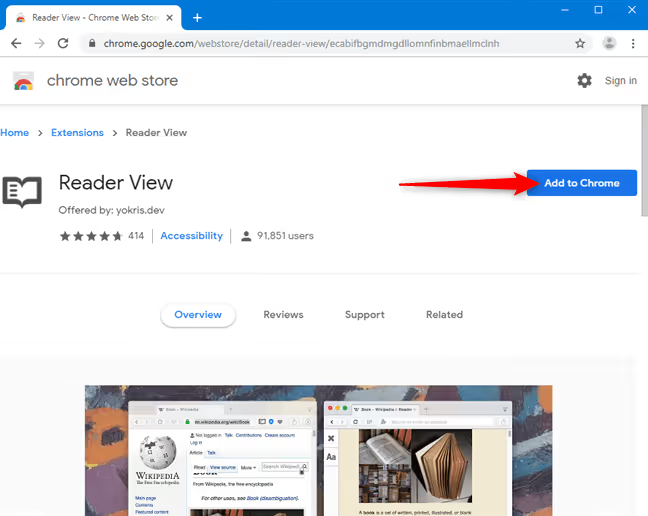
Chrome doesn't have a built-in reading mode for printing, but this can be fixed in a minute. The fastest route is the Reader View extension. It uses Mozilla's Readability engine (the same one built into Firefox) and handles most websites.
Click "Install" in the Chrome Web Store and confirm the addition.
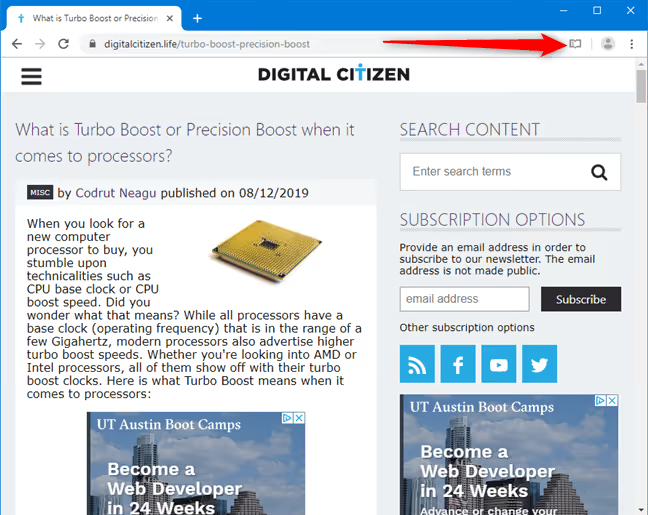
Now load the page you want to print. Before printing, be sure to scroll all the way to the bottom; this activates lazy loading for images so they won't be missing when printed.
Click the Reader View icon in the extensions panel (right side of the address bar).
The page will reload in a clean view, without ads, sidebars, or other clutter. Just text, images, and headings.
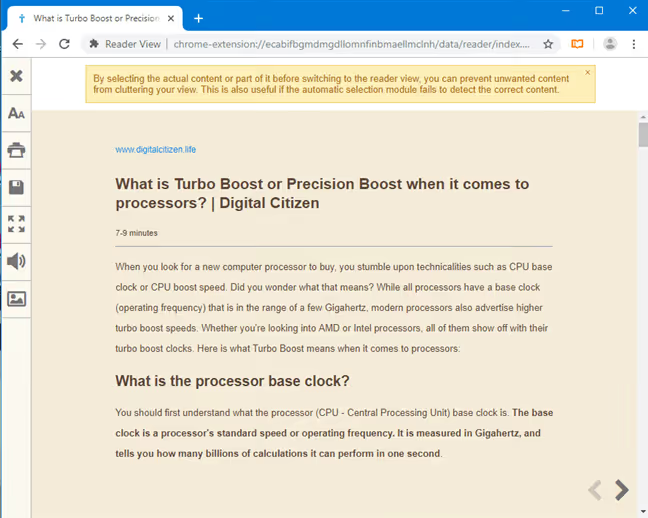
To start printing, press Ctrl + P or the print button on the extension's sidebar. The result: a clean page without a single banner.
How to print a web page without ads in Mozilla Firefox
Firefox is the only browser where Reader View is built in out of the box. No extensions to install.
Open the page, scroll to the bottom (to load all images), and click the view toggle button in the address bar, or simply press F9.
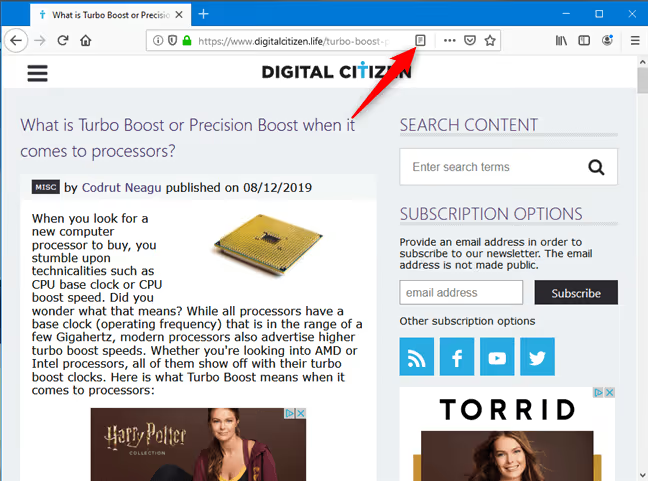
The page will instantly transform: ads, sidebars, and popup elements will disappear. Firefox automatically identifies the main content and shows only that.
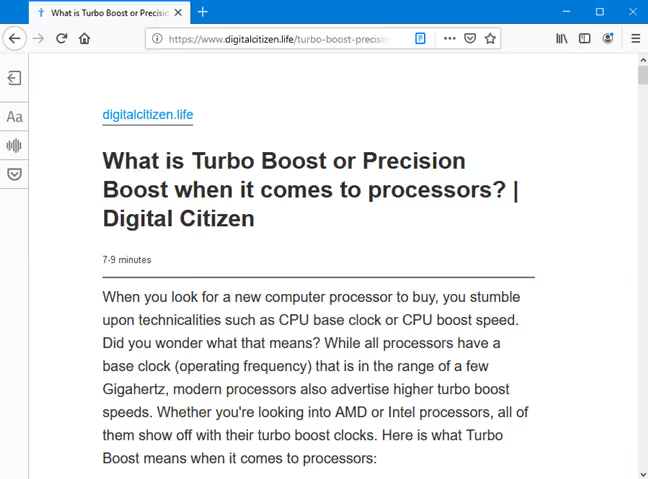
Press Ctrl + P, and printing will use exactly this clean view. No extra steps needed. This is the simplest method among all browsers, and it has been working reliably for years.
How to print a web page without ads in Microsoft Edge
Edge offers two built-in methods, both requiring no extensions.
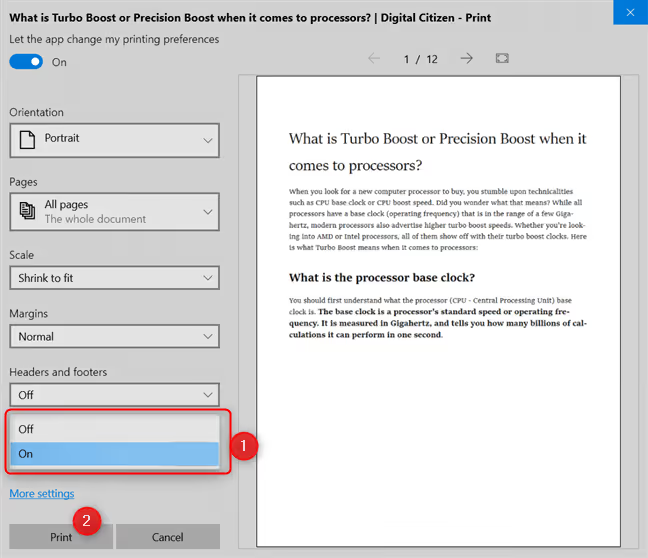
Method one: clutter-free printing. Load the page, scroll to the bottom, then press Ctrl + P. In the left part of the print dialog, find the "Clutter-free printing" dropdown.
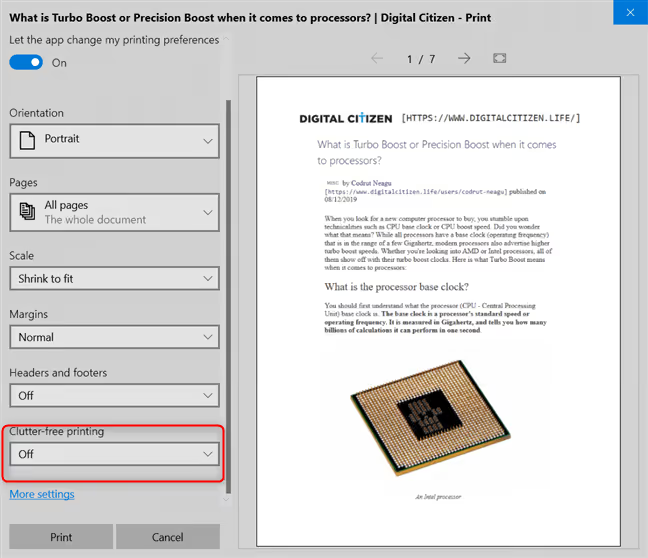
Switch the option to "On," and a preview of the cleaned page will appear on the right. If you're satisfied with the result, click "Print."
Method two: Immersive Reader. This is a full reading mode built into Edge. Open the page and click the Immersive Reader button in the address bar (the book icon with a speaker) or press Ctrl + Shift + R.
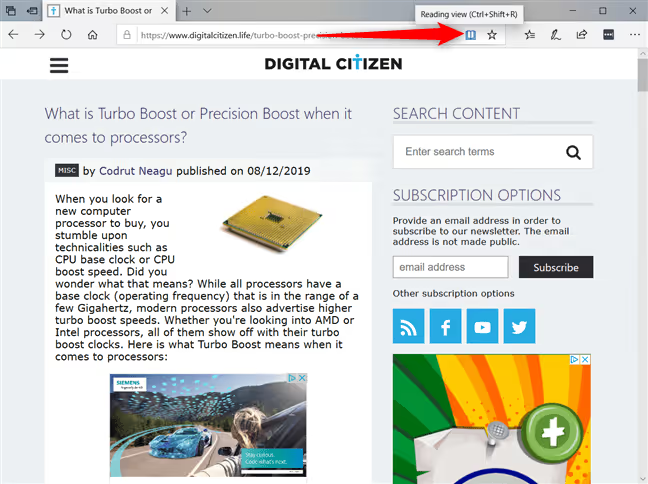
The page will open in reading mode without ads or distracting elements. From here, press Ctrl + P, and the clean content goes to the printer.
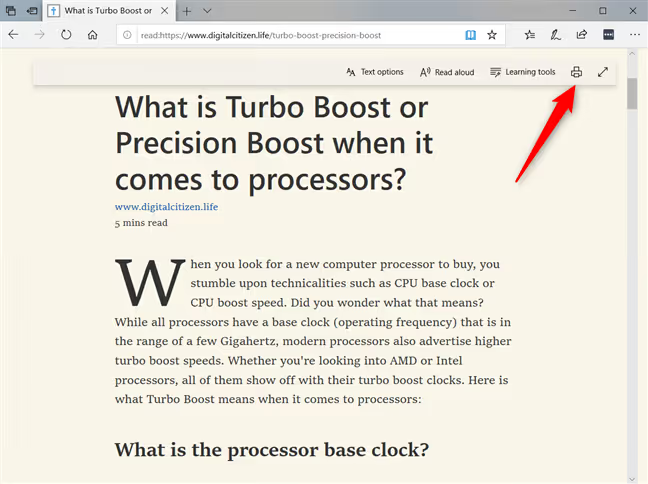
Both methods work and don't depend on the type of website. Clutter-free printing is more convenient when you just need to remove ads before printing. Immersive Reader is better when you also want to customize the font, background, and line spacing for on-screen reading.
How to print a web page without ads in Opera
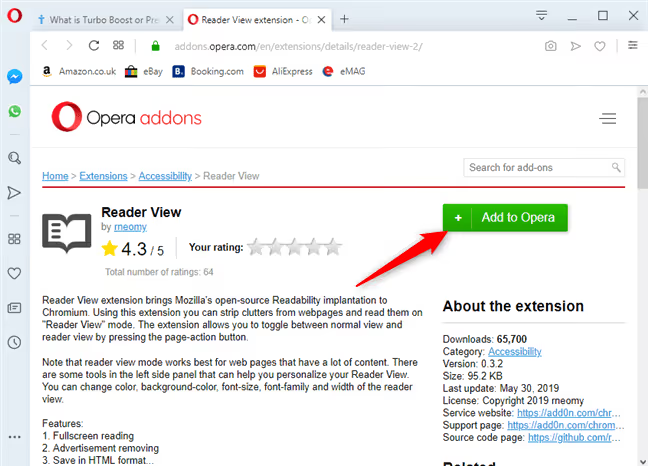
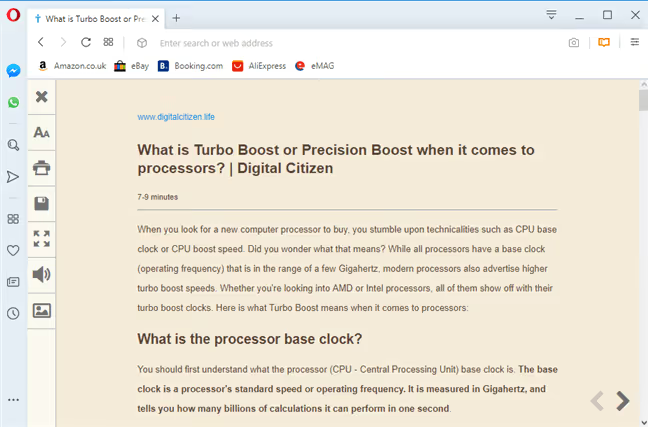
Opera, like Chrome, doesn't have a built-in reader, but it supports the same Reader View extension from the add-ons catalog.
Go to the Reader View page on Opera Addons and click "Add to Opera."
After installation, open the desired page, scroll to the bottom to load the content, and click the Reader View icon on the right side of the address bar.
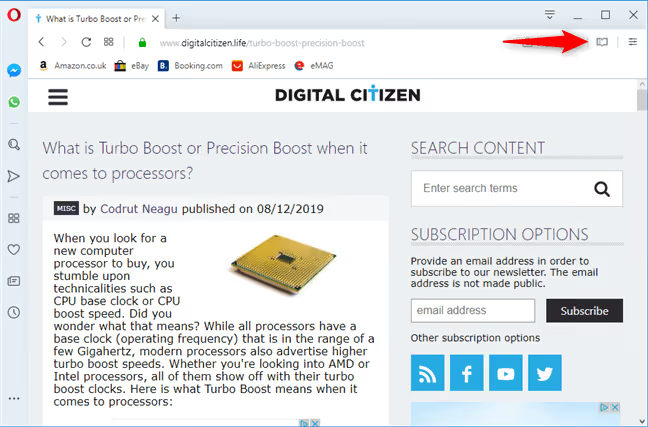
The page will load in clean reading mode, without ads, sidebars, or popup windows. Press Ctrl + P to print the cleaned content.
Universal method: PrintFriendly for any browser
All the previous methods are tied to a specific browser. But there's a tool that works everywhere, even in Internet Explorer, if you happen to still be using it.
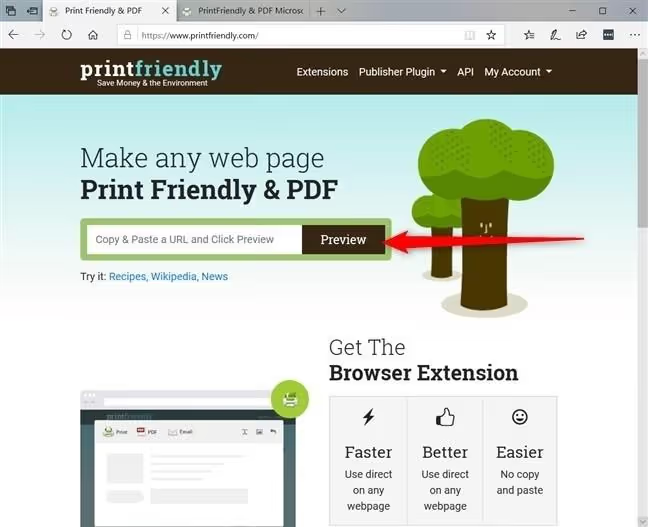
Go to PrintFriendly.com, paste the page URL, and click "Preview."
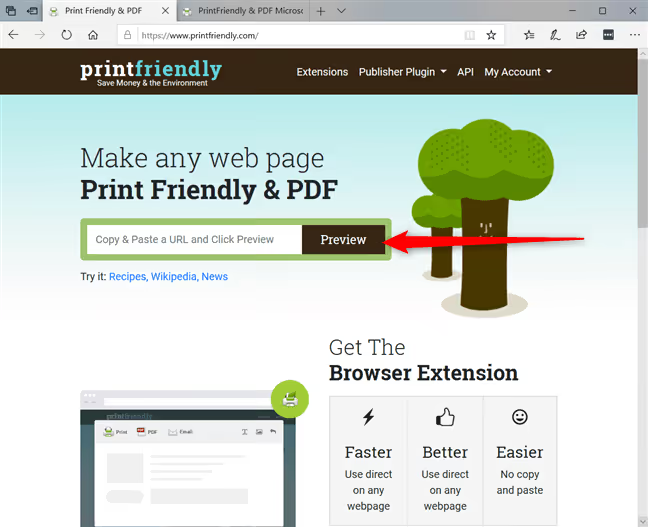
The service will extract the main content and show a preview without ads. You can manually remove unwanted paragraphs or images before printing: click on an element, and it disappears.
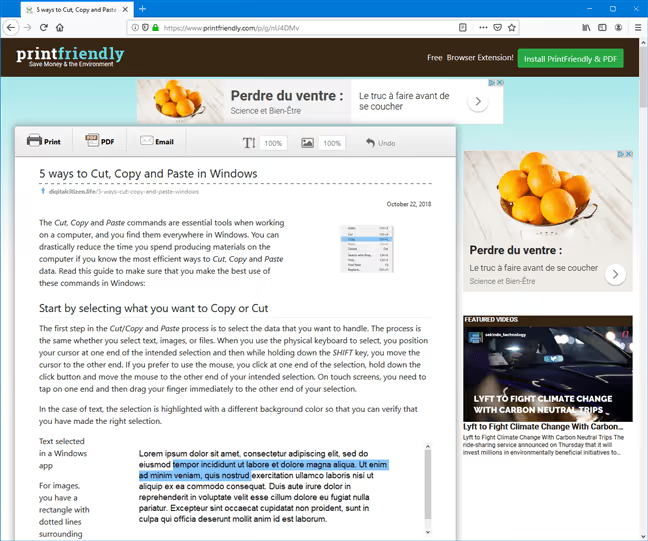
PrintFriendly has been running since 2009 and is still actively updated. In 2025-2026, the service added AI features, auto-summarization of pages, and screenshot tools. But the core remains the same: a clean preview and printing without a single banner.
The service has an extension for Chrome and for Edge, so you don't even need to paste the URL; one click is enough.
Watch the short video tutorial: two simple ways to clean a page before printing, the browser's built-in option and an online tool. Visual and just a couple of minutes.
⁉️🤔 Frequently asked questions
Do all websites display correctly in reading mode?
No, not all. Reader View works best with text-based content: articles, blogs, tutorials. Websites with complex layouts, interactive elements, or image galleries may display incompletely. In such cases, try PrintFriendly; it often handles these better than extensions.
Are images preserved when printing through Reader View?
Yes, but with a caveat. Most images embedded within the article text are preserved. However, if the site uses lazy loading (images only load as you scroll), you must scroll to the bottom of the page before printing. Reader View typically doesn't capture images from galleries and sliders.
Can I print a page without ads on my phone?
Yes. In mobile Firefox, reading mode is activated via the icon in the address bar. Chrome for Android has no built-in solution, but you can send the page to PrintFriendly via the "Share" button. Safari on iPhone and iPad has a built-in Reader View button to the left of the address bar; it works without extensions.
What should I do if none of the methods gave a clean result?
Try a different approach. Manually copy the article text (
Ctrl+A,Ctrl+C) and paste it into Google Docs or Word for clean printing without ads. An alternative: use the free Textise service, which converts the page to plain text. But for most everyday tasks, the combination of browser plus Reader View or PrintFriendly is more than enough.
Is it worth the effort, or is it easier to just print as is?
If you print one page every six months, maybe not. But when articles, recipes, and tutorials go to the printer regularly, the difference is huge: less wasted paper, ink, and frustration.
The most convenient option is Firefox with its built-in reader: F9, Ctrl + P, done. If you're on Chrome or Opera, five seconds to install Reader View solves the problem forever. Edge is nice because it gives you a choice: quick clutter-free printing or full Immersive Reader with fine-tuned display settings. And PrintFriendly will help in any non-standard situation: an old browser, someone else's computer, or an unusual website.
Try it right now on this page: open it in Firefox or Edge, turn on reading mode, and see how much cleaner the same text looks.

A professional team of writers and editors specializing in creating quality content.