














🪓 How to split large XML files when importing into WordPress
You exported your site but the file weighs 30 megabytes and won't fit on the new host? The standard WordPress import silently stops halfway through, and some content simply disappears. A familiar scenario for anyone migrating from an old site with hundreds of posts.
The cause is strict hosting limits: upload_max_filesize (usually 2-8 MB), post_max_size, and a script timeout of 30 seconds. A WXR file (WordPress eXtended RSS) with years of content easily exceeds these boundaries.
Here are four working methods to split a large XML into parts and import everything without losing data. From simplest to most advanced.
💡 Quick overview:
- Raise the upload limit through hosting support: this is the fastest route if your provider cooperates.
- Need an offline tool for a specific OS? Try the desktop WXR File Splitter (Windows) or WXR Split (Mac).
- Cross-platform option with no installation: the online WXR splitter splits the file right in your browser.
- Working through the command line? WP-CLI
wp importaccepts multiple files and isn't limited by web restrictions.
Why import fails: three limits that get in the way
WordPress import hits not one but three barriers simultaneously.
upload_max_filesize: the maximum size of a single uploaded file. On cheap hosting this is 2 MB; on mid-tier hosting, 8-32 MB.post_max_size: the total size of the POST request. It must be larger than upload_max_filesize, otherwise the file won't reach the handler.max_execution_time: script execution time. If import runs longer than 30-60 seconds, the process terminates even if the file uploaded successfully.
An export from an old site with 500 posts and thousands of comments easily produces a 15-25 MB XML. Such a file won't fit within standard limits.
Method 1: Ask your host to raise the limits
The simplest route is to contact hosting support. Most providers will raise upload_max_filesize to 64-128 MB upon request, especially on plans above the basic tier.
If you have access to server settings yourself, add this to wp-config.php:
1 define('WP_MEMORY_LIMIT', '256M');
And create a .user.ini file in the site root (for hosts using PHP-FPM):
1 upload_max_filesize = 128M 2 post_max_size = 128M 3 max_execution_time = 300
On shared hosting, .user.ini doesn't always work; in that case, you'll need to submit a support ticket.
After changing the limits, upload the original WXR file through Tools → Import → WordPress. If the file still doesn't go through, proceed to splitting.
Method 2: WXR File Splitter for Windows
For Windows there's a classic desktop utility called WXR File Splitter. The interface is minimalist, but it gets the job done: open the WXR file, specify the number of parts or the maximum size of each, click "Split Files," and you get several XML files in the same folder.
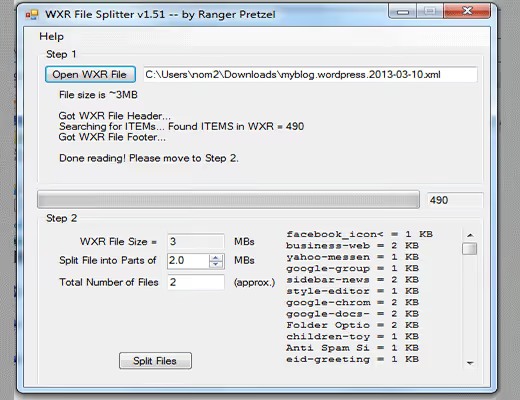
The utility displays the number of elements in the file before splitting: posts, pages, comments. This helps you estimate how many parts to create.
Note: the tool is old, and the original developer's site no longer works. If the utility won't run on Windows 10/11, skip straight to method 4 (online splitter); it's more reliable.
Method 3: WXR Split for Mac
Mac users have an equivalent called WXR Split. The logic is the same: load the XML, set the part size, get a set of files for sequential import.
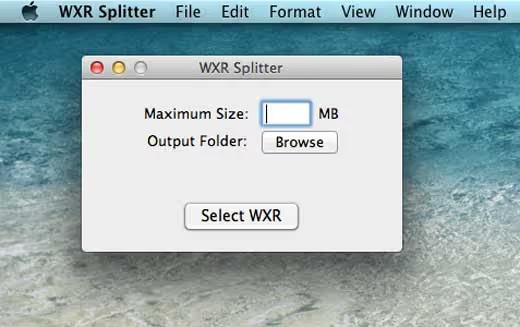
As with the Windows version, the official site for this tool may be unavailable. Don't waste time searching; the web splitter in the next step works on any OS.
Method 4: Online splitter wxrfilesplitter.com
The most practical option today is the free web tool WXR File Splitter. It works in the browser, requires no installation, and isn't tied to any operating system.
How to split the file:
- Open wxrfilesplitter.com.
- Upload your WXR file. The size limit is 256 MB, which is more than enough for any site.
- Specify the desired part size; the developer recommends 2 MB for stable import.
- Click Submit and download the archive with the split XML files.
The tool doesn't store files on the server; temporary data is cleared hourly. After splitting, import each file through the standard Tools → Import → WordPress one by one.
The main advantage: you don't need to find a utility for your OS or figure out the command line. Everything happens in the browser with a couple of clicks.
Method 5: WP-CLI import (for those who work through the console)
If you have SSH access to the server and WP-CLI is installed, you can import without any splitting, or with splitting for speed.
WP-CLI accepts multiple files at once:
1 wp import file1.xml file2.xml file3.xml --authors=create
The --authors=create flag creates author accounts if they don't exist on the new site.
This method has two advantages: first, WP-CLI works through the command line and isn't constrained by PHP web limits; second, you can pass a directory of split parts with a single command.
To enable detailed logging during import, add this to wp-config.php:
1 define('IMPORT_DEBUG', true);
Then WP-CLI will output a detailed report for each processed element, showing what was imported and what was skipped.
⁉️🤔 Frequently asked questions
The file is 40 MB and none of the methods help. What should I do?
The problem is most likely not the size but the timeout. Even a file split into 2 MB parts can hang if the server can't process each part within 30 seconds. Ask your host to increase
max_execution_timeto 300. Or use WP-CLI, which doesn't depend on web timeouts.
Can I just split the XML in a text editor?
Technically yes, but practically no. A WXR file has a complex structure with namespaces and repeating
<item>tags, each containing a complete post with metadata. Manual cutting will almost certainly break the XML, and the WordPress importer will throw a parsing error. Use specialized tools.
Do I need to split the file if I'm moving to a proper VPS?
On a VPS you control the limits yourself; raise
upload_max_filesizeandpost_max_sizeto 128 MB and the file will upload as a whole. But be careful with timeouts: even on a powerful server, importing 500 posts with media files can take 2-3 minutes. Increasemax_execution_timeor split the file anyway as a precaution.
What if some content didn't import after splitting?
Check that you imported ALL the resulting files. A common mistake: you downloaded the archive from wxrfilesplitter.com, uploaded the first file, and stopped. Each file contains its own portion of elements; skipping any part means losing those records. Import sequentially, waiting for each one to complete.
What about import plugins like WP All Import?
WP All Import can read large XML files and import them in chunks, but it's designed for importing data into custom post types and ACF fields, NOT for importing standard WXR with posts/pages/comments as they are. For the task of "moving an entire site," use the tools described above.
Summary: which tool to use for your task
There's no universal tool; the choice depends on what server access you have and how large the file is.
- If you can contact hosting support, start by raising the limits. It takes 5 minutes and often solves the problem without any splitting.
- File up to 256 MB with no console access: the WXR web splitter will handle the task in your browser with a couple of clicks.
- Have SSH and WP-CLI?
wp importwith a directory of split files is the most reliable and fastest method. - Keep the old-school desktop utilities (WXR File Splitter / WXR Split) as a backup option; they work on older systems, but the developers' sites are no longer available.
Split your XML and successfully imported the site? Share in the comments which method worked for you and whether you encountered any content loss during import.

A professional team of writers and editors specializing in creating quality content.