













 AIIllustrative image: AI-generated
💡 Complete guide to RSS: what it is and how to use it with WordPress
I subscribed to a dozen blogs, and they all arrive in one place. No bookmarks, no social media scrolling, no "oops, I forgot to check that site." That's exactly how RSS works: you read content where it's convenient for you, not where it was published.
The technology is almost a quarter century old. Really Simple Syndication appeared in 1999. But it hasn't died, hasn't become a vestigial relic, and hasn't remained the domain of geeks. RSS is alive, just quietly doing its job: delivering articles, podcasts, and news to wherever the reader subscribed. For a WordPress site owner, it's a distribution channel that doesn't depend on algorithms and doesn't require an advertising budget.
In short: RSS gives readers freedom of consumption, and publishers guaranteed content delivery. Below is a full breakdown: how it works, which readers are relevant in 2026, how to add an RSS button to your site, and how to aggregate external feeds on your WordPress site.
💡 Quick overview:
- Your WordPress RSS feed already works at
yoursite.com/feed/, no configuration needed. - A reader clicks "Subscribe" in their reader app, and new articles arrive automatically.
- You can add an RSS button to your site through your theme's built-in widget or a separate plugin.
- WP RSS Aggregator collects external feeds and displays them on your site, convenient for digests and aggregators.
What is RSS and how does it work
RSS, or Really Simple Syndication, is a format for delivering content via subscription. A site generates an XML file with a list of recent publications: title, brief description, date, and link to the full text. This file updates automatically with each new article.
A reader adds the feed URL to their RSS reader once, and that's it. From then on, the reader automatically polls the XML file at set intervals and displays new articles. No newsletters, push notifications, or logins. Just a list of what's been published since the last time you opened it.
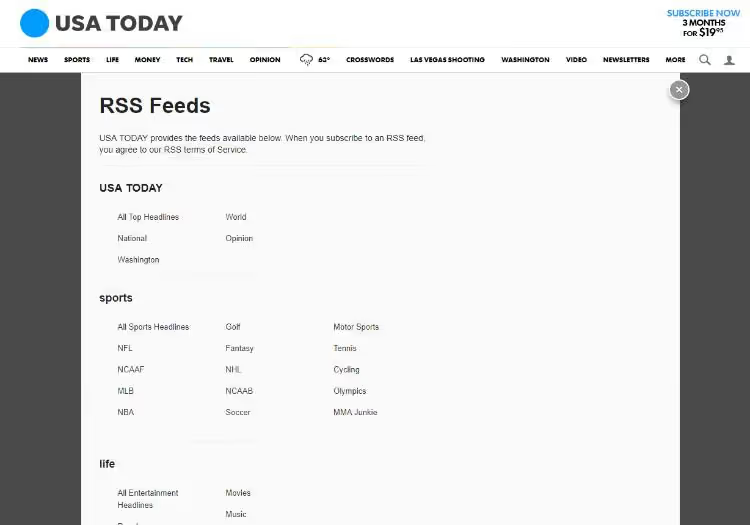
Major publications often split RSS into categories: sports, politics, technology. Readers subscribe not to the entire site, but only to sections that interest them. For a small blog, this kind of segmentation rarely makes sense. One general feed is enough.
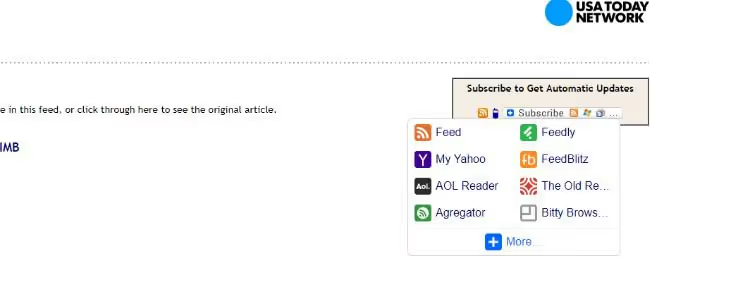
Technically, RSS is simply XML with a specific structure. WordPress generates it automatically: every WP site has a feed at /feed/. All published posts appear there in chronological order. Plugins can modify what's included, excluding categories, adding custom post types, or inserting ad blocks. But the basic mechanics haven't changed since WordPress 2.0.
Which RSS readers are relevant in 2026
After Google Reader shut down in 2013, the market didn't empty out. It reorganized. Today, choosing a reader comes down to three things: which platform you read on, how many subscriptions you maintain, and whether you need sync between devices.
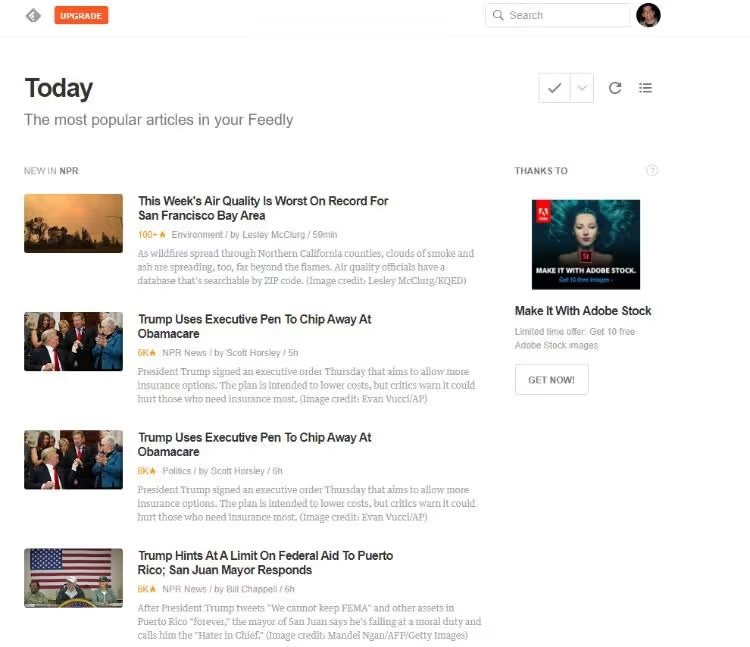
Feedly is the closest spiritual and functional successor to Google Reader. Clean interface, sync between web and mobile apps, Leo AI filtering for article prioritization. The free tier covers most users' needs: up to 100 sources and 3 feeds. The paid plan starting at $8/month adds archive search and integrations.
Inoreader is the most powerful option for those who read a lot and want fine-tuned control. Automation rules, filters, keyword monitoring, saving to Pocket and Evernote. Free: 150 subscriptions. Pro at $9.99/month removes virtually all limits.
Feedbin is minimalist and fast. No ads, no AI, no attempts to become an "information dashboard." Just a reader with beautiful typography. $5/month, 30-day trial.
NewsBlur is an open-source reader with filtering via a "trainable" classifier: you mark articles you like, and NewsBlur learns to show similar content. Free plan: 64 subscriptions. Premium $36/year.
NetNewsWire is free, open-source, and available only for macOS and iOS. Faster than any other native client. If you're in the Apple ecosystem, this is the best choice without any caveats.
Panda is more of an aggregator for designers and developers: it collects Dribbble, Product Hunt, Behance, and news RSS into one visual feed. Not a full-featured RSS reader, but useful as an inspiration dashboard. Free in the web version and as a Chrome extension.
The choice comes down to a simple rule: need cross-platform, go with Feedly or Inoreader. Work only on Apple, NetNewsWire. Want to control your data, NewsBlur or Feedbin. Need a visual digest, Panda.
How to add an RSS button to a WordPress site
Having an RSS button on your site is an invitation to subscribe. Without it, readers may not know the feed exists even though it's technically available at /feed/. You can add a button in three ways, from simple to flexible.
Through your theme's built-in widget
Some WordPress themes, especially premium bundles like Total, Astra Pro, or GeneratePress, include a ready-made social icons widget with an RSS option. This is the cleanest approach: no extra plugins, no additional load.
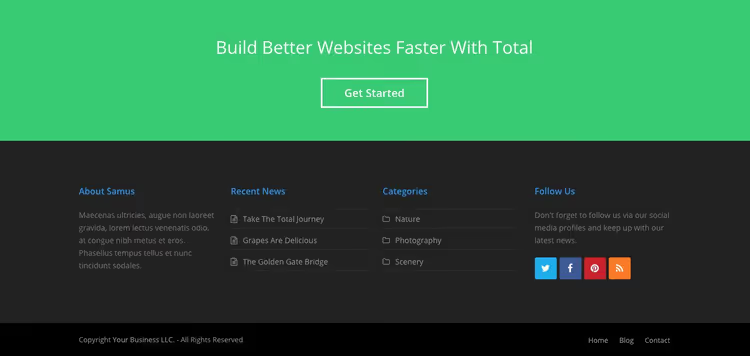
Check Appearance → Widgets. If the list of available widgets includes "Social Icons" or "Social Links," drag it to your sidebar or footer, add the feed URL, and save. Typically, such widgets let you change icon shape, size, and button order.
Standalone RSS button via plugin
If your theme doesn't offer a social widget or you want to place the RSS button separately, there are two approaches that don't require installing heavy plugins.
Custom HTML + RSS icon. Go to Appearance → Widgets, drag a "Custom HTML" block to the desired area (footer, sidebar), and paste this code:
1 <a href="https://yoursite.com/feed/" target="_blank" title="Subscribe to RSS"> 2 <img src="https://yoursite.com/wp-content/uploads/rss-icon.svg" alt="RSS feed" width="32" height="32"> 3 </a>
Upload an orange RSS icon (SVG or PNG) to your media library, copy the file URL, and insert it into src. This method adds zero plugins and works for years.
Shortcode via snippet. If you need an RSS button inside post content, add a simple shortcode to your child theme's functions.php:
1 add_shortcode('rss_button', function() { 2 return '<a href="' . get_bloginfo('rss2_url') . '" class="rss-btn" target="_blank">Subscribe to RSS</a>'; 3 });
After that, use [rss_button] anywhere in a post. You can style the button via the .rss-btn CSS class.
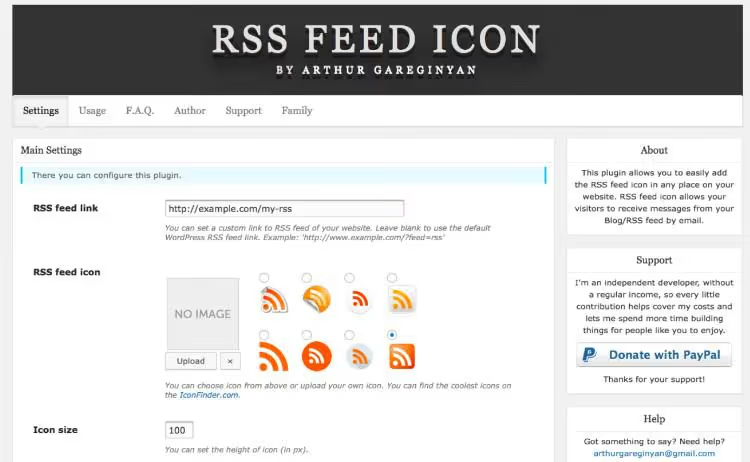
Both methods are free, don't depend on third-party plugins, and don't slow down your site. They're suitable when you need just one "Subscribe to RSS" button in the footer or below your article list.
RSS alongside social media buttons
Most often, the RSS button is placed in the same row as Facebook, Twitter, and other social icons. Social button plugins that support custom icons or already include RSS work well for this.
Ultimate Social Media Icons is one of the most popular in the repository: over 100,000 active installations. The settings include a field for the RSS feed URL and a standard orange icon. Plus, flexible styling: icon shape, hover animation, placement (left side of screen, right side, footer).
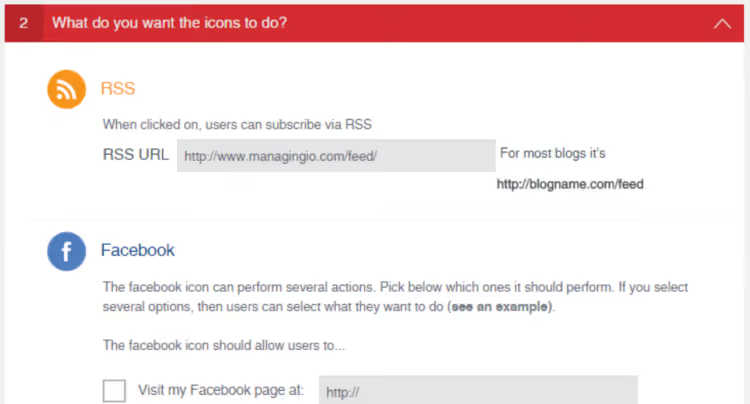
Steps: install the plugin → Social Media → find "RSS" in the icon list → paste the feed URL → choose design and display location → save.
Where to find your RSS feed URL
WordPress generates the RSS feed automatically. The address is always the same:
1 yoursite.com/feed/
Replace yoursite.com with your actual domain, and the URL is ready. For subdomains it works the same way: blog.yoursite.com/feed/. If you have a caching plugin like WP Rocket installed, the feed isn't cached. The XML is delivered dynamically with each request.
Additional formats: /feed/rss/ (RSS 2.0), /feed/rdf/ (RDF/RSS 1.0), /feed/atom/ (Atom). But for a subscribe button, the main /feed/ is almost always sufficient. All modern readers understand RSS 2.0.
How to display external RSS feeds on your own site
The flip side of RSS: instead of distributing content to subscribers, you aggregate external content to your site. This is useful for news digests, niche aggregators, and industry monitoring. For example: a finance blog syndicates Reuters' feed, a movie site displays Rotten Tomatoes reviews, a WordPress portal shows articles from a dozen themed blogs.
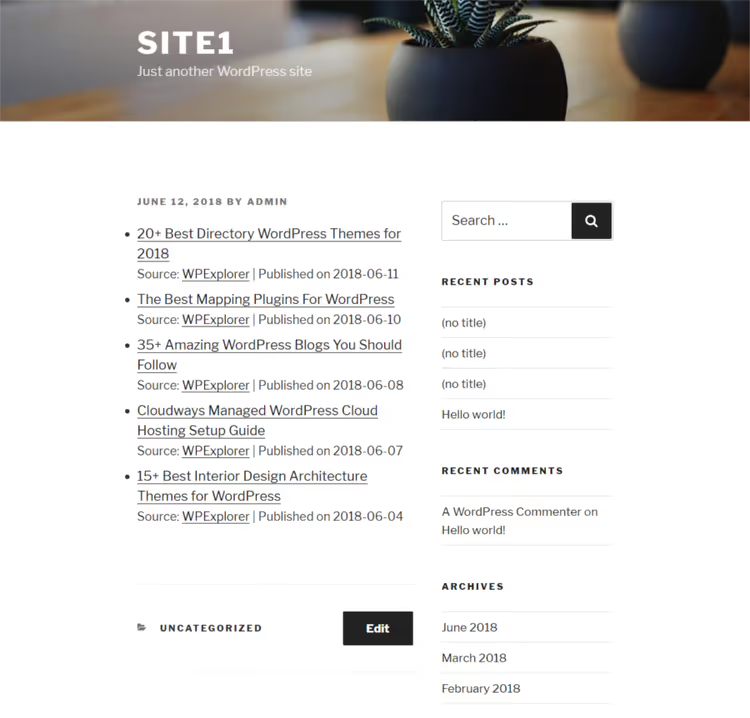
The main tool for this task is WP RSS Aggregator. The free core imports feeds from an unlimited number of sources, while premium add-ons provide keyword filtering, image import to the media library, and feed display via shortcodes.
Installation: Plugins → Add New → search "WP RSS Aggregator" → install and activate. After activation, an RSS Aggregator section appears in the admin panel with items: feed sources, feed items, blacklist, settings.
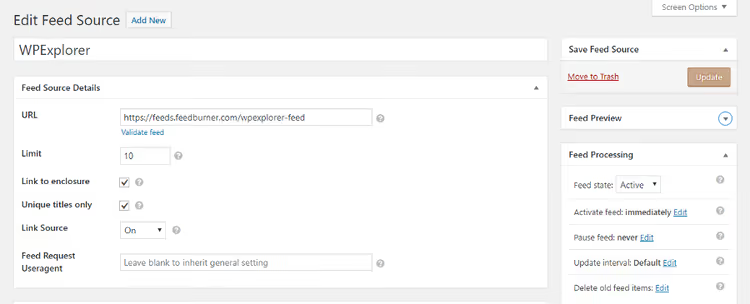
Basic setup steps:
- RSS Aggregator → Add New → paste the source's RSS feed URL.
- Click "Validate feed," and the plugin will show whether the URL works.
- Set the limit for saved items and enable "Unique titles only" to avoid duplicates if the source changes permalink structures.
- In the sidebar, set the update interval (minimum 15 minutes for the free version).
- Publish, and the feed will start populating.
To display the feed on a page, use the shortcode [wp-rss-aggregator]. Parameters let you limit the number of items, enable thumbnails, and add pagination. More details in the WP RSS Aggregator review.
Important note: the plugin collects headlines and excerpts, not full articles. Clicking an item leads to the source site. This isn't content duplication, it's aggregation. Search engines handle this model correctly as long as you don't display full texts.
Video: how to set everything up in 10 minutes
This video shows the complete cycle: from finding an RSS feed URL to setting up a feed widget on your site. It was recorded in 2025, but the WordPress and plugin interfaces haven't changed since then, so all steps remain current.
⁉️🤔 Frequently asked questions
Is RSS even alive in 2026? Didn't it die with Google Reader?
It's alive. Google Reader was indeed shut down in 2013, but since then a new generation of readers has emerged: Feedly, Inoreader, NewsBlur, NetNewsWire. They're updated, sync across devices, and have millions of users. RSS just stopped being mainstream and became a tool for those who want to read intentionally, without an algorithmic feed.
Do I have to install a plugin for an RSS button?
No, if your WordPress theme includes a social icons widget with RSS support, just insert the feed URL in the widget settings. A plugin is needed in two cases: your theme doesn't provide such a widget, or you want to place a button in a non-standard location via shortcode.
How does a reader subscribe to my RSS? What do they need to do?
The reader copies your feed URL (
yoursite.com/feed/), pastes it into the "Add subscription" field of their reader, and clicks "Subscribe." Some readers (Feedly, Inoreader) can find RSS by domain. Entering the site address is enough, and the reader automatically discovers the feed.
Can I display other sites' articles in full on my own site via RSS?
Technically yes, some plugins import full text. But this is bad practice: search engines see duplicate content and lower rankings, and the source author has the right to demand removal. The correct model: headline + excerpt + link to original. WP RSS Aggregator works exactly this way by default.
RSS or email newsletter: which is better for content delivery?
It's not "or," it's "and." RSS is good for technically savvy readers who want to control their consumption. Email is for audiences more comfortable with their inbox. These groups don't overlap completely. RSS also doesn't require collecting addresses, doesn't land in spam, and doesn't depend on email domain reputation.
How do I find out how many RSS subscribers I have?
There's no direct way: RSS is anonymous by nature, and the reader doesn't tell the server the user's identity. Indirect methods include Feedburner counters (if RSS is proxied through it), analyzing server logs by reader User-Agent, and plugins like WP RSS Feed Retriever with analytics. But you won't get an exact number. This is a limitation of the technology itself, not a shortcoming of the tools.
Should you bother with RSS in 2026
The short answer: yes, if you publish content regularly and want people to read it without intermediaries. RSS won't replace social media and email newsletters, but it will serve the audience segment that doesn't want to depend on feed algorithms.
For those just starting: simply know that your RSS already works at /feed/. Put a button in your footer or sidebar through your theme's widget. That's five minutes and zero cost.
For growing projects: connect WP RSS Aggregator and start building themed digests. An aggregated feed from 10-15 sources in your niche is a standalone product that attracts search traffic and keeps readers on your site longer than a single article.
If you don't read via RSS yourself yet, try Feedly or NetNewsWire. Subscribe to three favorite blogs and check after a week: you'll likely stop opening their sites "just in case." RSS gives you back control over what you consume. That's exactly why the technology was created.

A professional team of writers and editors specializing in creating quality content.