













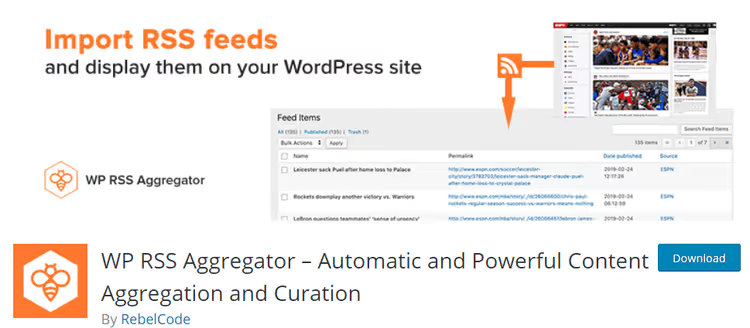
🗞️ WP RSS Aggregator: a plugin review for RSS aggregation and autoblogs
You go to the WordPress admin panel, add a dozen RSS feeds, click "Update," and within a minute your site displays a stream of fresh industry content. No copy-pasting, no manual rewriting, no opening each blog separately. That is exactly how WP RSS Aggregator works, and it has been doing so since 2011.
Among the dozen RSS plugins in the WordPress repository, this one holds the top spot for recognition: 50,000+ active installations, 360+ five-star reviews, and the status of the oldest living RSS solution for WordPress. We deployed the plugin on a test environment in 2026, ran fifty channels through it, and are ready to tell you where it excels and where the developers have room to grow.

💡 Quick overview:
- Install the plugin from the WordPress repository, go to RSS Aggregator, and add the URL of your first source.
- Set the update interval from 15 minutes to 24 hours and the stored items limit according to your use case.
- Display the feed using a shortcode on any page, in a post, or through a widget.
- If you need an autoblog with auto-posting and full text, subscribe to the Basic, Pro, or Elite paid plan.
What is WP RSS Aggregator and why do you need it
This is a WordPress plugin for importing, filtering, and displaying RSS feeds. The free core is available in the WordPress.org repository and covers the basic scenario: add sources, set the update frequency, display the feed with a shortcode. It works with any RSS and Atom feeds, from news outlets and blogs to YouTube playlists and podcasts.
The paid Basic, Pro, and Elite plans add three critical capabilities. First, importing items as full-fledged WordPress posts with status, author, and categories. Second, extracting full text from truncated RSS feeds that only deliver the first 100-200 words. Third, AI tools for summarization and rewriting. These are what transform the plugin from a simple reader into an autoblog engine or news hub.
After activation, the plugin adds its own branch to the left menu in the admin panel. Let us go through what is there item by item.
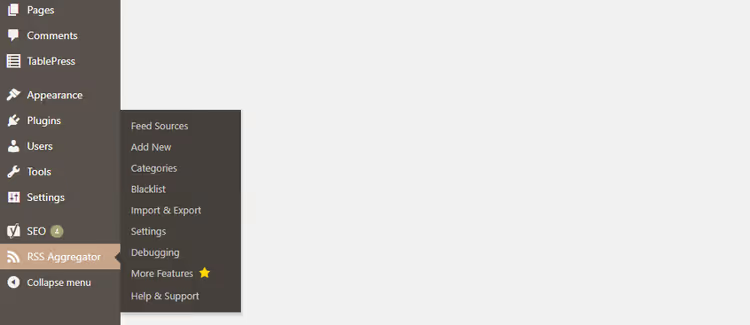
- Feed Sources, the list of all RSS addresses you have added.
- Add New, a form with a field for the feed URL and individual settings.
- Feed Items, all imported entries in a single list.
- Blacklist, titles that the plugin skips during import.
- Import & Export, bulk source input and settings transfer between sites.
- Settings, update interval, limits, display options.
- Debugging, manual feed update and old item cleanup.
- More Features, a showcase of paid plans and documentation.
- Help & Support, FAQ, support tickets, and documentation links.
Installation and first steps
The plugin installs the standard way: "Plugins → Add New," search for "WP RSS Aggregator," "Install," and "Activate." After activation, head to "Settings" first; it is better to configure the basic parameters before adding feeds.
General settings
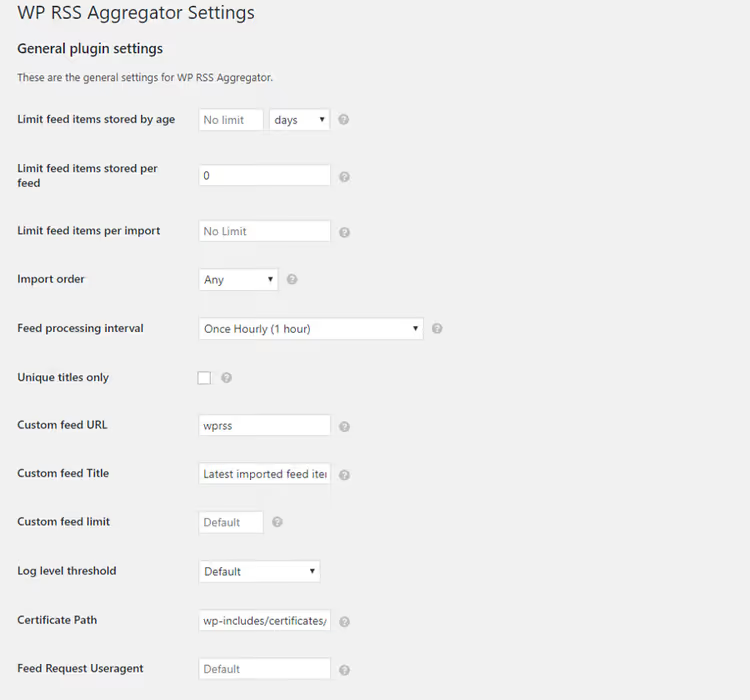
Three key parameters define the plugin's behavior:
- Update interval, from every 15 minutes to once a day. For a news portal, choose 15-30 minutes; for a blog with weekly updates, once a day is enough. Frequent updates create server load, so factor this in when choosing your hosting plan.
- Maximum item age, entries older than the specified period are not imported. Useful so you do not pull in archives from three years ago.
- Feed item limit, how many entries to store on the site. When exceeded, old items are automatically deleted.
The custom feed URL setting deserves special attention: if the site's standard RSS address does not work, you specify an alternative endpoint. Details are described in the plugin documentation.
Adding feeds
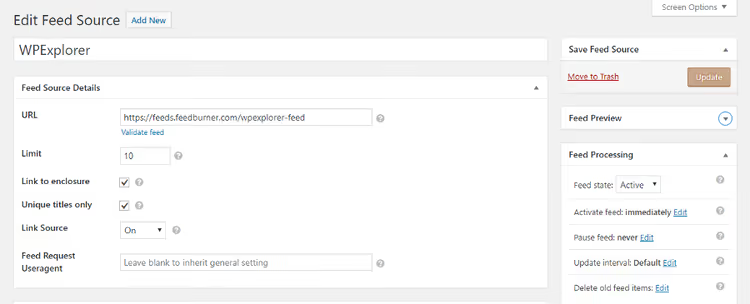
Go to "RSS Aggregator → Add New" and paste the source URL. In most cases, the site address works automatically, but the developers recommend specifying the RSS address directly, usually /feed/, /rss/, or ?feed=rss2.
Useful form options:
- Validate feed, a button that tests whether the URL returns valid RSS.
- Saved items limit, when exceeded, old entries are automatically deleted.
- Unique titles only, excludes duplicates if the same content is published under multiple permalinks.
- Link to enclosure, provides access to images, audio, video, and files within the imported content.
The right panel configures feed processing: pausing a specific source, deleting old items, and setting an individual update interval. Click "Publish," and the preview window shows the channel's latest entries: title, URL, publication date, and source.
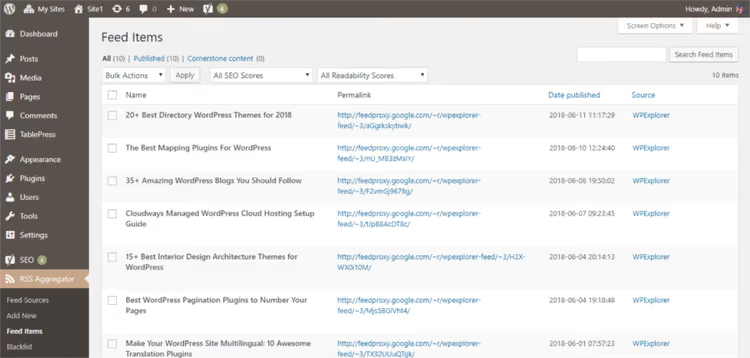
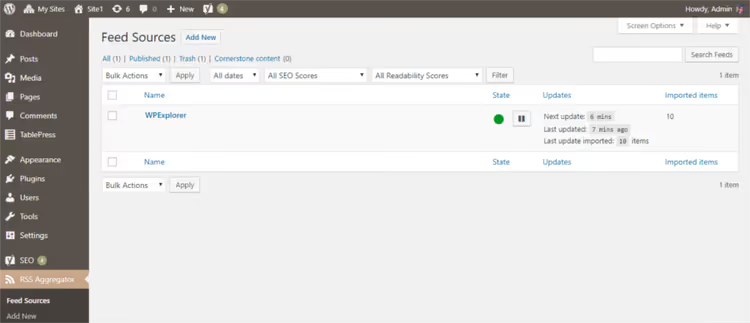
All added feeds are collected on the "Feed Sources" page, a single list with quick access to edit and pause each one.
Bulk import and export
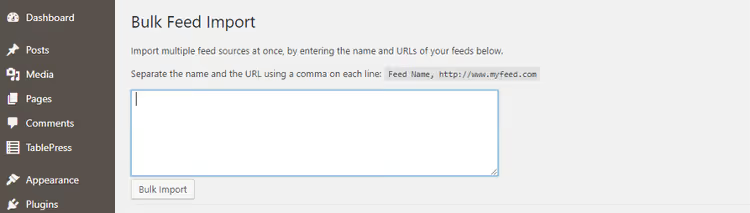
If you are launching a news aggregator with 50+ sources, entering them one by one is inconvenient. The "Import & Export" feature accepts a list in "Feed Name, URL" format, one pair per line, comma as separator.
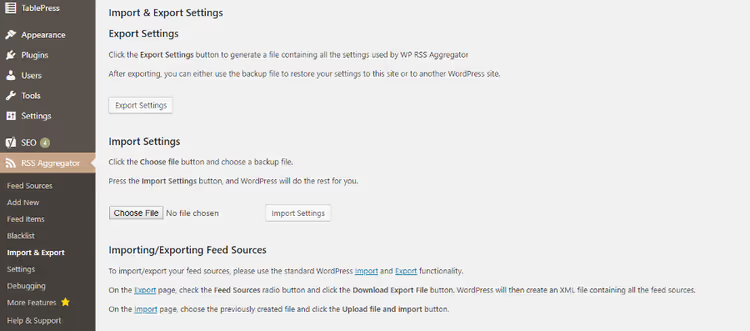
For transferring to another site, standard WordPress mechanisms work: "Tools → Export," select "Feed Sources," and you get an XML file with all sources. On the new site: "Tools → Import," upload the same XML. Plugin settings are exported separately using a button on the "Import & Export" tab.
Displaying the feed on your site
Adding sources is half the job. The other half is configuring how readers will see the result. The "General Display Settings" section controls the feed's appearance.
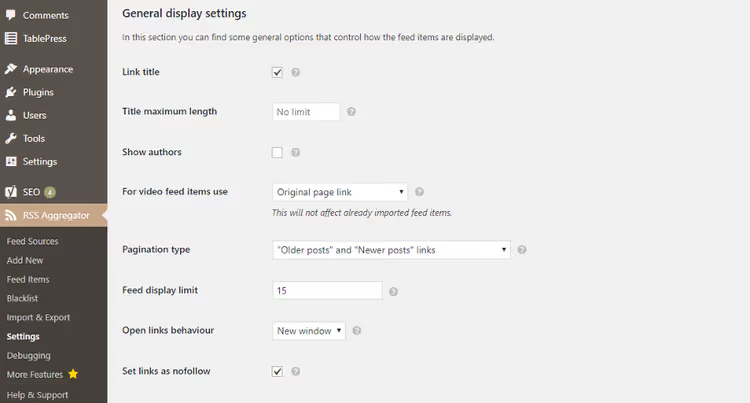
Here you set: maximum title length, author name display, opening links in a new tab, displayed items limit, and pagination. A separate "Source Display" block shows the feed name next to each entry and links it to the original site.
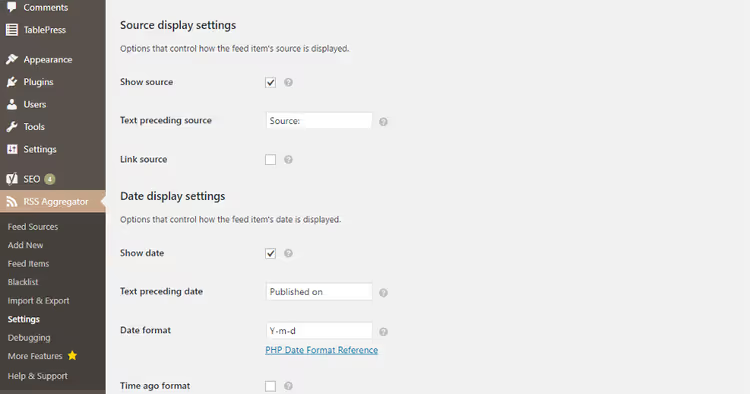
The publication date is displayed in GMT format; you can choose a custom format or the "published X minutes ago" variant. If the default styles do not suit you, disable them with a checkbox and write your own CSS.

A shortcode is used to display the feed. In the visual editor, an RSS icon appears; clicking it generates a shortcode with the needed parameters.
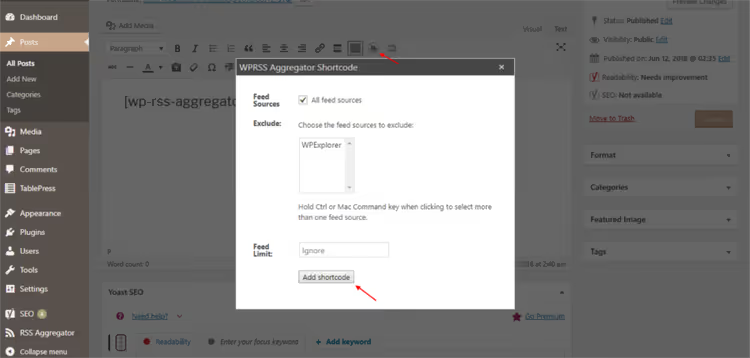
A bare [wp-rss-aggregator] outputs all items from all feeds. With parameters, you can limit output to a specific source (source="name") or number of entries (limit="10").
Here is how the feed looks on the frontend after inserting the shortcode:
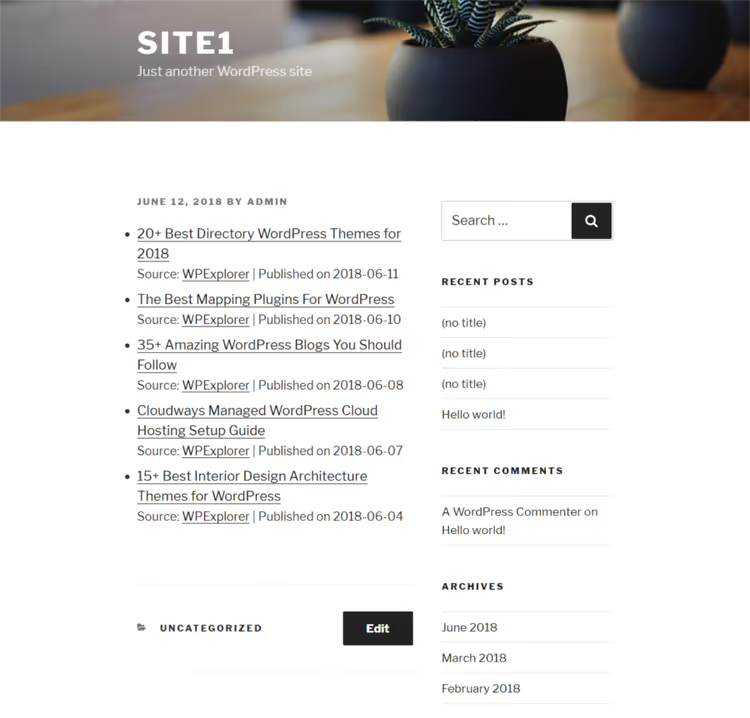
Entries are displayed as an ordered list, each linking to the original source. No code needs to be written; everything is configured in the admin panel.
Blacklist and debugging
Sometimes an advertising or irrelevant post comes from a feed. Add its title to the "Blacklist," and the plugin will skip this item during the next import and not count it toward limits.
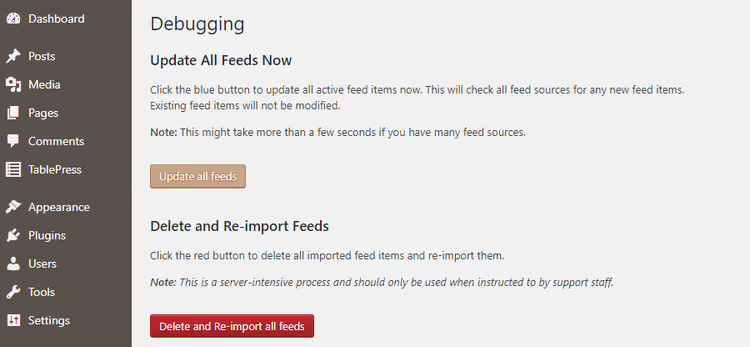
The "Debugging" tab provides a button for manually updating all feeds and completely clearing imported items. Updating dozens of feeds simultaneously is a resource-intensive operation. On weak hosting, it is better to stagger feeds across different update intervals.
Pricing: what changed in 2026
The old model of "free core plus five premium add-ons" is gone. In 2026, WP RSS Aggregator offers three plans with annual billing. The free version has not gone anywhere; it is still available on WordPress.org and covers the basic "added RSS, displayed with shortcode" scenario.
Feature | Free | Basic ($99/year) | Pro ($199/year) | Elite ($269/year) |
|---|---|---|---|---|
Unlimited RSS/Atom feed aggregation | ✅ | ✅ | ✅ | ✅ |
Shortcodes and blocks for display | ✅ | ✅ | ✅ | ✅ |
Display templates | ❌ | ✅ | ✅ | ✅ |
Manual moderation | ❌ | ✅ | ✅ | ✅ |
Automatic filtering | ❌ | ✅ | ✅ | ✅ |
Import feeds as posts | ❌ | ✅ | ✅ | ✅ |
Publication scheduling | ❌ | ❌ | ✅ | ✅ |
Full text import | ❌ | ✅ | ✅ | ✅ |
AI summaries and TL;DR | ❌ | ❌ | 500 AI credits | 10,000 AI credits |
AI rewriting | ❌ | ❌ | ❌ | ✅ |
All plans have a 30-day money-back guarantee. Licenses are for 1 site, 5 sites, or Unlimited, with prices scaling accordingly. Pro and Elite add AI tools: auto-summaries of imported content and TL;DR for the feed.
Detailed breakdown of paid features
The free version solves the task of "showing readers headlines from other sites." Paid plans solve a different one: "building an autonomous content hub." Here is what you specifically get for your money.
Feed to Post: importing as posts
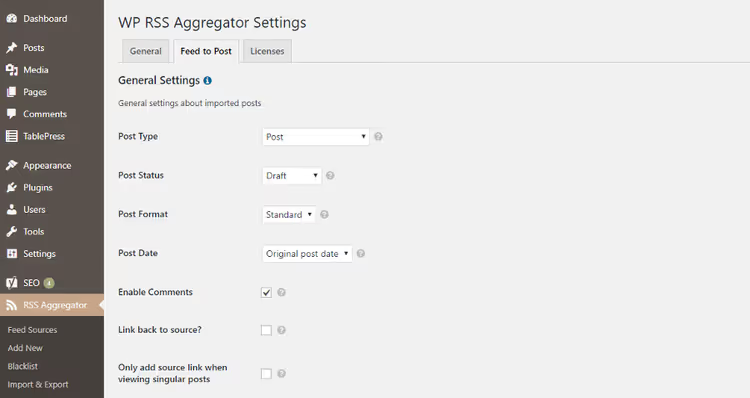
The Feed to Post feature turns each RSS feed item into a full WordPress post, with status, categories, author, and post format. You can specify an existing author or automatically create new ones based on feed data.
Parameters you control:
- Publication status, draft, published, scheduled, trash, private, pending.
- Categories and authors, linking to existing WordPress taxonomy.
- Post format, standard, chat, link, quote, images, video, audio.
- Date, either the original content date or the import date.
- Source link, an optional line at the beginning of each post.
- Images, customizable handling of pictures from the RSS feed.
- Canonical Link, a canonical link to the original so search engines do not consider the imported post a duplicate.
The canonical link removes the main SEO problem of autoblogs: duplicate content. The search engine sees attribution to the original source and does not penalize the site.
Full Text: full content from truncated feeds
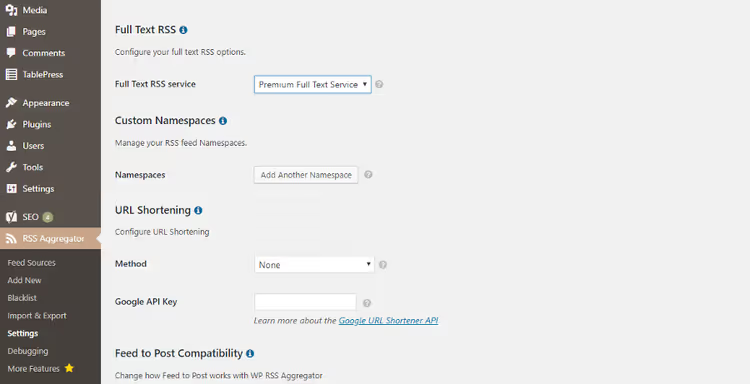
Many sites only deliver the first 100-200 words in RSS so readers click through to the original. The Full Text feature connects to the plugin's premium service and downloads the full text for unlimited items, even if the feed is truncated. Free limit: 5 items per source and 20-minute caching. The paid plan removes both restrictions.
How to enable: in general settings, select "Premium Full Text Service," then go to the specific feed source, check "Force Full Content," and update the feed. Existing items are not affected; full text will only be pulled for new ones.
Keyword filtering
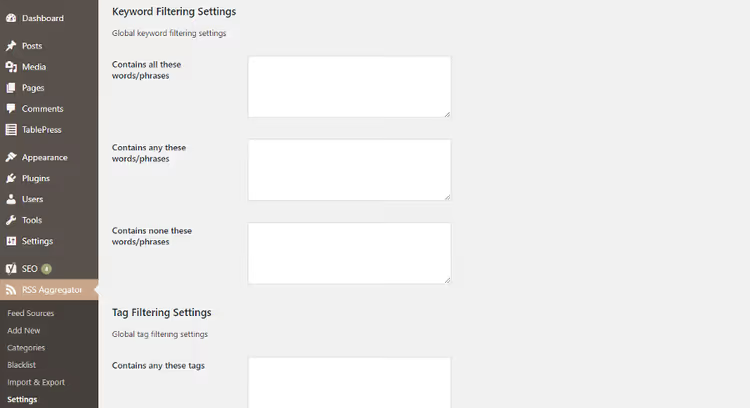
You specify keywords, phrases, or tags, and the plugin only allows relevant content through. No matches means the article is not imported. Especially useful for niche aggregators: for example, you collect everything about WordPress security and filter out general platform news.
Thumbnails and excerpts
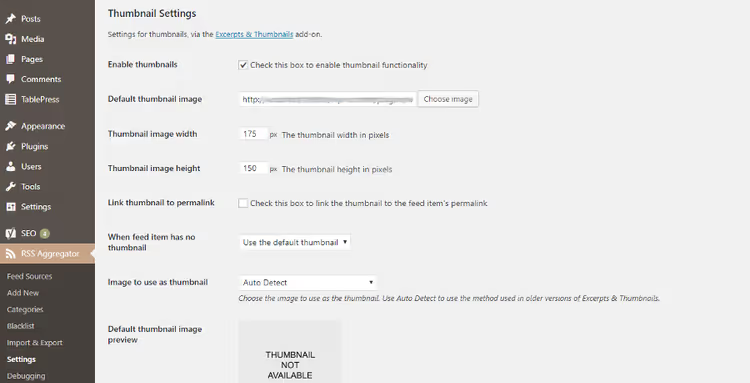
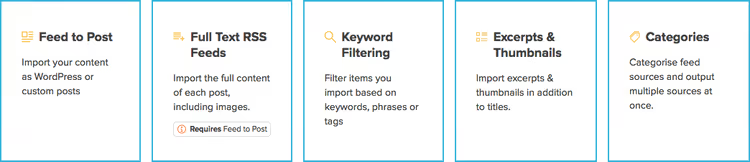
The basic "title plus link" output looks dry. This feature takes an image from the feed item and displays it along with a text excerpt, next to the title, date, and source. If an item does not have its own image, you assign a default thumbnail. The feed immediately becomes visually rich and clickable.
Categories
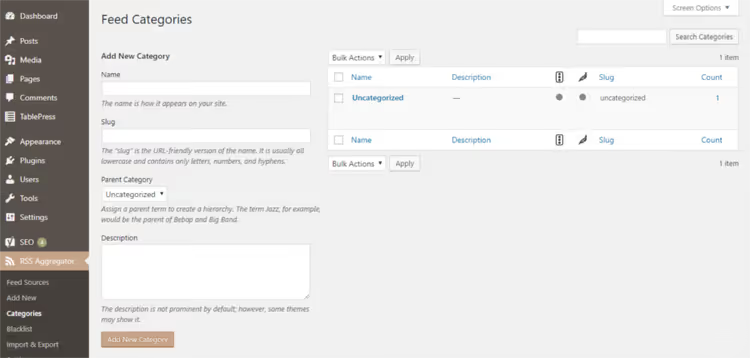
You group feed sources by categories and control output through shortcode parameters. On one page you show "WordPress News," on another, "Design and Themes." For a site with dozens of sources, this is a basic necessity, not decoration.
Pros and cons: what we took away from testing
Pros:
- Simple installation and setup; after initial configuration, the plugin works on autopilot.
- Bulk source import through a CSV-like interface and standard WordPress XML export.
- Flexible management: pause and resume for individual feeds, individual update intervals.
- Canonical links for imported posts eliminate the duplicate content problem.
- Regular updates; the plugin has been maintained since 2011, commit frequency remains consistently high.
- Support for YouTube, DailyMotion, and Vimeo; videos from feeds embed correctly.
Cons:
- Bulk import from hundreds of sources noticeably loads the server; on weak hosting, you will need to tune
WP_MEMORY_LIMITand caching. - AI features are locked behind the most expensive plans; Pro at $199/year has no summaries, only 500 credits on Elite.
- The interface is not fully localized; some descriptions and documentation are only in English.
⁉️🤔 Frequently asked questions
How does WP RSS Aggregator differ from Feedzy?
Feedzy from ThemeIsle is the closest competitor with a similar feature set: free core, paid plans, import to posts. The difference is in the details. WP RSS Aggregator has more flexible filtering, built-in AI summaries on the Elite plan, and a 30-day money-back guarantee. Feedzy wins on the entry-level plan price but falls short on template customization. Both plugins have been on the market for 10+ years. For simple feed display, either will suffice. For a full-fledged autoblog, WP RSS Aggregator provides more automation.
Can I use the plugin for an autoblog?
Yes, this is its main use case on Basic plans and above. The Feed to Post feature turns RSS items into WordPress posts with customizable status, author, and categories. The canonical link to the source protects against SEO penalties for duplicate content. An autoblog on WP RSS Aggregator is legitimate aggregation with attribution: each imported post contains a link to the original. On our test environment, with proper canonical setup and manual headline moderation, we had no indexing problems.
How many sources can the plugin realistically handle?
In practice, from 20 to 100 sources on an average VPS. Above a hundred feeds with a 15-minute update interval, you will need a dedicated server or external cron. We ran an aggregator on a VPS with 2 GB RAM on 50 sources with a 30-minute interval; CPU load stayed within reason without frontend degradation. When we tried adding 150 sources on the same server, cron timeouts began. The solution: stagger updates over time, use different intervals for different feeds.
What happens if I do not renew the license?
The plugin continues to work with the functionality that was active when the license expired. You lose access to updates, support, and new AI credits, but the site will not break. Existing feeds, posts, and settings remain untouched. For production sites, we recommend renewing the license at least once every two years.
Does the plugin support YouTube channels as sources?
Yes, YouTube channels can be added as RSS sources using the standard channel URL. Videos are imported with preview, title, and description; the plugin correctly embeds the player via oEmbed.
What to install in 2026: verdict after testing

The free WP RSS Aggregator core honestly handles the basic scenario: "collect headlines from ten sites and show a feed." This is enough for a sidebar with industry news or a personal blog collection. Not a penny spent, and the feed already works.
But if you are building a content hub, news portal, or niche aggregator, the difference between the free version and Pro is like the difference between a bicycle and a car. Auto-posting, full-text import, canonical links, and AI summaries in one package turn routine site content creation into a background process. You focus on editing and strategy while the plugin handles everything else.
Our advice: start with the free version. Work with it for a week. If you find that manual headline processing is eating up time, upgrade to Basic. And if you plan to have dozens of sources and full automation, get Elite with AI tools: at current prices, the difference between Pro and Elite pays for itself in the first year on just the first ten auto-summaries.
🔗 WP RSS Aggregator on WordPress.org🔗 WP RSS Aggregator pricing

A professional team of writers and editors specializing in creating quality content.