














📡 WordPress pingbacks and trackbacks: what they are, how to disable them, and what to use instead
You open your admin panel in the morning and find thirty notifications: "New pingback from cheap-seo-rankings.biz." Another one. And another. Sound familiar? WordPress notifies you out of the box when someone links to you. The problem is that most of those links come from spammers.
Pingbacks and trackbacks are as old as early WordPress, a technology from 2002. They once formed the backbone of the blogosphere: authors held conversations across sites through mutual links. Today the mechanism has turned into a spam channel that most webmasters disable within the first month. Let's break down how they work, when you might want to keep them, and what to use instead if you decide to turn them off.
By the end of this guide you will know whether to disable pingbacks on your site or use them intentionally. Along the way, custom configuration, cleaning up notifications, and five alternatives for growing traffic without a single trackback.
💡 Quick overview:
- How pingbacks differ from trackbacks and why the latter has nearly disappeared
- Where pingbacks are enabled and disabled, globally and for individual posts
- Bulk disabling for hundreds of existing posts in 5 minutes
- Five security rules if you decide to keep them
- Five pingback alternatives for traffic growth without spam
What are trackbacks and pingbacks: a plain-language explanation
Both mechanisms solve the same problem: notify the author of site B that the author of site A has linked to their content. The difference lies in how the notification is sent.
Trackback: a manual signal

The Trackback protocol was released by Six Apart, creators of Movable Type, in August 2002. The idea was simple: a decentralized way to notify other blogs without a central hub.
According to the WordPress.org glossary, a trackback notifies an author that you have written related material even if there is no direct hyperlink in your text. Think of it like references at the end of an academic paper, the same logic but between websites.
How to send a trackback manually:
- Find the recipient's trackback URL. On WordPress sites this is usually
post-permalink/trackback/. - In your post, paste this URL into the "Send trackbacks" field, which is available in the classic editor.
- Publish the post.

WordPress takes an excerpt from your article along with a link and sends it to the recipient's site. There the trackback enters the comment moderation queue: the owner can approve it, mark it as spam, or delete it.
Two notes. First: pingbacks must be enabled on the recipient's side, otherwise the notification won't arrive. Second: the "Send trackbacks" field is visible only in the classic editor. Gutenberg doesn't have it, but WordPress automatically sends a pingback for any link to a WP site, so manual trackbacks are rarely needed today.
A historical detail: trackbacks were originally designed for content aggregation, not comments. But the community quickly found another use for them, remote discussions between blogs.
Pingback: fully automatic
A pingback is an automatic version of a trackback. The specification was developed by Ian Hickson and Stuart Langridge. You simply place a link to someone else's post in your text, and WordPress detects it upon publication and sends a pingback signal to the recipient's site.
The other party sees a notification in moderation. If they approve it, the pingback appears in the comments. Most themes, including default ones, display it simply as a link without a text excerpt, unlike trackbacks which carry a content snippet.
Why pingbacks have displaced trackbacks in practice: they are harder to forge and fully automatic. No need to copy a trackback URL, no need to fill in a separate field. One action, a link in your text, and the notification is sent. Unfortunately, spammers liked this too, and that is the root of the problem.
Pros and cons: why most people disable them
Pingbacks offer three benefits. And four problems that outweigh them.
What you get when the system works honestly:
Natural backlinks. An authoritative site links to you, and the pingback records this in the comments. Search engines see the link, readers click through. It works exactly like regular link building but without your effort.
Notification of attention. You learn that someone is discussing your material, you can visit, say thanks, continue the conversation. In the 2000s this actually worked: bloggers really corresponded through trackbacks.
Social proof. A dozen genuine pingbacks under an article signal to readers: "this material is being cited, it's trusted." It builds authority, especially in narrow niches.
What actually happens on most sites:
A flood of spam. Spammers generate pingbacks automatically, sending them by the thousands via XML-RPC. Porn, Viagra, casinos, SEO farms: that's what the links contain. CognitiveSEO listed trackback spam among the five most common types of spam, and the situation hasn't improved in ten years.
Moderation overhead. Every pingback requires manual review: approve, spam, or delete. On sites with traffic, dozens arrive daily. That's time you could spend on content or promotion.
SEO risks. Approve a spam pingback by mistake, and your site now links to a junk domain. Search engines see this as a low-quality link neighborhood. A few dozen such links, and your domain reputation drops.
Self-pings. Link to one of your own articles, and WordPress creates a pingback. Link to another of your articles, another one. After a year, your comments are full of dozens of self-notifications that add no value but clutter the admin panel. The problem can be solved with the No Self Pings plugin, but that's yet another tool to manage.
Summary for this section: for the vast majority of sites, the downsides outweigh the benefits. Unless you run an active blog in a tight-knit community where authors actually link to each other, you're better off disabling pingbacks.
Why did things turn out this way? In the early 2000s the blogosphere was smaller and more transparent: authors knew each other, spam farms didn't exist. Trackbacks served as social glue. But as search became commercialized, spammers realized that one automated pingback yields a free backlink from someone else's site. By 2010 the ratio of honest pingbacks to spam was roughly 1 to 50, and it has only gotten worse since. That's why experienced webmasters disable pingbacks on day one after installing WordPress.
How to completely disable pingbacks: step-by-step instructions
WordPress enables pingbacks by default. Disabling them takes two stages: globally for future posts and in bulk for existing ones.
Stage 1: disable for new posts
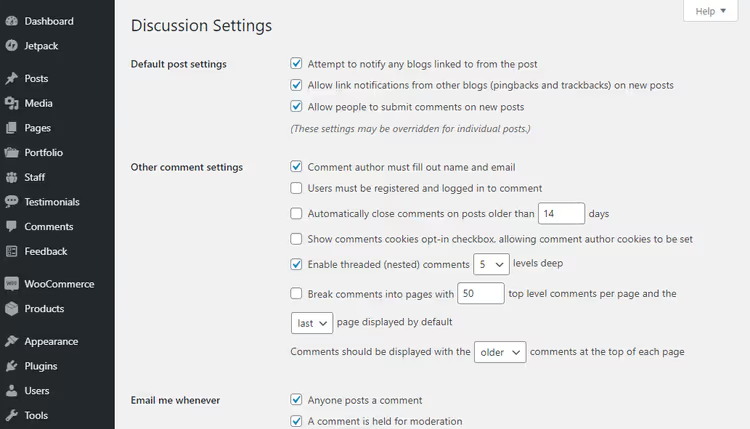
Go to Settings → Discussion in the admin sidebar:

Uncheck "Allow link notifications from other blogs (pingbacks and trackbacks) on new posts":

Scroll down the page and click Save Changes:

Done. All new posts will be published with pingbacks disabled. To re-enable them, check the box again and save.
WordPress lets you manage pingbacks at the individual post level. In the editor find the "Discussion" panel, check "Allow pingbacks & trackbacks on this page," and update the post:
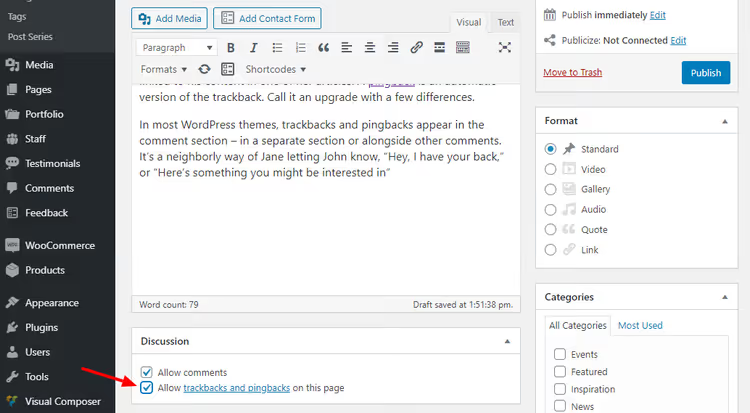
If the "Discussion" panel isn't visible, open Screen Options at the top of the page and enable the corresponding checkbox. The same applies to the "Send trackbacks" field in the classic editor:

Stage 2: disable for existing posts
The global setting only affects future publications. Old posts will continue accepting pingbacks until you disable them manually.
Go to Posts → All Posts:
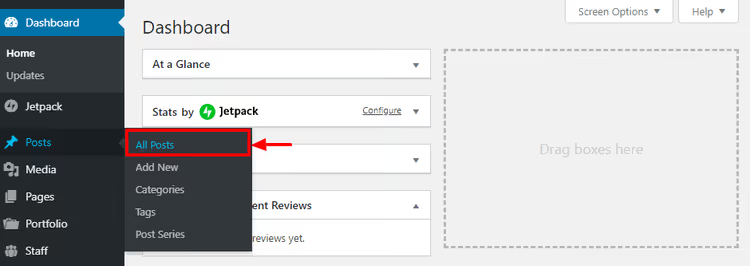
Open Screen Options, enter 999 in the "Number of items per page" field, and click Apply:

The page will reload, now showing up to 999 posts on one screen. Check the Title checkbox to select all:

In the Bulk Actions dropdown select Edit and click Apply:

In the bulk edit panel that appears, find the Pings section, select Do not allow, and click Update:

If you have more than 999 posts, repeat for additional pages. Old posts will stop accepting pingbacks, but previously approved ones remain in the comments. You need to delete those manually through the moderation screen.
If you decide to keep them: 5 security rules
In niche communities pingbacks still work: authors genuinely link to colleagues, and the cross-blog dialogue is alive. Here are five rules without which the mechanism turns into a spam farm.
1. An anti-spam plugin is the first thing you install. Without one, the spam folder grows exponentially. Any of the proven anti-spam plugins for WordPress will do: Akismet, CleanTalk, Antispam Bee; choose based on your budget.
2. No Self Pings is mandatory. The No Self Pings plugin blocks pingbacks to your own posts. Without it every internal link creates a notification, and within a month your admin panel is buried in auto-junk.
3. Manual moderation: every pingback goes through you. In Settings → Discussion check "Pingback must be manually approved." Yes, it takes time. But an approved spam pingback causes more damage than ten minutes of moderation per week.
4. Link to a specific post, not the homepage. A trackback is sent only when you link to a post or page. A link to the homepage / sends no signal. If you want to mention a colleague's blog, find a relevant article and link to that.
5. Back up your outreach via social media. A pingback may not arrive because of the other party's spam protection or hosting blocks. If you write a piece linking to a colleague, message them on Twitter or by email. It's also an opportunity to introduce yourself and earn a mention in return.
A separate question is what to do with XML-RPC. WordPress receives pingbacks through this protocol, which is also a vector for DDoS attacks and brute-force attempts. Some hosts recommend disabling XML-RPC entirely. That's drastic: along with pingbacks you lose the WordPress mobile apps, Jetpack, IFTTT, and Zapier. A better approach is not to turn off XML-RPC completely but to restrict it via a plugin like Disable XML-RPC Pingback, which blocks only pingback methods. If you use only the web admin panel, feel free to disable XML-RPC entirely; it reduces your attack surface.
What to use instead of pingbacks: 5 working alternatives
Pingbacks are off. Here are five methods for traffic and links without a single trackback notification.
Related posts. Plugins like YARPP or Related Posts Thumbnails show readers relevant content within your site, increasing page depth and time on site. A detailed breakdown is in our roundup of related posts plugins (article coming soon).
Guest posts. You write an article for another blog and get a backlink plus access to their audience. You control the context, anchor text, and landing page, something a pingback doesn't offer. Three guest posts per year on topical blogs with real traffic bring more targeted visitors than a hundred random pingback referrals.
Forums and communities. A bbPress forum on WordPress or participation on Stack Overflow delivers direct traffic from people interested in your topic. Visitors arrive not because of an automated notification but because they saw your helpful answer. Pick one or two platforms in your niche, answer questions regularly, and share your article link only when it genuinely solves a problem.
Social media. Announce every post on Telegram, Twitter, and relevant groups. Reach doesn't depend on someone else's pingback settings, and social networks' spam filters won't confuse your content with casino ads. Plus the feedback is instant: reposts, comments, impressions are all visible in real time.
Email newsletter. Build a subscriber list and announce each new post via email. This traffic doesn't depend on search engines or other sites; you know exactly how many people received the email and how many opened it. To get started a free plugin like MailPoet or Newsletter will do; they work directly from the WordPress admin panel.
An 8-minute breakdown from WPCrafter: where the settings live, what trackback spam looks like in the admin panel, and why the author recommends disabling both mechanisms.
⁉️🤔 Frequently asked questions
Do pingbacks affect SEO?
By themselves, no. But search engines do see links inside approved pingbacks. If you approve a spam pingback, your site now links to an external resource, and search engines factor that into your link profile. A dozen links to shady domains can hurt rankings. If you keep pingbacks enabled, moderate rigorously.
Can I disable pingbacks and keep comments?
Yes. These are independent settings. In Settings → Discussion uncheck only "Allow link notifications from other blogs," and leave the "Allow comments" block untouched. Comments will continue working as usual.
Why don't I see the "Send trackbacks" field in the editor?
Gutenberg doesn't have this field; it exists only in the classic editor. To bring back the classic editor for specific tasks, install the Classic Editor plugin. But manual trackbacks are rarely needed: WordPress automatically sends a pingback for any link to a WP site if the feature is enabled.
What are self-pings and why are they harmful?
When you link to another of your own posts within an article, WordPress creates a pingback notification to itself. It shows up in comments as "pingback from your own site." There's no benefit: readers see a strange link, and the admin panel gets cluttered. The same No Self Pings plugin fixes it in a minute.
Are XML-RPC and pingbacks the same thing?
No. XML-RPC is a protocol for remote interaction with WordPress, used by mobile apps, Jetpack, and pingback transmission. If you disable XML-RPC entirely, pingbacks stop working as well. But you can leave XML-RPC enabled and disable only pingbacks via Settings → Discussion; that's safer than cutting off the entire protocol.
Do I need to delete old pingbacks after disabling?
Yes. Disabling the feature through settings and bulk editing stops new pingbacks from arriving. Existing ones remain in the comments. Go through the comments on old posts and delete spam pingbacks manually. It's a one-time task that won't take much time, but it will clean your site of link junk.
What to set up on your site: a 2-minute decision
For most sites the answer is clear: disable them. The spam burden exceeds the benefits, and time spent on moderation is better invested in guest posts, social media, and related posts; they bring traffic without SEO risks.
Keep pingbacks only if you run a blog inside a living community where authors actually link to each other. Even then, install anti-spam, enable manual moderation, and disable self-pings, three actions from the section above.
Action plan for a new site: set up anti-spam (Akismet is free and preinstalled), uncheck the pingbacks box in Settings → Discussion, and install No Self Pings. It all takes less than five minutes, and the time saved on spam moderation adds up to hours each month. If you later decide you need pingbacks, re-enabling them is just as easy: one checkbox in the settings.
The main takeaway: pingbacks and trackbacks are not a WordPress bug and not a mandatory blog feature. They are an old technology with a noble intent that, in today's reality, creates more problems than it solves. Turn them off and focus on what delivers results: great content and promotion through the channels where your audience lives.
Have experience living with pingbacks, good or bad? Share in the comments how relevant they are in your niche.

A professional team of writers and editors specializing in creating quality content.