













🚫 How to stop WordPress comment spam: all 18 solutions
Comment spam arrives quietly. Three notifications in the morning, thirty by evening. After a week, the admin panel drowns in garbage while bots stamp out requests around the clock.
Search engines see every message. Dozens of outbound links to shady domains drag your site's reputation down, and real readers find not discussion but a dump of ads and phishing URLs. Trust falls faster than you can clear the moderation queue.
Eliminating spam completely is impossible: behind it stands a shadow industry with bots, proxy networks, and direct financial motivation. But you can build layered defenses that cut off nearly all garbage before it lands, without touching legitimate comments. In this guide, all 18 working methods: from a couple of clicks in standard WordPress settings to plugin combinations and external services.
💡 Quick overview:
- Close basic holes in 5 minutes: disable anonymous comments, enable pre-moderation, limit links, and remove the URL field from the form.
- Connect an antispam plugin with honeypot or cloud checking: Antispam Bee and Akismet catch bots before comments reach the database.
- Add a captcha or web application firewall (Cloudflare / Sucuri) for protection against mass automated attacks at the HTTP request level.
- For maximum isolation, replace the standard comment form with an external system (Disqus, Facebook Comments) that handles filtering itself.
Why spammers attack comments

Comment spam is not vandalism but business. Behind every junk message lies simple math: a bot publishes hundreds of thousands of comments with links, and even a tiny fraction of clicks brings traffic and link mass that boosts search rankings. Scale is what makes the model profitable.
The second goal is phishing: URLs lead to fake login pages or infected sites. A user who clicks risks their credentials, and Google may flag the resource as malicious.
The third vector is dirty competition. A massive attack on a competitor's site bloats the database, loads the server, and floods the notification channel. Recovery takes hours that business owners usually lack.
Built-in WordPress protection methods
The first ten solutions require no plugins; everything is configured through the standard admin panel. Where needed, we will add a couple lines of code to functions.php.
1. Disable comments completely

The most radical and reliable method. If the site is a business card, landing page, or portfolio, comments are unnecessary. Why keep open a door that real visitors never knock on while bots pound around the clock?
Method one: "Settings → Discussion," uncheck "Allow people to submit comments on new posts." Method two: the plugin Disable Comments globally disables comments on all post types.
Method three: code. In page.php, replace <?php comments_template(); ?> with a commented-out version: WordPress stops calling the template. The same applies to posts in single.php. Existing comments remain in the database; only the form disappears.
2. Disable anonymous comments
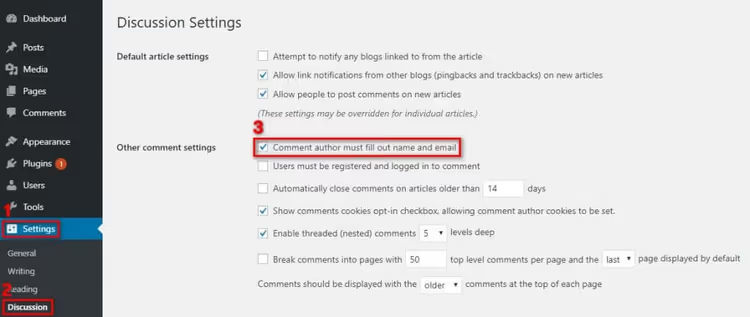
By default, WordPress allows comments without a name or email. For a spam bot, this is a gift: no need to simulate real data.
Go to "Settings → Discussion" and enable "Comment author must fill out name and email." Bots lacking these fields are cut off automatically. This setting also disciplines real commenters: anonymous replies are rarely substantive.
3. Enable manual moderation

The checkbox "Comment must be manually approved" means no message appears on the site without your knowledge. Yes, this creates manual work, but for small sites with a dozen genuine comments per day, it is perfectly acceptable.
Enhancement: the "Comment Moderation" field in the same section. Enter trigger words there, and comments containing them are automatically marked as pending review. A good starter set: http, www, buy, discount, free, click here, viagra, casino.
4. Automatically close comments on old posts
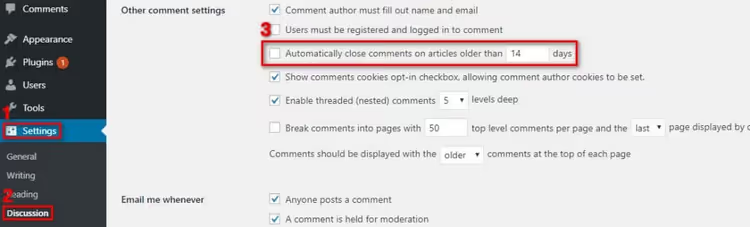
Spam bots also attack old posts. A three-year-old post in the archive is just as much a target for them, and the owner learns about the problem late.
The option "Automatically close comments on posts older than X days" solves this. The default value is 14 days; you can set 30, 60, or any period. For news sites, this is mandatory: content moves to the archive, and comments close.
5. Keyword blacklist

WordPress lets you set a list of stop words: any comment containing one goes to trash automatically, bypassing moderation. The field is in "Settings → Discussion"; scroll down to "Disallowed Comment Keys."
Rule: one word or phrase per line. Do not overdo it: if you add wordpress, legitimate comments will also be caught. Aim at spam markers: casino, pharmaceutical terms, domain zones combined with specific words.
6. Limit the number of links in a comment

A spam comment almost always contains a link; that is its reason for existing. WordPress lets you set a threshold after which the comment goes to moderation.
The default is 2. Setting it to 1 means any comment with a link requires manual approval. A value of 0 automatically sends all comments with hyperlinks to spam. For most sites, 1 is optimal: real readers rarely insert more than one link, while bots almost always do.
7. Remove the "Website" field from the comment form

The URL field in the comment form is a magnet for spammers. They want precisely the ability to leave a link to their site, while the "opinion" is auto-generated: "Great article! I also wrote about this at myspamdomain dot ru."
Remove the field by adding code to functions.php:
1 function wpb_disable_comment_url($fields) { 2 unset($fields['url']); 3 return $fields; 4 } 5 add_filter('comment_form_default_fields', 'wpb_disable_comment_url');
After this, the form contains only name, email, and text. Spammers lose interest, and real readers do not even notice the loss; they rarely need the "Website" field.
8. Disable comments on attachment pages

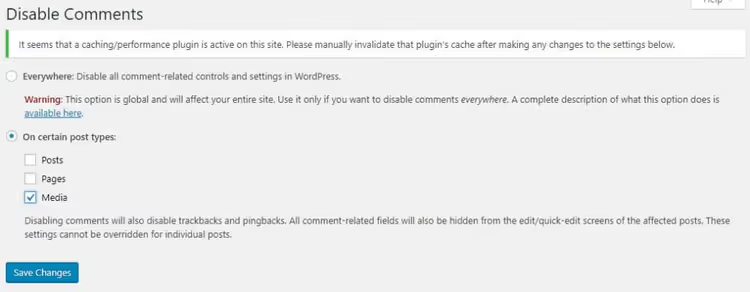
WordPress automatically creates a separate page for every uploaded media file: images, PDFs, videos. By default, comments are open on these pages too. For a site with a hundred images, that is a hundred additional entry points for spam bots that the owner usually does not suspect.
The plugin Disable Comments on WordPress.org handles this precisely: after activation, go to its settings and check the content type "Media." Comments on attachment pages will be disabled while comments on posts and pages remain.
9. Disallow HTML in comments
The code below, added to functions.php, disallows any HTML markup in the comment body. Links, images, bold, and italics will all display as plain text, and tags are escaped:
1 function wpb_comment_post($incoming_comment) { 2 $incoming_comment['comment_content'] = htmlspecialchars($incoming_comment['comment_content']); 3 $incoming_comment['comment_content'] = str_replace("'", ''', $incoming_comment['comment_content']); 4 return $incoming_comment; 5 } 6 function wpb_comment_display($comment_to_display) { 7 $comment_to_display = str_replace(''', "'", $comment_to_display); 8 return $comment_to_display; 9 } 10 add_filter('preprocess_comment', 'wpb_comment_post', '', 1); 11 add_filter('comment_text', 'wpb_comment_display', '', 1); 12 add_filter('comment_text_rss', 'wpb_comment_display', '', 1); 13 add_filter('comment_excerpt', 'wpb_comment_display', '', 1); 14 remove_filter('comment_text', 'make_clickable', 9);
This method works well for sites where comments do not need markup. If your audience posts code snippets, leave HTML enabled and rely on other layers of protection.
10. Disable trackbacks and pingbacks

Trackbacks are an outdated notification mechanism between blogs. Today, they are primarily a spam channel: most trackback requests come from bots that never read the post.
Disable them in "Settings → Discussion": uncheck "Allow link notifications from other blogs (pingbacks and trackbacks)." Old trackbacks remain; new ones stop appearing.
Plugins and external services
Built-in methods suffice for a small site. But if comments are numerous and manual moderation cannot keep up, it is time to connect specialized tools.
11. Akismet: the WordPress antispam standard
Akismet ships with every WordPress distribution. Its principle is cloud-based checking: each comment is compared against a global database of spam patterns fed by millions of sites. Spam goes to a queue rather than being published.
Akismet learns from user actions: when a site owner marks a comment as spam or restores a false positive, the system accounts for that signal. The service is free for personal blogs; commercial sites have paid subscriptions with extended statistics.
Pros: no configuration required after obtaining an API key. Cons: without a premium account, it shows ads in the admin panel and lags behind commercial tiers in accuracy.
12. Sucuri Security: web application firewall with bot protection
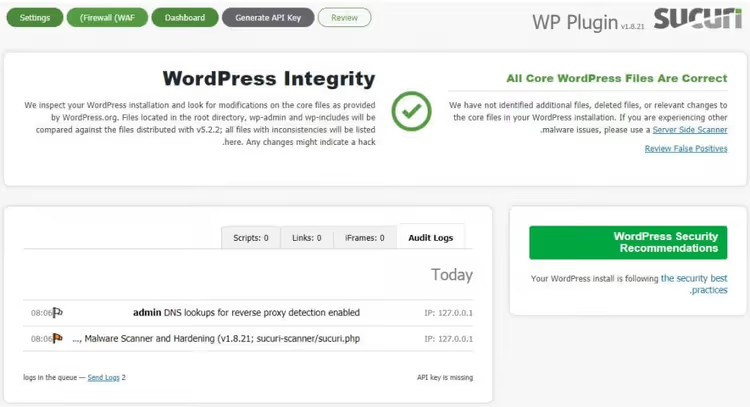
Sucuri solves the problem at the HTTP level: the web application firewall (WAF) analyzes incoming traffic and blocks requests from known spam IPs, botnets, and malicious sources before they reach WordPress.
The free version includes security auditing and file integrity monitoring. The paid version adds WAF with DDoS and brute-force protection. For a site with hundreds of spam comments per day, Sucuri radically reduces load: bot requests are deflected at the firewall level before reaching PHP and the database.
13. Antispam Bee: free alternative with honeypot
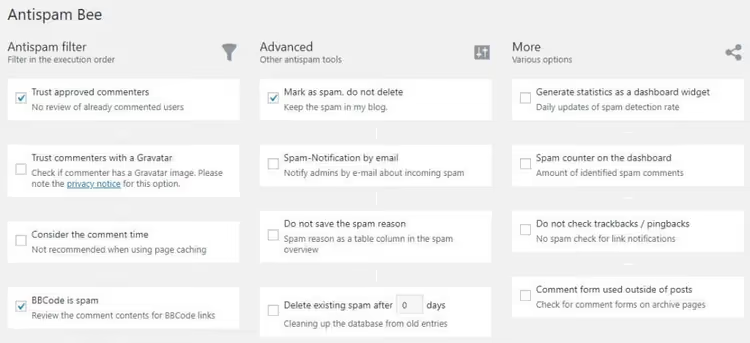
Antispam Bee is a completely free plugin with no ads, premium tiers, or data sent to third-party servers. Instead of cloud checking, it uses local techniques: honeypot (a hidden field that bots fill automatically), form-fill timing, language checking, and regular expressions.
Its arsenal includes trusted commenters (by email or Gravatar), country checking by IP, and auto-deletion of spam after N days. The plugin is fully GDPR-compliant, stores no personal data, and sends none externally. Ideal for sites where privacy matters and there is no budget for commercial solutions.
14. Google reCAPTCHA: "human or bot" verification

Google reCAPTCHA determines who is filling out the form: a human or a script. The modern v3 version works without user interaction; real visitors do not notice the check, while bots hit an invisible barrier.
Connection requires a Site Key and Secret Key from the Google reCAPTCHA Admin Console. Popular form plugins (Contact Form 7, WPForms, Gravity Forms) support reCAPTCHA out of the box; just insert the keys. For a custom form, use the official API: a few lines of JavaScript and server-side token verification.
Read more about setup in our article: enhancing WordPress security with Invisible reCAPTCHA.
15. Disqus: external commenting system
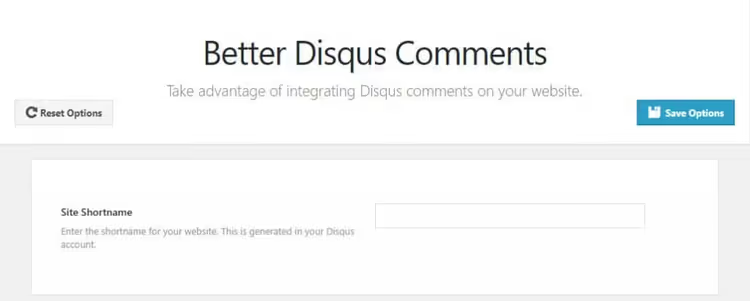
Disqus replaces the standard WordPress form with an external system. Spam filtering falls to Disqus: algorithms sift out garbage based on a global database from millions of sites.
Pros: unified reader profile, reactions and voting, convenient moderation, social login. Cons: comments are stored on Disqus servers, the free tier has ads, and page load slows slightly due to the external iframe.
16. Facebook Comments
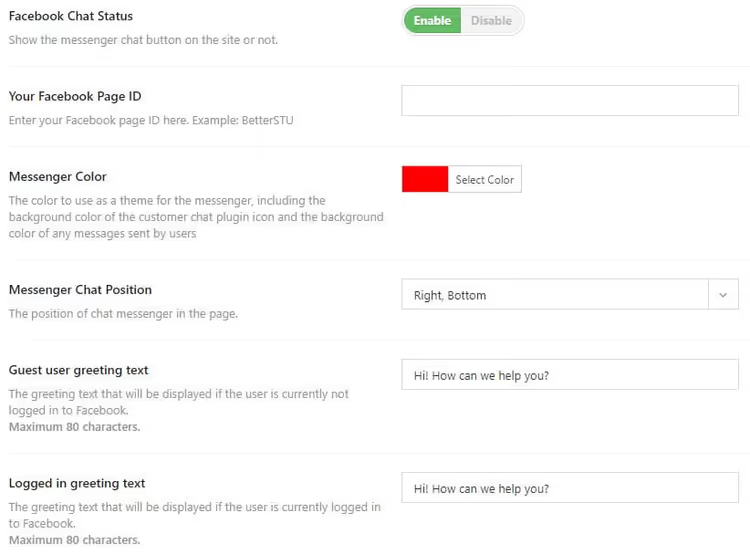
If your audience is active on Facebook, the Facebook Comments Plugin offers a double win: spam disappears (Facebook filters it), and engagement grows because comments appear in the user's feed and attract friends.
Downside: readers without a Facebook account cannot comment. Upside: as with Disqus, comments are stored on the social network's servers, not in your database.
17. Cloudflare: protection at the DNS level
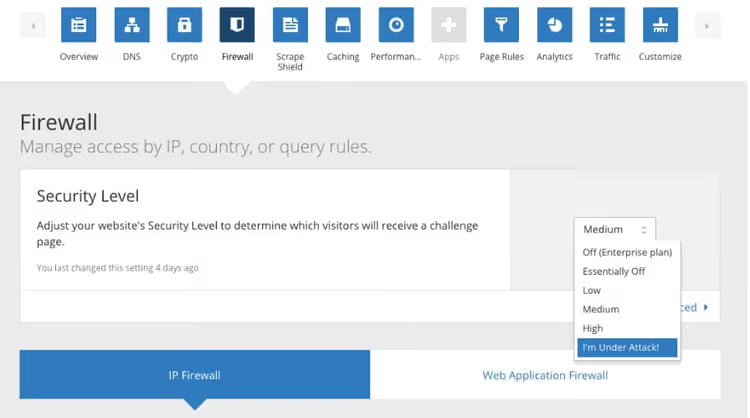
Cloudflare is a CDN and firewall between visitors and your server. At the DNS level, it filters out requests from known botnets and IPs with bad reputations.
Five security levels exist, from "Essentially Off" to "I'm Under Attack." For spam protection, Low or Medium is enough. The basic tier is free.
Important: Cloudflare does not analyze comment content. It is a perimeter, not a replacement for an antispam plugin. The best result comes from a combination: Cloudflare on the outside plus Antispam Bee inside WordPress.
18. Other proven plugins
If the main options do not fit, here are a few more tools:
WP Armour: honeypot protection in its pure form, adding a hidden field and checking form-fill time. No captchas, no API keys. Free, with over 100,000 active installations.
CleanTalk: a cloud service that checks comments against a global database of spam IPs and emails. The free tier covers up to 1,000 checks per month; the paid tier is inexpensive and billed annually per site.
hCaptcha: an independent alternative to Google reCAPTCHA. Less tracking, GDPR-compliant, free up to 1 million requests per month.
Comparison table of antispam solutions
Plugin / service | Protection principle | Price | Speed impact | Privacy |
|---|---|---|---|---|
Built-in methods | WP-level filters | Free | None | Data not transmitted |
Akismet | Cloud checking | Free / from $10/mo | Minimal | Data on Automattic servers |
Antispam Bee | Local honeypot + patterns | Free | None | Data not transmitted |
Sucuri | HTTP-level WAF | Free / from $199/yr | Minimal | Data on Sucuri servers |
reCAPTCHA | Behavioral analysis | Free up to 1M requests | Low | Data on Google servers |
Disqus | External platform | Free / from $12/mo | Moderate | Comments on Disqus servers |
Facebook Comments | External platform | Free | Moderate | Comments on Facebook servers |
Cloudflare | DNS-level WAF | Free / from $20/mo | None (speeds up) | Data passes through Cloudflare |
⁉️🤔 Frequently asked questions
Can you completely eliminate spam comments?
No, 100% protection does not exist. Spammers constantly adapt algorithms to bypass filters, and even the best plugins let a small percentage of junk through. But layered protection (built-in settings + antispam plugin + WAF) reduces spam to "one or two messages per month," which is easy to clean up manually.
Which method should a new blog with zero budget choose?
A combination of three free steps: enable manual moderation (method 3), limit links to one (method 6), and install Antispam Bee (method 13). This takes 10 minutes and costs nothing. For news sites, add auto-closing of old posts (method 4).
Does an antispam plugin slow down site loading?
Local plugins like Antispam Bee do not, practically speaking: they add load only when the comment form is submitted, not affecting main pages. Cloud services (Akismet, CleanTalk) perform checks asynchronously on their servers and do not affect site load speed.
What should you do if spam keeps getting through all filters?
Check whether bots are attacking old attachment pages (method 8); this is a common gap. Make sure trackbacks are disabled (method 10). If the problem persists, add Cloudflare (method 17): it blocks requests from known botnets before they reach WordPress.
Is reCAPTCHA necessary if Antispam Bee is already running?
Not necessarily. Antispam Bee blocks most bots through honeypot and timing even without a captcha. Add a captcha only if spam continues after installing Antispam Bee; that means the attack is coming not from simple bots but from more advanced scripts.
Disqus or Facebook Comments: which is better for a blog?
Disqus if your audience is technical and not tied to a single social network. Facebook Comments if traffic comes primarily from Facebook and you want to expand reach through users' feeds. A universal compromise is to keep the standard WordPress form with an antispam plugin: it does not exclude any readers.
What to install on your site in 2026
Antispam protection follows the principle of reasonable sufficiency: each additional layer adds complexity while returns diminish. For most sites, a combination of 3-4 methods is enough.
Basic WordPress settings (methods 2, 3, 6, and 7) block simple bots in 5 minutes and are free. One local antispam plugin (Antispam Bee) cuts off another layer through honeypot and timing, also free. With high traffic, add Cloudflare at the perimeter; it offloads the server.
Start with methods 2, 3, and 6 right now. Three checkboxes in the admin panel, instant results. Add the rest as your site grows.

A professional team of writers and editors specializing in creating quality content.