














🔒 How to hide the WordPress admin bar for all users except administrators
You build a site for a client, hand over access, and the next day you get a call: "Why is there some black bar at the top of my site? I don't understand, it looks weird." Sound familiar?
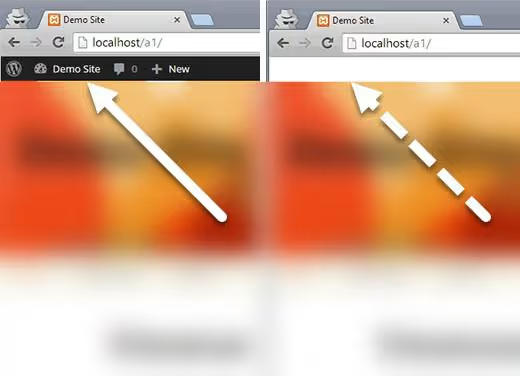
By default, WordPress shows the admin bar (a dark panel at the very top of the screen) to all logged-in users. For an administrator, this is convenient: quick access to the dashboard, page editing, comment management. But for a regular user, subscriber, or client, this bar looks like visual clutter. It covers the site header, causes confusion, and creates a sense of "unfinished work."
Let's explore three working methods to remove the WordPress admin bar WordPress for everyone except administrators. From a quick profile setting to clean code in functions.php and a plugin. Plus a bonus: how to disable the toolbar entirely for everyone, including admins.
💡 Quick overview:
- Method 1: disable the admin bar manually in the user profile (for 2-3 users)
- Method 2: add PHP code to
functions.phpusing theshow_admin_barhook (recommended method) - Method 3: install the Hide Admin Bar Based on User Roles plugin (no code required)
- Bonus: hide the admin bar for all users, including administrators
What is the admin bar and why disable it
The admin bar (also known as the Toolbar) is a dark horizontal bar that appears at the very top of the site after logging in. Don't confuse it with the admin panel (/wp-admin): they are different things. The admin bar is visible both on the frontend and in the dashboard.
For administrators, it contains quick links: create a post, access the customizer, view comments. For editors, navigation to content. But for subscribers or customers in WooCommerce, there are only a few items like "Edit profile," while the bar takes up 32 pixels in height and covers the header.
When you hand off a site to a client or launch a membership section, the admin bar for non-privileged users becomes a problem:
- the client thinks the site is broken;
- the user accidentally clicks "Admin" and ends up in
/wp-admin(even with limited permissions, it's still confusing); - the header design breaks, especially on mobile.
Disabling the admin bar for non-administrators solves all of this in one move.
Method 1: disable manually in the user profile
The simplest approach is to uncheck one box in a specific person's settings. Suitable when you have just a few users: literally 2-3 accounts.
Go to Users → All Users, hover over the desired user, and click "Edit." Find the option "Show Toolbar when viewing site" and uncheck it. Scroll down and click "Update User."
Done. The admin bar has disappeared from the frontend for this person. The downside is obvious: for 50 users, you'll spend an hour on monotonous work.
Method 2: code in functions.php (recommended method)
A universal solution for any number of users. One PHP snippet, and the admin bar is hidden for everyone who doesn't have administrator rights.
WordPress provides the show_admin_bar filter. This is exactly what the official developer documentation recommends: the filter correctly handles both user display settings and global rules. The old approach with a direct call to show_admin_bar(false) still works, but the filter is cleaner and more flexible.
The code is added to the functions.php file of the active theme. The safest approach is through the WPCode plugin (free): it eliminates the risk of typos and doesn't depend on theme changes.
1 /** 2 * Hide the WordPress admin bar for everyone, 3 * except administrators. 4 */ 5 add_filter( 'show_admin_bar', 'sdstudio_restrict_admin_bar' ); 6 7 function sdstudio_restrict_admin_bar( $show ) { 8 return current_user_can( 'administrator' ) ? $show : false; 9 }
How it works. The show_admin_bar filter is called every time a page renders. The sdstudio_restrict_admin_bar function checks: if the current user has the administrator capability, it returns the original $show value (as configured in the admin's profile). For everyone else, it forcibly returns false, and the admin bar is not displayed.
Where to insert the code. Here are three options:
- WPCode (recommended): plugin → Code Snippets → Add Snippet → paste code → Auto Insert → Save. Works even after changing themes.
- Theme functions.php: Appearance → Theme File Editor → functions.php. Risk: theme updates will overwrite changes. Use only in a child theme.
- Custom plugin: create
/wp-content/plugins/sdstudio-disable-admin-bar/sdstudio-disable-admin-bar.phpwith a plugin header and the same code. Reliable and theme-independent.
After insertion, open the site in an incognito window under a test account with the "Subscriber" role. The admin bar should disappear.
Method 3: plugin for those who don't want to touch code
The free plugin Hide Admin Bar Based on User Roles solves the task with a couple of clicks. It installs the standard way: Plugins → Add New → search by name → Install → Activate.
After activation, go to Settings → Hide Admin Bar Settings. You'll see a list of all roles on the site: administrator, editor, author, subscriber, and any custom ones. Check the boxes for the roles where you want to hide the admin bar, and save.
The plugin's advantage is clarity. You see all roles at once and manage admin bar visibility without a single line of code. The downside is another plugin in the system. If your site is already loaded with extensions, method 2 is better.
Bonus: how to disable the admin bar for everyone, including administrators
Sometimes the admin bar bothers even you. For example, you're styling the site header and the black bar ruins the view. Or you're taking screenshots for your portfolio.
The shortest method is one line:
1 add_filter( 'show_admin_bar', '__return_false' );
This filter forcibly returns false for everyone without exception. Administrator, editor, subscriber: the admin bar disappears for all of them on the frontend. In the dashboard (/wp-admin), the toolbar remains: WordPress doesn't disable it in the admin area since version 3.3.
If you need to remove the admin bar in the dashboard too, add CSS:
1 #wpadminbar { display: none !important; } 2 html { margin-top: 0 !important; }
The second rule removes the 32-pixel margin that WordPress reserves for the admin bar. Be careful: without the toolbar in the dashboard, you lose quick access to post creation and settings. Use only temporarily, for styling or screenshots.
⁉️🤔 Frequently asked questions
What's the difference between the admin bar and the WordPress admin panel?
The admin bar (Toolbar) is the dark bar at the very top of the screen, visible on the frontend and in the dashboard after logging in. The admin panel (
/wp-admin) is the full WordPress backend: dashboard, post list, settings. Disabling the admin bar doesn't block access to/wp-admin; users can still go there if they know the URL.
The code didn't work, the admin bar is still visible. What's wrong?
Three common causes. First: you're checking under an administrator account, and the method from method 2 intentionally leaves the admin bar for admins; test with a subscriber account. Second: cache. Clear the cache plugin (WP Rocket, LiteSpeed) and open the site in incognito mode. Third: code inserted in the wrong place. Child theme
functions.php, yes.wp-config.php, no; filters don't work there.
Can I hide the admin bar for a specific role, for example only for subscribers?
Yes. Replace
current_user_can( 'administrator' )with a check for the needed role. For example, to hide for subscribers:return current_user_can( 'subscriber' ) ? false : $show;. Or use the plugin from method 3, where this is done with checkboxes.
What happens to the admin bar after a WordPress update?
Nothing. The
show_admin_barhook has existed since version 3.1 and isn't going anywhere. It's part of the core, not a theme or plugin. The code from method 2 will work after any WordPress update.
Is it safe to disable the admin bar for clients?
Absolutely. The admin bar is an interface element, not a security mechanism. Access permissions are determined by the user role, and disabling the toolbar doesn't affect them. The client won't lose access to what they're actually allowed to do.
Hide the admin bar or leave it: what to choose
For administrators and editors, the admin bar is a working tool. Quick access to post creation, comment moderation, and the customizer saves dozens of clicks per day. For everyone else, it's visual clutter.
If your site has more than three users with roles below editor, use the code from method 2. One minute, and the issue is resolved forever. Works with any number of accounts, doesn't depend on the theme, and survives WordPress updates. For a quick fix for yourself, use the bonus snippet with __return_false.
And if you're just starting to learn WordPress and code in functions.php still seems intimidating, the plugin from method 3 will solve the task without the risk of breaking something. Select the roles, check the boxes, save. In a month, once you're comfortable, replace the plugin with code: just one line.

A professional team of writers and editors specializing in creating quality content.