













 AIIllustrative image: AI-generated
🔧 How to disable automatic updates in WordPress: core, plugins and themes
You wake up in the morning, open the admin panel, and see a white screen. The site is down, the host is clueless, and the cause is trivial: a plugin auto-update overnight that clashed with your PHP version or active theme.
WordPress developers strongly recommend keeping auto-updates enabled for security reasons. And for a typical site, that is the right approach. But when you manage a production project with custom modifications, a bundle of twenty plugins, and strict uptime requirements, blind autopilot becomes a risk. One incompatible update, and sales stop, forms fail to submit, customers leave.
WordPress gives you full control over automatic updates. You can disable everything at once, or selectively: only the core, only plugins, or only themes. Below are three working methods and an honest breakdown of when disabling is justified and when it is not.
💡 Quick overview:
- Add the constant
WP_AUTO_UPDATE_COREtowp-config.phpwith a value offalseto disable WordPress core auto-updates - Block all auto-updates at once using the constant
AUTOMATIC_UPDATER_DISABLEDin the samewp-config.phpfile - Disable plugin and theme auto-updates via the
auto_update_pluginandauto_update_themefilters infunctions.php - Install the free plugin Easy Updates Manager for section-by-section configuration right from the admin panel, no code required
When you should disable auto-updates
Auto-updates appeared in WordPress 3.7 and have since become standard. According to official WordPress statistics, more than 60% of installations use minor core auto-updates. This is good for security, but there are scenarios where automation causes harm.
Disabling auto-updates makes sense if:
- You have a custom theme or plugins with manual code edits, and an update will overwrite your changes,
- The site runs on a specific PHP version, and a fresh plugin requires a newer one and crashes,
- You use staging and want to test updates before rolling them out to production,
- A critical plugin has a history of "breaking" releases, and you prefer to update it manually after verification.
If your site is typical, the theme is standard, the plugins are popular, and backups are configured, it is safer to leave auto-updates on. A site hacked through a vulnerability loses money faster than a site with a delayed update.
Method 1: Constants in wp-config.php
The wp-config.php file is the main WordPress configuration file. Constants defined here have the highest priority and override any settings from the admin panel.
Before editing wp-config.php, make a backup. An error in this file, and the site turns into a white screen. Recovery requires access to site files via FTP. If backup is not yet configured, here is a guide to restoring WordPress from backup.
Disable core auto-updates only
Connect to your site via FTP or the hosting file manager, find wp-config.php in the root folder, and add the following line before the comment /* That's all, stop editing! Happy publishing. */:
1 define('WP_AUTO_UPDATE_CORE', false);

This constant blocks all core auto-updates: both minor (from 6.5.2 to 6.5.3) and major (from 6.5 to 6.6). Security updates will not go through either, so if you choose this path, make it a habit to check the admin panel once a month for new versions.
Disable all auto-updates at once
There is a stricter constant that shuts down the entire automatic update mechanism: core, plugins, themes, translations. Add to the same wp-config.php:
1 define('AUTOMATIC_UPDATER_DISABLED', true);
Note: true here means "auto-updates are disabled." This is a common source of confusion, as it seems that true should enable rather than disable. But the constant logic is exactly this: "automatic updater disabled = true."
Keep only security updates
A compromise option: the core updates only for critical security fixes. Minor and major releases require manual action:
1 define('WP_AUTO_UPDATE_CORE', 'minor');
With this value, WordPress will patch vulnerabilities automatically but will not install a new version with untested changes. For most sites, this is the optimal balance between security and control.
How to restore auto-updates
To enable everything again, replace false with true (or minor with true):
1 define('WP_AUTO_UPDATE_CORE', true);
Or simply delete the added lines. Without the constant, WordPress uses default behavior: minor core updates automatically, major updates at the administrator's discretion.
Method 2: Filters in functions.php
Constants in wp-config.php work globally: all or nothing. If you need granular control over plugins and themes separately, use WordPress filters in the functions.php file of your active theme.
Warning: changes in functions.php apply only while the theme is active. Switch themes, and the filters disappear. If you need a permanent fix, move the code to a Must-Use plugin or your own mini-plugin.
Disable auto-updates for all plugins
1 add_filter('auto_update_plugin', '__return_false');
Disable auto-updates for all themes
1 add_filter('auto_update_theme', '__return_false');
Disable core auto-updates via filter
Starting with WordPress 5.5, a filter also works for the core:
1 add_filter('auto_update_core', '__return_false');
This duplicates the behavior of the WP_AUTO_UPDATE_CORE constant but at the filter level. This is convenient if you are already editing functions.php and want to keep all settings in one place.
Granular control: this plugin updates, that one does not
The auto_update_plugin and auto_update_theme filters accept two parameters: the $update flag and the $item object with data about the specific plugin or theme. This allows you to build a "whitelist": only verified items auto-update, while the rest wait for manual confirmation.
A real example where auto-update is allowed only for two plugins while the rest are blocked:
1 add_filter('auto_update_plugin', function($update, $item) { 2 $allowed = ['wordfence/wordfence.php', 'updraftplus/updraftplus.php']; 3 return in_array($item->slug, $allowed); 4 }, 10, 2);
For themes, the logic is identical: change the hook to auto_update_theme and the slugs in the list to theme identifiers.
This approach works well when you have 20+ plugins but only 2-3 of them tend to break after updates. The rest update automatically without issues, while the problematic ones are updated manually after testing on staging.
Method 3: Easy Updates Manager plugin for code-free management
Do not want to touch code? There is a graphical tool. Easy Updates Manager is a free plugin with more than 700,000 active installations from the UpdraftPlus team. It replaces both constants and filters with a single interface right in the admin panel.
The plugin is regularly updated: version 9.0.21 was released in May 2026, closing an XSS vulnerability and fixing several bugs with scheduling. The codebase is active, and developers respond to security reports.
Installation and configuration
Install Easy Updates Manager the standard way: Plugins → Add New → enter "Easy Updates Manager" in the search → Install → Activate.

After activation, an Updates Options item appears in the admin sidebar. Open it, and you are on the General tab:

Available modes here:
- Disable all updates, complete block, equivalent to
AUTOMATIC_UPDATER_DISABLED, - Enable all updates, everything enabled, standard WordPress behavior,
- Default, WordPress decides on its own,
- Allow auto-updates, all sections auto-update,
- Disable auto-updates, auto-updates disabled everywhere,
- Custom, you decide for each section.
Section-by-section configuration for plugins and themes
The Plugins tab shows a list of all installed plugins with a toggle next to each one. Click it, and auto-update is blocked. The Themes tab does the same for themes.

The Themes tab works identically: a table with toggles next to each installed theme. You disable auto-updates for the parent theme if you made edits to it, while leaving the child theme as is.
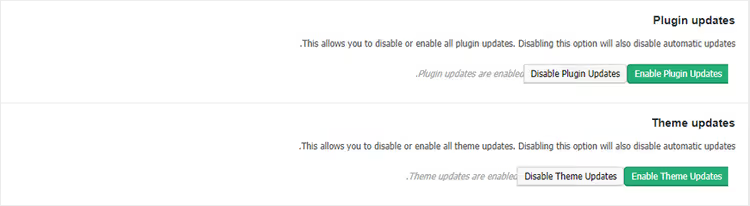
This is the most convenient method for sites with a mixed plugin set. A security plugin like Wordfence gets auto-updates enabled. A custom shipping calculation plugin written by a freelancer two years ago stays manual.
An additional benefit: Easy Updates Manager keeps a log of all updates. You can see what updated, when, and to which version. When investigating a sudden bug, the log often points to the culprit faster than randomly disabling plugins.
🔗 Easy Updates Manager on WordPress.org
What to do after disabling auto-updates
Disabled? The responsibility does not disappear. Now updates are on you. Three rules to keep your site from turning into a pumpkin in six months:
- Check the admin panel regularly. Go to "Updates" and see what has accumulated. WordPress releases minor security updates roughly once a month. Miss one major core release, and you are on a version your hosting provider no longer supports.
- Test updates on a copy. Create staging, an exact copy of the site on a subdomain, and run updates there. Did it crash? Debug calmly while production remains unaffected. Backup plugins like UpdraftPlus can clone a site in one click.
- Monitor changelogs. When a plugin updates, open the Changelog tab on its page in the WordPress.org repository. If you see "breaking change" or "dropped support for PHP 7.x," prepare for a manual update with compatibility testing.
And most importantly: do not disable auto-updates "just in case." If your site runs on a typical setup and you do not plan to maintain it manually, leave auto-updates enabled. A hacked site loses traffic, reputation, and search rankings. That is more expensive than a rare version conflict.
⁉️🤔 Frequently asked questions
Can I disable auto-updates for just one specific plugin?
Yes. Through Easy Updates Manager: open the Plugins tab and turn off the toggle next to the desired plugin. Through code: use the
auto_update_pluginfilter with a slug check, as shown in the "Granular control" section above. Other plugins update as usual.
Is it safe to completely disable WordPress auto-updates?
It is safe only if you maintain manual update discipline. According to WPScan vulnerability statistics, in 2025, 96% of WordPress site breaches came from plugin vulnerabilities, not the core. An unupdated plugin with a known hole is the main attack vector. Conclusion: if you disabled auto, check for updates at least once a month.
What is the difference between WP_AUTO_UPDATE_CORE and AUTOMATIC_UPDATER_DISABLED?
WP_AUTO_UPDATE_COREcontrols only WordPress core updates. Plugins and themes update independently of this constant.AUTOMATIC_UPDATER_DISABLEDshuts down the entire auto-update mechanism: core, plugins, themes, translation files. The first is for fine-tuning, the second is for complete shutdown.
What should I do if the site still updated after I disabled auto-updates?
Check whether your hosting provider overrides settings. Some managed hosts (Kinsta, WP Engine, SiteGround) force security auto-updates at the server level. Go to your hosting panel and look for a "WordPress Updates" or "Auto-updates" section. If provider settings conflict with yours, the provider wins.
How do I verify that auto-updates are actually disabled?
The most reliable method is to wait for a security update release (they come out roughly once a month). If the plugin or core has not updated 48 hours after the release, the protection is working. A quick method for plugins: go to Plugins → Installed and look at the "Auto-updates" column where the status is visible for each plugin.
Do I need to disable WP-Cron to block auto-updates?
No.
DISABLE_WP_CRONdisables WordPress cron tasks entirely, not just auto-updates. Without cron, scheduled post publishing, trash cleanup, email newsletters, and other background tasks will stop working. Do not disableWP-Cronto block updates; use the constants and filters described above.
To disable or not: the final breakdown
WordPress auto-updates are not an "enable or disable forever" decision. It is a spectrum: from full autopilot to strict manual control. Choose the level that fits your situation.
A typical site without custom code? Leave auto-updates enabled, as security outweighs the risk. A custom theme, a bundle of 30 plugins, and high uptime requirements? Disable selectively: the core and critical plugins can stay on auto, while the rest are handled manually with staging tests.
The rule is simple: the fewer auto-updates you allow, the stricter your personal discipline for checking must be. If you are not ready to visit the admin panel once a month, do not disable anything.
And if you need balance, start with WP_AUTO_UPDATE_CORE, 'minor' for the core and Easy Updates Manager for plugins. Security does not suffer, and control remains in your hands.

A professional team of writers and editors specializing in creating quality content.