













 AIIllustrative image: AI-generated
🔍 How to check a WordPress site for viruses and malicious code
You open your admin panel one morning and see a redirect to a phishing site. Or Google marks your entire search listing red: "This site may be hacked." Or your hosting provider sends an email about excessive load because someone's script is sending spam from your server.
Malicious code in WordPress rarely announces itself loudly. For months it quietly collects passwords, injects hidden links, and mines crypto on visitors' processors. According to WordPress security research, 96% of vulnerabilities in the WordPress ecosystem come from plugins and themes, and the average time between vulnerability discovery and active exploitation has dropped to 48 hours. Without regular scanning, you'll be the last to know about a problem, after search engines have banned your domain and your host has suspended your account.
The good news: any administrator can check a site for viruses and suspicious code without deep cybersecurity expertise. All you need is the right plugin and 15 minutes. Below are three main tools that handle this task, plus a step-by-step plan if an infection is already confirmed.
💡 Quick overview:
- Install Sucuri Scanner for quick file integrity checks and change monitoring; it compares the current state of core files and plugins against the official repository.
- Run Wordfence for deep scanning: backdoors, malicious URLs, known infection signatures, and a built-in application-level firewall.
- Use Anti-Malware Security (GOTMLS) for comprehensive scanning of all folders and files, including .htaccess and hidden directories, with manual verification of findings.
- If viruses are detected: change passwords → create a backup → run professional cleanup or follow the checklist in the final section.
Signs your WordPress site needs scanning
The best time for your first scan is right now. Most site owners postpone installing a scanner "for later" while malicious code does its work. Weekly scanning is basic hygiene, like backups or updates.
However, certain indicators require an immediate full scan:
- Google Search Console sends warnings about malicious content or phishing pages you didn't publish.
- A sudden spike in server load without traffic growth: someone else's script is mining cryptocurrency or sending spam.
- Unknown administrators in the Users section, especially with permissions you didn't grant.
- Spontaneous redirects to third-party sites, particularly for visitors coming from search engines.
- Suspicious files in the site root or
/wp-content/uploads/folder with non-standard extensions like.phpamong images. - Modified core files you didn't touch: WordPress itself will notify you about this when you attempt an update.
Even if none of these signs appear, weekly scanning catches threats at the infiltration stage, before they damage your reputation and search rankings.
1. Sucuri Security: integrity audit and change monitoring
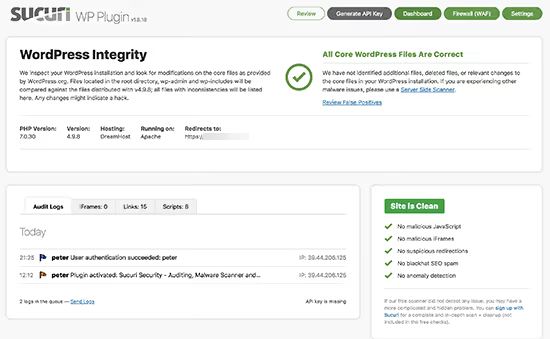
Sucuri is one of the most authoritative tools in the WordPress security ecosystem. The free plugin version covers three key tasks: file integrity monitoring (comparing hashes against the repository standard), suspicious code detection, and strict blocking of several attack vectors through security hardening.
The plugin scans core files, themes, and plugins for discrepancies with official versions. If a file has been modified, you see the specific line and can decide whether it's a legitimate edit or an injection. Sucuri also checks for hidden iframes, malicious links in content, and anomalous activity in access logs.
Pros:
- Free integrity scanning and change monitoring without limitations.
- Paid plans include a DNS firewall that blocks attacks before they reach your server; this is more effective than application-level firewalls.
- Paid plans include manual site cleanup by Sucuri specialists at no additional cost, which is critical for businesses.
Cons:
- Firewall and malware removal are only available in the paid version (starting at $199 per year).
- The free plugin doesn't automatically remove detected threats; you need to act manually.
Sucuri on WordPress.org | Sucuri official website
2. Wordfence: deep scanning and application-level firewall
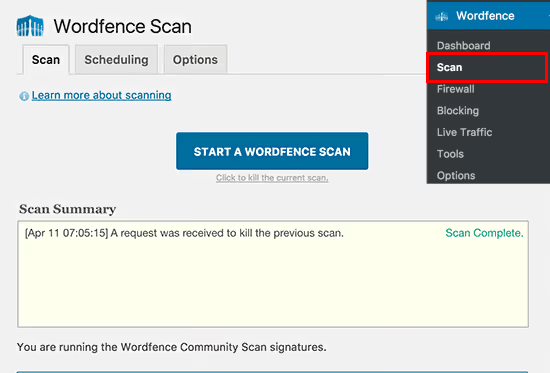
Wordfence is installed on more than 4 million sites and ranks among the top five most downloaded WordPress plugins of all time. Its main advantage is the combination of a deep scanner and endpoint firewall in one free plugin.
The Wordfence scanner checks core files, themes, and plugins against the official repository, searches for known malware signatures, backdoors (eval, base64_decode), and suspicious URLs in content and comments. After the scan completes, you receive a report with grouped findings: critical, warnings, and informational.
The firewall operates at the application level: it analyzes incoming requests before WordPress processes them, blocking brute-force attacks, vulnerability scanning, and exploitation attempts targeting known plugin flaws. The premium version adds real-time threat signatures (rules update instantly rather than with a 30-day delay).
Pros:
- Deep scanning and firewall are free; a rarity in the market.
- Automatic repair of modified core and plugin files: one-click replacement with the original from the repository.
- Detailed reports with recommendations for each item.
Cons:
- The free version receives firewall signatures with a 30-day delay; paid users see new rules instantly.
- An application-level firewall runs inside WordPress: if the server is compromised at the hosting level, Wordfence won't help.
Wordfence on WordPress.org | Wordfence website
3. Anti-Malware Security (GOTMLS): comprehensive file-by-file scanning
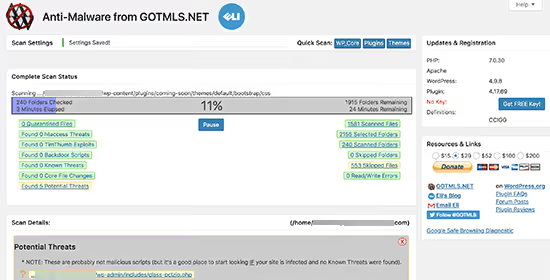
Anti-Malware Security by GOTMLS is a lesser-known but extremely thorough scanner. It doesn't limit itself to standard WordPress directories: the plugin checks all files and folders in your installation, including .htaccess, hidden directories, and server configuration files.
The algorithm searches for known infection patterns, malicious scripts, obfuscated code, hidden eval injections, and anomalies in file structure. The author actively updates the definition database: new signatures appear as fresh threats are discovered in the wild.
The main consideration is high sensitivity. The plugin often raises false positives, especially on custom themes and plugins with non-standard architecture. Each finding requires manual comparison with the original, which demands a certain level of technical skill and time.
Pros:
- Scans all server directories, not just WordPress.
- Actively updated malware definitions; the database is maintained and expanded weekly.
- Includes an application-level firewall option in the free version.
Cons:
- Many false positives: manual verification of findings is unavoidable.
- The interface is spartan; reports are less detailed than Wordfence or Sucuri.
- Requires the administrator to understand WordPress file structure.
Anti-Malware Security on WordPress.org
What to do if the scanner finds viruses: step-by-step cleanup plan
 AIIllustrative image: AI-generated
The scanner shows critical findings. Don't panic. Methodical action with a cool head will restore your site faster than randomly deleting files.
Step 1: Change all passwords. Immediately update WordPress administrator accounts, hosting panel access, FTP/SFTP credentials, and the database password. If the attacker gained access through a compromised password, this step terminates their session.
Step 2: Create a full backup. Copy files via FTP and the database via phpMyAdmin, even if infected. If something goes wrong during cleanup, you'll have a restore point. Create the backup before any other actions.
Step 3: Isolate the site. Enable maintenance mode via a plugin or .maintenance. If your hosting allows it, temporarily restrict site access by IP, allowing only yours. This stops further spread of the infection to visitors.
Step 4: Run professional cleanup. This is not the place to cut costs. Services like Sucuri (within paid plans) and Wordfence Care include manual cleanup by specialists: they find and remove all traces of the hack, including hidden backdoors that an untrained eye would miss. Cost: from $199 per year (Sucuri) to $490 per year (Wordfence Care), comparable to a day or two of business downtime.
Step 5: DIY cleanup (if you're confident in your skills). Restore the WordPress core from a fresh distribution, replace all plugins and themes with original versions from the repository, manually check /wp-content/uploads/ for PHP files and remove anything that shouldn't be there. After cleanup, run another scan: the site should be clean.
Step 6: Strengthen your defenses. Set up two-factor authentication for all administrators, limit login attempts, disable XML-RPC if you don't need it, and configure automatic updates for core files and plugins. A DNS-level firewall (Sucuri or Cloudflare) provides an additional defense layer in front of your server.
⁉️🤔 Frequently asked questions
Are free plugins enough for protection, or is premium required?
The free versions of Wordfence and Sucuri Scanner handle threat detection well; they find most infections. But automatic removal, real-time firewall, and manual cleanup by specialists are only available in paid tiers. If your site generates revenue, premium pays for itself with the first prevented attack.
How often should I run scans?
Weekly is the minimum hygiene for any WordPress site. If you actively install new plugins or accept user-generated content, it's better to set up daily automatic scanning in Wordfence or Sucuri. Both plugins can send reports via email.
Can I use two scanners simultaneously?
Technically yes, but in practice the firewalls of two plugins may conflict, and double scanning creates unnecessary server load. The optimal setup: one primary plugin with a firewall (Wordfence) plus periodic cross-checking with a second scanner (Sucuri Free or GOTMLS) once a month for a second opinion.
What should I do if malicious code reappears after cleanup?
Reinfection after cleanup indicates a remaining backdoor. Check wp-config.php for unfamiliar constants, the /wp-content/mu-plugins folder for hidden must-use plugins, and cron jobs via WP-CLI (
wp cron event list). Reset all API keys and salts in wp-config.php. If the problem persists after these steps, bring in Sucuri or Wordfence specialists: hunting a sophisticated backdoor on your own can take days.
Does a security plugin affect site speed?
A DNS-level firewall (Sucuri, Cloudflare) actually speeds up your site through caching and CDN, because requests don't reach your server. An application-level firewall (Wordfence) adds 50-150 ms to request processing on non-cached pages. Scheduled scanning loads the server only while running (usually at night), with no impact on visitors.
Should you scan your site manually or trust a plugin?
Manually checking every PHP file for backdoors is possible but pointless: modern malicious code disguises itself as legitimate constructs, uses multi-stage obfuscation, and hides in base64 strings inside media files. A scanner plugin with an active signature database does this work in seconds and doesn't miss known patterns.
In practice, the optimal stack for most sites looks like this: Wordfence as the primary scanner and firewall (deep scanning, instant notifications, automatic core file repair for free), plus Sucuri Free for cross-checking integrity once a month. If the budget allows, the Sucuri Platform at $199/year removes all concerns: DNS firewall, monitoring, malware removal, and CDN in one package.
Run your first scan today. Even if the site is clean, you'll establish a baseline, a reference point for all future checks. And if the scanner finds a problem, you'll know about it before Google does.

A professional team of writers and editors specializing in creating quality content.