














🔐 How to clean and restore a hacked WordPress site: a step-by-step guide
You wake up one morning to find your WordPress site has turned into an online casino branch or silently landed in a Google ban. Sound familiar? A hack destroys more than just files on the server: traffic drops to zero, search rankings plummet, and the business grinds to a halt for days, sometimes weeks.
The worst moment is when hosting support throws up their hands: "The backups are infected too, we can't help." A typical story for thousands of site owners, especially those on cheap shared hosting plans.
The good news: even a completely compromised site can be cleaned up and restored in an evening. Without an army of programmers or expensive contracts with security firms. You need a cool head, the right sequence of steps, and an understanding of where malicious code hides.
💡 Quick overview:
- Assess the scope: do you have admin access, what does the host say, which files are affected
- Contact your hosting provider and get a list of infected files
- Remove or replace compromised files via cPanel, FTP, or WP-CLI
- Restore a clean version of the site from a backup or reinstall the core
- Change ALL passwords, security keys in wp-config.php, and close the entry point
- Request removal from Google and hosting blacklists
Step 1: Assess the scope and don't panic
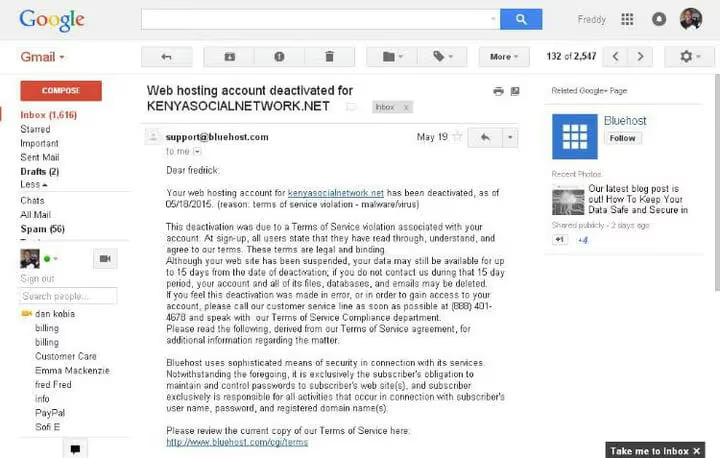
First, check if the admin panel is accessible. If wp-admin lets you in and you can log in, the situation is fixable, often within an hour. If access is blocked, you'll need to work through the hosting panel or FTP, but that's not a death sentence either.
Second: don't delete the entire site in a panic. In 90% of cases, specific files are infected, not the entire WordPress installation. Go to Google Search Console, the Security tab, where you'll find URLs that Google flagged as malicious. This gives you a first sense of the scope.
Third: contact your host immediately. Not "we've been hacked, help," but specifically: "Send me a list of modified files with timestamps and logs of suspicious activity for the last 72 hours." The host has server logs, they see anomalies and can provide an exact list of infected files.
If support is dragging their feet, escalate: call, post on the company's social media, open another ticket. Most hosts take public inquiries seriously, since reputational damage costs more than an hour of engineer time.
Step 2: Find and remove infected files

Once you receive the list of infected files from your host or discover them through a scanner, proceed methodically. Order matters: miss one backdoor, and the hacker returns within 24 hours.
Make a complete copy of the site. Download ALL files to your local computer via FTP or SFTP. Even infected ones, as they'll be useful for analysis and as insurance if something goes wrong.
Reinstall the WordPress core. Delete the wp-admin and wp-includes folders completely, then download a fresh ZIP from wordpress.org and extract it over the existing files. Replace everything except wp-content and wp-config.php. This ensures the system files are clean.
Check wp-content. Plugins and themes are the main targets for attackers. If a plugin is infected, delete its folder entirely and reinstall from the official repository. If a theme is infected and you're using a child theme, most likely only the parent theme was affected, so reinstall it.
Search for malicious code signatures. Classic markers of PHP shells and backdoors: eval and base64_decode are the most common. Also look for gzinflate, str_rot13, and assert. Run a grep search across all .php files. Check hidden files: .htaccess, php.ini, and .ico files with PHP code inside. Hackers love disguising backdoors as harmless icons.
Step 3: Restore the site from a clean copy
If you have a backup and it's clean, you're in luck: restoration takes 15-20 minutes. Go to your backup plugin or hosting panel, select a restore point BEFORE the hack date, and start the process. Immediately after restoration, run a security scanner: the backdoor could have been planted long before the active attack.
No backup? Reinstall WordPress through the admin panel: "Updates" → "Reinstall." This updates the core but leaves plugins and themes untouched, and you'll need to check them manually as described in step 2.
After restoration, make sure the site loads and immediately proceed to step 4. The attacker may try to return through a remaining backdoor within hours.
Step 4: Change all credentials and keys
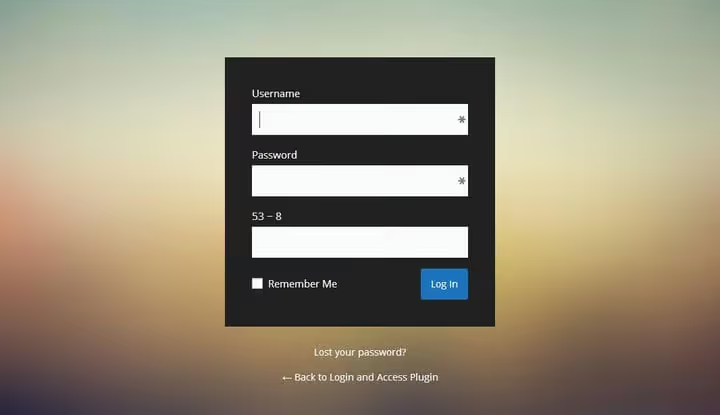
First and most urgent: generate new WordPress security keys. Insert them into wp-config.php replacing the old ones. This instantly logs out ALL active sessions, including the hacker's session if they're still in the admin panel.
Next, change everything on this list without skipping anything:
- WordPress administrator password and all users with the "administrator" role
- Hosting account password: cPanel, ISPmanager, or custom panel
- MySQL database password and update it in
wp-config.php - FTP or SFTP password
- Password for the email account linked to the site admin
- API keys: Google Search Console, CDN, email services, payment gateways
Check the wp_users table in the database: are there any unfamiliar users with administrator privileges? If you find any, delete them immediately. This is a classic attack trace: the hacker creates a hidden account and returns through it after your "cleanup."
Step 5: Request removal from blacklists
After cleanup, the site may still appear on Google Safe Browsing blacklists for several more days. Browsers will show a red warning screen even if the malicious code has already been removed. Go to the Search Console security panel, the "Security Issues" tab, and click "Request Review." Google typically removes the flag within 24-72 hours.
At the same time, contact your host: they may have added your IP or domain to an internal blacklist, which prevents the site from loading even though it's clean. Explain that cleanup has been completed and request the block to be lifted.
After all flags are removed, check the site in incognito mode. It should load without security warnings. Save a screenshot, as it may be useful if the block returns.
Step 6: Close the entry point and strengthen protection

Cleanup is only half the battle. If you don't close the hole they came through, the second hack will happen dozens of times faster than the first. You now know the exact attack vector, so use that knowledge.
Install a firewall. Wordfence provides an endpoint firewall and signature scanner, and the free version is sufficient for most sites. Solid Security (formerly iThemes Security) adds a set of hardening rules: changing the database prefix, disabling the file editor in the admin panel, and two-factor authentication. Minimum setup: one firewall plus one scanner.
Connect a cloud WAF. Cloudflare with WordPress rules or Sucuri filter traffic before it reaches the server. After a hack, this isn't a luxury but a necessity: a cloud WAF blocks malicious requests at the DNS level and reduces load on your site.
Set up file integrity monitoring. Wordfence and Solid Security can alert you to any changes in PHP files. You'll learn about a repeat attack the same minute, not a week later when Google flags the site as malicious.
Review your plugin list. Every unnecessary plugin is a potential entry point. Remove everything you don't use. Update the remaining ones to the latest versions and enable auto-updates where possible.
How to protect WordPress from hacks in the future

Prevention costs hundreds of times less than recovery. Here's what you need to do right now, even if your site hasn't been hacked yet.
Move to managed hosting
Four dollars a month for a shared plan is a tempting price. But when your site lives on the same server with hundreds of others, a hack on one of your neighbors almost certainly reaches you. Cross-site contamination on shared hosting isn't theory: according to Sucuri, about a third of infected WordPress sites are hosted on shared platforms.
Managed WordPress hosting (WP Engine, Kinsta, Cloudways) provides an isolated environment, automatic daily backups, and a round-the-clock security team. Yes, it's several times more expensive than a shared plan. But a week of downtime after a hack costs more than a year's subscription to good hosting.
When choosing a host, check three things: is your environment isolated from neighbors, are there automatic daily backups, and how quickly does support respond to security incidents. The answers to these questions are the best predictor of whether you'll survive the next hack without losses.
Keep core, themes, and plugins updated
The vast majority of successful WordPress hacks occur through known vulnerabilities in plugins and themes, the very ones that developers have already closed with patches. Attackers automatically scan the internet for sites with unpatched versions, often within 48 hours of a CVE publication.
Auto-updates for the WordPress core have been enabled by default since version 5.5. For plugins and themes from the official WordPress.org repository, enable auto-updates selectively, as this is safe. Premium plugins from their own sites should be updated manually, but at least once a week.
And yes, make a backup before every major update. Always.
Set up backup

Without a fresh backup, recovery after a hack turns into manually sorting through tens of thousands of files. With a backup, it's five clicks and half an hour of waiting.
Jetpack VaultPress Backup makes incremental backups in real time with storage in the Automattic cloud. BlogVault specializes in WordPress and can restore a site even if the admin panel is down. BackWPup is a free option with scheduling and upload to Dropbox, S3, or Google Drive.
The gold standard: one cloud backup plus one local backup that you download to your computer once a week. The cloud backup saves you if the host fails, and the local one saves you if the cloud account is also compromised.
Enable two-factor authentication
A password like admin123 or qwerty is an open invitation. Brute-force attacks on wp-login.php run around the clock, and simple passwords are cracked in seconds. Generate passwords at least 20 characters long through a password manager (Bitwarden or 1Password), and never use the same password on multiple sites.
Two-factor authentication through Wordfence Login Security or Two Factor closes the brute-force vector almost completely: even knowing the password, an attacker can't get in without the TOTP code from your phone.
And change the standard login URL from /wp-admin and /wp-login.php to a custom one. This isn't a silver bullet, but it cuts off the vast majority of automated bots that hammer standard endpoints without looking.
⁉️🤔 Frequently asked questions
Can I restore a site without a backup?
Yes, but the process is longer and more complex. Reinstall the WordPress core through the admin panel, manually check each plugin and theme for malicious code using signatures like
eval,base64_decode, andgzinflatein.phpfiles. Change all passwords and security keys. Content usually isn't affected: it's in the database, which hackers rarely touch. A complete cleanup without a backup takes 2-4 hours depending on site size.
How do I know if my site has been hacked?
Signals: Google Search Console shows a security warning, the browser blocks the site with a red screen, traffic dropped sharply, foreign pages appeared in search results, the admin panel won't accept the correct password, or the host sent a notification about suspicious activity. Quick check: run the free Sucuri SiteCheck scanner, which shows known infections in a minute.
What should I do if the host won't help?
Change hosts. If the provider hasn't provided a list of infected files and server logs within 24 hours of the incident, their security team either doesn't exist or is overloaded. For a business site, this isn't a partner. While recovering, buy a minimal managed hosting plan, move a clean copy of the site there, and close the old account.
Is the "Reinstall" button in the admin panel enough?
No. The "Reinstall" button in the "Updates" section only replaces WordPress core files. It doesn't touch infected plugins, themes, hidden backdoors in
wp-content, or malicious entries in.htaccess. You need the full cycle: scanning, replacing infected files, resetting passwords and keys, and checking the database for hidden administrators.
Is it worth paying for professional cleanup?
If the site generates revenue and downtime costs more than a few hundred dollars a day, yes, hire a specialist. Sucuri offers one-time site cleanup, there are freelancers on Codeable, and specialized WordPress agencies. For a small blog or landing page, the guide above is sufficient: cleanup will take an evening, and the money saved can be invested in proper hosting.
How long will it take for the site to recover its search rankings?
After Google Search Console removes the block, the site gets reindexed within a few days. Rankings don't return immediately: algorithms need time to verify the pages are clean. Typically, full recovery takes 2-4 weeks. The key is to close the hole they came through, otherwise the second hack will reset all progress.
Site restored: what to do so the hack doesn't repeat
A hack is a wake-up call that shows where your protection cracked. Treat it as a free security audit: you now know the exact attack vector and can close it permanently.
A quick checklist for the future:
- Move the site to managed hosting with an isolated environment
- Set up daily backups: one cloud, one local
- Install a firewall and scanner, enable auto-updates for repository plugins
- Enable two-factor authentication for all administrators
- Remove unused plugins and themes
The most dangerous thing after a hack is hoping "it won't happen again." A second hack through the same hole happens far more often than the first: the backdoor is already in place, and the attacker knows the site address. Go through the entire checklist to the end, close the entry point, and sleep peacefully.

A professional team of writers and editors specializing in creating quality content.