













 AIIllustrative image: AI-generated
🛡️ 12 best WordPress backup plugins and services in 2026
A white screen instead of the admin panel, a broken theme update, plugin conflicts, a hacker attack. A WordPress site can go down at the most inconvenient moment, and without a backup you lose everything: content, settings, WooCommerce orders, years of work.
A backup is the only insurance that brings a site back to life in a couple of clicks. WordPress has a mature market for this: from free plugins with basic functionality to cloud services with real-time synchronization. The problem is that choosing blindly is a lottery: one tool is good for a budget blog, another is indispensable for a store with hundreds of orders per day, and a third will consume all the resources of cheap hosting.
We've collected 12 current plugins and services for WordPress backup in 2026. From proven veterans with millions of installations to fresh tools that close niche scenarios better than the old guard. Each solution has been tested in practice: setup, scheduling, restoration, pitfalls.
💡 Quick overview:
- Choose a plugin based on site architecture: cloud services for weak hosting, local giants for migrations and large projects
- Set up automatic scheduling right away: daily for stores and active blogs, weekly for landing pages
- Store copies in two places simultaneously: locally on hosting and in a cloud mirror
- Conduct a test restoration immediately after installation: a backup that won't restore isn't a backup
Comparison table of backup plugins
Plugin | Free version | Cloud storage | 1-click restore | Pro price (from) | Best scenario |
|---|---|---|---|---|---|
Jetpack VaultPress Backup | ❌ | Built-in | ✅ | $4.95/mo | Real-time for WooCommerce |
WPVivid | ✅ | Dropbox, S3, Google Drive | ✅ | $49/yr | Client sites (MainWP) |
Solid Backups | ❌ | Stash, S3, Dropbox | ✅ | $99/yr | Migrations between hosts |
UpdraftPlus | ✅ | 10+ clouds | ❌ (Pro) | $70/yr | Universal choice |
BlogVault | ❌ | Built-in 90 days | ✅ | $89/yr | Large sites 10+ GB |
Duplicator | ✅ | Dropbox, S3 (Pro) | ❌ (manual) | $69/yr | Cloning and staging |
BackWPup | ✅ | S3, Dropbox, Azure | ❌ (Pro) | $69/yr | Budget projects |
Snapshot Pro | ❌ | WPMU DEV Cloud 10 GB | ✅ | $3/mo (membership) | Agencies (multisite) |
JetBackup | ✅ | 2 GB free | ✅ | $49/yr | Server integration |
CodeGuard | ❌ | Built-in | ✅ | $5/mo | Automatic rollback |
WPBackItUp | ✅ | ❌ (local) | ❌ ($79 one-time) | $79 | Simplicity for beginners |
All-in-One WP Migration | ✅ | ❌ (export) | ❌ (import) | $69 | Migration / one-time backup |
See how popular backup plugins work in real time:
1. Jetpack VaultPress Backup

🔗 Jetpack VaultPress Backup on WordPress.org
Formerly a separate VaultPress service from Automattic. Now it's part of the Jetpack ecosystem under the name Jetpack VaultPress Backup. This solution is trusted by more than 270 million backups made since launch. In practice, it's one of the few plugins that hasn't failed when restoring after serious attacks.
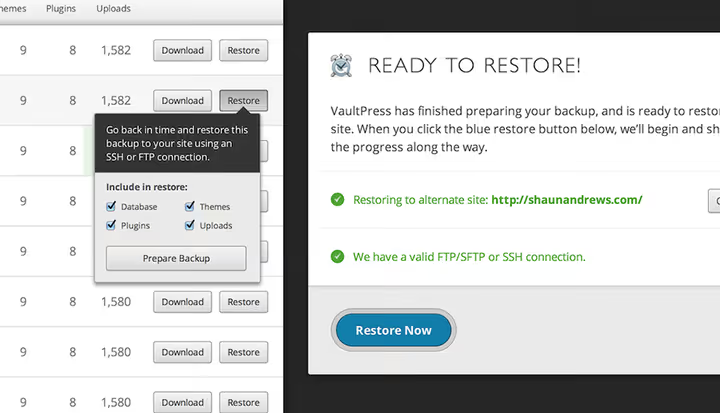
The plugin synchronizes all WordPress content, posts, pages, media files, settings, in real time. For WooCommerce stores this is critical: every order is recorded instantly, without waiting for the next scheduled run. Built-in security scanning monitors threats and sends notifications when suspicious activity occurs.
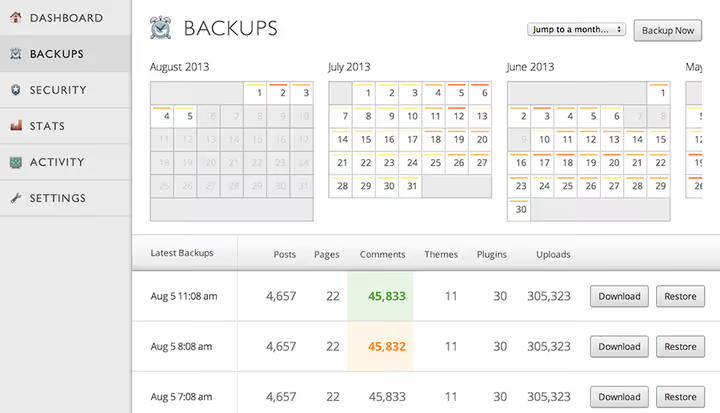
The backup archive is organized chronologically: you can select any point and restore the site with one click. Restoration via FTP and SSH is supported if the admin panel is unavailable, which saves the day when WordPress fails completely.
Pros: real-time synchronization for WooCommerce, built-in security scanning, restoration even when admin panel is unavailable, from Automattic (WordPress.com team). Cons: no free version, tied to Jetpack ecosystem.
Price: from $4.95/mo (Backup plan, daily backups + 30-day archive). Complete plan with real-time sync and priority support, from $14.95/mo.
🔗 Jetpack VaultPress Backup, official site
2. WPVivid Backup & Restore
🔗 WPVivid on WordPress.org🔗 Live demo
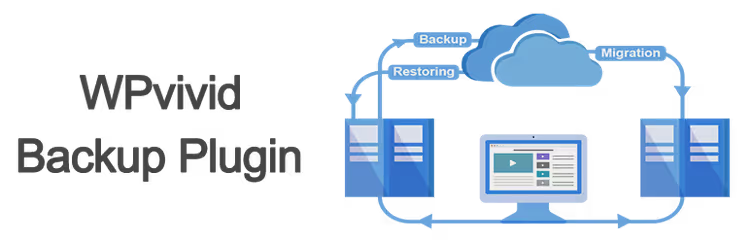
WPVivid has grown from a niche solution into one of the most functional free backup plugins. The free version covers almost all needs: automatic scheduled backups, cloud upload (Dropbox, Google Drive, Amazon S3, SFTP), one-click restoration and site migration. No backup size limitations.
A separate plus is MainWP integration. If you manage a network of client sites, backups for all sites are configured from a single panel. The plugin works well with page builders: Elementor, Beaver Builder, SiteOrigin.
The Pro version adds incremental backups (only changed files), support for multiple sites from one dashboard, advanced scheduling and user role management.
Pros: powerful free functionality, no size limit, MainWP integration for agencies, cloud support at no extra cost. Cons: incremental backups only in Pro.
Price: free (core functionality). Pro, from $49/yr (1 site), from $99/yr (3 sites), from $149/yr (unlimited).
🔗 Detailed guide to WPVivid on TechBlog
3. Solid Backups (formerly BackupBuddy)
🔗 Solid Backups, official site
The legendary BackupBuddy from iThemes was renamed Solid Backups after the brand entered the SolidWP ecosystem. The plugin is alive, evolving and split into two branches: Legacy (classic BackupBuddy) and NextGen (cloud architecture).
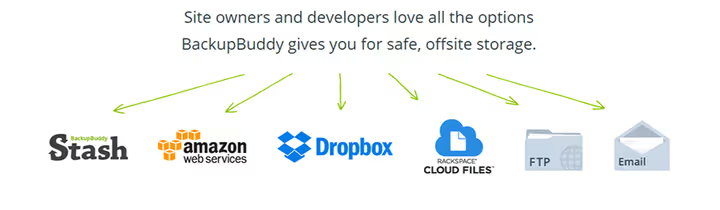
Solid Backups can create full and partial backups: you can exclude specific files or directories, collect only the database or archive everything completely. Storage is via Amazon S3, Dropbox, Rackspace Cloud, FTP and the proprietary Stash Live cloud with real-time synchronization.
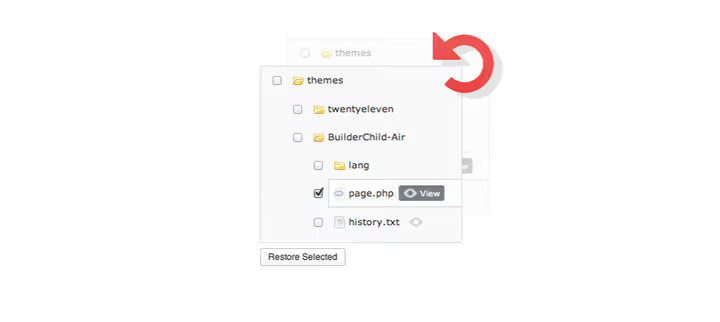
Restoration is perhaps this plugin's strongest side. The wizard will guide even a beginner: upload the backup, specify new database credentials (if needed), and the site deploys. This same mechanism works for migration to another domain or hosting, in practice one of the most reliable in its class.
Pros: polished migration wizard, two storage modes (local + Stash Live), malware scanner included. Cons: no free version, NextGen and Legacy are two different lines with confusing documentation.
Price: from $99/yr (1 site, basic functionality + Stash Live 1 GB). Agency plan, from $199/yr, 10 sites + Stash 5 GB.
🔗 Guide: backing up a WordPress site with Solid Backups on TechBlog
4. UpdraftPlus

🔗 UpdraftPlus on WordPress.org🔗 Live demo
The most popular WordPress backup plugin, with more than 3 million active installations. Works on a freemium model: the free version covers most users' needs, premium adds cloud storage and incremental backups.
UpdraftPlus supports more cloud providers than any other plugin in this collection: Amazon S3, Google Drive, Dropbox, Rackspace Cloud, OneDrive, Azure, Backblaze B2, SFTP, WebDAV and even email. You can set separate schedules for files and database, for example back up the database daily and files weekly.
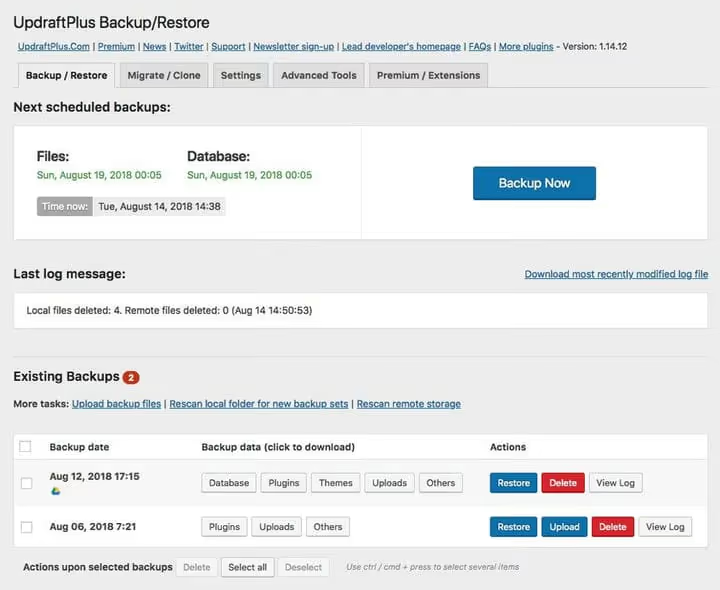
If upload is interrupted the plugin automatically restarts the process, which saves the day on weak hosting. Premium adds database encryption, incremental copies and priority support. The plugin is translated into several languages, Russian is in progress.
Pros: record number of cloud storage options, separate schedules for files and DB, auto-restart on failures, huge community. Cons: one-click restoration only in Pro, interface overloaded with options for beginners.
Price: free (basic functionality). Premium with cloud storage and incremental copies, from $70/yr (2 sites).
5. BlogVault
BlogVault is a cloud service, not just a plugin. It performs backups on its own servers and doesn't load your hosting. More than 4 million sites have passed through the service in 10 years, with a claimed successful restoration rate among the best in the industry.
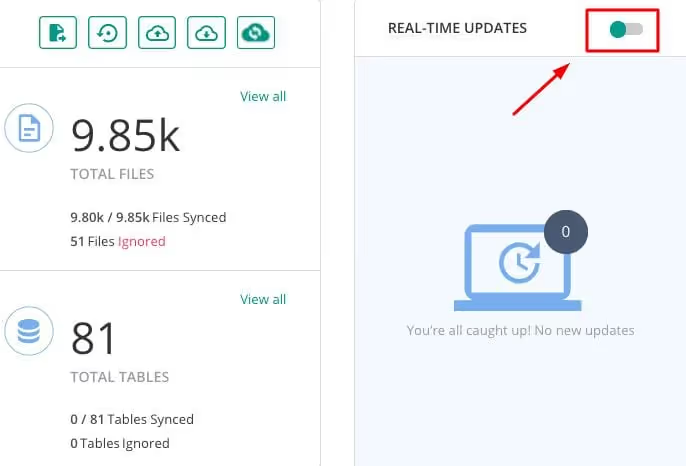
Incremental backups means that after the first full copy only changes are transmitted. This saves server resources and time. A separate feature is real-time backups for WooCommerce: every order is recorded instantly, without waiting for the next scheduled run.
Built-in staging environment allows you to deploy a site copy, check plugin updates or test a new design and only then merge changes to the live site. Migration is one-click, with no downtime.
Pros: backups don't load your server, real-time for WooCommerce, built-in staging, migration without downtime, supports sites up to 200 GB. Cons: no free version, closed architecture.
Price: from $89/yr (1 site, daily backups + 90-day archive). Plus plan with real-time and staging, from $149/yr.
6. Duplicator

🔗 Duplicator on WordPress.org🔗 Live demo
Duplicator is positioned as a migration plugin, but its mechanism of packaging a site into a zip archive makes it an excellent tool for manual backups. The archive includes all WordPress files, database, themes and plugins, a complete site snapshot.
The free version works in manual mode: enter the admin panel, press "create package", download the zip. The Pro version adds automatic scheduling, connection to cloud storage (Dropbox, Google Drive, Amazon S3, OneDrive) and email notifications.
Duplicator's main strength is cloning. Create a package on production, deploy on local or staging server, and you have an identical copy for testing. For developers who frequently move sites between environments, this is priceless.
Pros: free version with no size restrictions, reliable zip packaging, best in class for cloning and migrations. Cons: no automatic scheduling in free version, manual restoration (via installer).
Price: free (manual backups). Pro with clouds and scheduling, from $69/yr (3 sites).
7. BackWPup

🔗 BackWPup on WordPress.org🔗 Live demo
A free plugin with a conservative approach: automatic backups, WordPress XML export, database optimization and restoration. All without trying to cram everything into the free version at once and collapse under load, a rare discipline for the freemium model.
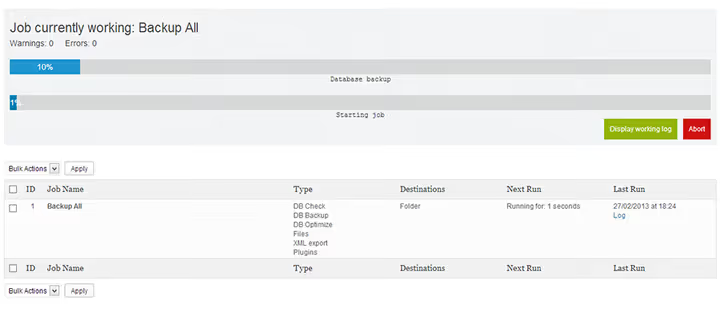
Backup storage is via FTP, Dropbox, Amazon S3, Microsoft Azure and Rackspace Cloud. The premium version adds Amazon Glacier (cheap archive storage) and Google Drive. The plugin works stably and predictably, without surprises, exactly what's needed for budget projects and simple sites.
Pros: completely free basic functionality, Azure support (rare), stability and predictability. Cons: one-click restoration only in Pro, interface looks outdated.
Price: free. Premium, from $69/yr (1 site), from $119/yr (5 sites).
8. Snapshot Pro (WPMU DEV)

Snapshot Pro is included in WPMU DEV membership, an ecosystem for WordPress agencies. The plugin creates backups of all content, entire database or selected tables. Storage is via Dropbox, Amazon S3, SFTP or the proprietary WPMU DEV cloud (10 GB included in subscription).
Backup and restoration are one-click. For multisite installations, full support. Automatic scheduling is configured in a minute, without dancing with cron expressions.
Pros: 10 GB cloud included, full multisite support, included in WPMU DEV package (dozens more plugins for agencies), automatic backups out of the box. Cons: only via WPMU DEV subscription, no free standalone version.
Price: from $3/mo (WPMU DEV membership, 1 site). Agency plan ($7.5/mo), unlimited sites + all ecosystem plugins.
9. JetBackup

JetBackup replaced the outdated BackupGuard, and it's a quality leap. The plugin is developed by the team that makes the JetBackup server solution for hosting providers, and the same engineering experience has been transferred to the WordPress version.
The free version includes 2 GB of cloud storage on JetBackup servers, a rare generosity for freemium. Backups are packaged in standard TAR format (not proprietary), so the archive can be deployed anywhere, not only through the plugin. Restoration and migration are one-click.
Version 3 (May 2025) brought a complete architecture overhaul: backups became faster, server-side deduplication appeared, and CLI commands allow backup management from the terminal.
Pros: 2 GB cloud storage free, open TAR archive format, server integration for hosters on JetBackup, active development. Cons: cloud storage other than proprietary only in Pro, young plugin (smaller community).
Price: free (2 GB cloud, unlimited backups). Pro, $49/yr (1 site, S3, Google Drive, Dropbox, FTP, priority support).
10. CodeGuard

CodeGuard is a cloud service that focuses on two things: backup and automatic malware removal. The MalwareGone function scans the site daily and when malware is detected automatically removes it, before you even know about the problem.
The service tracks every change in files and sends an email report: what changed, when and by whom. If a plugin broke the site after an update, CodeGuard automatically rolls back the changes, in practice this has saved dozens of sites from fatal updates.
For agencies, a white-label interface: you can provide clients with backup service under your own brand. Plus built-in site migration and staging servers for testing.
Pros: automatic malware removal, white-label for agencies, daily change monitoring, built-in migration. Cons: only cloud storage (no local copies), price higher than WordPress plugins.
Price: from $5/mo (1 site, 5 GB storage, daily backups). Professional plan ($9/mo), unlimited sites, 25 GB storage, MalwareGone.
11. WPBackItUp
🔗 WPBackItUp on WordPress.org🔗 Live demo
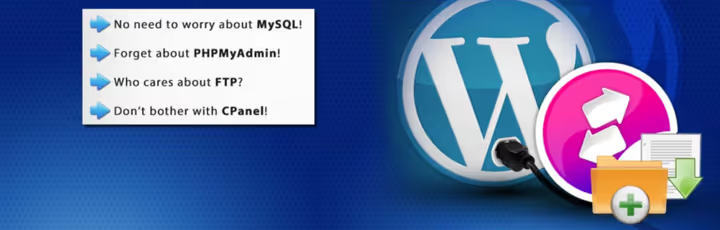
WPBackItUp has been operating since 2012 and backs up more than 30,000 sites daily. The plugin's philosophy is maximum simplicity. No complex configuration, no FTP, cPanel or phpMyAdmin needed. Install, press the "Backup" button, and your site archive is ready to download.
The free Community Edition creates a full backup (database + files + media) with no size restrictions. Restoration in the free version is manual (instructions included). Premium, a one-time payment, not a subscription, adds one-click restoration, automatic scheduling and background mode.
Pros: maximum simplicity (one button), one-time payment for Premium instead of subscription, works on Windows hosting, 14 years on the market. Cons: 1-click restoration is paid, no cloud storage in free version.
Price: free (Community Edition). Premium, $79 (one-time, 1 site), $119 (one-time, 3 sites).
12. All-in-One WP Migration

🔗 All-in-One WP Migration on WordPress.org🔗 Live demo
All-in-One WP Migration is a migration plugin that works excellently as a one-time backup tool. All you need: enter the plugin section, press the big green "Export" button and get a complete site archive.
The plugin serializes the database so that when restoring on another domain all links are automatically replaced with new ones, no manual search-replace. Integration with WP-CLI allows creating backups from command line and excluding junk: spam comments, post revisions, inactive plugins and themes.
The free version is focused on export. Import on the same server is free. To upload a backup to another server via the plugin interface requires the Pro version.
Pros: super-simple interface (one button), smart URL replacement during migration, WP-CLI for automation, excluding junk from backup. Cons: not designed for regular automatic backup, import to another server is Pro.
Price: free (export + import within server). Pro, $69 (one-time, import to another server + clouds).
⁉️🤔 Frequently asked questions
Is a backup plugin needed if hosting does backups?
Hosting backups are a nice bonus, but not a replacement for a specialized plugin. The hoster usually stores copies on the same server: if the server fails physically, you lose both the site and backups. Restoration through hosting support can take hours, while a plugin returns the site in a couple of clicks. Ideally have both, these are two layers of protection, not a choice of one or the other.
How often should backups be made?
Depends on site type. A store with daily orders, at minimum once a day, in real time via BlogVault or Jetpack VaultPress Backup. An active blog, daily. A landing page or portfolio, weekly plus a mandatory backup before every WordPress, theme and plugin update. The golden rule: backup frequency should be such that when restoring you lose no more than one day of work.
Is a free plugin enough or is payment mandatory?
For most sites free UpdraftPlus, WPVivid or BackWPup is more than sufficient. Paid versions are needed in three cases: real-time backup is critical (WooCommerce, forum), you need one-click restoration without manual actions, or the site weighs 10+ GB and free plugins hit hosting memory limits. Start with free, switch to paid when you feel the limitations.
Can a site be restored if the WordPress admin panel won't open?
Yes, and this is a key requirement for any backup plugin. You get the backup zip archive via FTP, from the cloud or email notification, unpack it on the server and import the database via phpMyAdmin or WP-CLI. BlogVault and Jetpack VaultPress Backup can restore a site via FTP/SSH even if WordPress is completely dead. Always verify that you have access to the backup OUTSIDE the WordPress admin: if copies are only inside
wp-contentand the admin panel dies, you're trapped.
What's the difference between a plugin and cloud backup service?
A plugin (UpdraftPlus, WPVivid, BackWPup) performs backup on your hosting, using server processor time and memory, and uploads the archive to the cloud. On weak hosting a large site may fail to back up. A cloud service (BlogVault, CodeGuard, Jetpack VaultPress Backup) makes backups on its own servers, your site isn't loaded, plus incremental copies and real-time synchronization are available out of the box. If the site is on cheap shared hosting and weighs more than 2-3 GB, take a cloud service. If VPS/Dedicated with spare resources, a free plugin will handle it.
Which backup plugin to choose in 2026
The right tool depends on what kind of site you have and how much you're ready to invest in its protection. A short guide:
Budget start. Take UpdraftPlus, 3+ million installations don't lie. The free version covers most needs of a regular site. Pair it with Duplicator for manual backups before major updates.
WooCommerce / membership sites. Here losing even one order costs money. Jetpack VaultPress Backup or BlogVault with real-time synchronization: every transaction is recorded instantly.
Agency with dozens of client sites. WPVivid + MainWP for centralized management. Or WPMU DEV subscription (Snapshot Pro + the rest of the ecosystem), if you're already in it.
Site on weak hosting. BlogVault or CodeGuard, backups are made on their servers, your hosting isn't loaded.
Migration between hosts. Duplicator or All-in-One WP Migration. Both are tailored precisely for site transfer and do it flawlessly.
The main rule hasn't changed over the years: a backup you've never tried to restore isn't a backup. Conduct a test restoration immediately after installing any plugin from this list. Five minutes today will save hours of panic tomorrow.

A professional team of writers and editors specializing in creating quality content.