













🔌 How to add Font Awesome to WordPress
A website without icons looks like a wall of text from 2005. But drawing icons in Photoshop and fiddling with sprites is no fun, especially if you are not a designer.
Font Awesome has been solving this problem since 2012: it is a free library of 2000+ vector icons that behave like regular text. Change the color in CSS and the icon changes color. Increase the font size and it scales without pixelation or blur.
In practice, the free version is enough for menus, buttons, and social media. If you need duotones and 30,000+ icons, there is Pro starting at $60 per year. Below are three ways to add Font Awesome to WordPress: from the simplest to manual installation for those who are not afraid of functions.php.
💡 Quick overview:
- Install the official Font Awesome plugin from the WordPress directory; it takes a minute and requires no code changes
- For manual control, connect Font Awesome via CDN or Kit in the
functions.phpof your child theme - If you use Elementor, icons are already built in and no separate plugin is needed
- After connecting, change icon size, color, and animation through CSS or ready-made classes
What is Font Awesome
Font Awesome is an icon font: instead of letters, it contains icon symbols. The browser renders them as vector graphics, so edges stay sharp on any screen and at any scale. No PNGs, sprites, or srcset.
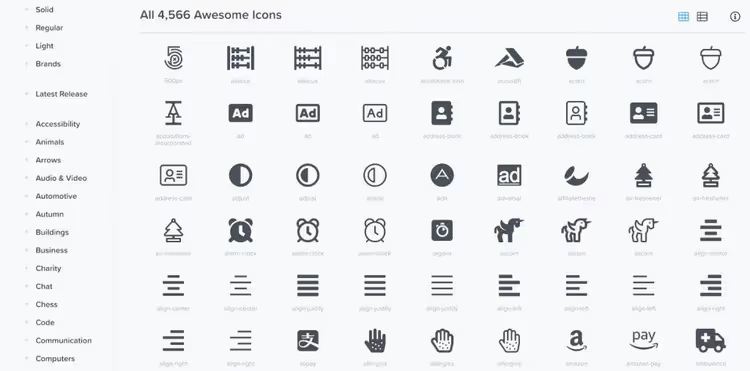
The library is divided into two parts. The free version includes five styles: Solid, Regular, Brands, Duotone, and Sharp. Pro adds Thin, Light, and tens of thousands of icons, plus the ability to upload your own SVGs through Kit. For a typical business card site or blog, Free covers the vast majority of tasks: arrows, social media, search, cart, checkboxes.
The main advantage over raster icons is full control through CSS. Color, size, shadow, rotation, animation: everything is set with classes without any graphic editing.
Method 1: official plugin (recommended)
The safest path is to install the official Font Awesome plugin on WordPress.org. It is released by the same team that creates the library itself. The plugin updates in sync with new icon releases and does not depend on your theme.
How to install:
Go to Plugins → Add New. In the search bar, type "font awesome" and press Enter.

Click Install Now, then Activate.

Done. After activation, a Font Awesome item appears in the Settings menu where you can switch the icon source (CDN or Kit), enable compatibility with version four, and run the conflict scanner.
The plugin adds a separate "Font Awesome Icon" block to the block editor. Click on it and a search opens across the entire library. Select an icon, click "Insert," and it appears in the text as an SVG. Styling is right in the block sidebar: size, color, rotation.
For the classic editor, a shortcode works:
1 [icon name="download" prefix="fa-solid"]
Or pure HTML:
1 <i class="fa-solid fa-download"></i>
If you have a Pro account, create a Kit at fontawesome.com, copy the API Token, and paste it into the plugin settings. After that, the Icon Chooser will also show Pro icons.
Method 2: manual installation via functions.php
This method is for those who want to control every resource loaded on the site or avoid extra plugins. It works through a child theme so that updating the parent theme does not erase your changes.
Create a child theme
In the wp-content/themes/ folder, create a directory with the -child suffix (for example, astra-child). Inside, create two files.
style.css:
1 /* 2 Theme Name: Astra Child 3 Template: astra 4 */
functions.php:
1 <?php 2 add_action('wp_enqueue_scripts', 'enqueue_parent_styles'); 3 function enqueue_parent_styles() { 4 wp_enqueue_style('parent-style', get_template_directory_uri() . '/style.css'); 5 }
Go to Appearance → Themes and activate the child theme.
Connect Font Awesome via CDN
Add this code to the functions.php of your child theme:
1 add_action('wp_enqueue_scripts', 'enqueue_font_awesome'); 2 function enqueue_font_awesome() { 3 wp_enqueue_style( 4 'font-awesome', 5 'https://cdnjs.cloudflare.com/ajax/libs/font-awesome/6.7.2/css/all.min.css', 6 array(), 7 '6.7.2' 8 ); 9 }
This hook pulls the free version from cdnjs CDN, the most reliable public CDN for FA 6. The number 6.7.2 is the version as of June 2026; check the current version on the cdnjs package page and substitute the latest.
Alternative: Kit from Font Awesome
Kit provides access to Pro icons and automatically loads only the styles used on the page, resulting in fewer unnecessary kilobytes.
Register on the Font Awesome website, create a Kit, copy the embed code, and paste it into the header.php of your child theme before </head>:
1 <script src="https://kit.fontawesome.com/YOUR_CODE.js" crossorigin="anonymous"></script>
The downside of Kit is that the free tier is limited to 10,000 page views per month. For a site with higher traffic, use either CDN or Pro.

The built-in theme editor (Appearance → Theme File Editor) allows you to edit functions.php directly from the admin panel. However, it is safer to work through FTP or a hosting file manager: a typo in PHP code breaks the site, and without file access you will have no way to restore it.
Method 3: through Elementor or another page builder
If you already use Elementor, you do not need a separate Font Awesome plugin; the page builder includes the library out of the box.
In any widget with an icon (Icon, Icon Box, Icon List), click on the icon and a library opens with search across all Free styles. Color, size, shadow, and hover effects are configured in the sidebar without a single line of CSS.
The same applies to SeedProd, Beaver Builder, and Divi. Check your page builder's settings: almost all popular visual builders for WordPress already include Font Awesome in their core.
How to change icon styles
After connecting Font Awesome, you control icons exclusively through classes and CSS. Direct editing of SVG files is not needed.
Size
Icon size is set using ready-made classes. One class makes the icon a third larger, another doubles it, a third triples it, and so on up to tenfold increase. See exact values for all classes on the Font Awesome website.
Example of an icon tripled in size:
Example of an icon tripled in size:
1 <i class="fa-solid fa-download fa-3x"></i>
Rotation and flipping
fa-rotate-90, 90° rotationfa-rotate-180, 180° rotationfa-rotate-270, 270° rotationfa-flip-horizontal, horizontal mirrorfa-flip-vertical, vertical mirror
Animation
Two options, both through classes:
fa-spin, smooth rotation (suitable for loading spinners)fa-pulse, eight-step rotation (pulsating effect)
1 <i class="fa-solid fa-spinner fa-spin"></i>
Color
Icon color is inherited from the parent text. To set your own, use a CSS rule:
1 .fa-download { 2 color: #27ae60; 3 }

The easiest way to add such CSS is through Appearance → Customize → Additional CSS. Changes apply immediately and are visible in real time.
Icon through pseudo-element
When an icon should attach to an element without extra markup, use ::before or ::after in CSS:
1 .external-link::after { 2 content: "\f08e"; 3 font-family: "Font Awesome 6 Free"; 4 font-weight: 900; 5 margin-left: 6px; 6 }

The code \f08e is the Unicode identifier of the icon. You can find it on the specific icon's page at fontawesome.com, where it is listed under the name.

Where to get icons
Open fontawesome.com/icons, type a keyword in the search, and choose a style. On the icon's page you will find the HTML snippet, Unicode, and list of available styles. Copy and paste where needed.
A note about the video tutorial
If you prefer watching over reading, here is a tutorial on adding Font Awesome icons to a WordPress menu:
After watching, come back to the text: below are nuances not covered in the video.
⁉️🤔 Frequently asked questions
Do I need to pay for Font Awesome?
The free version covers the needs of the vast majority of sites: 2000+ icons in five styles, including brand icons (Facebook, Twitter, Instagram, and hundreds of others). Pro costs starting at $60 per year and adds Thin, Light, Sharp families, Duotone in all styles, and uploading your own SVGs. Paying makes sense if you sell icons as part of a product or you specifically need duotones. The Font Awesome plugin on WordPress.org is completely free; Pro icons are connected via API Token in the same plugin settings, and there is no need to purchase or install anything separately.
Which connection method should I choose?
For beginners and typical sites, the official plugin. It installs in two clicks, has built-in icon search in the editor, and a conflict scanner. Manual installation via CDN is justified if you are minimizing plugins on your site and know exactly which file to add
wp_enqueue_styleto. Kit from Font Awesome is a compromise: easy to connect without a plugin, but with a free limit of 10,000 views.
What should I do if icons are not displaying?
First, run the Conflict Detection Scanner in the Font Awesome plugin settings. Most often the problem is that the theme or another plugin is loading its own version of Font Awesome, causing a version conflict. The scanner will find the conflict source, and the plugin will offer to block it. The second common case is a syntax error: check that you are using the prefix
fa-solidand notfa(which is syntax from the old version four).
Can I use Font Awesome without WordPress?
Yes, Font Awesome is not tied to WordPress. Connect the CDN link in the
<head>of any HTML document and insert icons with the<i class="fa-solid fa-name"></i>tag. It works with React, Vue, Laravel, plain HTML, and even PDF generators. At fontawesome.com/docs there are instructions for a dozen platforms.
Why is Font Awesome better than other icon libraries?
Two main arguments: community size and compatibility. Font Awesome is used by millions of sites, so the documentation is translated into a dozen languages, and answers to any problems can be found in seconds via search. Second, the official WordPress plugin with automatic conflict resolution: neither Material Icons nor Bootstrap Icons offer this.
Is it worth the effort: what to choose for your task
If you have read this far, the table below will save you time:
Situation | What to choose |
|---|---|
Regular site, need icons for menu and social media | Official plugin, two minutes and done |
Minimum plugins, have FTP access | CDN via |
Pro icons and high traffic | Plugin + API Token from Pro account |
Already using Elementor | Do not install anything, it is all built in |
Need duotones or 30,000+ icons | Pro for $60/year through the official plugin |
Check that after connecting, icons display correctly in different browsers and on mobile devices. If you notice flickering or icon substitution, run the conflict scanner from the "Troubleshoot" section in the plugin settings. The problem is almost always solved with one button.

A professional team of writers and editors specializing in creating quality content.