














📸 How to add photos from Instagram to WordPress
It used to be simple: copy an Instagram post link, paste it into WordPress editor, and the photo appeared automatically. In 2020, Meta disabled oEmbed for Facebook and Instagram, and this trick stopped working. If you've tried pasting a link and got just text, you're not alone.
Since 2024, the situation has become even tougher: several popular Instagram feed plugins shut down or stopped updating. But the task remains, showing your Instagram on your site is still necessary. And there are working tools for this.
Below are two real ways to add Instagram photos to WordPress in 2026: through plugins (main path) and through manual embed code (backup). Plus a breakdown of five current plugins, from free to premium, with honest downsides of each.
💡 Quick overview:
- Install a plugin and connect your Instagram account in two minutes
- Choose a feed layout to match your site design
- Embed the feed with a shortcode or block in the desired location
- Check the display on desktop and mobile
Why Instagram links stopped working in WordPress
Before 2020, WordPress used the oEmbed standard: you pasted an Instagram post URL, and WordPress automatically loaded the photo, caption, and even a "follow" button. In October 2020, Meta (recognized as extremist in Russia, hereinafter throughout the text) disabled public oEmbed API for Instagram and Facebook. The reason: fighting data scraping and transitioning to closed Graph API.
Now when you paste an Instagram post link into WordPress editor, you'll only see the link text. No photo, no preview. This problem affects all WordPress versions, both the classic editor and Gutenberg.
The solution: use specialized plugins that work through the official Instagram Graph API and get content legally. Or insert embed code manually.
Method 1: Instagram feed plugins (main)
Plugins provide not only photo embedding, but also ready-made feeds, galleries, sliders and carousels. You set it up once, the feed updates automatically with each new Instagram post.
Here are five current plugins for 2026: from most popular to niche.
Spotlight Instagram Feeds: best balance of simplicity and flexibility
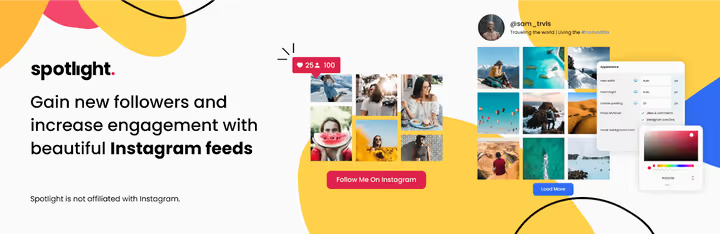
Spotlight is our main choice for most sites. The plugin connects to Instagram in a couple of clicks: authorize account access, and the feed appears in an interactive preview right in the admin panel.
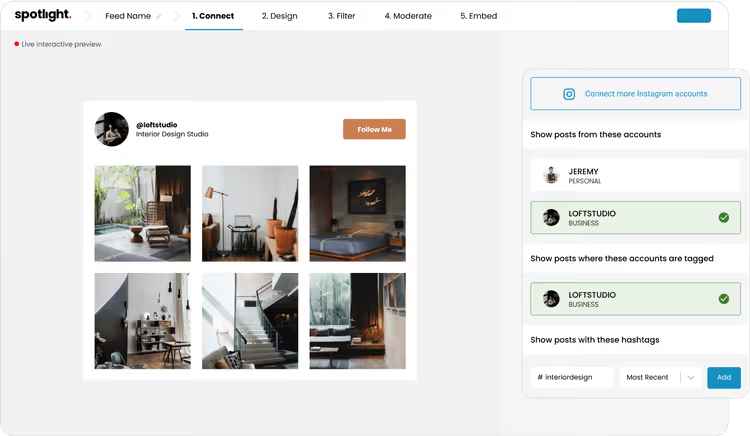
Real-time interactive preview is a feature that competitors lack. You change layout, colors, spacing and see the result immediately. No need to switch between windows or click "save and view."
The free version on WordPress.org provides a classic grid, photo lightbox, like and comment counters, and separate display settings for desktop, tablet and mobile.
- Pros: real-time preview, multiple account connections, excellent caching system (feed doesn't crash during Instagram outages).
- Minuses: masonry and highlight layouts, hashtag filtering and feed moderation, only in Pro.
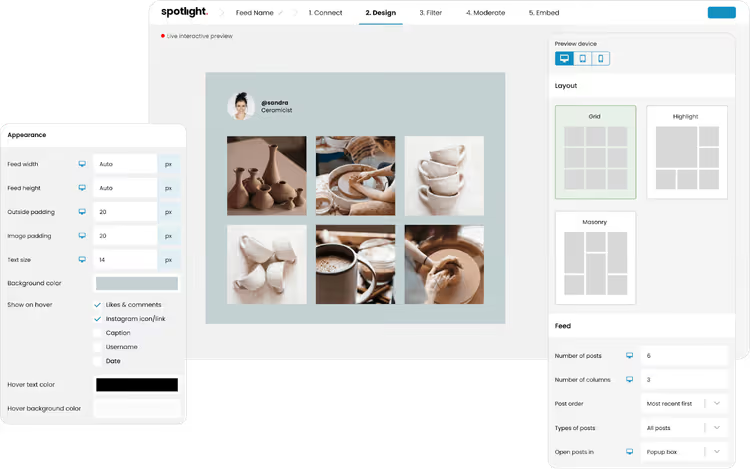
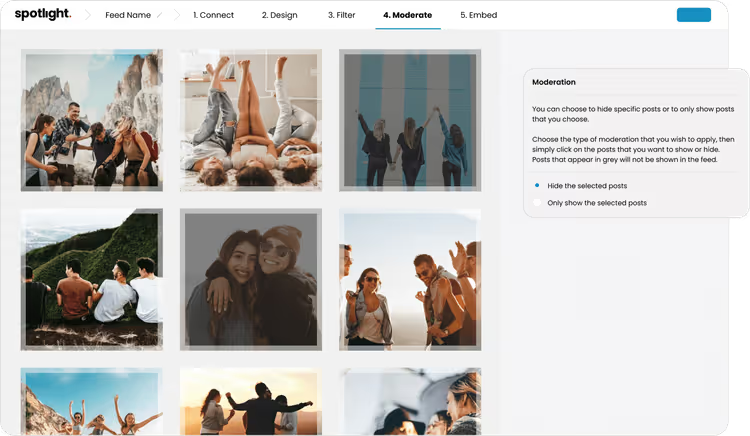
Pro version (spotlightwp.com) adds masonry and highlight layouts, displaying posts by hashtags from all of Instagram, feed filtering and moderation, and Instagram Stories support.
- Price: Free + Pro from $39/year.
- Download: 🔗 Spotlight on WordPress.org | 🔗 Spotlight PRO
Smash Balloon Social Photo Feed: most popular, 1 million+ installs

Smash Balloon (formerly Instagram Feed) is installed on over a million sites and has a 4.9/5 rating on WordPress.org. Main advantage: the plugin restores oEmbed functionality for Instagram, if you had Instagram links embedded in old posts, they'll start displaying again.
Setup takes less than a minute: create a feed, choose an account source, configure appearance through visual customizer, and insert with a block, shortcode or widget. Supports Elementor, Divi, Beaver Builder and other page builders.
Free version provides: multiple accounts in one feed, grid customization (columns, spacing, colors), infinite scroll with "Load More" button, built-in GDPR mode.
- Pros: restores oEmbed for old posts, visual customizer, works with page builders, excellent support.
- Minuses: lightbox, carousels, masonry, hashtag filtering and shoppable feeds, only in Pro. Pro price is above market average.
- Price: Free + Pro from $49/year.
- Download: 🔗 Smash Balloon on WordPress.org | 🔗 Pro demo
Grace Instagram Feed Gallery: premium all-in-one for multiple content types
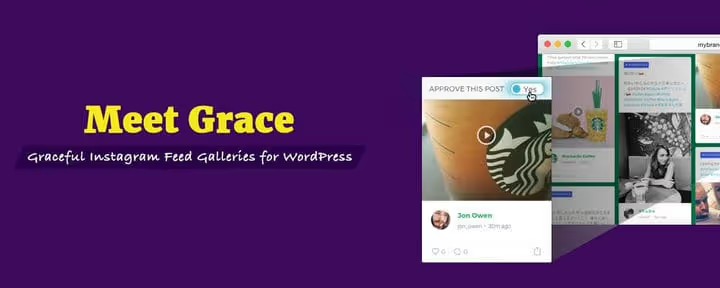
Grace is a premium plugin from CodeCanyon that stands out for source versatility. Can stream not only your account, but any public Instagram content: posts by hashtags, other users' photos, geotags. You don't need your own Instagram account at all.
Four layouts (grid, masonry, justified gallery, slider) are configured through a visual builder: colors, shapes, fields, spacing, element height and weight. Pre-moderation is available with manual and automatic filters by word, phrase, user ID or URL, no competitor has such fine filtering.
Worth mentioning separately is one-button API connection, simplest among all plugins in this roundup.
- Pros: streaming any public content without your own account, fine post filtering, visual builder, simple API connection.
- Minuses: premium only (no free version), one-time purchase without subscription means updates aren't infinite.
- Price: $29 (one-time purchase on CodeCanyon).
- Download: 🔗 Grace on CodeCanyon
Social Slider Feed: gallery and slider from Themeisle

Social Slider Feed (formerly Instagram Slider Widget) now belongs to Themeisle and supports three social networks: Instagram, Facebook and YouTube. Strong side: sliders (regular, slick, overlay and thumbnail navigation). On one site you can create several independent feeds with different layouts and sources.
Since 2025, the plugin switched to new Instagram API: personal accounts are no longer supported, only business accounts. This is an Instagram limitation, not the plugin's.
Important nuance: after Themeisle's acquisition in 2025, the plugin is actively being reworked, and user reviews are mixed. Some complain about broken feeds after updates. In practice, we recommend testing on a dev site before installing on production.
- Pros: three social networks in one plugin, rich choice of slider layouts, separate settings for desktop and mobile.
- Minuses: personal accounts not supported, unstable operation after recent updates, support responds slowly (according to user reviews).
- Price: Free + Pro plans on Themeisle site.
- Download: 🔗 Social Slider Feed on WordPress.org
Elfsight Instagram Feed: widget builder for non-technical users

Elfsight Instagram Feed (formerly InstaShow) is a full-featured widget builder. Source can be username, hashtag or link. You configure colors, slide change speed, navigation, counters, and get a shortcode for inserting anywhere on the site.
Plugin is compatible with WPBakery, supports 16 interface languages and has auto-rotate function for sliders. Suitable for those who want to get results without diving into WordPress settings, everything is done in the external Elfsight builder.
- Pros: visual builder without WordPress admin dependency, 16 languages, WPBakery compatibility, auto-rotate.
- Minuses: part of functionality depends on Elfsight servers (if their API is unavailable, widget doesn't load), free version with Elfsight branding.
- Price: Free (with branding) + Pro from $5/month.
- Download: 🔗 Elfsight Instagram Feed | 🔗 Demo
Method 2: manual embed code (backup)
If you need to embed one specific Instagram post and don't want to install a plugin, you can take embed code directly from Instagram.
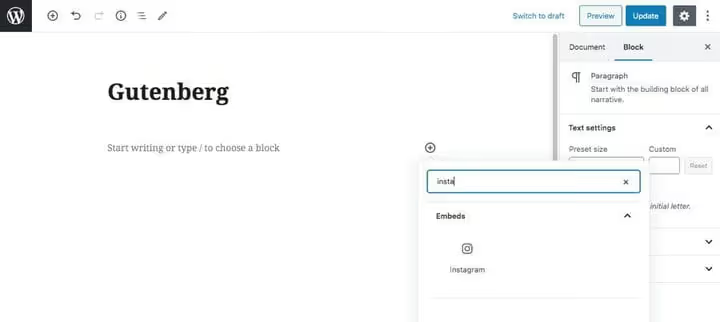
Click "…" in the post's upper right corner → "Embed" → copy the HTML code. Insert it into WordPress through "Custom HTML" block (Gutenberg) or "Text" tab (classic editor).
The result will look like a native Instagram post with photo, text and "follow" button. Downsides of manual method: you need to repeat the procedure for each post, feed doesn't update automatically, and Meta can change the embed code format at any time.
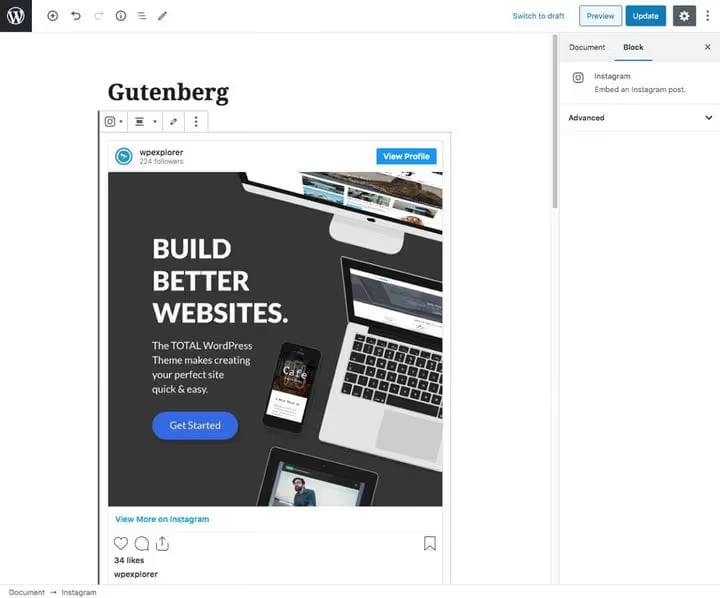
Below is an example of what an embedded Instagram post looks like through embed code:
Plugin comparison table
Plugin | Free version | Layouts | oEmbed restoration | Support |
|---|---|---|---|---|
Spotlight | Yes | Grid, masonry, highlight (Pro) | No | Fast |
Smash Balloon | Yes | Grid, masonry, carousel (Pro) | Yes | Excellent |
Grace | No | Grid, masonry, slider, gallery | No | Average |
Social Slider Feed | Yes | Slider, grid, masonry, thumbnail | No | Slow |
Elfsight | Yes (with branding) | Slider, grid, carousel | No | Via tickets |
Watch the tutorial on setting up Instagram feed in WordPress:
What else you should know before installation
Two important points that will save you time:
First, personal vs business accounts. Since 2025, Instagram API requires a business account for most plugins. If you have a personal account, switch it to business type in Instagram settings (Settings → Account → Switch to Professional Account). It's free and doesn't affect content.
Second, caching. Without it, Instagram feed will load for 2-3 seconds every time the page opens. Spotlight and Smash Balloon have built-in caching out of the box. For Grace and Elfsight, configure caching at server level or through a caching plugin.
⁉️🤔 Frequently asked questions
Why doesn't an Instagram post link turn into a photo in WordPress?
Because Meta disabled public oEmbed API for Instagram in October 2020. WordPress can no longer automatically load content from a link. Solution: use a plugin (Smash Balloon restores oEmbed) or insert embed code manually through Custom HTML block.
Which plugin should I choose if I only have a personal Instagram account?
Switch your account to business type, it's free and takes a minute. After that, any plugin from the list will work for you. If you don't want to switch, Smash Balloon and Grace can work with public content without linking to your account.
Can I embed Instagram feed without a plugin?
Yes, but only for individual posts. Copy embed code from Instagram (menu "…" → Embed) and insert into Custom HTML block. For regular feed updates, this method is inconvenient.
Plugin shows "No images found", what to do?
Most likely, the problem is in account type. Check that you have a business Instagram account (not personal). Then reconnect the account in plugin settings. For Social Slider Feed after updating to version 2.3+, you need to delete old connections and create new ones.
Does Instagram feed slow down the site?
Without caching, yes, by 1-3 seconds. Spotlight and Smash Balloon cache the feed on the server side and deliver static HTML, impact on speed is minimal. Elfsight loads content from external servers, which adds delay.
Do I need a separate plugin if I use Elementor or Divi?
Smash Balloon and Elfsight have native integration with Elementor and other builders, no separate plugin needed. Spotlight works through shortcodes and widgets, they can be inserted into any builder.
Which Instagram plugin to choose in 2026
If you need one solution that simply works out of the box, take Spotlight. The free version is enough for most sites, and interactive preview eliminates guessing "how it will look."
If the site already has old posts with embedded Instagram links, install Smash Balloon. It's the only one that restores oEmbed and brings "broken" embeds back to life. Plus best support and compatibility with page builders.
If budget is minimal and you need one specific feature, look at: Social Slider Feed for sliders, Grace for filtering and moderation without your own account, Elfsight for visual builder without entering WordPress admin.
Start with the free version of Spotlight or Smash Balloon, both install in a minute and show results immediately. And if you have your own proven Instagram plugin that's not in the roundup, tell about it in comments.

A professional team of writers and editors specializing in creating quality content.