














💡 How to create a WordPress site with dynamic content: two working methods
You designed the homepage, added a menu, and got stuck. Each menu item needs its own page: "Gym on Arbat," "Gym in Strogino," and another two dozen just like them. Copy-paste in the editor? A week later the business owner changes the membership price, and you're editing 20 pages by hand.
Dynamic content WordPress eliminates this pain entirely. One template, and dozens (or hundreds) of pages are assembled automatically from the database. No copying. No programmer for every minor change. Below are two working methods that cover the vast majority of real-world tasks: from branch cards to catalogs and portfolios.
💡 Quick overview:
- What dynamic content is and how it differs from static content, with a concrete example
- Method 1: Toolset Blocks, a visual template builder based on Gutenberg, without a single line of code
- Method 2: Total Theme, built-in dynamic templates via WPBakery, for those already using Total
- Comparison table of methods + a decision matrix for your specific task
What dynamic content is, and why static loses
A typical WordPress page is static. Text, images, a button: everything entered manually in the editor. If you have a network of 30 fitness clubs and each has its own page with an address, photo, and price, you either copy content 30 times or call a developer to edit PHP templates.
Dynamic content works differently. Data is stored separately from layout, in custom fields and taxonomies. WordPress assembles the page on the fly: it inserts the title, price, gallery, and contact info from the database into a pre-built template.
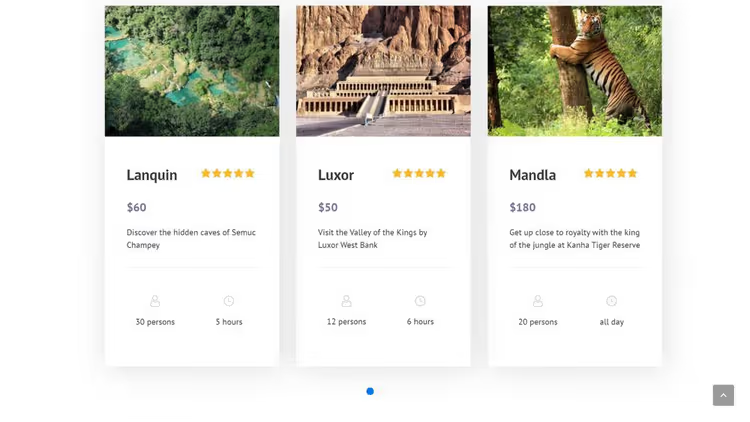
The mechanics are simple. When a visitor opens the "Gym in Strogino" page, the system goes to the database, finds the record with that name, retrieves the associated fields, and renders the finished page. For the "Gym on Arbat" page, it uses the same template but different data.
Why this beats static:
- One change, everywhere. You update the price in a custom field, and all pages displaying that price update automatically. No visiting each one.
- Content managers can't break the layout. You set the template; the team only fills in fields (title, description, price). The design won't break.
- Scaling without pain. Adding a hundredth branch means creating a new record and filling in fields. The page is ready in a minute.
- Responsiveness out of the box. A dynamic template inherits the theme's responsive grid; the mobile version requires no extra work.
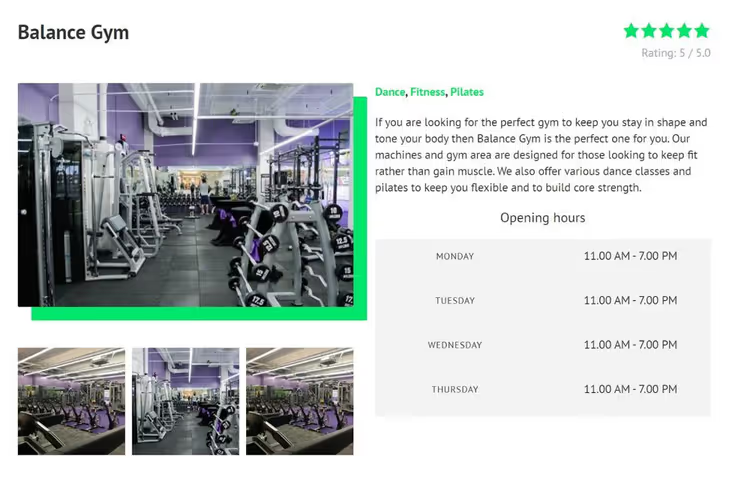
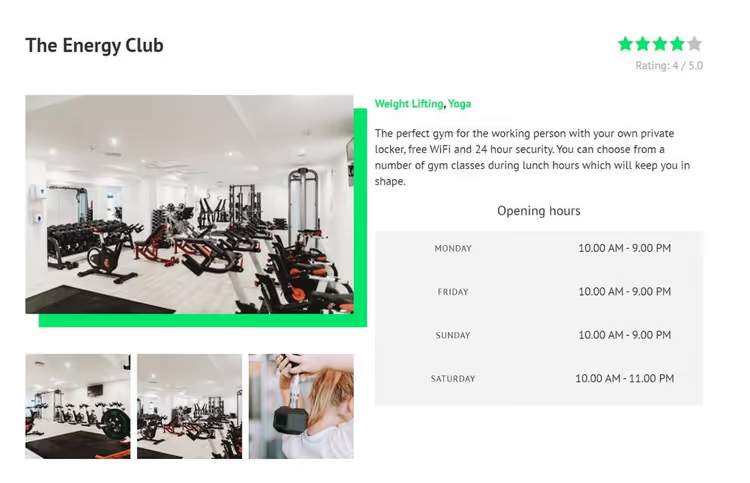
Static is on the left: content is hardcoded into the page. Dynamic is on the right: the same data, but assembled by a template from the database.
Static has exactly one downside, but it's fatal: it doesn't scale. As soon as a site has more than a dozen similar pages, manual management becomes a nightmare. The dynamic approach eliminates this problem entirely.
Below are two tools for different scenarios. Both are proven in practice.
Method 1: Toolset Blocks, visual templates on Gutenberg
Toolset Blocks is a commercial plugin from a team that has spent over a decade building tools for working with custom post types and fields in WordPress. The plugin adds blocks with dynamic sources to the Gutenberg editor: instead of "insert this image," you say "insert the featured image of the current post."
🔗 Toolset Blocks, official website
The main advantage is zero barrier to entry. Not a single line of code. No functions.php. You simply assemble a template in a visual editor from ready-made blocks (Image, Heading, Single Field) and assign a data source. The system automatically inserts the correct content for each page.
How Toolset Blocks works under the hood
The plugin provides two key mechanisms:
- Content Templates. You create a single layout for all posts of a specific type, for example, "Gyms." Inside the template, you place Toolset blocks linked to dynamic sources. When any post of this type is opened, WordPress renders the template and substitutes the specific data.
- Dynamic sources for blocks. Each Toolset block can pull data not from "what's typed in the editor" but from the database: featured image, custom field value, post title, taxonomy. You set it up once; the system substitutes automatically.
Creating a template: step by step
Before starting, install Toolset Blocks (the plugin is paid; link above). It's also helpful to refresh your knowledge of Gutenberg editor basics, since templates are built there.
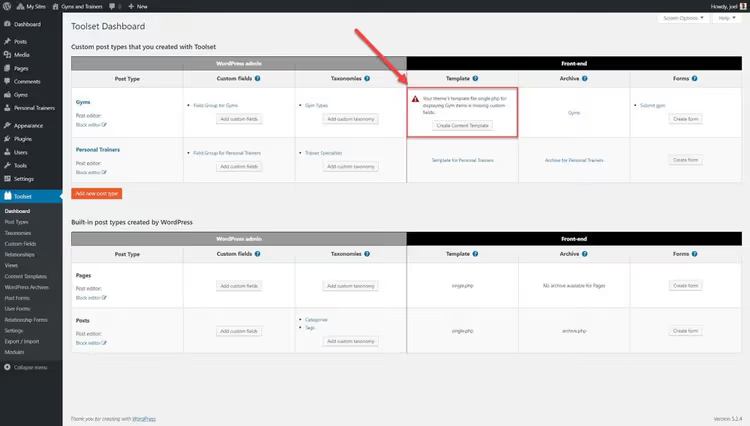
Step 1: Create a content template
Go to Toolset → Dashboard and click Create Content Template next to the desired post type. In our example, this is "Gyms."
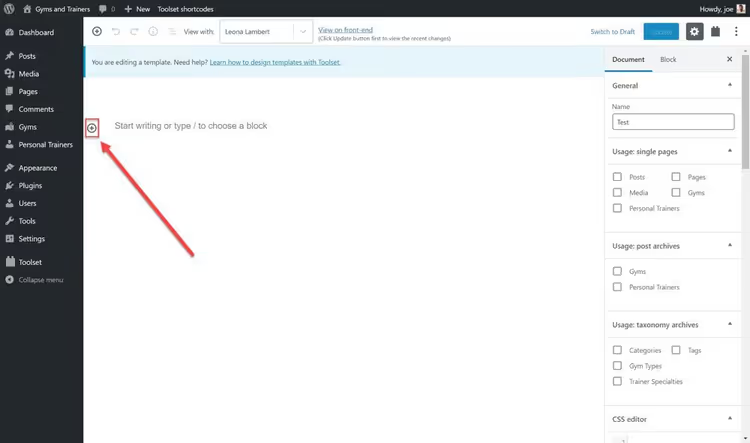
The Gutenberg editor will open. Next comes assembling the template from blocks.
Step 2: Add a dynamic image
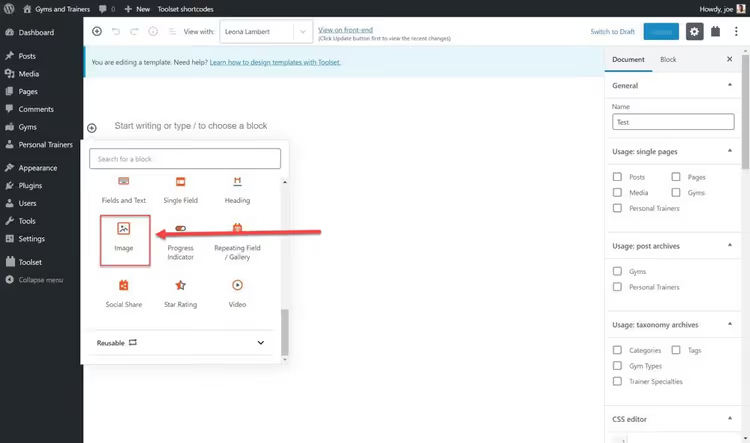
Click + in the top left corner of the editor to open the block panel. Scroll to the Toolset section and select the Image block.
In the panel that opens, find the Toolset section and select the Image block.
The system will ask: use dynamic sources? Click Yes.
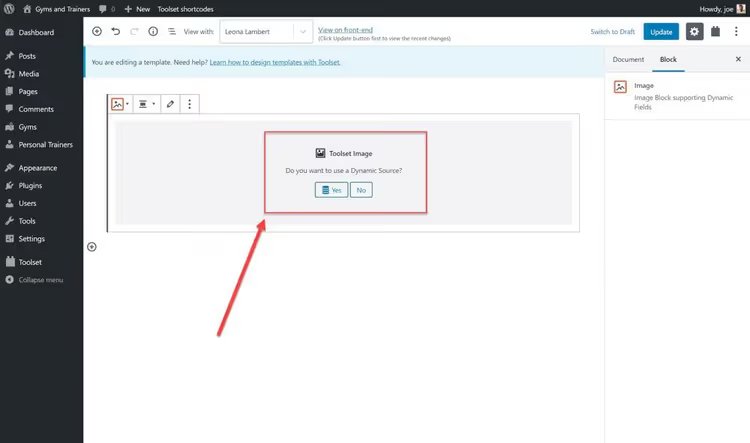
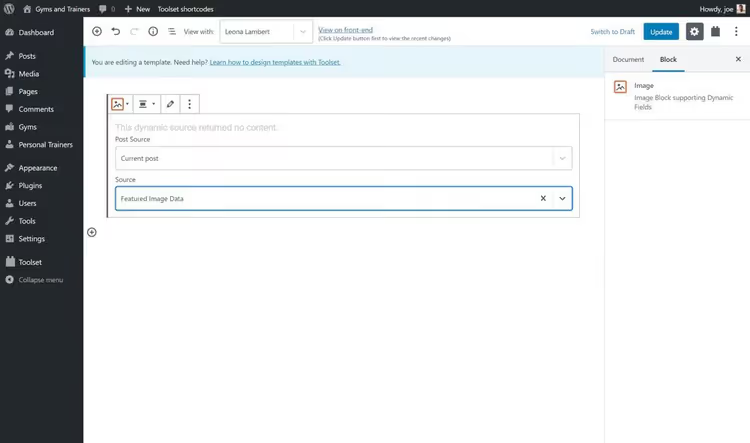
Select the source: Featured Image Data. Now instead of displaying the same image for all pages, the block will show the featured image of the specific post.
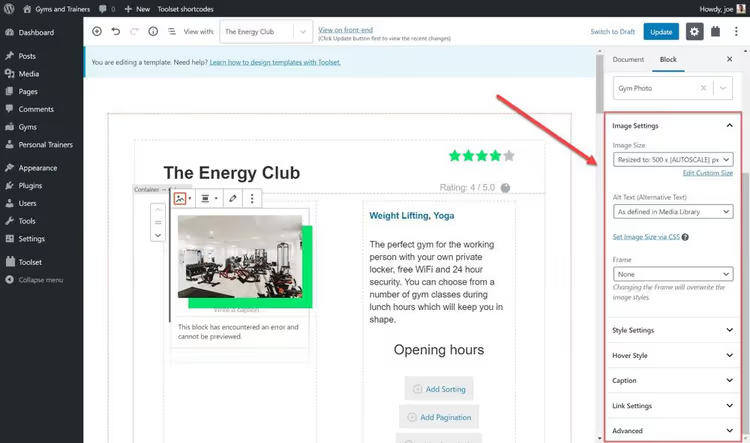
In the right sidebar, you can fine-tune the image size, alignment, and CSS classes.
Step 3: Connect a custom field
Now let's add a rating (a value stored in the "Rating" custom field for each gym).
In the Toolset block list, select Single Field.
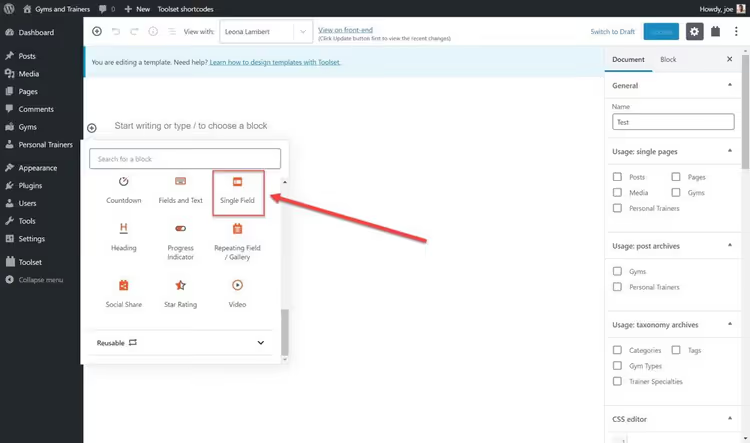
In the right panel, under Field Source, specify:
- Field type: Custom Field;
- Field group: your post type (Gyms);
- Field itself: Rating.
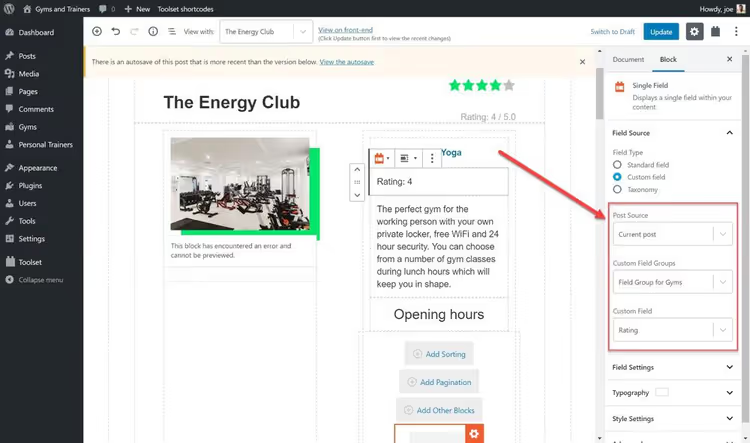
Done. Now when switching between pages of different gyms, the correct rating will appear in this spot. Zero lines of code.
Result
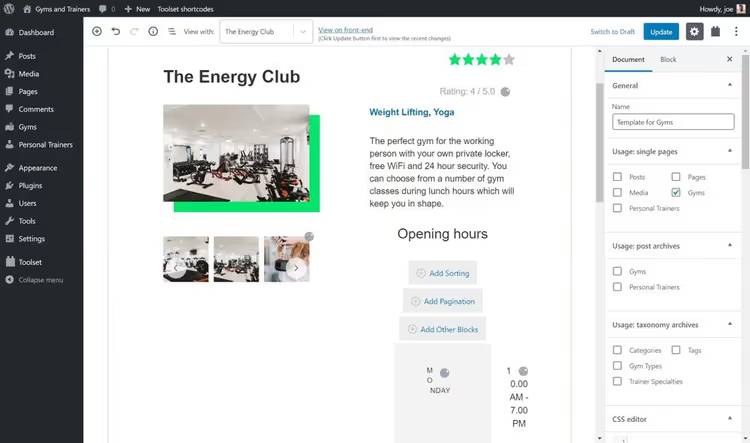
After adding a few more blocks (title, description, gallery), you get a complete template. On the front end it looks like this:
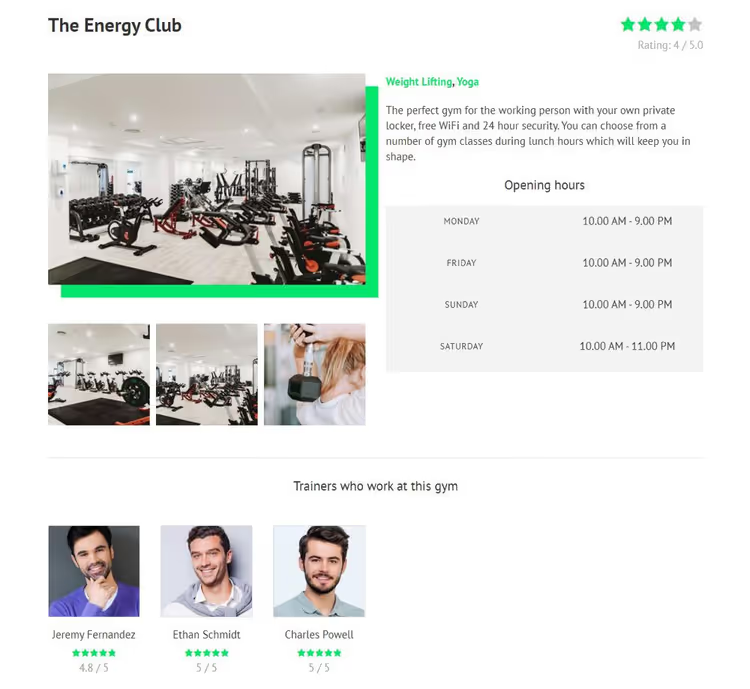
Build it once, and all posts of this type automatically get the same structure with different content. Change the template, and all pages update at once.
Method 2: Total Theme, built-in dynamic templates via WPBakery
If you're already using the Total theme (one of the most popular premium themes on ThemeForest, with 55,000+ active installations), dynamic templates are built in "out of the box." No additional plugins needed.
🔗 Total Theme on the official website
Total works in conjunction with WPBakery Page Builder (included with the theme; no separate purchase needed). Dynamic templates here are called Dynamic Templates and are built on WPBakery elements with dynamic sources. The logic is similar to Toolset, but in a different interface.
What Total offers for dynamic content
- Post Media element: automatically inserts the featured image, gallery, or video from the post. One element for all media content.
- Post Content element: outputs the main post content (what's in the editor).
- Post Title, Post Meta, Related Items, Social Links: dozens of ready-made elements for building a template for any content type.
On top of that: 90+ WPBakery patterns, 40+ ready-made demo sites for import, Slim Mode (disables unnecessary WPBakery scripts for faster loading), 450+ snippets for developers.
Creating a dynamic template in Total
Step 1: New template
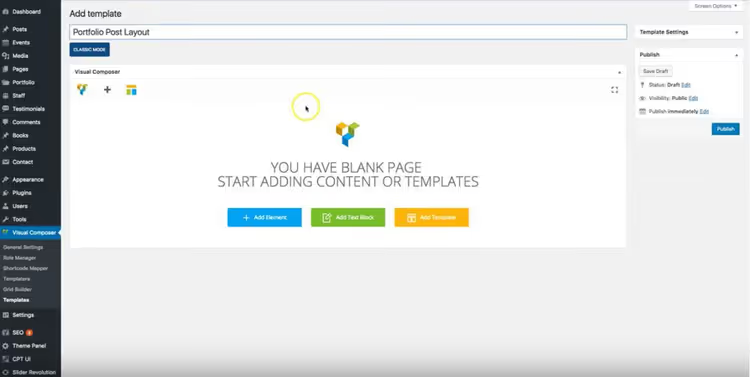
Go to WPBakery Page Builder → Templates and click Add New. Name the template, for example, "Portfolio Card."
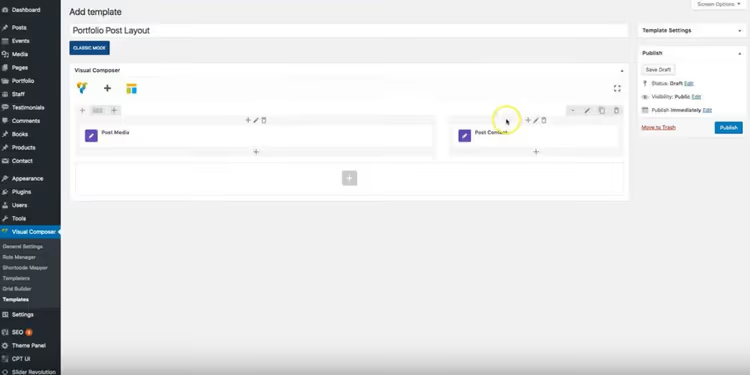
Step 2: Add dynamic elements
First, add the Post Media element. It will display all media files attached to the post: featured image, gallery, video.
Then include the Post Content module. It will output the text from the post editor.
If desired, add Post Title (post heading), Post Meta (date, author, categories), Related Items (similar posts), and Social Links (share buttons).
When finished, click Publish.
Step 3: Assign the template to a post type
Go to Appearance → Customize, then to the Portfolio section (or your custom post type) and select the created template from the Dynamic Template (Advanced) dropdown.
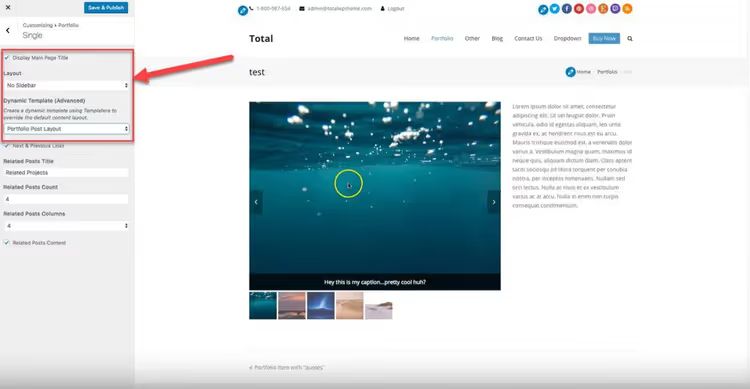
Result
Save your changes, and all portfolio posts automatically receive the new layout. Media, titles, and content are substituted from each specific post.
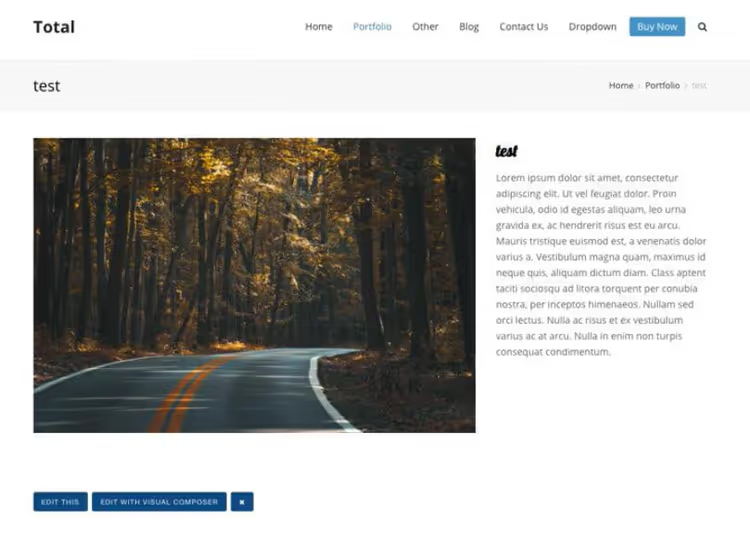
This works especially well when building sites for clients: you assemble the template once, and all the client's new content fits into the ready structure. If the design needs to change a month later, you edit the template, and 50 pages update automatically.
Toolset Blocks or Total Theme: what to choose
Both tools solve the same problem but suit different people and different scenarios. Below is an honest comparison by key parameters.
Criterion | Toolset Blocks | Total Theme |
|---|---|---|
Barrier to entry | Lower: just Gutenberg, visual | Medium: need to learn WPBakery |
Code | Not needed at all | Not needed for templates; for customization, 450+ ready snippets |
Framework | Gutenberg (built into WordPress) | WPBakery (included with theme) |
Flexibility | Higher: separate plugin, works with any theme | Tied to Total: if you switch themes, you lose templates |
Price | Toolset subscription (from $69/year) | Total theme $59 (one-time, includes WPBakery) |
For whom | Beginner on any theme; maximum control over fields needed | Total owner; freelancer building sites at scale |
Additional benefits | Types (post types), Views (list output) included | 40+ demos, Slim Mode, 80+ custom WPBakery elements |
Downsides | Paid subscription; dependency on Toolset ecosystem | Tied to one theme; not everyone likes WPBakery |
Decision matrix
- You're just starting out, any theme: get Toolset Blocks. Zero barrier to entry, results in an hour.
- Already using Total: don't reinvent the wheel. Built-in Dynamic Templates cover the task completely, with no additional costs.
- Building client sites at scale: Total. One template, demo import for a quick start, the client fills in fields and can't break the layout.
- Need complex relationships and filters: Toolset. Views and custom post types in the package offer far more options for custom logic.
⁉️🤔 Frequently asked questions
Can I create dynamic content for free?
Yes, with a combination of Advanced Custom Fields (ACF, free version) + some PHP code in theme files. But this requires at least a basic understanding of WordPress hooks. For beginners, Toolset or Total pay for themselves in hours saved on googling and debugging. The free path is realistic, but the learning curve is steeper. ACF provides fields, but how to display them in a template is up to you. For a one-off project with a simple structure (address, phone, image), that's fine. For client sites and complex relationships, the tools in this article save days.
Toolset Blocks or ACF: which is better?
Different niches. ACF is a field builder. Toolset is an ecosystem: fields + post types + visual templates + Views for outputting lists. If you only need fields, ACF is lighter and has a huge community. Need a no-code pipeline from field to finished page? Toolset. In practice, people often use ACF for fields and Toolset for templates; they're compatible. But if you're starting from scratch and don't want code, Toolset covers everything by itself.
Does this work with any theme?
Toolset Blocks: yes, with any theme that supports Gutenberg (which is virtually all modern themes). Total Theme: only on its own theme, obviously. But Total gives you full integration in return: no need to monitor compatibility; everything is tested by the vendor.
What happens to dynamic templates when switching themes?
Toolset templates will remain; the plugin lives independently of the theme. Minor style adjustments may be needed, but the structure won't fall apart. Total templates will disappear completely when switching themes; it's built-in functionality. Consider this when choosing.
How long does setup take?
The first template in Toolset takes about an hour (figuring out the interface + building the layout). Each subsequent one takes 15-20 minutes. In Total, similar numbers: the first template takes an hour, subsequent ones are faster. There's no critical difference in speed.
What to install for your task
WordPress dynamic content is neither magic nor the domain of developers. Modern tools have lowered the barrier so much that a site owner can build a template with a mouse in an hour. The two proven methods above cover virtually any scenario: from a simple portfolio to a catalog with hundreds of items.
In short: Toolset Blocks for maximum flexibility without being tied to a theme. Total Theme if you're already on Total or building client sites at scale. Both options work. Choose the one for which you already have a foundation, and build your first template today.

A professional team of writers and editors specializing in creating quality content.