














🛠 Building a custom WordPress site with Toolset Blocks: complete guide
Gutenberg plus Toolset Blocks, no coding required
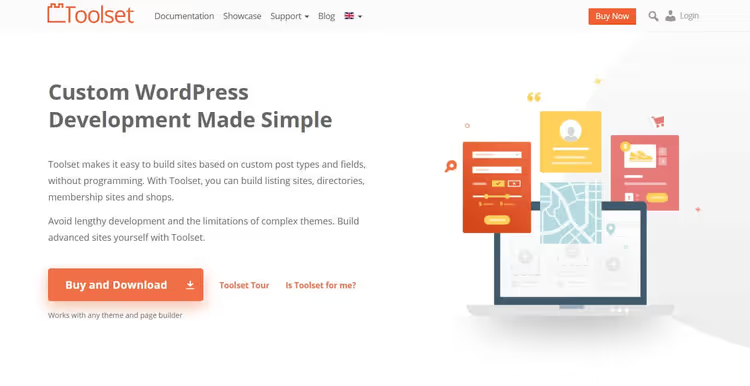
Creating a site on WordPress without code sounds like a marketing slogan. But in 2026 it's reality: the Gutenberg block editor has grown from an experimental "thing for posts" into a full-fledged page builder. And Toolset Blocks adds a layer of dynamic content, templates and custom search on top of it.
The classic WordPress problem: design drags a developer along with it. The designer draws a mockup in Figma, the developer ports it to a theme, and every tweak, revision, approval round costs budget. Toolset Blocks removes that link: the layout is assembled directly in the admin, without HTML/CSS.
Under the hood, integration with the native WordPress editor and a set of blocks for outputting custom fields, taxonomies and relationships between posts. Essentially, you get a builder that understands the structure of your data, not just paints buttons.
💡 Quick overview:
- Preparation: installing Toolset Blocks, creating post types and fields
- Content templates: unified design for all custom post type entries
- Archive pages: customizing lists with filters and grid layout
- Custom search: filters by any fields with AJAX results
- Assembly: how to replace the "designer + developer" bundle with one tool
Why Toolset bet on Gutenberg
Previously Toolset integrated with popular page builders: Elementor, Beaver Builder, the old Visual Composer. It seemed convenient: Toolset provides the backend and data structure, while the page builder provides visual layout.
But maintaining compatibility with a dozen third-party plugins is expensive and unreliable. Each vendor updates at their own pace, breaks APIs, changes architecture. The Toolset team spent resources on adaptation instead of product development.
So the Toolset developers (OnTheGoSystems, the same people who make WPML) made a strategic decision: bet on the native WordPress editor. Gutenberg stopped being an experiment, gained an API for third-party blocks and became the WordPress core. Integration with it is deep and doesn't break with every update, because it's supported by the core itself.
Plus it means fewer plugins on the site. You don't install a separate page builder with its 50+ dependencies. Gutenberg is already in the core, Toolset adds blocks for dynamic content to it, and that's enough for most scenarios.
What if you're used to another page builder
Toolset doesn't abandon users of third-party builders. Right now the plugin maintains compatibility with major page builders, you can still use Elementor or Beaver Builder together with Toolset.
But how long this will last is an open question. Each new release of a third-party builder requires Toolset to adapt in response, and the team's resources are finite. The logic is simple: the deeper you are on Gutenberg, the more stable your setup in the long run.
What Toolset Blocks gives developers and content managers
The advantages aren't abstract, each feature solves a specific task.
Building a site without an intermediary. The designer can assemble the layout directly in the WordPress admin and see the result immediately. No need to export markup, wait for the developer, fix discrepancies. Savings measured in days, not hours.
Dynamic content out of the box. You create one template with Toolset blocks, and WordPress itself inserts the right data from the database, depending on the post type the user landed on. One template for hundreds of pages.
Visual assembly on the backend. No need to jump between frontend and admin. You assemble everything in the block editor and immediately see how the page will look after publishing.
Fewer plugins. Gutenberg + Toolset Blocks cover needs that previously required a builder, a custom fields plugin, a templates plugin and a search plugin. Four in one, fewer conflicts and easier maintenance.
Examples: what you can build with Toolset Blocks
Three scenarios that cover the vast majority of custom site needs.
Templates for custom post types
You have a custom post type "Real estate properties". You need each property card to look the same: photo, price, area, neighborhood. Without a template you copy the markup for each property. With a template, you set it up once.
How to create:
- Go to Toolset → Dashboard and click Create Content Template for the needed post type.
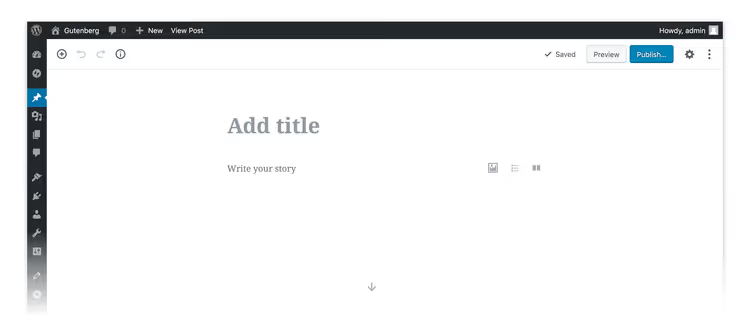
- Add fields to the template through the "+" button, select blocks that should display on the post page.
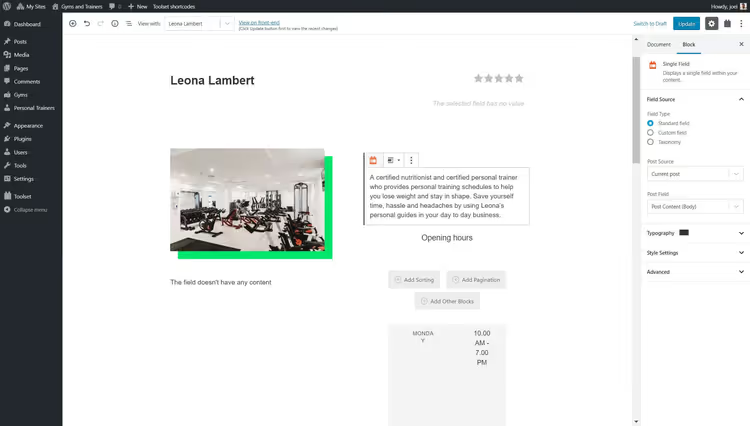
- Save and publish the template. All posts of this type will get unified design.
Archive pages with custom grid
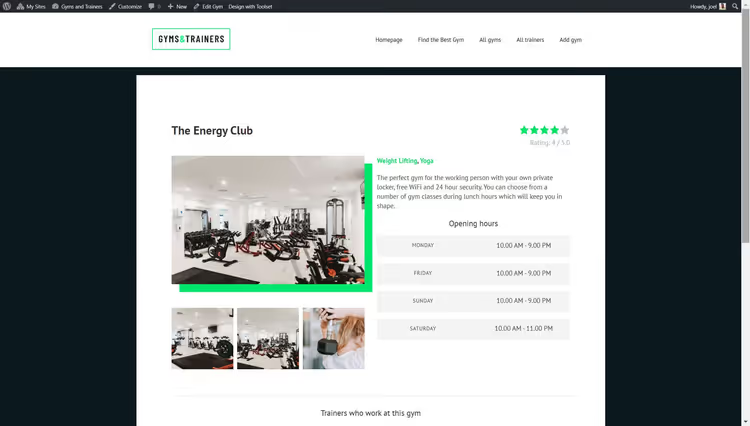
An archive is a list of posts of one type: all real estate properties, all reviews, all branches. The standard WordPress archive looks ugly: a vertical list of titles. Toolset lets you build a grid with cards, filters and pagination.
How to set up:
- Go to Toolset → Dashboard and select Create Archive next to the needed post type.
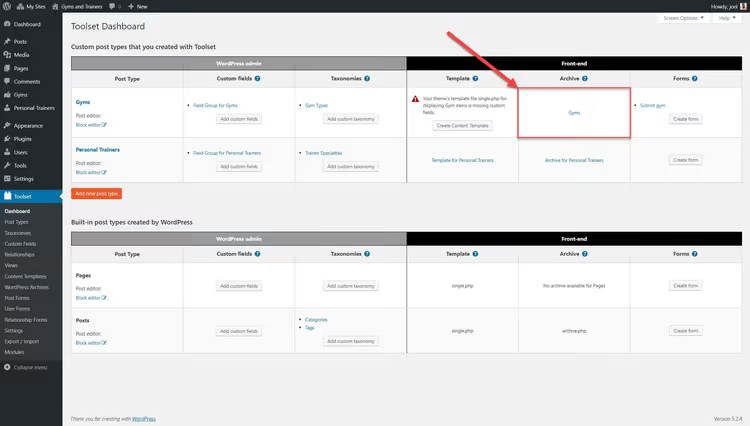
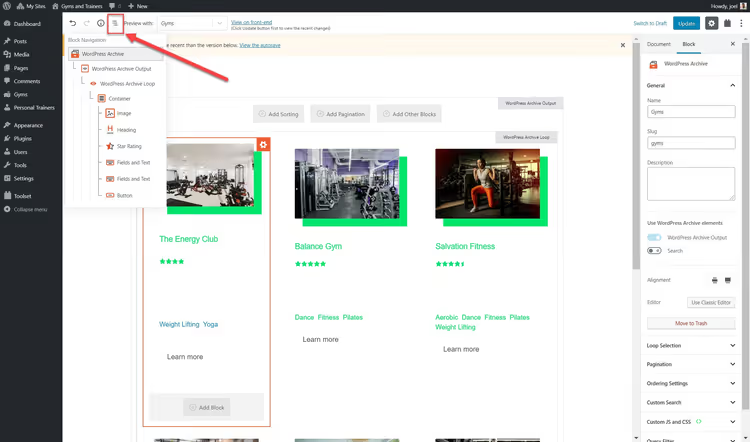
- Add blocks you want to see in each archive card.
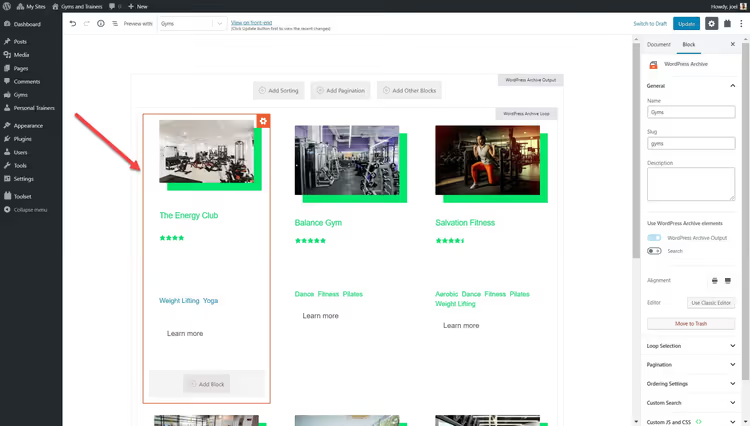
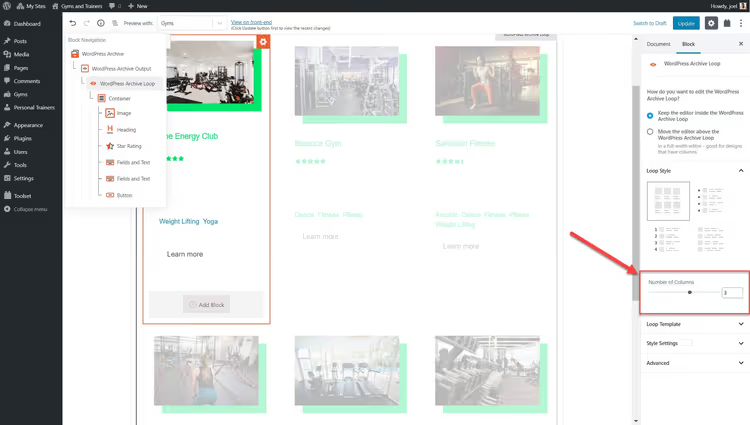
- Configure the number of columns through Loop settings in the sidebar.
- Drag the column count toggle in the "Loop style" section.
- Configure pagination, sort order and (if needed) add a query for filtering.
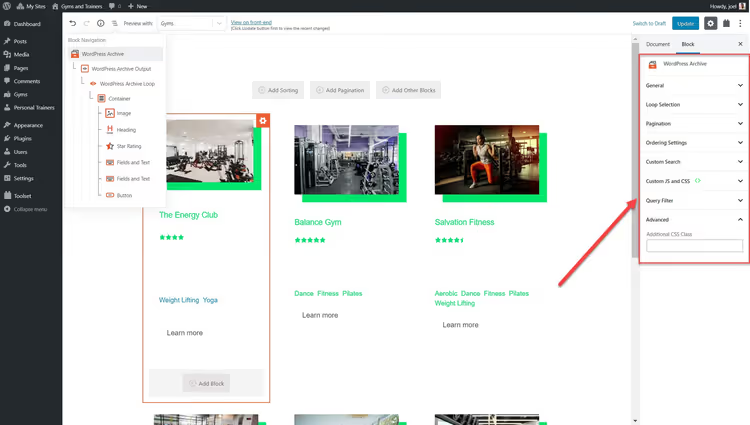
- Add text or additional blocks before and after the archive loop through the "+" icon.
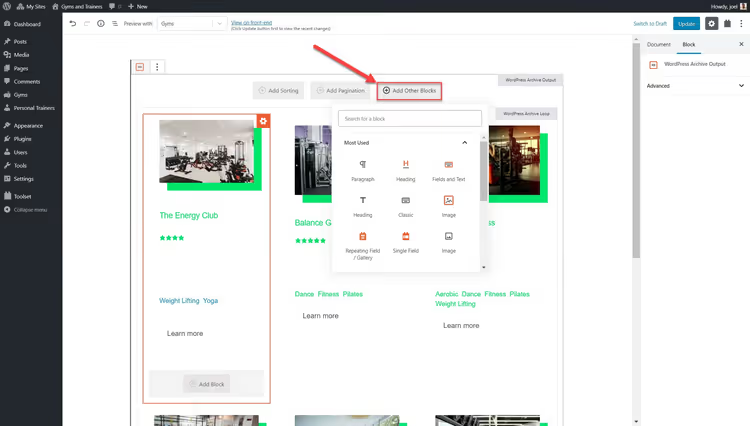
Custom search with filters
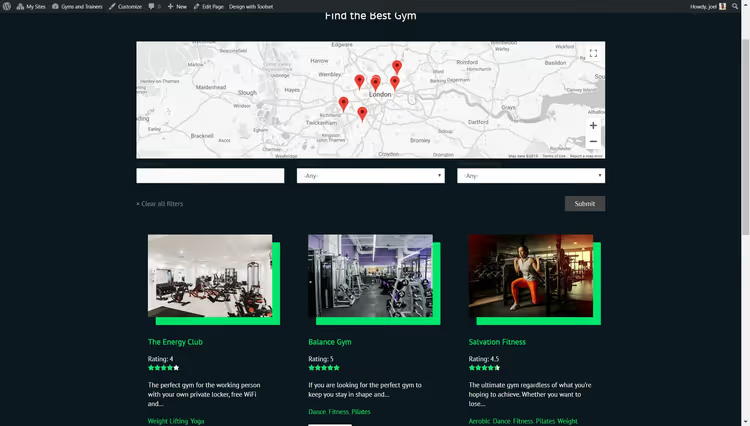
The standard WordPress search only searches titles and content. If you have custom fields (price, area, neighborhood, rating), they're bypassed. Toolset custom search builds a form with filters by any fields and outputs results in the same grid as the archive.
Imagine: a user wants to find a gym with a rating above 4.5, open 24/7, within a 2 km radius. Without custom search, they'd scroll through all entries manually. With it, three clicks and a ready list.
How to set up:
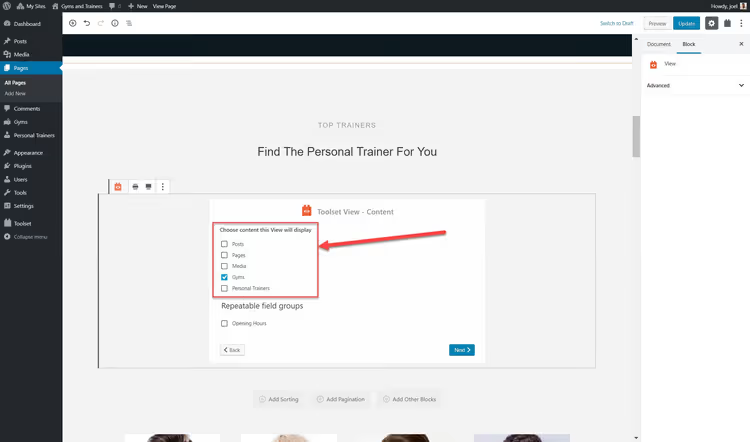
- Insert a View block on the page where the search should be.
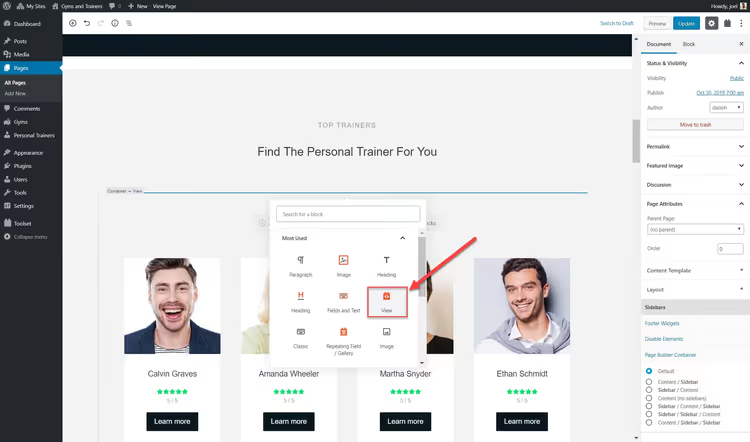
- Enable the Search option in the view creation wizard.
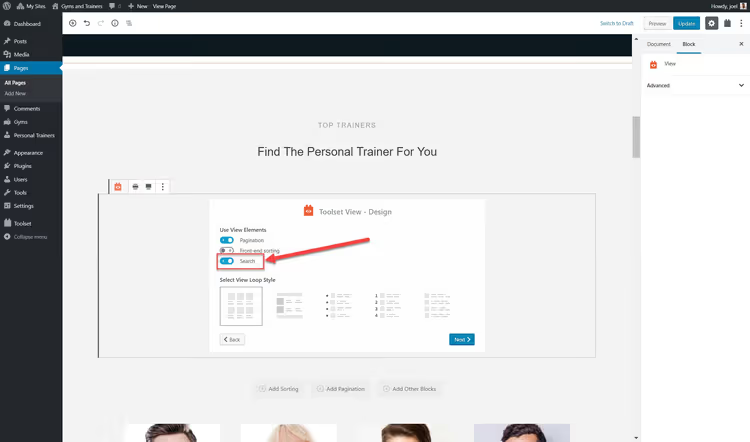
- Select fields that should display in search results.
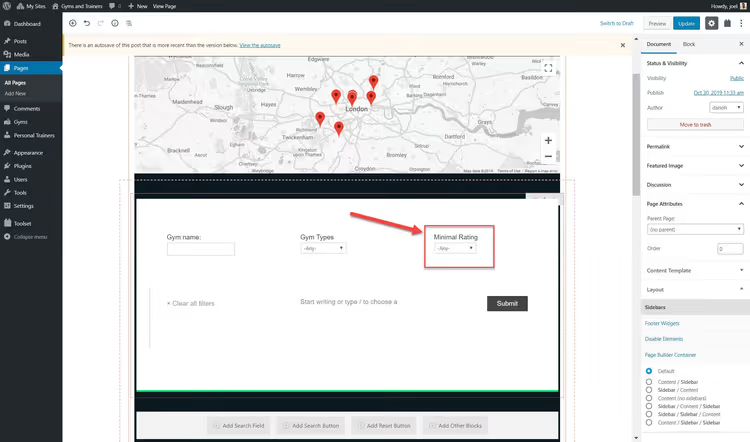
- Add search fields and a button for each field you need to filter by.
- Configure the appearance of results through the right sidebar, same as for archives.
⁉️🤔 Frequently asked questions
Is Toolset Blocks suitable for a WooCommerce online store?
Yes. Toolset works with WooCommerce out of the box, products are the same custom post type. You can build custom product card templates, category archives with attribute filters and price search. For complex cart and payment logic you'll need WooCommerce itself, but Toolset handles the storefront.
Do you need to know how to code to work with Toolset Blocks?
For most tasks, no. Templates, archives and search are configured through the visual Gutenberg interface. Only custom hooks and complex filter logic will require PHP, but those are niche scenarios.
How does Toolset Blocks differ from ACF paired with Elementor?
ACF provides fields, Elementor provides layout. Toolset provides both plus the connection between them out of the box. With ACF+Elementor you configure the output of each field manually for each template. Toolset automatically picks up post type fields and offers blocks for them. Plus Toolset handles content templates, archives and custom search, ACF+Elementor only cover this with additional plugins.
Does Toolset work with FSE themes (Full Site Editing)?
Since 2024, yes. Toolset has adapted its blocks to the WordPress Site Editor ecosystem. You can use Toolset blocks inside FSE theme templates without losing dynamic content functionality.
How much does Toolset Blocks cost in 2026?
Toolset is sold by subscription: from $69/year for one site to $299/year for unlimited sites. Each tier includes all components: Blocks, Types, Views, Forms and Maps. Support and updates are included in the subscription. Check exact prices at toolset.com.
What to install in 2026: Toolset or a bundle of three plugins
The alternative to Toolset is a zoo of ACF (or Meta Box) for fields, a separate plugin for templates, a separate one for custom search. It seems to work. But each plugin is a potential point of failure, a conflict during updates and extra load on the admin.
Toolset Blocks replaces this bundle with one solution from one vendor. Under the hood, the same team that makes WPML, so the product won't be abandoned in six months. Integration with Gutenberg is deep, not a block "bolted on the side".
If you're building a custom WordPress site with custom data types, Toolset Blocks justifies both the price and the time to learn it. Try it on a test site: first results are visible within an hour of installation.

A professional team of writers and editors specializing in creating quality content.