













🔧 Getwid: customizable WordPress blocks for Gutenberg
The standard Gutenberg editor is enough for simple posts, but when it comes to landing pages, portfolios, and service pages, the basic blocks are catastrophically insufficient. Developers turn to page builders like Elementor, even though the same tasks can be solved inside the native WordPress editor.
The problem is that most Gutenberg plugins are either paid or offer a meager 5-7 additional blocks and stop there. Meanwhile, the site accumulates yet another heavy plugin for a couple of sections.
Getwid solves both problems at once: over 40 blocks in the free package, no cut-down "pro" versions, and full compatibility with any FSE theme. Ten minutes after installation, you'll assemble a landing page that would take an hour to build in Elementor.
💡 Quick overview:
- Install Getwid from the WordPress repository (Plugins, Add New, search "Getwid", Install, Activate)
- Open the Gutenberg editor on a new page and find the "Getwid Blocks" category
- Build a page from section blocks: add Section, insert heading, text, icons, form, or slider inside
- Configure each block through the right panel: colors, spacing, animation, background video
- Publish the page, all design stays inside Gutenberg, no third-party page builders
What is Getwid

Getwid is a collection of over 40 blocks for Gutenberg from the MotoPress team. The developers are known for their booking plugins for WordPress, and they released Getwid as a free tool for everyone who feels cramped in the standard editor.
The plugin is distributed through the official WordPress repository under the GPL license. No cut features, hidden prices, or premium upgrades: all 40+ blocks are available immediately after activation. The package also includes a library of 35+ ready-made templates, from hero sections to "About Us" blocks and FAQ.
Since version 2.0, Getwid fully works with Full Site Editing: blocks can be used not only inside posts and pages, but also in the site header, footer, and navigation. The AI Assistant deserves special mention, a built-in block for generating text directly in the editor, running on open AI technologies.
MotoPress has been developing the product for over 6 years, and during this time the ecosystem has grown to include its own free Getwid Base theme, Style Kit for developers, and detailed English documentation.
How to install Getwid
Installation takes less than a minute, the plugin is in the official WordPress catalog, so you don't need to download anything manually.

Go to the WordPress admin and navigate to Plugins → Add New. Type "Getwid" in the search bar and press Enter.

In the search results, the needed plugin will be first, labeled "Getwid - Gutenberg Blocks", developer jetmonsters (MotoPress). Click Install Now, wait for the download to finish, then Activate.

After activation, a new "Getwid Blocks" category will appear in the Gutenberg editor. No additional settings needed, the plugin is ready to work immediately.
Adding Getwid blocks to a page

Create a new page through Pages → Add New. Give it a title and if necessary, choose a template in the Page Attributes section, this depends on your theme.

Getwid blocks are added the same way as standard Gutenberg blocks. Click the plus (+) button in the editor interface, scroll to the Getwid Blocks section, and select the one you need. Let's look at the key blocks you'll use most often.
Section block, foundation of any page

Section is a container into which all other blocks are nested: headings, text, buttons, icons, sliders, forms. Essentially, it's a building block for constructing a page by sections, analogous to sections in Elementor, only inside Gutenberg.

The Section right panel gives full control over appearance:
- Dimensions: boxed, full width, or custom width; height is configured separately for desktop, tablet, and mobile
- Spacing and margins: inner and outer spacing broken down by device
- Background: solid color, gradient, image, slider, or video
- Dividers: stylized transitions between sections
- Animation: scroll-triggered appearance effects
- HTML anchor and CSS class: for fine customization through code
One section can contain dozens of nested blocks, and each is configured independently. See an assembled page example in the Getwid demo section.
Media & Text Slider block
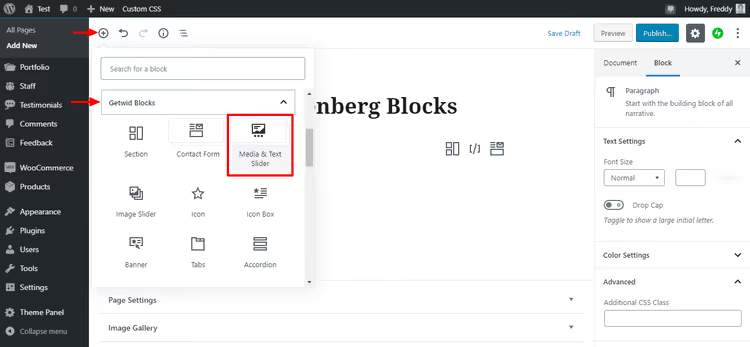
A slider with media and text, a block for impressive content presentation. Upload an image or video, add text, and visitors swipe through slides.

Main settings: number of slides, image size, slider height, text block width, overlay color and opacity, animation of transitions and text. Each slide can have its own background and content. Ready example on the block demo page.
Image Slider block

Image Slider is a lightweight slider version, for images only. Upload a series of pictures from the media library and configure display.

Parameters include: image size, automatic crop, linking to attachment page, number of slides for different devices, and arrow/dot navigation positioning. Especially useful for photographer and designer portfolios, slides can be linked to individual project pages.
Banner block

The banner block allows placing advertising and promotional images with links. A useful thing for affiliate integrations and internal cross-promotion.

After uploading an image, configure: destination URL (can open in new tab), banner size, alignment, color scheme, and appearance animation. Ready examples in the Getwid banner demo.
The remaining 36+ blocks
Covering all 40 blocks in one article is impossible, but the logic of working with them is the same. In the Getwid Blocks category you'll find:
- Advanced Heading, headings with Google Fonts, typography control, and animation
- Accordion and Toggle, accordions and toggles for FAQ and content structuring
- Tabs, horizontal and vertical tabs
- Icon and Icon Box, icons and service blocks with icons, headings, and text
- Image Box, Image Stack Gallery, Image Hotspot, three tools for non-standard image presentation
- Price Box and Price List, pricing tables and menus with customizable styles
- Contact Form, contact form with reCAPTCHA support
- Mailchimp, integration with MailChimp API for email subscriber collection
- Counter and Progress Bar, animated counters and progress bars
- Countdown, countdown timer
- Google Maps, Google Maps with unlimited markers
- Video Popup, popup video from YouTube, Vimeo, or your own hosting
- Post Carousel, Post Slider, and Custom Post Type, three blocks for displaying posts, products, and custom post types in grid, carousel, or slider
- Table of Contents, table of contents based on page headings
- Content Timeline, event timeline in a stylish graphic
- Advanced Table, tables with cell merging and background customization
- Content Slider, any Gutenberg block in slider format
- AI Assistant, text generation through built-in AI directly in the editor
- Social Links, social media icons with flexible display settings
- Recent Posts, recent posts block with customizable meta information
Each block unfolds with one click, and configuration is done through the right panel, switch between tabs and change parameters for the task. Detailed demonstrations of all blocks are collected on the plugin page on MotoPress.
⁉️🤔 Frequently asked questions
Is Getwid really free? Where are the paid features?
The plugin is 100% free and open source (GPL). All 40+ blocks, template library, AI Assistant, and FSE integration are available without limitations, as confirmed on the official plugin page. MotoPress earns from other products, booking plugins, and supports Getwid as a contribution to the WordPress community.
Does Getwid slow down the site?
No, if you use blocks as intended. The developers applied CSS minification and load resources only for blocks actually used on the page. However, 15+ blocks on one page will create noticeable load, this is true for any block plugin. Optimal scenario: container section plus 6-10 content blocks inside it.
Does Getwid work with my theme?
The plugin is compatible with any WordPress theme that supports Gutenberg. Starting with version 2.0, Getwid is fully integrated with Full Site Editing: blocks can be used in the header, footer, and site templates. If you're using classic themes without FSE, blocks work inside posts and pages without restrictions.
What's better: Getwid or separate plugins for each block type?
Getwid wins on the "one-stop shop" principle: you install one plugin and get 40+ blocks, written by one team and guaranteed not to conflict with each other. Assembling 10 separate plugins for each block creates incompatibility risk and complicates updates. Exception: if you need one specific block that Getwid doesn't have, and you don't want to install 40 extra ones for it.
How does Getwid differ from Spectra, Kadence Blocks, and Stackable?
All four plugins solve the same task, expanding Gutenberg with additional blocks. Getwid's main difference: complete absence of paid tiers. Spectra, Kadence, and Stackable have Pro versions with locked features, while Getwid gives everything for free. Block count is at parity (each has 35-45), configuration quality is also close. The choice comes down to interface preference and the specific developer's ecosystem.
Is it worth installing Getwid in 2026
Getwid is one of the few Gutenberg plugins that in 6 years hasn't acquired paid tiers and hasn't cut the free version down to "try and buy" state. 40+ blocks, template library, AI text generator, and Full Site Editing compatibility, and all this for free.
Installation takes a minute, entry barrier is zero: blocks are added with a click, configuration goes through the visual right panel. If you're assembling landing pages, service pages, or portfolios inside Gutenberg and don't want to depend on page builders like Elementor, Getwid closes the task completely.
For those who care about the ecosystem: MotoPress has the free Getwid Base theme and Style Kit for developers, tailored specifically for this block set. Combined with the theme, you get a full-fledged site builder on pure Gutenberg, without construction.

A professional team of writers and editors specializing in creating quality content.