














🔧 16 great plugins for WordPress administration in 2026
When the WordPress admin panel starts resembling a warehouse without inventory control, you're not the problem. The architecture is, having never rethought how administrators work with sites daily for 20 years. The sidebar menu bloats to three screens, post lists show nothing beyond titles, and the database accumulates revisions faster than you can check "update plugins."
The standard admin panel was designed for a 10-page blog, but you're managing a site with hundreds of posts and five user roles. Without proper tools you lose hours on navigation and diagnostics.
We tested 16 plugins, each solving one specific administration pain point: from restructuring menus to auditing team actions. Links lead to WordPress.org, screenshots are live, versions are current as of June 2026.
💡 Quick overview:
- Bring your menu to order with Admin Menu Editor and add columns to post lists with Admin Columns
- Optimize database and caching with one plugin WP-Optimize
- Configure redirect management with Redirection and cron jobs with WP Crontrol
- Enable query debugging with Query Monitor and team action auditing with Simple History
- Protect login with two-factor authentication Two Factor and broken link monitoring with Broken Link Checker
Comparison table by key characteristics:
Plugin | Task | Active installations | Free? | Pro version |
|---|---|---|---|---|
Admin Menu Editor | Admin menu editor | 300,000+ | Yes | from $39 |
Admin Columns | Columns in post lists | 100,000+ | Yes | from $89/year |
WP-Optimize | Cache, compression, DB cleanup | 1,000,000+ | Yes | from $49/year |
Redirection | Redirect management | 2,000,000+ | Yes | ❌ |
WP Crontrol | Cron job management | 200,000+ | Yes | ❌ |
Query Monitor | Query and hook debugging | 400,000+ | Yes | ❌ |
Advanced Editor Tools | Advanced editor | 500,000+ | Yes | ❌ |
Simple History | Admin action log | 300,000+ | Yes | Premium |
Participants Database | Participant database | 10,000+ | Yes | ❌ |
Broken Link Checker | Broken link detection | 400,000+ | Yes | ❌ |
Two Factor | Two-factor authentication | 200,000+ | Yes | ❌ |
Search Regex | Text search and replace | 200,000+ | Yes | ❌ |
AdRotate | Ad management | 70,000+ | Yes | from €39 |
Redux Framework | Options page framework | 100,000+ | Yes | from $49 |
Independent Analytics | Cookie-free analytics | 30,000+ | Yes | from $49/year |
Download Monitor | Download management | 100,000+ | Yes | from $39 |
1. Admin Menu Editor
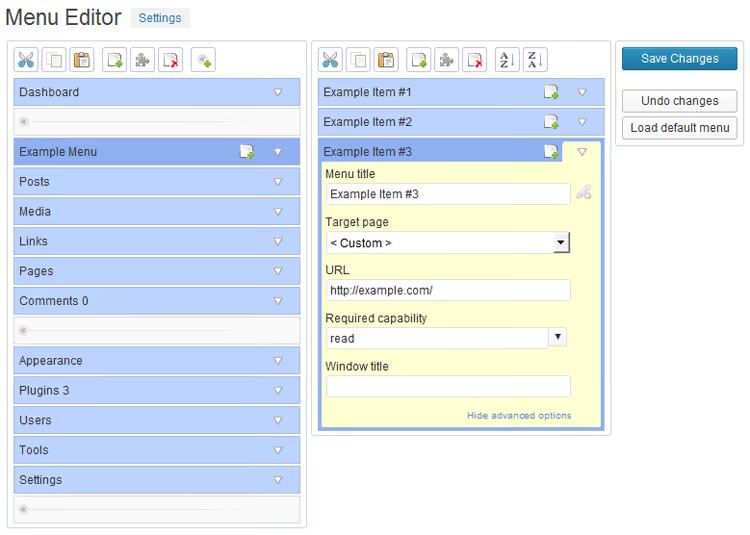
When the sidebar menu has 30 plugin items and the client only needs "Posts" and "Pages," the problem isn't the client. The problem is lack of control over who sees what in the admin panel.
Admin Menu Editor solves this with visual drag-and-drop: drag items, change names, icons, access rights, all without functions.php. We use it on every client site: hide hosting panels from editors, group SEO tools into one block, add a documentation link right in the menu. The Pro version adds role-based permissions, configuration export and plugin hiding in the installed list for white-label.
Pros:
- Visual drag-and-drop, 5-minute setup
- Reset to default menu with one button
- Works at WordPress filter level, doesn't slow the admin panel
Cons:
- Free version can't grant a role access to an item it didn't have originally
- Custom icons, only dashicons (Pro allows custom SVG)
Price: free / Pro from $39
🔗 Admin Menu Editor on WordPress.org
2. Admin Columns
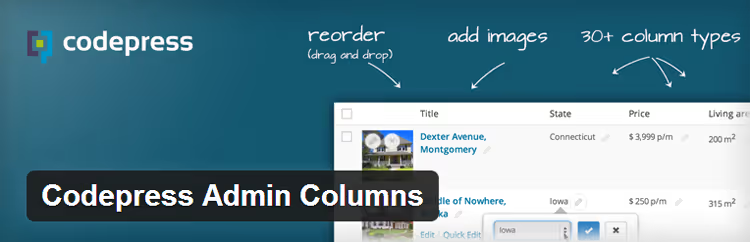
The default WordPress post list shows title, author and date. When the admin has hundreds of posts with custom fields and taxonomies, you waste time identifying content instead of working with it.
Admin Columns adds 200+ column types for posts, pages, users, media files and comments. Featured image, ACF fields, Yoast SEO metrics, file size in media library, everything appears in the list and sorts by drag-and-drop. The Pro version turns the list into an editor: filtering with "contains / greater than" conditions, inline editing, bulk editing and CSV export. For stores WooCommerce integration: price, SKU and stock columns.
Pros:
- 200+ ready column types
- Deep integration with ACF, WooCommerce and Yoast SEO in Pro
- Doesn't affect frontend
Cons:
- Filtering and sorting, Pro only
- Configuration interface requires adjustment with many columns
Price: free / Pro from $89/year
🔗 Admin Columns on WordPress.org
3. WP-Optimize

The WordPress database fills with junk faster than you expect: post revisions, spam comments, auto-drafts, transient options. After six months of an active site a third of tables can be occupied by things that will never be needed.
WP-Optimize combines three tools in one: database cleanup, image compression and page caching. Cleanup works on schedule, before each optimization a backup is automatically created via UpdraftPlus (same developer). The compression module supports lossy and lossless compression, WebP conversion and auto-compression on upload. Caching configures with one click, and for advanced users: GZIP compression, cache preloading, separate caches for mobile and desktop, HTML, CSS and JS minification.
Pros:
- Three tools in one, fewer plugins, fewer conflicts
- Auto-backup before cleanup via UpdraftPlus
- Free version covers basic needs
Cons:
- CSS/JS minification sometimes breaks theme layouts
- Some features (Lazy Load, WebP for existing files), Premium only
Price: free / Premium from $49/year
🔗 WP-Optimize on WordPress.org
4. Redirection

After changing domains or permalink structure the pain begins: dozens of manual 301s in.htaccess, each missed redirect, lost traffic and rankings. Quick Page/Post Redirect from the original roundup was closed on WordPress.org in April 2026 due to security issues.
Redirection by John Godley, the standard for redirect management with 2 million active installations and ten years of development. Supports 301, 302, 307 and 308 redirects, regular expressions, conditional rules (login, browser, referrer, cookie, IP) and logging of every redirect.
Separate value, 404 error monitoring. The plugin groups broken URLs and allows mass correction. When changing a post permalink the redirect is created automatically. Export to.htaccess and Nginx is supported, import from Simple 301 Redirects and Rank Math.
Pros:
- 2 million installations, 10 years of active development
- Auto-redirect when changing post URL
- 404 monitoring with grouping and mass correction
Cons:
- Interface looks spartan
- No built-in geotargeting for redirects
Price: free (no Pro version)
🔗 Redirection on WordPress.org
5. WP Crontrol

The original Adminer, which gave database access from the admin panel, was closed on WordPress.org back in 2016 for security reasons. For an administrator it's more important not to look at tables but to control what happens to them on schedule.
WP Crontrol by John Blackbourn (author of Query Monitor), control panel for all WordPress cron events. You see every scheduled task with arguments, schedule and callback function. An event can be edited, deleted, paused or run immediately, without a single line of code.
The plugin warns about tasks with missed schedules and events without callback handlers. Custom intervals, bulk deletion, CSV export and full integration with Action Scheduler from WooCommerce are supported.
Pros:
- Full control over cron events without code
- Warnings about missed and dead tasks
- Compatibility with WooCommerce Action Scheduler
Cons:
- Requires understanding of WP-Cron operation
- No historical log of executed tasks (planned for future)
Price: free
🔗 WP Crontrol on WordPress.org
6. Query Monitor

Guessing why a page loads for 4 seconds is last century. Modern debugging: open the dropdown panel in the admin bar and see every SQL query with execution time and initiating component.
Query Monitor by John Blackbourn, the debugging standard we install on every site before launch. The plugin shows: database queries with file and call line, hooks and their firing order, object cache state, cron jobs, API HTTP requests, loaded scripts and styles with sizes, PHP constants and server settings.
In practice the slow page problem is found in 30 seconds of studying the dump. See a 0.8-second query, click, go to file and line, fix.
Pros:
- Detailed breakdown of each SQL query with call stack
- Hook analysis: who and when subscribed to each action/filter
- Free, from a WordPress core developer, 400,000+ installations
Cons:
- Output is overwhelming for beginners
- Diagnostics only, doesn't fix found problems
Price: free
🔗 Query Monitor on WordPress.org
7. Advanced Editor Tools

The WordPress block editor is good for landing page layout, but when you need precise text formatting, tables, superscript, font selection, standard blocks aren't enough. WP Super Edit from the old roundup is dead, its replacement is Advanced Editor Tools (formerly TinyMCE Advanced).
The plugin adds dozens of additional formatting buttons to the classic and block editors. In Gutenberg a "Classic Paragraph" block appears with the full TinyMCE panel, convenient for final text polishing without fussing with block groups.
The main difference from the predecessor: panel configuration by role. Basic set for editors, full toolkit with tables and styles for administrators. Button configuration exports between sites.
Pros:
- Compatible with block editor (Classic Paragraph block)
- Flexible panel configuration by role
- Configuration import and export
Cons:
- Doesn't add new blocks, only extends existing toolkit
- Some features duplicate standard Gutenberg blocks
Price: free
🔗 Advanced Editor Tools on WordPress.org
8. Simple History

When a team works on a site, the question "who did this?" comes up at least once a week. Testimonials by Aihrus from the original list was closed on WordPress.org in June 2024 due to a vulnerability. Simple History, a full audit log solving a real administration task.
The plugin records every significant action: content edits, logins (including failed, with IP), plugin and theme updates, user role changes. For each event you see: who, when, from which IP and what exactly changed. The interface shows the diff between old and new post versions, like in git.
300,000+ active installations, 430+ five-star reviews, 10 years of development. Built-in support for Jetpack, ACF, User Switching, WP Crontrol and Redirection. Weekly email report keeps the owner informed without logging into admin.
Pros:
- Logging of logins, content edits, plugin and theme updates
- Diff comparison of post versions
- Weekly email activity digest
Cons:
- Free version stores logs for 60 days (Premium unlimited)
- No Slack and Telegram alerts in free version
Price: free / Premium
🔗 Simple History on WordPress.org
9. Participants Database
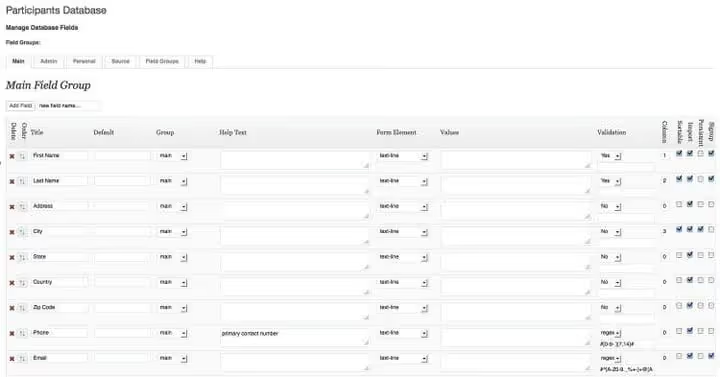
Managing people lists in WordPress is a task with no built-in solution. Event participants, club members, volunteers, course students, everything requires structured storage with search and filtering.
Participants Database creates a CRM inside WordPress. Records are entered manually, imported via CSV or collected through a frontend self-registration form. Fields are fully customizable: data types, required status, display order. Shortcodes display a participant list with pagination and search or a single record. 5.0 rating on WordPress.org, active updates in 2026.
Pros:
- Flexible field configuration without code
- CSV import and self-registration via frontend
- Shortcodes with search, filtering and pagination
Cons:
- Configuration interface requires time to master
- Payments and tiered membership need integration with other plugins
Price: free
🔗 Participants Database on WordPress.org
10. Broken Link Checker
Broken links kill SEO and user trust. On a site with hundreds of posts manual checking is impossible, automatic monitoring is needed.
Broken Link Checker by WPMU DEV scans posts, pages, comments, custom fields and media files. Found broken links are collected in a single panel where they can be corrected, unlinked or ignored in a few clicks.
Two modes: cloud (20 times faster, doesn't load the server, requires a free WPMU DEV Hub account) and local (no external services, but slower). Email notifications when new broken links appear, multisite support.
Pros:
- Cloud mode doesn't load the server
- Bulk link correction from plugin admin
- 400,000+ active installations
Cons:
- Cloud mode requires WPMU DEV registration
- On shared hosting local scanning can slow the site
Price: free
🔗 Broken Link Checker on WordPress.org
11. Two Factor

WordPress security doesn't start with a firewall but with the login screen. One password, one single point of failure. If an attacker guessed or intercepted the administrator password, the site is fully compromised.
Two Factor adds a second line of defense: after the password a one-time code from an authenticator app is requested. Standard TOTP protocol, compatibility with Google Authenticator, Authy, 1Password, Bitwarden, any OTP app.
You can enable mandatory two-factor for everyone or selectively: administrators and editors mandatory, subscribers optional. The plugin is minimalist, doesn't add unnecessary code and doesn't slow login.
Pros:
- Standard TOTP, works with any authenticator
- Configuration by role: mandatory for whom, optional for whom
- Open source, regular security audits
Cons:
- TOTP only, no FIDO2 and hardware keys
- No built-in backup codes for device loss
Price: free
12. Search Regex
Change domain in a thousand posts, remove inactive plugin shortcode, replace class in HTML markup, without Search Regex it's hours of manual work. The plugin searches for text or regex expressions in titles, content, categories, tags, comments and custom fields.
Found matches are replaced as a group with preview. All PCRE constructs are supported: capture groups, backreferences, negative lookahead. After site migration Search Regex replaces the old domain with the new one in all tables in seconds.
We use it for content cleanup after import. But be careful: the plugin doesn't make a backup before replacement and doesn't support a test run. A regex error, and content is damaged without rollback. Always make a full database backup before running.
Pros:
- Full regex support with preview
- Search across all content types: posts, meta fields, comments
- Instant group replacement
Cons:
- No automatic backup before replacement
- No test run and deferred replacements
Price: free
🔗 Search Regex on WordPress.org
13. AdRotate

Without a proper banner manager a WordPress site quickly turns into a Christmas tree of ad blocks. AdRotate provides centralized ad management from the admin panel.
Banners are added through a visual interface, grouped by advertiser and schedule, rotated by weight or randomly. Click and impression statistics for each banner, click fraud protection (click limit per IP). The plugin works with Google AdSense, direct advertisers and affiliate networks simultaneously. Geotargeting via Pro extensions.
Pros:
- Centralized panel for all ad types
- Click and impression statistics without external services
- Flexible rotation with weights and schedule
Cons:
- Steep learning curve compared to stub plugins
- Geotargeting, via paid addons
Price: free / Pro from €39
14. Redux Framework
Developing settings pages for a theme or plugin is routine that takes hours on fields, validation and sanitization. Redux Framework takes care of this: describe fields in a PHP array and get a ready options page with responsive interface.
30+ field types: text, editor, media upload, color picker, toggles, repeaters. The settings page automatically adapts to mobile and meets WordPress accessibility standards. For complex projects, premium extensions: metabox panels, shortcode builder, customizer integration. Redux is used by thousands of themes on ThemeForest and hundreds of premium plugins. For simple themes it's overkill, but for plugins with branched configuration there are no alternatives.
Pros:
- 30+ field types out of the box
- Responsive and accessible interface
- Proven on millions of sites
Cons:
- Overkill for simple themes, Customizer API is enough
- Premium extensions are paid
Price: free / extensions from $49
🔗 Redux Framework on WordPress.org
15. Independent Analytics

Google Analytics 4 for a blog with 50-100 pages is using a microscope to hammer nails: consent banner setup, cookies, external scripts. Independent Analytics, analytics plugin without external services and cookies.
Data is shown right in the admin: page views, traffic sources, visitor geography, most popular posts. Nothing is transmitted to third parties. The plugin doesn't set cookies and is fully GDPR compliant out of the box. For administrators who need basic metrics without GA4 hassle, it's the ideal compromise. No goals and funnels, for complex analytics Google Analytics is still needed.
Pros:
- No cookies, no external services, GDPR-compliant by default
- Data inside admin
- Free, active development
Cons:
- No goals and funnels, only basic page analytics
- For e-commerce and events Google Analytics is still needed
Price: free / Pro from $49/year
🔗 Independent Analytics on WordPress.org
16. Download Monitor

Distributing files from a site is a task with pitfalls: you need a download counter, protection from direct links, mirrors for large files and access restriction by role.
Download Monitor covers everything with one plugin. Files are added through the media manager or external URLs, each gets an ID, meta fields and custom taxonomies. Mirror links distribute load across servers, the download counter shows accurate statistics with click fraud protection. Shortcodes insert a download button into any post, access is restricted by role or condition (for example, after filling out a form).
Pros:
- Mirror links for load balancing
- Accurate download counter with click fraud protection
- Access control by role and conditions
Cons:
- No built-in payment integration
- Interface requires adjustment with many files
Price: free / extensions from $39
🔗 Download Monitor on WordPress.org
Short video on the topic: overview of key WordPress administration plugins with interface demonstrations in action.
⁉️🤔 Common questions
Are all 16 plugins needed for one site?
No. A typical site uses 3-5 admin plugins. Starter set: WP-Optimize for speed, Two Factor for security and Admin Columns for content work convenience. Connect the rest as needs arise.
Redirection or separate broken link monitoring, which to choose?
They solve different tasks. Redirection manages redirects and logs 404, but doesn't scan content. Broken Link Checker finds non-working URLs inside posts. On a growing site we install both: Redirection catches 404, Broken Link Checker cleans content.
Why WP Crontrol if cron works anyway?
You don't see what tasks are scheduled and whether they executed. WP Crontrol shows this in one table. Main use case: detecting dead tasks where an event is scheduled but the callback was removed along with the plugin. Without WP Crontrol you won't know about them.
Can Search Regex be used for mass replacement without backup?
Absolutely not. Search Regex doesn't do a test run before replacement, a regex error can irreversibly damage content. Always make a full database backup before running, WP-Optimize does it with one click.
Why Simple History instead of hosting logs?
Hosting logs show HTTP requests and server errors. Simple History shows actions inside WordPress: who edited a post, who activated a plugin, from which IP there was a failed login attempt. For investigating "why the site broke" Simple History gives the answer in 10 seconds.
Which plugin to install first on a fresh site?
WP-Optimize: clean database and caching affect speed from day one. Second, Two Factor for login protection. Third, Broken Link Checker for link monitoring. If a team works on the site, fourth Simple History. The rest by needs.
What to install for your task?
Admin plugins rarely make "best of" tops because they work behind the scenes. Visitors don't see them, search engines don't hear them, the result is noticeable only to you when the admin panel opens quickly, the menu doesn't turn into a pile of thirty items, and the question "who broke this?" gets an answer in half a minute.
Starter set for any site: WP-Optimize (performance), Two Factor (login security) and Admin Columns (content work convenience). As the site grows add Broken Link Checker (SEO hygiene), Redirection (redirects) and Search Regex (post-migration cleanup).
If you're a developer: Query Monitor for debugging, Redux Framework for settings pages and WP Crontrol for cron job control. If you build sites for clients: Admin Menu Editor for clean menu, Simple History for client action auditing and Download Monitor for PDF manual distribution.
Each plugin from the roundup was updated in 2026, is compatible with the current WordPress version and has tens of thousands of active installations. Choose for your task, a universal set of 16 plugins doesn't exist, but each completely solves its pain point.

A professional team of writers and editors specializing in creating quality content.