













 AIIllustrative image: AI-generated
🔐 Two-factor authentication for WordPress with Google Authenticator
You open your site's admin panel and see dozens of failed login attempts from different IPs. Brute-force bots never sleep: they cycle through passwords 24/7, and the standard "username + password" combination stopped being a reliable lock long ago. One leaked or guessed password, and the site is no longer yours.
There's a solution, and it's free. Two-factor authentication via Google Authenticator adds a second line of defense: even if the password is compromised, an attacker won't get in without a one-time code from your phone. Today I'll show you how to connect this protection to WordPress in 10 minutes, step by step, with screenshots of each stage.
💡 Quick overview:
- Install the Google Authenticator plugin from the WordPress.org repository.
- Configure the secret key or scan a QR code in the app on your smartphone.
- Enable two-factor verification for your user, and for everyone who needs enhanced protection.
- On the next login, the system will request a 6-digit code from the app.
1. Installing the Google Authenticator plugin
The Google Authenticator plugin, free and open source, lives in the official WordPress.org repository. At the time of writing, the current version is 0.55, tested up to PHP 8.5. The plugin is actively maintained: the latest update added compatibility with modern PHP versions, and the most recent review on WordPress.org is dated April 2026.
To install, go to WordPress Dashboard → Plugins → Add New.

In the search bar, type google authenticator. The first result is what you need: a plugin with that same green shield on the icon, authorship listed as Ivan (the current maintainer; originally the plugin was created by Henrik Schack, who passed the project to the community).

Click "Install Now", wait for it to unpack, and Activate.

The plugin doesn't have its own item in the dashboard sidebar. All settings are tied to a specific user's profile, a deliberate decision: each site user enables 2FA for their account separately.
2. Configuring two-factor authentication settings
Navigate to Users → Your Profile and scroll down to the Google Authenticator Settings section. Here's what you'll see:

Let's break down each field.
Description. This text will appear in the Google Authenticator app next to the code. If you have multiple sites and services linked in the app, a meaningful description saves you from confusion. The site name is enough, for example, MyBlog or ThinkingTeapot.
Relaxed Mode. By default, the 6-digit code lives for one minute. Relaxed Mode extends the window to four minutes in both directions, useful if the clocks on the server and phone sometimes drift. In my experience, a couple of seconds difference is not uncommon; this mode eliminates the headache without critically reducing security.
Secret. Needed if you want to add the account to the app manually, without scanning a QR code. To use the key: open Google Authenticator on your phone → Menu → Add account → Enter key. But there's an easier way.
QR code. The recommended and fastest route. Click Show/Hide QR code:

Now grab your phone.
3. Linking your smartphone via QR code
Open Google Authenticator on your phone (Android or iPhone, the app is free in Google Play and the App Store). Tap + or Set up account:
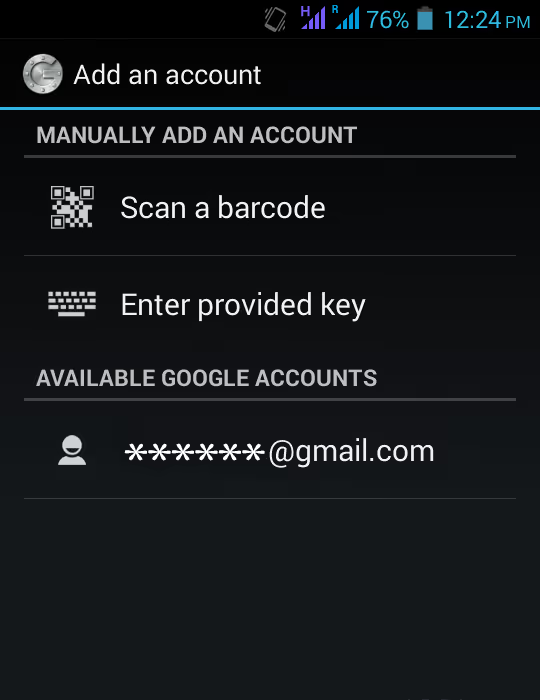
Select Scan a barcode and point the camera at the QR code on the screen. Recognition takes a second or two.
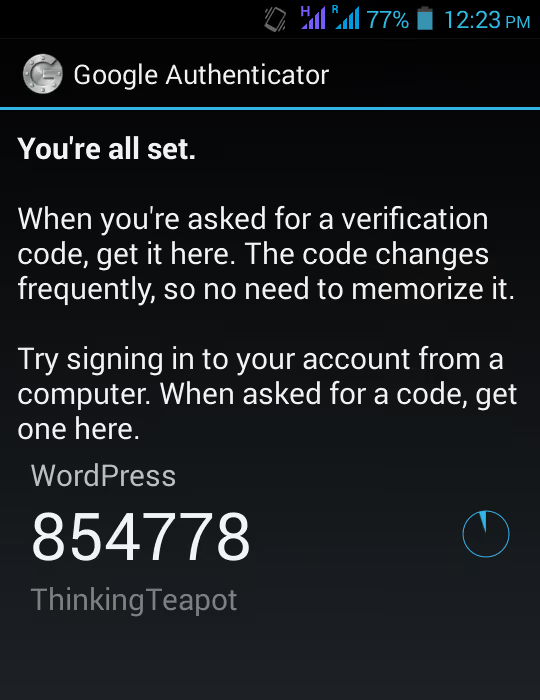
Done: the site appears in the app's list of connected accounts, one-time codes are generated every 30 seconds. All that's left is to enable verification on the WordPress side.
4. Activation and first verification
Return to your profile settings. Check the Active checkbox, this is the checkbox that enables mandatory code requests on login. Until it's checked, 2FA doesn't work, no matter how many QR codes you scan.
App Passwords. This option creates a separate long password for access via XML-RPC, an outdated protocol that modern integrations practically never use. The WordPress REST API completely replaced XML-RPC, and mobile apps have long worked via Application Passwords (a core feature since WordPress 5.6). If you don't know exactly why you need XML-RPC, leave App Passwords disabled. It's an unnecessary hole.
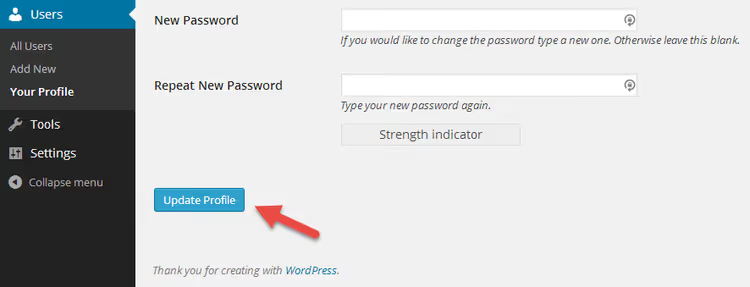
The final touch: the Update Profile button at the very bottom of the page. Without it, no settings will be saved.
Now the interesting part, verification. Log out of your account and open the login page again:

The standard login form now includes a Google Authenticator Code field. Enter your username, password, open the app on your phone, copy the 6 digits, and you're in the admin panel. No SMS, no email codes, no delay.
📹 Video: connecting Google Authenticator to WordPress in 3 minutes
If you prefer to watch rather than read, here's a short video with a live demonstration of the entire process from installing the plugin to the first 2FA login:
⁉️🤔 Frequently asked questions
What to do if your phone is lost and 2FA is enabled?
Access the server via FTP or SSH and delete the plugin folder,
wp-content/plugins/google-authenticator. After that, login by username and password will be restored. Immediately after logging in, reinstall the plugin and link a new phone. For the future: write down the secret key on paper and keep it in a safe place, this is your emergency access. If you don't have FTP access, contact your hosting provider: support knows how to disable plugins through the file manager or WP-CLI (wp plugin deactivate google-authenticator).
Why is the code from the app not accepted when logging in?
The reason is almost always the same: time desynchronization. Google Authenticator uses TOTP, Time-based One-Time Password, where the code is tied to exact time. The clocks on the server and phone must match within 30 seconds. On Android devices, the problem is solved by the ClockSync app. The second option is to enable Relaxed Mode in the plugin settings: it extends the allowable window to four minutes.
Can you use one phone for multiple WordPress sites?
Yes. In the Google Authenticator app, you can add an unlimited number of accounts. Each site gets its own line with a separate 6-digit code, they don't overlap or conflict. The Description in the settings is precisely for not confusing projects.
Google Authenticator can't make backups. Are there alternatives?
Yes, and it's a reasonable upgrade. Authy, a free app with cloud sync: changed phones, restored access to all accounts with a password. 1Password and LastPass also have built-in TOTP generators. And for those who need hardware protection, there's YubiKey, a physical key supporting the FIDO U2F standard. It doesn't generate codes but confirms login with a touch, and it's impossible to forge remotely.
Is two-factor authentication needed if I have a small site?
Yes. Brute-force bots don't care about site size, they scan the internet by IP ranges and attack everything indiscriminately. A small site without 2FA gets hacked no less frequently than a large one, the owner just notices it later. Installing Google Authenticator takes 10 minutes. It's cheaper than restoring a site from backup.
Two-factor authentication: what to install on WordPress in 2026
Google Authenticator for WordPress is a minimalist, reliable, and free solution. It addresses exactly one task: adds a TOTP code to the standard login. No extra settings, compatibility with modern PHP versions, open source code on WordPress.org. For a personal blog, small company site, or portfolio, it's an ideal choice.
If the site accepts payments, stores user data, or simply can't afford downtime, look into more feature-rich plugins like WP 2FA or miniOrange. They add backup codes, policies for mandatory 2FA for certain roles, and support for multiple authentication methods simultaneously. But for 90% of WordPress sites, what Google Authenticator provides is more than sufficient.
Install the plugin today. Ten minutes, and brute-force bots are no longer welcome here.

A professional team of writers and editors specializing in creating quality content.