













🎵 iTunes - Installing the program on Windows OS
Connected your iPhone to a laptop, but Windows doesn't recognize the device? Or want to transfer music to a player, but need software that understands the Apple media library? Without iTunes on Windows, neither backup nor sync work properly.
iTunes is Apple's proprietary media hub for Windows. Through it, you can listen to music from Apple Music, watch movies and TV shows from the iTunes Store library, subscribe to podcasts and, most importantly, sync your iPhone or iPad with your computer: backups, photo transfers, firmware restoration.
In 2024, Apple released separate applications for Windows: Apple Music, Apple TV, and Apple Devices. They're available in the Microsoft Store and look more modern. But there's a catch: Apple Devices still can't create full local encrypted backups, you still need iTunes for that. Plus, millions of users are simply used to one window instead of three.
If you have Windows 10 or 11, the choice is yours. If Windows 7 or 8, iTunes only, the new apps won't install there. Below is a step-by-step installation guide from download to first launch with iPhone sync.
💡 Quick overview:
- Download the installer from Apple's website or the Microsoft Store
- Run the installer and complete the setup wizard (6 windows)
- Configure settings: language, auto-start, file associations
- Sign in with your Apple ID and sync your devices
Step 1: Downloading iTunes
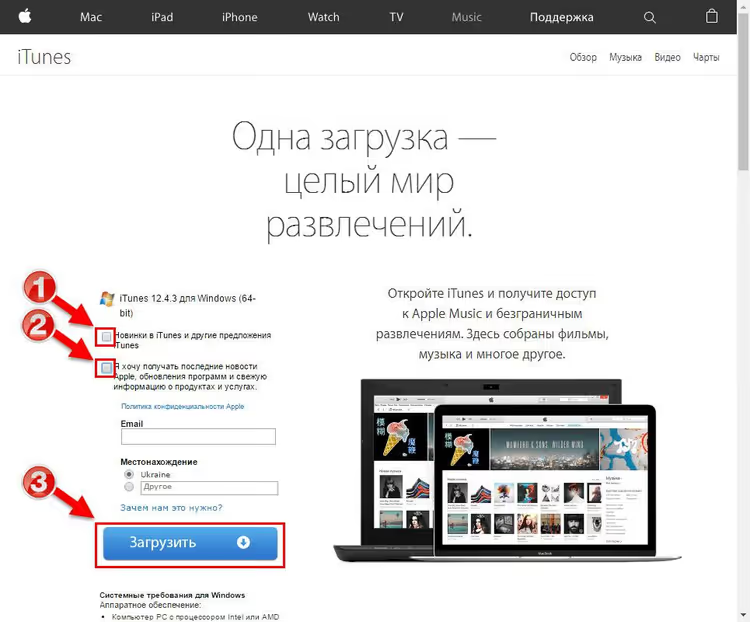
You can download iTunes in two ways. Primary method, from Apple's website: go to the iTunes download page. Click the blue button "Download iTunes for Windows now (64-bit)" for 64-bit systems. If you have 32-bit Windows, click "Download here" below the main button.
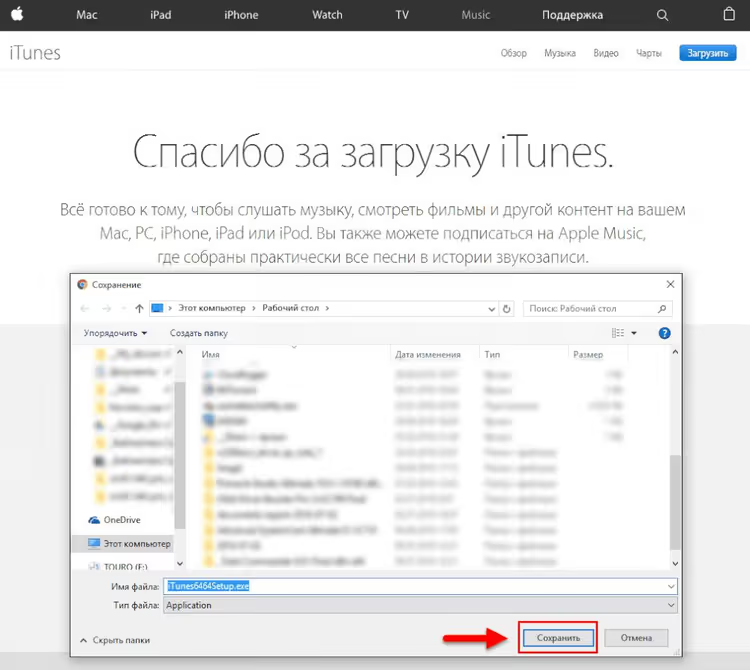
Your browser will prompt you to save the file. Choose a folder (for example, "Downloads" or "Desktop") and click "Save". The installer is about 200 MB, the download takes less than a minute on a modern connection.
Alternative method, Microsoft Store. Open the store, type "iTunes" in the search and click "Install". The advantage of this method: updates come automatically, you don't need to track the version. The downside: Apple updates the Store version less frequently than the standalone installer.
Step 2: Running the installer
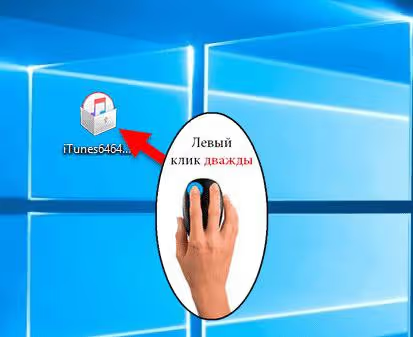
Find the downloaded file iTunes64Setup.exe (or iTunesSetup.exe for 32-bit) and double-click it.
Windows will show a security warning: "Do you want to run this file?" Click "Run". This is a standard check for any .exe downloaded from the internet, the Apple installer is digitally signed and safe.
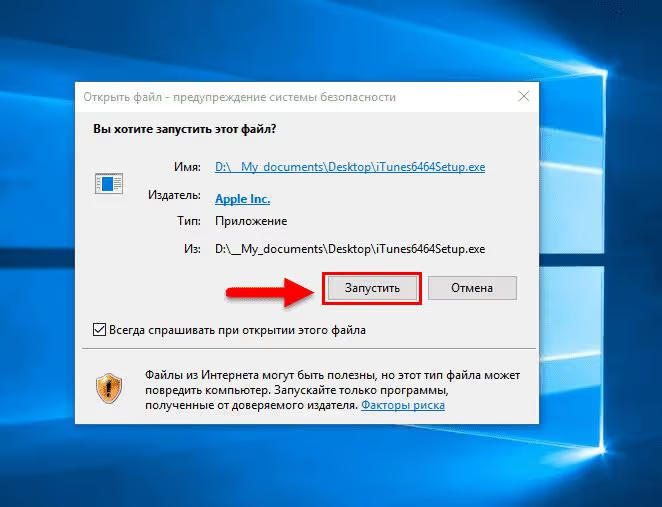
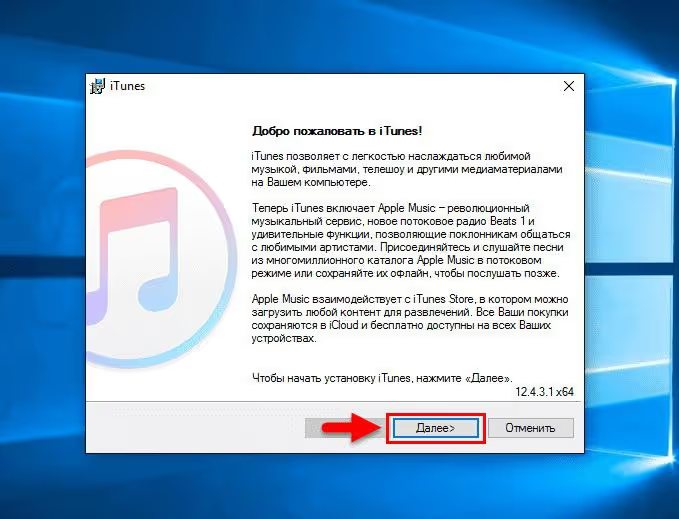
The first setup wizard window with a welcome message will open. Click "Next".
Step 3: Installation options
The wizard will offer several options to configure. Here's what to check:
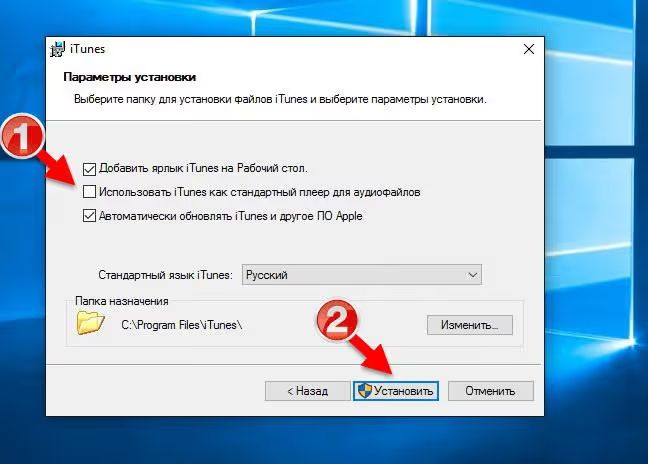
- Language. Russian is installed by default, leave as is.
- Installation folder. The standard path
C:\Program Files\iTunesdoesn't need to be changed. - Shortcuts. "Desktop" and "Quick Launch" checkboxes are up to you.
- File associations. iTunes will offer to make itself the default player for audio. If you use AIMP, foobar2000, or another player, uncheck this. If your library is large, loading iTunes when double-clicking a track can take several seconds and be annoying.
- Automatic updates. I recommend leaving this on, Apple releases security patches.
Click "Install". File copying will begin.
Step 4: Installation process
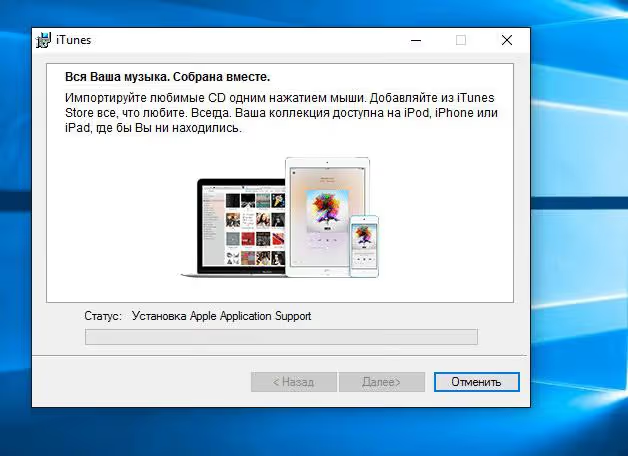
Installation takes 1-2 minutes. On screen, a progress bar with advertising banners for Apple Music and Apple TV. Nothing is required from you, just wait for completion.
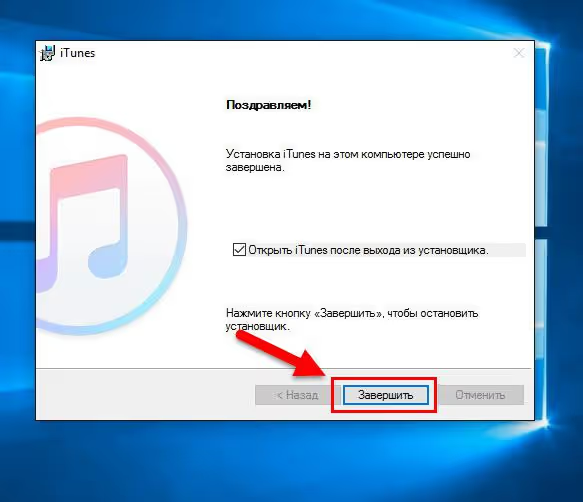
When copying is complete, a window will appear saying "iTunes successfully installed". Click "Finish".
Step 5: License agreement
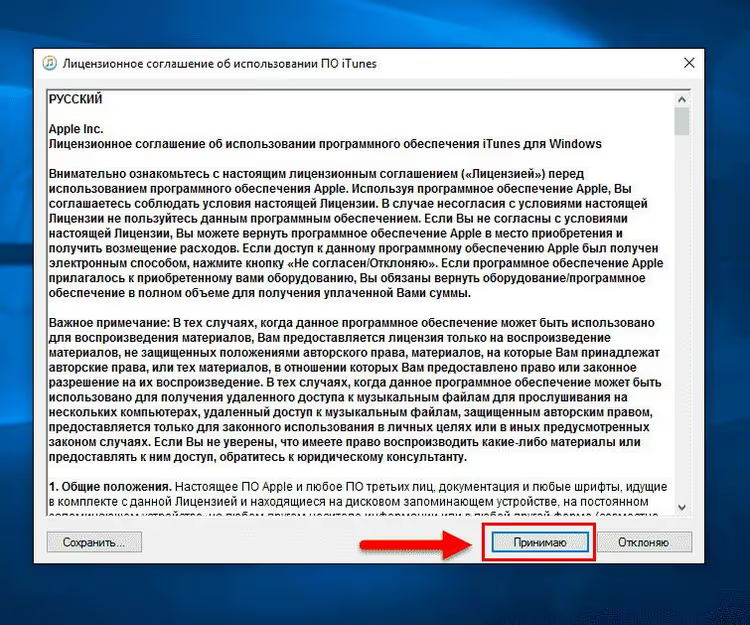
On first launch, iTunes will ask you to accept Apple's license agreement. This is a required step, the program won't open without it. Click "I Accept".
Step 6: First launch and signing in with Apple ID
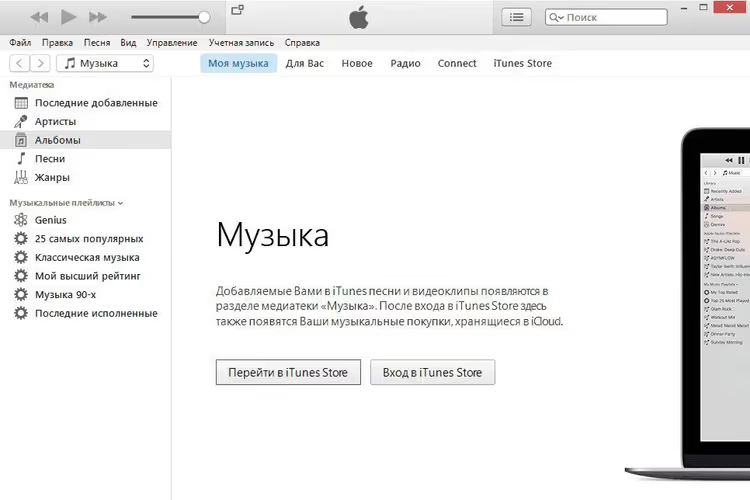
After accepting the agreement, the main iTunes window will open. The interface will look familiar if you've seen the program before: on the left, the library (Music, Movies, Podcasts), in the center, content, on top, the menu bar.
Sign in with your Apple ID: "Account" menu → "Sign In". After signing in, you have access to: purchases from iTunes Store, Apple Music subscription, iCloud sync, and local iPhone backups via wired connection.
Connect your iPhone with a cable to USB, iTunes will detect the device automatically. A phone icon will appear in the sidebar, through it you can manage backups, transfer photos, and restore firmware.
The video above shows a visual demonstration of installation in 4 minutes. If any step raised questions, rewatch the needed segment.
⁉️🤔 Frequently asked questions
Is iTunes free?
Yes, completely. Both the installer from Apple's website and the version from Microsoft Store require no payment. Apple Music subscription is paid separately, but the program itself and basic functions (backups, sync) are free.
What's the difference between iTunes and Apple Music and Apple TV for Windows?
iTunes is all-in-one: music, movies, podcasts, and device management. Apple Music, Apple TV, and Apple Devices are three separate applications with a modern interface. But Apple Devices still can't create full encrypted backups, you need iTunes for that.
Can iTunes be installed on Windows 7 or 8?
Yes. Download the 64-bit or 32-bit installer from Apple's website. The new applications (Apple Music, Apple TV) don't work on Windows 7 and 8, only iTunes is available there.
What to do if iTunes doesn't launch after installation?
Check if
Bonjouris installed (Apple's service for discovering devices on the network). If not, download it separately from Apple's website. Running as administrator also helps: right-click the shortcut → "Run as administrator".
iTunes lags on Windows, how to speed it up?
Disable audio file association with iTunes in settings, so the program doesn't load every time you double-click a track. Moving the library to an SSD and disabling automatic iCloud sync in account settings also helps.
Do I need to uninstall the old version before installing a new one?
No, the installer will update the existing version itself. If you're switching from a very old version (for example, 12.4.3) to the current one, backing up your library through "File" → "Library" → "Export Library" won't hurt, but in practice all data is preserved.
iTunes or new apps: what to install in 2026
Short answer: iTunes if you back up your iPhone to a computer, work with older versions of Windows, or prefer one window for everything. Apple Music + Apple TV + Apple Devices if you mostly stream music, watch content, and don't create full encrypted device backups.
Installation is trivial in any case and takes 5 minutes. Download the installer from the official Apple website, complete the wizard, and sign in with your Apple ID, you're all set.

A professional team of writers and editors specializing in creating quality content.