













 AIIllustrative image: AI-generated
🖼 WordPress featured images: setup, auto-install and fine-tuning
A wall of text without images is a surefire way to lose readers in the first five seconds. The featured image works as the post's cover: it's what people see in the post feed, widgets, and social media previews. It sells the click before anyone has read the headline.
The problem is that WordPress doesn't force authors to set a thumbnail. One post stands out with a huge photo, another shrinks to a tiny square, a third has no image at all. The home page turns into visual chaos, and Facebook and Telegram pull a random logo instead of a meaningful preview.
Below is a complete breakdown of featured image mechanics: from adding your first thumbnail to mandatory checks before publishing. With working code, a specific plugin, and step by step instructions.
💡 Quick overview:
- Adding a featured image through the editor sidebar
- Understanding sizes: what WordPress does under the hood and how to reconfigure it
- Installing
Simple Image Sizesand adjusting dimensions for your theme - Automating thumbnail setup with code in
functions.php - Handling forgetful authors: without an image, the post goes to draft
How featured images work
Featured image (or post thumbnail) is a meta field that the theme uses for output in three key places:
- Home page and archives. A preview with an image gets exponentially more clicks than a bare text link.
- The post header itself. The theme displays the thumbnail above or just below the title, often spanning the full content width.
- Social networks. Facebook, X, and Telegram pull the featured image via Open Graph. No image, the network substitutes whatever it finds.
The function has long been a WordPress standard. Today it's impossible to find a decent theme without support for it. But implementation quality still varies from developer to developer: one theme outputs the thumbnail as a neat banner, another stretches a tiny square to full width.
Adding a featured image: basic mechanics
In the post editor (Gutenberg or Classic), there's a "Featured image" panel on the right. Click "Set featured image", upload a file or choose from the media library, click "Set". Done.
Nuance: WordPress doesn't require the author to set an image. Forgot it, the publication goes to the feed with an empty spot. We'll cover the solution to this problem in the section on mandatory checks.
Image sizes: what WordPress does under the hood
Every WordPress installation comes with four sizes out of the box:
- Full, the original file unchanged
- Thumbnail, a square (by default 150×150 px according to WordPress media settings), cropped from center
- Medium, scaled to a given maximum width, no cropping
- Large, the same but with a higher limit
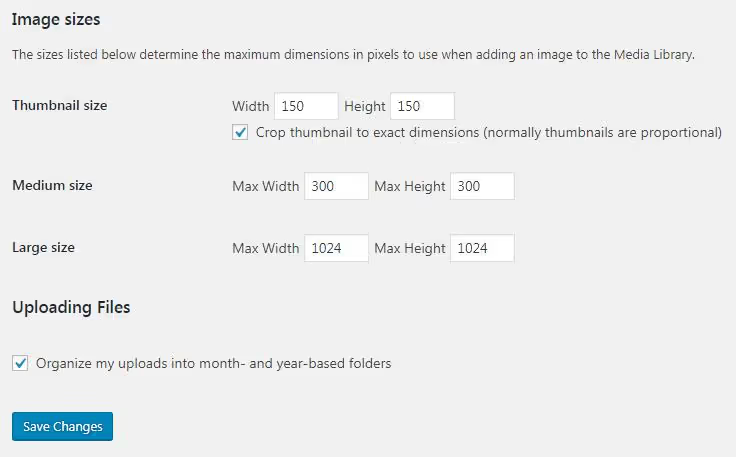
Settings are found in "Settings → Media". When uploading a new WordPress image, WordPress generates all four versions plus additional sizes registered by the active theme. Each version lands in wp-content/uploads/ as a separate file.
Why so many copies? Without them, a designer would have to manually adjust each size for a specific output location. With them, the theme simply requests the needed variant through the_post_thumbnail('medium') or wp_get_attachment_image_src(). More about the media subsystem architecture in the official WordPress documentation.
Thumbnail is the only size that gets forcibly cropped. The rest scale while preserving proportions.
Changing the featured image size
Themes use different dimensions. When changing themes or for a new task, the featured image size may require adjustment.
First check the theme settings: "Appearance → Customize". Modern themes often provide a slider or dropdown for thumbnail width and height. Found it, change it in two clicks.
Didn't find it, no problem. The Simple Image Sizes plugin solves the task without a single line of code.
Simple Image Sizes: the right tool for dimensions
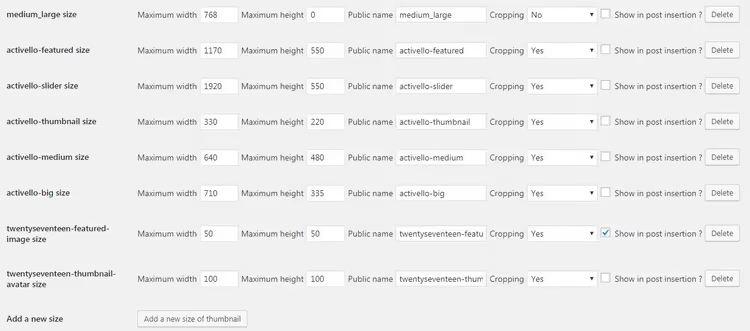
Free plugin by Nicolas Juen, actively maintained (current version 3.2.5, requires PHP 8.0+). After installation, go to "Settings → Media" and see all registered sizes, including those the theme added but hid from view.
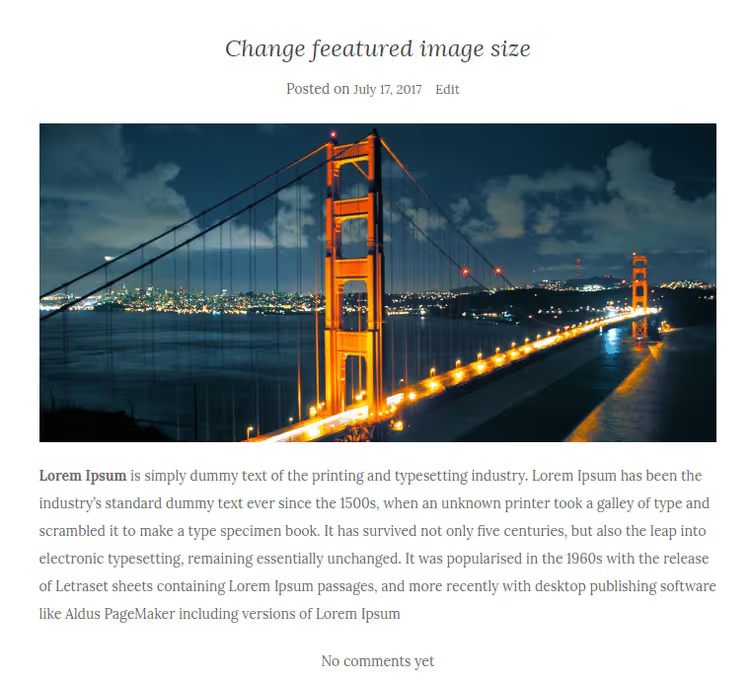
For each size, set width and height. For featured image, orient yourself on how the theme outputs it. Full width content banner, use 1200×630 px (optimal for social networks per Facebook Open Graph recommendations). Square thumbnail in a grid, 400×400 or 600×600 px.
Pros:
- Sees all sizes, including those hidden by the theme
- Allows enabling and disabling size display in the media insert dropdown
- Generates ready-made
add_image_size()PHP code for transfer to the theme
Cons:
- Requires PHP 8.0+, won't run on frankly old hosts
- Minimalist interface, no visual hints
Price: free, no Pro version.
🔗 Simple Image Sizes on WordPress.org
What to do with old images
WordPress applies new sizes only to fresh uploads. Everything you uploaded earlier stays in the old dimensions.
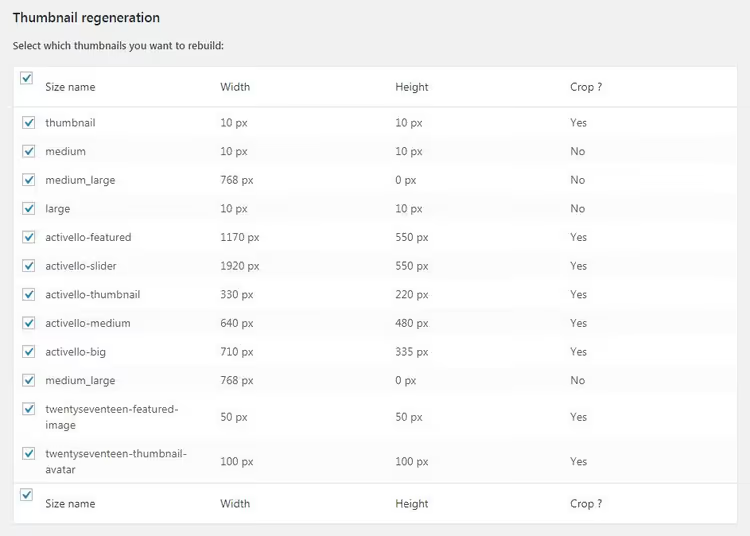
Simple Image Sizes covers this task too. On the "Settings → Media" page, scroll down to the regeneration block. Select the needed size, specify post type, and start rebuilding. The plugin will go through all existing images and create new copies under the updated sizes.
Warning: on sites with tens of thousands of files, regeneration eats server space. WordPress doesn't delete old thumbnails, they remain in the folder as dead weight. Before mass regeneration, make sure you have room on disk.
Automatic featured image setup
When a post contains images but the featured image is empty, WordPress can take the first image from the content and assign it as the thumbnail. Convenient for authors who regularly forget this step, and for blogs with stream publishing.
The mechanics are simple: if the featured image isn't set manually, the function finds the first attached image through get_children and sets it via set_post_thumbnail().
Code is added to the active theme's functions.php. I strongly recommend doing this through the WPCode plugin, a typo in functions.php without it breaks the site completely:
1 function autoset_featured() { 2 global $post; 3 $already_has_thumb = has_post_thumbnail( $post->ID ); 4 if ( ! $already_has_thumb ) { 5 $attached_image = get_children( array( 6 'post_parent' => $post->ID, 7 'post_type' => 'attachment', 8 'post_mime_type' => 'image', 9 'numberposts' => 1, 10 ) ); 11 if ( $attached_image ) { 12 foreach ( $attached_image as $attachment_id => $attachment ) { 13 set_post_thumbnail( $post->ID, $attachment_id ); 14 } 15 } 16 } 17 } 18 19 add_action( 'the_post', 'autoset_featured' ); 20 add_action( 'save_post', 'autoset_featured' ); 21 add_action( 'draft_to_publish', 'autoset_featured' ); 22 add_action( 'new_to_publish', 'autoset_featured' ); 23 add_action( 'pending_to_publish', 'autoset_featured' ); 24 add_action( 'future_to_publish', 'autoset_featured' );
The function triggers on six hooks: the_post, save_post, and all *_to_publish status transitions. After assignment, the thumbnail remains even if you remove the image from the post body.
Downside: if the author didn't insert a single image in the text, there will be no thumbnail. For this scenario, see the next section.
Mandatory check: no thumbnail, no publication
Simple and strict method: the author clicks "Publish", and WordPress saves the post as a draft and shows a warning. Without a featured image, publication doesn't go through.
Two code snippets in functions.php:
Part 1, check on save (only for post type):
1 add_action( 'save_post', 'pu_validate_thumbnail' ); 2 3 function pu_validate_thumbnail( $post_id ) { 4 if ( get_post_type( $post_id ) != 'post' ) { 5 return; 6 } 7 8 if ( ! has_post_thumbnail( $post_id ) ) { 9 set_transient( 'pu_validate_thumbnail_failed', 'true' ); 10 remove_action( 'save_post', 'pu_validate_thumbnail' ); 11 wp_update_post( array( 'ID' => $post_id, 'post_status' => 'draft' ) ); 12 add_action( 'save_post', 'pu_validate_thumbnail' ); 13 } else { 14 delete_transient( 'pu_validate_thumbnail_failed' ); 15 } 16 }
Part 2, error message in admin:
1 add_action( 'admin_notices', 'pu_validate_thumbnail_error' ); 2 3 function pu_validate_thumbnail_error() { 4 if ( get_transient( 'pu_validate_thumbnail_failed' ) == 'true' ) { 5 echo '<div class="notice notice-error"><p><strong>You must set a featured image before publishing.</strong></p></div>'; 6 delete_transient( 'pu_validate_thumbnail_failed' ); 7 } 8 }
The message text is fully customizable, replace the string inside <p><strong>...</strong></p> with your own.
Thumbnail preview in post list
The standard "Posts → All Posts" table shows title, author, categories, tags, and date. Featured image isn't there. To check which posts lack a thumbnail, you have to open each one individually. With 50+ publications, this is annoying.
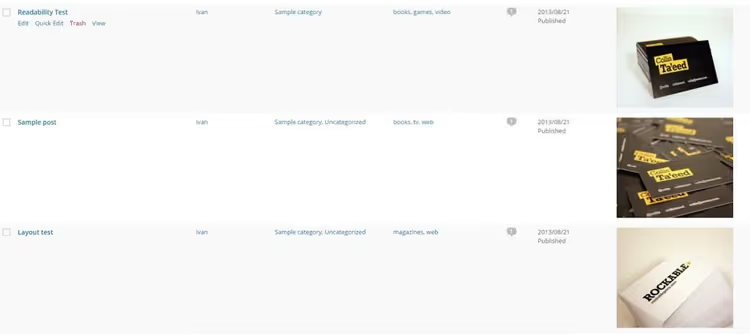
The code below adds a Thumbs column to the posts and pages table:
1 add_filter( 'manage_posts_columns', 'posts_columns', 5 ); 2 add_action( 'manage_posts_custom_column', 'posts_custom_columns', 5, 2 ); 3 4 add_filter( 'manage_post-type_posts_columns', 'posts_columns', 5 ); 5 add_action( 'manage_post-type_posts_custom_column', 'posts_custom_columns', 5, 2 ); 6 7 function posts_columns( $defaults ) { 8 $defaults['riv_post_thumbs'] = __( 'Thumbs' ); 9 return $defaults; 10 } 11 12 function posts_custom_columns( $column_name, $id ) { 13 if ( $column_name === 'riv_post_thumbs' ) { 14 if ( has_post_thumbnail() ) { 15 echo the_post_thumbnail( array( 100, 100 ) ); 16 } else { 17 _e( 'No Thumbnail For Post' ); 18 } 19 echo '<style>.column-riv_post_thumbs img{max-height:100px;max-width:100px;}</style>'; 20 } 21 }
Preview size is set to 100×100 px, sufficient for quick visual control. Need larger, replace array(100, 100) with array(200, 200). More about parameters in the the_post_thumbnail documentation.
For pages, add these two lines to the beginning of the snippet:
1 add_filter( 'manage_pages_columns', 'posts_columns', 5 ); 2 add_action( 'manage_pages_custom_column', 'posts_custom_columns', 5, 2 );
Now in the "Pages → All Pages" section you can also see where there's a thumbnail and where there isn't.
Making the thumbnail clickable
A good theme automatically wraps the featured image in a link to the post. A bad one outputs a static image that goes nowhere. The visitor clicks on the preview on the home page, and nothing happens.
Fixed with one filter in functions.php:
1 function wcs_auto_link_post_thumbnails( $html, $post_id, $post_image_id ) { 2 $html = '<a href="' . get_permalink( $post_id ) . '" title="' . esc_attr( get_the_title( $post_id ) ) . '">' . $html . '</a>'; 3 return $html; 4 } 5 add_filter( 'post_thumbnail_html', 'wcs_auto_link_post_thumbnails', 10, 3 );
The post_thumbnail_html filter intercepts the thumbnail HTML output and wraps it in a link with get_permalink(). The post title goes into the title attribute through esc_attr(), safe and informative.
Changing the "Set featured image" text
When the site has auto-setup of thumbnails from content, the standard "Set featured image" label misleads authors. It seems the image needs to be set manually, although the system will do it itself.

Change the text to something informative:
1 function change_featured_image_text( $content ) { 2 return $content = str_replace( 3 __( 'Set featured image' ), 4 __( 'Thumbnail will be set automatically from the first image in the post' ), 5 $content 6 ); 7 } 8 add_filter( 'admin_post_thumbnail_html', 'change_featured_image_text' );
The admin_post_thumbnail_html filter handles the featured image HTML block in the editor sidebar. Substitute any text inside __( ... ) in the second str_replace argument.
Video: how it all works in practice
If you prefer a visual demonstration, here's a complete walkthrough from WPBeginner: from adding your first thumbnail to fine-tuning sizes and automation.
⁉️🤔 Frequently asked questions
Why isn't the featured image displaying on the site?
Most likely, the theme doesn't support the
post-thumbnailsfunction. Checkfunctions.php: there should be a lineadd_theme_support( 'post-thumbnails' ). If it's not there, add it. Second reason: in the theme settings, featured image display is disabled for a specific post type. Third: a caching plugin is holding an old version of the page, clear the cache.
What's the difference between featured image and cover image?
Featured image is a post meta field that the theme uses for previews in feeds, archives, and Open Graph. Cover image is a block inside the content (appeared in Gutenberg) that displays only in the post body and doesn't affect social networks. You can use both simultaneously: cover for visual entry to the article, featured image for everything else.
What size should I use for featured images?
For social networks, the optimal format is 1200×630 px (1.91:1 ratio) according to Facebook developer documentation. For the post grid on the home page, orient yourself on what's set in the theme settings. If the theme uses square thumbnails, 600×600 or 800×800 px. Before uploading, compress the image to 100-150 KB through TinyPNG or ShortPixel.
Is it mandatory to set a featured image for every post?
Technically no. But without it, the home page and social networks look sloppy, and clickability drops by 2-3 times. If you're afraid of forgetting, use the mandatory check code from the section above or the
Quick Featured Imagesplugin, which substitutes a default thumbnail for posts without an image.
How do I remove or replace a featured image?
In the post editor, click on the current featured image in the sidebar. The media library will open, click "Remove featured image". After that, the button will again become "Set featured image". Upload a new one.
Can I use one image as featured image for multiple posts?
Yes, WordPress doesn't impose restrictions. Select the same file from the media library for different posts. But if the image repeats in the feed, it looks like a bug or oversight. For visual variety, better to select unique thumbnails.
What to do with featured images right now
Featured image is not an "optional" element, but a mandatory part of every post. Without it, social networks substitute random content, the home page loses visual structure, and clickability drops exponentially.
Go through the checklist in ten minutes:
- Open any post and make sure the featured image is set.
- Check how it looks on the home page and in social networks (Facebook Sharing Debugger to help).
- If sizes don't match expectations, install
Simple Image Sizesand adjust dimensions. - If you work with a team of authors, add the mandatory check code so publication without a thumbnail goes to draft.
These ten minutes will save hours of manual editing and dozens of lost readers. Do it now.

A professional team of writers and editors specializing in creating quality content.