













 AIIllustrative image: AI-generated
🎨 WordPress site redesign: colors, fonts and favicon without a developer
Your WordPress site is running, but it looks like hundreds of others? The same standard theme, the same fonts, no hint of individuality. The platform offers a ton of customization options; the question is where to start without breaking the site along the way.
Changing the design of a WordPress site doesn't necessarily mean a complete rebuild from scratch. Sometimes three or four targeted tweaks are enough to make your site stop looking generic and start being memorable. Below is a step-by-step breakdown: from color scheme to favicon, with specific tools and no code where you can do without it.
💡 Quick overview:
- Choose a color scheme of 3 colors using Adobe Color, Coolors, or ColorHexa
- Set up fonts through Google Fonts, Use Any Font for custom typefaces
- Change the date and time format with a single line of code or through the Customizer
Choosing a color scheme
Colors make half the impression. A visitor hasn't read the headline yet, but already senses whether the site feels "premium" or "cheap," technical or creative, trustworthy or questionable. The color scheme is the visual anchor of your brand.
The optimal approach is three base colors: primary (background/text), accent (buttons, links, important elements), and supporting (borders, dividers, hover states). More than three risks visual noise; fewer is boring. The main rule: use the accent color sparingly, only where you need to draw attention.
Where to start with color selection:
Adobe Color (formerly Kuler)
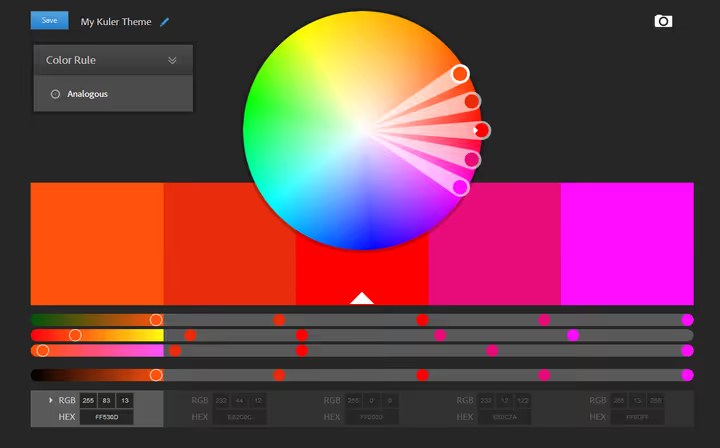
A tool from Adobe for creating color schemes based on harmony rules: monochromatic, complementary, triadic, analogous. Under the hood is a color wheel where you set the base hue, and the system automatically selects the rest. You can extract a palette from an uploaded image, which is convenient if you have a reference. Available for free at color.adobe.com.
Coolors
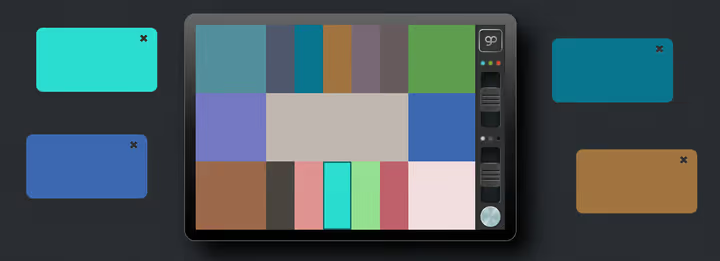
A palette generator built for speed. Press spacebar, get a new combination of five colors. You can lock any color and spin the rest. The output is ready-to-use HEX codes. There's a plugin for Chrome/Firefox and an iOS app. Works at coolors.co.
ColorHexa
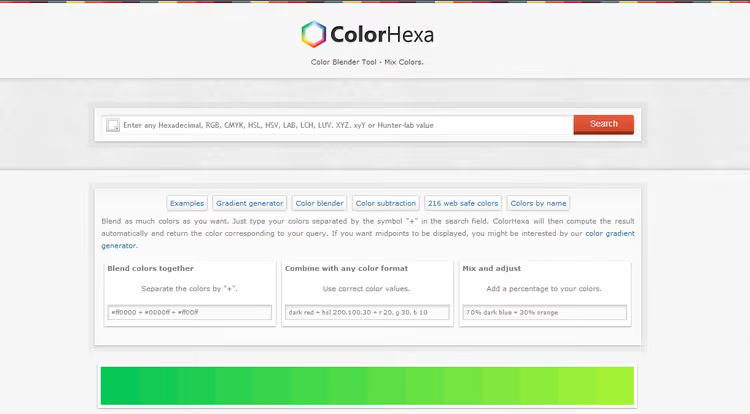
ColorHexa is not just an eyedropper but an encyclopedia of color. Enter a HEX, RGB, or name, and you get a page with complementary shades, gradients, triads, percentage composition, and blind preview (how the color appears to people with different types of color blindness). Color blender: enter #ff0000+#0000ff+#ff00ff, get the resulting #aa00aa with a full breakdown. colorhexa.com.
Ready-made HTML palettes
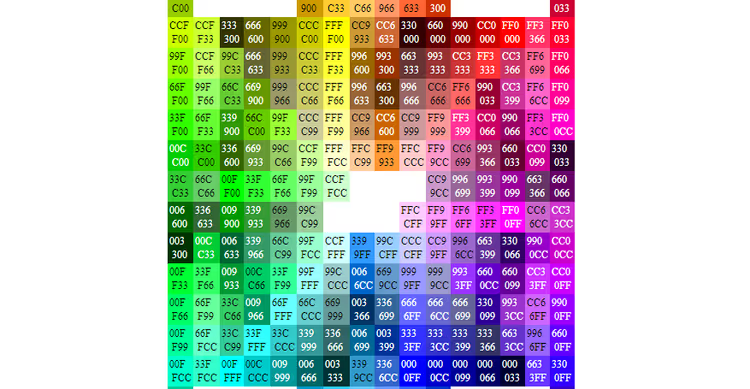
If you don't want to pick from scratch, grab ready-made palettes. htmlcolorcodes.com offers 216 web-safe colors with HEX codes, compatible with CSS, Photoshop, and any graphics. The service Paletton (formerly Color Scheme Designer) provides schemes with a preview on a site mockup.
CSS Gradient Generator
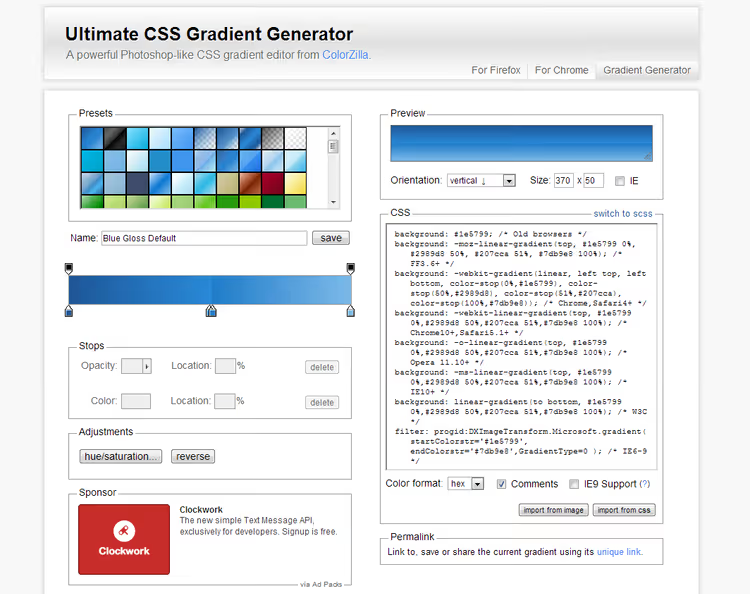
Gradients are making a comeback, and now they're not the bands from 2012 but subtle transitions on section backgrounds and buttons. ColorZilla Gradient Editor is a Photoshop-like editor: set anchor points with colors and transparency, move the midpoint, copy the finished CSS. It supports linear, radial, and repeating gradients. There's a plugin for Chrome and Firefox with an eyedropper right in the browser.
Choosing and setting up fonts
Colors attract attention; text holds it. Font affects readability and tone perception: a strict serif creates a sense of editorial quality, while a clean sans-serif conveys tech vibes.
The problem with web fonts is that visitors will only see those installed on their computers unless you use embedded (web) fonts. So for custom styling, external fonts only.
Basic rule: no more than two fonts per page. One for headings (large, distinctive), a second for body text (maximally readable). A third only if you need a monospace for code.
Google Fonts, the primary source
A free catalog of 1,500+ families at fonts.google.com. Connection takes two lines. The classic method is through the theme's header.php:
1 <link href="https://fonts.googleapis.com/css2?family=Roboto:wght@400;700&display=swap" rel="stylesheet">
Or in style.css:
1 @import url('https://fonts.googleapis.com/css2?family=Roboto:wght@400;700&display=swap');
After importing, the font is available in any CSS rule:
1 body { font-family: 'Roboto', sans-serif; } 2 h1, h2, h3 { font-family: 'Montserrat', sans-serif; }
GDPR nuance: Google Fonts loaded directly from Google servers transmit visitors' IP addresses. Since 2022, EU courts have recognized this as a violation. The solution is the Local Google Fonts plugin, which downloads fonts to your server and serves them locally. An alternative for those who don't want to deal with plugins is an article on locally loading Google Fonts on our blog.
Custom fonts via plugin
If you need a brand font that isn't in Google Fonts, try Use Any Font. Upload a ttf, otf, or woff file, and the plugin converts it to woff2 and adds it to the admin panel. The free version allows uploading one font; Pro removes the limit.
Manual connection via @font-face
If you prefer code over plugins, place the font file in /wp-content/themes/your-theme/fonts/ and add to style.css:
1 @font-face { 2 font-family: 'Museo300'; 3 src: url('fonts/museo300-regular.ttf') format('truetype'); 4 font-weight: normal; 5 }
Usage:
1 #menu { font-family: 'Museo300', sans-serif; }
Formatting date and time
The standard date format doesn't always fit the design. Fortunately, WordPress lets you change it without plugins.
Method 1: via Customizer (no code)
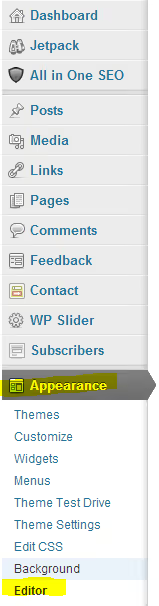
Go to Appearance → Customize → General Settings. The time format is changed there as well. Works for most classic themes.
Method 2: via single.php (precise control)
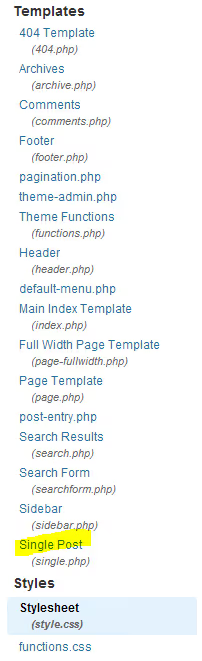
Open Appearance → Theme Editor → single.php. Find the the_time() or the_date() function:
1 <?php the_time('F Y'); ?>
Format symbols:
l, full day name (lowercase L)F, month as wordj, day of month as numberY, year as four digitsy, year as two digits
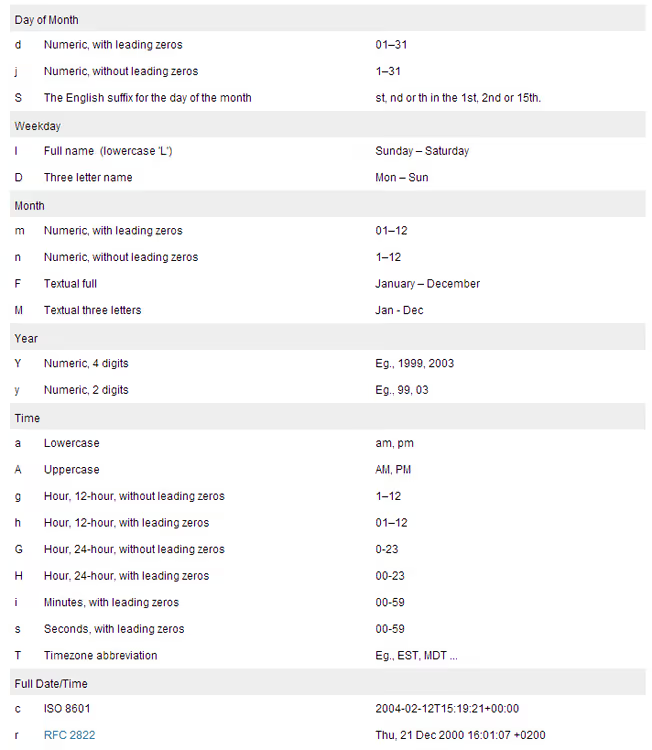
Combination examples:
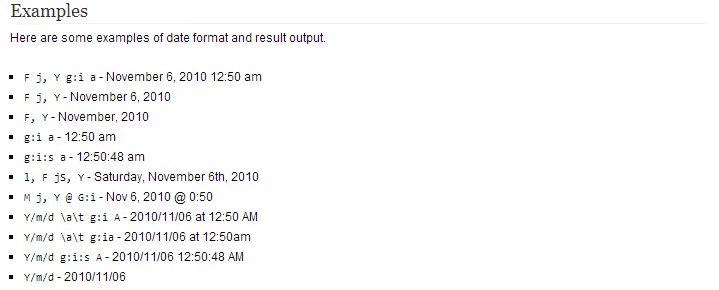
('l, j F Y') → Sunday, 14 June 2026. ('j F, Y') → 14 June, 2026.
Don't touch the single quotes inside the parentheses, edit only the symbols between them. If the theme uses the_date() instead of the_time(), the format is changed more easily: Settings → General → Date Format.
Using images
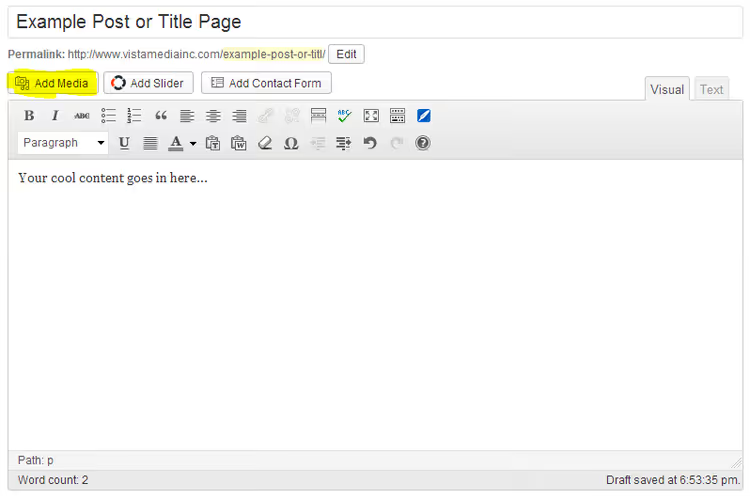
Adding images in WordPress is done through the "Add Media" button in the post editor. Place the cursor where you want it → Add Media → select an image from the media library or upload a new one.
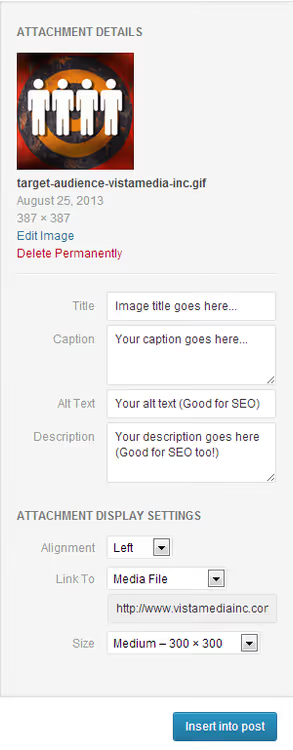
On the right is the attachment settings panel: title, alt text (important for SEO and accessibility), size, alignment, link. For site speed, upload images already compressed (TinyPNG or ShortPixel before uploading). More details in our WordPress media library guide.
Adding a favicon
A favicon is the tiny square in the browser tab and bookmarks. A small detail that builds recognition: when a user has 20 tabs open, the favicon is the only thing visually distinguishing your site from the rest.
How to create a favicon
The most reliable service is RealFaviconGenerator. Upload a square image (at least 260×260), and you get an icon package for all platforms: iOS, Android, Windows tiles, Safari pinned tab. Plus ready HTML code for insertion.
If you need a simple.ico file at 16×16, any graphics editor that saves to.ico will work (GIMP is free). Or use the online service Favicon.io.
How to install in WordPress
The simplest method is the built-in Site Icon. Since WordPress 4.3, it's available in the Customizer:
Appearance → Customize → Site Identity → Site Icon. Upload a square image, and WordPress will automatically cut it to the needed sizes for all platforms. No plugins, no FTP, no header.php.
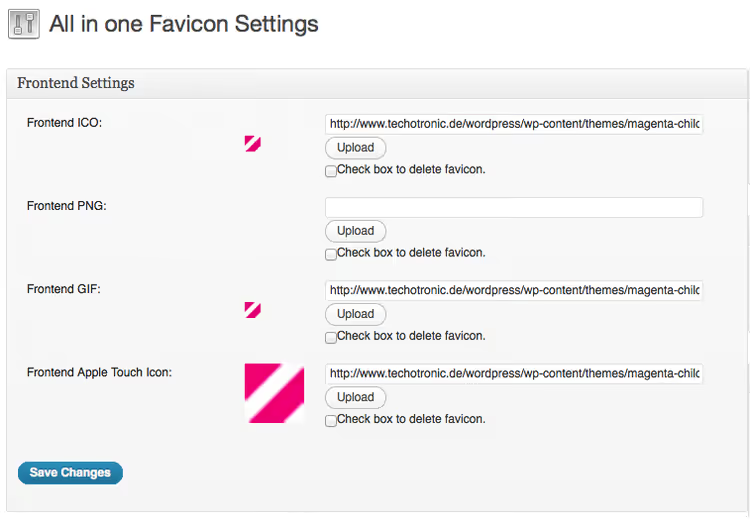
The plugin method is All In One Favicon, which gives more control: separate icons for admin, frontend, and different ones for different devices. But for 95% of sites, the built-in Site Icon is sufficient.
Manual method (add to header.php):
1 <link rel="shortcut icon" href="<?php echo get_stylesheet_directory_uri(); ?>/favicon.ico">
Place the favicon.ico file in the root of the theme folder. Don't forget to duplicate it in public_html so the favicon opens at yoursite.com/favicon.ico.
⁉️🤔 Frequently asked questions
Can I change the site design without losing content?
Yes, changing a WordPress theme doesn't affect posts, pages, and media files. They're stored in the database separately from the theme. The only thing that might "break" is the layout and element positioning, especially if the old theme used custom post types or shortcodes. Before switching, make a full backup (hosting + database). For safe testing, use a staging site; many hosts (SiteGround, Kinsta, WP Engine) offer it with one click.
How many fonts are optimal for a site?
Two: one for headings, one for body text. A third (monospace) for code, if present on the site. Each additional font increases load time by 200-400 ms and creates visual noise. Google Fonts lets you select only the needed weights (regular + bold = 2 files instead of 9), and the Local Google Fonts plugin additionally caches them on your server.
Is it necessary to deal with code for customization?
No. The WordPress Customizer (Appearance → Customize) covers most tasks: colors, fonts, logo, favicon, background images, CSS. Block themes (from WP 5.9) offer the Site Editor, an even more visual method without code. Code is needed when you require fine-tuning: date format in single.php, custom @font-face, specific CSS for a particular plugin.
What to do if the site broke after changing themes?
First: don't panic, your content hasn't gone anywhere. Second: if the admin panel is accessible, revert to the old theme (Appearance → Themes → Activate). If the admin panel is inaccessible, access via FTP to
/wp-content/themes/, rename the new theme folder (add_disabled), and WordPress will automatically switch to the default theme. After recovery, enable WP_DEBUG in wp-config.php to see errors.
How to check if the favicon is working?
Open
yoursite.com/favicon.ico; if the icon displays, the file is in place. In the browser, the favicon doesn't appear immediately: it's cached aggressively. To check, open the site in incognito mode or force-refresh the cache (Ctrl+Shift+R). RealFaviconGenerator provides a favicon checking tool by URL.
WordPress redesign: what to do first
The order of actions for customization from scratch: color scheme → fonts → logo and favicon → date format → widget and menu layout. In this exact sequence: colors and typography are the foundation on which everything else is built.
If the site is already running and bringing traffic, don't do the redesign on the live domain. Staging copy + testing → migration. Changes noticeable to search engines (HTML structure changes, headings, URLs) should be made with understanding: a sudden redesign without redirects can drop rankings.
For those who want to dive deeper into the topic: custom fonts guide on our blog, WordPress media library article for working with images, and a detailed breakdown of locally loading Google Fonts with a GTmetrix before/after test.
Start with three colors and two fonts; the rest will follow.

A professional team of writers and editors specializing in creating quality content.