














📋 Complete WordPress cheat sheet
Opened functions.php and forgot how to hook up the sidebar? It happens to everyone who hand-codes a WordPress theme. You need one page at hand, not ten developer.wordpress.org tabs.
Here you'll find WordPress development essentials: 13 template files and the hierarchy for choosing them, the basic Loop, include tags and bloginfo() parameters, then hooks and filters, conditional tags, script enqueueing, shortcodes, WP_Query, data escaping, REST API and WP-CLI commands. All code examples work. Keep this tab open during development and check as you go.
💡 Quick overview:
- Bookmark this page and keep it open in a separate tab while building your theme.
- Start with the "Anatomy of a theme" section: create the theme files from the list before you write code.
- Copy the basic WordPress Loop into
index.phpand wrap it with include tags for header, sidebar and footer. - Drop
bloginfo()andget_bloginfo()tags from the table straight into templates, cross-checking the "What it outputs" column. - Before publishing, run through the
style.cssrules: validate CSS, minify and add print styles. - Further down the page, the reference: template hierarchy, hooks and filters, conditional tags, script enqueueing, shortcodes,
WP_Query, escaping, REST API and WP-CLI.
Anatomy of a WordPress theme
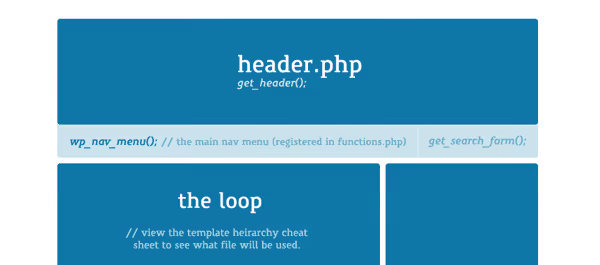
A WordPress theme is a set of PHP files united by common logic and governed by the template hierarchy. The key component: style.css, which handles visual styling and simultaneously serves as the theme's identifier in the admin. But the foundation of any classic theme is PHP templates: each handles its own section of the page and is called in the order set by the WordPress hierarchy.
To create a standard theme you need the following files, thirteen of them, each covering a specific site zone:
- header.php, the
<head>section and top of the page: metadata, site title,style.cssinclusion, opening<body>tag. - index.php, the main template, entry point. Assembles other files into a unified page through include tags. If a specialized template doesn't exist, WordPress falls back to
index.php. - sidebar.php, the sidebar: widgets, categories, search, secondary menu.
- footer.php, the footer: copyright, social links, analytics scripts, closing
</body></html>tags. - page.php, template for pages (static content, "About us", "Contact").
- single.php, template for an individual blog post.
- comments.php, comments block and submission form.
- 404.php, 404 error page. If this file is missing, WordPress shows a default system message, which is worse for the visitor.
- search.php, template for search results.
- searchform.php, search form (in classic themes; modern ones often use a widget).
- archive.php, template for archives: categories, tags, date archives.
- functions.php, the functional heart of the theme: custom hooks, script and style enqueueing, menu registration, widget areas, custom post types. Everything that adds theme functionality lives here.
- style.css, the only non-PHP file on the list, but without it the theme doesn't exist: it stores the theme header and defines the site's appearance.
You can get by with fewer templates, for example, index.php + style.css already form a minimal theme. But for a full-featured site it's better to keep all thirteen: each file is tailored to its own task, and WordPress itself chooses the right one by hierarchy. A typical index.php looks like this:
1 <?php get_header(); ?> 2 3 <!-- Main content, including the Loop --> 4 5 <?php get_sidebar(); ?> 6 <?php get_footer(); ?>
Moving on to the most important code fragment, without which not a single post gets displayed.
The WordPress Loop
The Loop is the central mechanism for outputting content. Without it you'd have to manually code the display of every post and every page in the theme template. The Loop does exactly what its name promises: it goes through all posts matching the current query and applies your specified HTML/PHP markup to each one.
Basic Loop syntax:
1 <?php if ( have_posts() ) : while ( have_posts() ) : the_post(); ?> 2 <!-- HTML markup and template tags for each post --> 3 <?php endwhile; endif; ?>
have_posts() checks whether there are posts to output. If there are, the_post() initializes WordPress's internal pointer to the current post, after which dozens of template tags become available inside the Loop: the_title() for the title, the_content() for post text, the_permalink() for the link, the_excerpt() for the excerpt and many others.
The Loop is usually placed in index.php to output a list of posts, but nothing prevents you from using it in single.php, page.php or archive.php, the logic is the same, only the context differs. Inside the Loop add any HTML wrappers and PHP tags, WordPress will apply them to each post in turn.
Practical example, outputting the title and date of each post:
1 <?php if ( have_posts() ) : while ( have_posts() ) : the_post(); ?> 2 <article> 3 <h2><a href="<?php the_permalink(); ?>"><?php the_title(); ?></a></h2> 4 <time><?php echo get_the_date(); ?></time> 5 </article> 6 <?php endwhile; endif; ?>
Now about how the Loop interacts with the rest of the theme, through include tags.
Template include tags
Include tags are PHP functions that load the contents of one theme file into another. They form the skeleton of a typical index.php: header, content, sidebar, footer. Four basic functions:
<?php get_header(); ?>, includesheader.php. Usually the first line inindex.phpand any other template that needs a header.<?php get_sidebar(); ?>, includessidebar.php. If the sidebar isn't needed, simply remove the call.<?php get_footer(); ?>, includesfooter.php. Always at the end of the template, closes the page.<?php comments_template(); ?>, includescomments.php. Placed insidesingle.php, after outputting post content.
All four functions look for files in the active theme folder. If the file doesn't exist, WordPress simply outputs nothing (except get_header() and get_footer(), their absence will break the layout).
The next level, tags that don't just include files but extract data from the database.
bloginfo tags

The bloginfo() tags extract information about the site from the WordPress database, the same information you fill in under Settings → General and in the user profile. The function returns a string and immediately outputs it to the screen. The most commonly used parameters:
Parameter | What it outputs |
|---|---|
| Site title |
| Site URL |
| Tagline (site description) |
| Charset (default UTF-8) |
| URL of active theme's |
| Installed WordPress version |
| Site language |
| RSS feed URL (RSS 0.92) |
| RSS feed URL (RSS 2.0) |
This is just the tip of the iceberg, the full list of parameters is in the WordPress documentation.
get_bloginfo(), when you need to store rather than output
For cases when site information needs to be used in code rather than just shown on the page, use the get_bloginfo() function:
1 <?php $info = get_bloginfo( $show, $filter ); ?>
$show, the keyword. Supported values are'name'(title),'url'(address),'description'(tagline),'admin_email'(admin email) and others; full list in the documentation.$filter, filtering mode:'raw'(value "as is", default) or'display'(value is passed throughwptexturize(), converts quotes, dashes, characters).
Example: get the site description and output it with a prefix:
1 <?php $site_description = get_bloginfo( 'description' ); ?> 2 <?php echo 'Your site tagline: ' . esc_html( $site_description ); ?>
Result: "Your site tagline: Best premium WordPress themes".
Besides bloginfo, WordPress has an extensive system of template tags: general tags, author tags, thumbnail tags, category tags, link tags, all work inside the Loop and outside it, and combinations give full control over content output.
Theme stylesheet
style.css serves two roles. First, identification: the header at the very top of the file tells WordPress the theme name, author, version, license. Second, visual: all CSS rules controlling the site's appearance. A standard header looks like this:
1 /* 2 Theme Name: Theme Name 3 Theme URI: https://www.example.com/theme 4 Author: Your Name 5 Author URI: https://www.example.com/ 6 Description: Responsive WordPress theme with support for... 7 Version: 1.0 8 License: GNU General Public License v2 or later 9 License URI: http://www.gnu.org/licenses/gpl-2.0.html 10 Tags: responsive, two-columns, right-sidebar, custom-header 11 Text Domain: mythemename 12 */
Best practices when working with style.css:
- Follow WordPress CSS coding standards, consistent style simplifies maintenance.
- Validate CSS through the W3C validator.
- Minify CSS in production, but keep a readable source for development.
- Add print styles (
@media print), many readers print articles. - Style all standard HTML elements that might appear in post content.
WordPress template hierarchy
For every request WordPress itself decides which theme PHP file to include, this is the template hierarchy. One rule: from the most specific file to the most general, with index.php as the last fallback for any branch. Knowing the order removes the question "why isn't my single.php edit showing on the category page".
1 Single post → single-{post_type}-{slug}.php → single-{post_type}.php → single.php → singular.php → index.php 2 Page → {template from editor}.php → page-{slug}.php → page-{id}.php → page.php → singular.php → index.php 3 Category → category-{slug}.php → category-{id}.php → category.php → archive.php → index.php 4 Archive → archive-{post_type}.php → archive.php → index.php 5 Search → search.php → index.php 6 404 error → 404.php → index.php 7 Front page → front-page.php → home.php → index.php
WordPress takes the first existing file from left to right. So single-product.php will override single.php only for product post type entries, leaving the rest untouched.
Hooks: actions and filters
Hooks are WordPress extension points: they let you hook into core functionality without editing its files. Actions perform a side effect (enqueue a script, send an email), filters receive a value, modify it and must return it back. A forgotten return in a filter is the most common cause of empty content.
1 // Registration 2 add_action( 'hook_name', 'callback', 10, 1 ); // priority, number of arguments 3 add_filter( 'hook_name', 'callback', 10, 1 ); 4 5 // Execution (in core or your code) 6 do_action( 'hook_name', $arg ); // action: returns nothing 7 apply_filters( 'hook_name', $value, $arg ); // filter: RETURNS value 8 9 // Removal (priority must match the one used when adding) 10 remove_action( 'hook_name', 'callback', 10 );
Example, add a paragraph to the end of every post:
1 add_filter( 'the_content', 'my_append_note', 20 ); 2 function my_append_note( $content ) { 3 return $content . '<p>Thanks for reading!</p>'; // without return content disappears 4 }
Key theme hooks:
after_setup_theme, register feature support (add_theme_support()), menus, thumbnail sizes.wp_enqueue_scripts, the only correct place to enqueue frontend CSS and JS.init, early initialization: register post types and shortcodes.the_content, filter post HTML before output.
Lower priority runs earlier (default 10). To have a callback receive more than one argument, increase the fourth accepted_args parameter.
Conditional tags
Conditional tags are functions that return true or false depending on what page is currently open. They build the logic of "show sidebar here, but not on 404".
1 is_home() // blog post feed 2 is_front_page() // site front page 3 is_single() // single post 4 is_page() // single page 5 is_singular() // any single post/page/CPT 6 is_archive() // any archive 7 is_category() // category archive 8 is_search() // search results page 9 is_404() // 404 error page 10 is_user_logged_in() // user is logged in 11 is_admin() // request is in admin (NOT "user is administrator")
Main trap: query conditional tags (is_single, is_page, is_home and others) only work after the main query is formed, meaning inside template files and the Loop or starting from the template_redirect hook. Calling early in functions.php or on init is too early: WordPress will issue _doing_it_wrong() and return an incorrect result. Exceptions are is_admin() and is_user_logged_in(), they don't depend on the query and are available earlier. And remember: is_admin() checks context (admin vs frontend), not role; for role use current_user_can( 'manage_options' ).
Enqueueing scripts and styles
The temptation to write <link> and <script> directly in header.php is strong, but it's a mistake: you lose dependency management, versioning for cache busting, defer/async strategies and protection against double loading (two plugins can easily enqueue jQuery twice). The correct path is the WordPress queue on the wp_enqueue_scripts hook.
1 add_action( 'wp_enqueue_scripts', 'my_theme_assets' ); 2 function my_theme_assets() { 3 // Theme style with version from style.css header 4 wp_enqueue_style( 5 'my-theme', 6 get_stylesheet_uri(), 7 array(), 8 wp_get_theme()->get( 'Version' ) 9 ); 10 11 // Script with dependency and modern syntax (WP 6.3+) 12 wp_enqueue_script( 13 'my-app', 14 get_theme_file_uri( 'assets/js/app.js' ), 15 array( 'jquery' ), // dependencies 16 '1.0.0', // version → cache busting 17 array( 18 'in_footer' => true, 19 'strategy' => 'defer', 20 ) 21 ); 22 }
Starting with WordPress 6.3 the last parameter of wp_enqueue_script() is an $args array (in_footer, strategy), though the old form with boolean true for footer still works. For frontend use wp_enqueue_scripts, for admin use admin_enqueue_scripts, for login page use login_enqueue_scripts.
Shortcodes
Shortcodes turn a short entry in square brackets into arbitrary HTML, convenient for buttons, galleries and forms inside content. The handler must return a string, not output it through echo, otherwise the result will "jump out" to the beginning of the page.
1 add_shortcode( 'btn', 'my_button_shortcode' ); 2 function my_button_shortcode( $atts, $content = null, $tag = '' ) { 3 $a = shortcode_atts( 4 array( 'url' => '#', 'label' => 'Button' ), 5 $atts, 6 $tag 7 ); 8 return sprintf( 9 '<a class="btn" href="%s">%s</a>', 10 esc_url( $a['url'] ), // escape on output 11 esc_html( $a['label'] ) 12 ); 13 } 14 // Usage in post: [btn url="https://example.com" label="Buy"]
shortcode_atts() overlays user attributes on top of default values. If you need to execute shortcodes inside a string or template, wrap it in do_shortcode(), but to call your own function call it directly, without the intermediary.
WP_Query and custom queries
WP_Query is the class for any post selections: latest news in the sidebar, category collection, custom post type feed. After your loop always call wp_reset_postdata(), otherwise template tags further down the page will get the wrong post.
1 $q = new WP_Query( array( 2 'post_type' => 'post', 3 'posts_per_page' => 5, 4 'category_name' => 'news', 5 'orderby' => 'date', 6 'order' => 'DESC', 7 ) ); 8 9 if ( $q->have_posts() ) { 10 while ( $q->have_posts() ) { 11 $q->the_post(); 12 the_title( '<h3>', '</h3>' ); 13 } 14 wp_reset_postdata(); // restore global $post 15 }
To modify the main page query (for example, number of posts on the front page), don't use the deprecated query_posts(), it runs an extra database query and breaks pagination. Correct approach is the pre_get_posts hook, which modifies the query before its execution:
1 add_action( 'pre_get_posts', 'my_main_query' ); 2 function my_main_query( $query ) { 3 if ( ! is_admin() && $query->is_main_query() && $query->is_home() ) { 4 $query->set( 'posts_per_page', 12 ); 5 } 6 }
Security: escaping and sanitization
The golden WordPress rule: sanitize on input, escape on output, validate everywhere. Any user data is cleaned before saving to the database and escaped before output in HTML, even if it was already cleaned.
1 // Escaping ON OUTPUT 2 echo esc_html( $text ); // text inside tag 3 echo esc_attr( $value ); // attribute value 4 echo esc_url( $href ); // href/src links 5 echo wp_kses_post( $rich_html ); // safe HTML set for content 6 7 // Sanitization ON INPUT (before writing to DB) 8 $clean = sanitize_text_field( $_POST['name'] ); 9 $email = sanitize_email( $_POST['email'] ); 10 $num = absint( $_POST['count'] );
Protect forms and actions with nonces, one-time tokens against CSRF:
1 // In form: 2 wp_nonce_field( 'my_save_action', 'my_nonce' ); 3 4 // During processing: 5 if ( ! isset( $_POST['my_nonce'] ) || 6 ! wp_verify_nonce( $_POST['my_nonce'], 'my_save_action' ) ) { 7 return; // request rejected 8 }
In practice most theme and plugin vulnerabilities are exactly missed output escaping. Make it a habit: not a single variable goes into HTML without esc_*.
WordPress REST API
REST API returns site data in JSON format, used by mobile apps, headless frontends and integrations. Base address is /wp-json/wp/v2/.
1 GET /wp-json/wp/v2/posts // posts 2 GET /wp-json/wp/v2/pages // pages 3 GET /wp-json/wp/v2/media // media files 4 GET /wp-json/wp/v2/users // users 5 GET /wp-json/wp/v2/posts/123 // single post 6 GET /wp-json/wp/v2/posts?per_page=5&search=theme&_embed
Custom routes are registered on the rest_api_init hook. The permission_callback parameter is required, without it WordPress will issue a warning; for public reading use '__return_true'.
1 add_action( 'rest_api_init', function () { 2 register_rest_route( 'myplugin/v1', '/items/(?P<id>\d+)', array( 3 'methods' => 'GET', 4 'callback' => 'my_get_item', 5 'permission_callback' => '__return_true', 6 ) ); 7 } );
WP-CLI: commands at hand
WP-CLI manages the site from the terminal, faster and more reliable than clicking in the admin, especially when maintaining multiple sites. Most common commands:
1 wp core update # update WordPress core 2 wp core version # what version is installed 3 wp plugin install akismet --activate # install and activate plugin 4 wp plugin list # plugin list with status and version 5 wp theme activate twentytwentyfive # switch active theme 6 wp db export backup.sql # database dump to file 7 wp search-replace 'old.com' 'new.com' --dry-run # always dry run first 8 wp user create bob bob@site.com --role=editor # create user 9 wp cache flush # flush object cache
wp search-replace understands serialized data, so it safely changes domain when migrating a site, unlike a direct SQL query which breaks serialization. Before any dangerous operation do wp db export.
Classic and block themes in 2026
By mid-2026 (current version: WordPress 7.0 "Armstrong", recommended PHP 8.3+) classic PHP themes are still fully supported and remain the most widespread type. But all new core tooling develops block themes and full site editing (Full Site Editing): theme.json instead of part of functions.php settings, HTML templates instead of PHP. The Loop, bloginfo(), conditional tags and hooks remain relevant in hybrid themes and any PHP fragments inside FSE themes, so this cheat sheet doesn't lose value. The practical path in 2026 is a classic foundation plus targeted block support where it's actually needed.
⁉️🤔 Frequently asked questions
Is it mandatory to create all 13 files for a theme?
No, the minimal working theme is
index.php+style.css. But for a full-featured site it's better to keep the complete set: each file gives WordPress the ability to choose the optimal template. For example, withoutsingle.phpa post will render throughindex.phpand lose the comments block.
What's the difference between get_bloginfo() and bloginfo()?
bloginfo() immediately outputs the value to the screen (echo). get_bloginfo() returns a string to a variable, you can process it, append to it or use it inside another expression before actual output.
Where do I place the Loop if the page has multiple content types?
The Loop can be launched multiple times. Typical scenario: one Loop for the main post list, a second for a "latest news" widget in the sidebar. Before the second Loop reset the pointer through wp_reset_postdata(), otherwise the next code on the page will get the wrong post context.
Does this cheat sheet work for block themes (FSE)?
Partially. Block themes (Full Site Editing) use
theme.jsoninstead offunctions.phpfor many settings and templates in HTML rather than PHP. But the Loop,bloginfo()and include tags remain relevant for hybrid themes and any PHP templates inside FSE themes.
What to do if functions.php becomes too large?
Break the logic into separate files and include them from
functions.phpthroughrequire_onceorinclude. For example:require_once get_template_directory() . '/inc/custom-post-types.php';. This improves readability and simplifies maintenance, a best practice for any theme with more than 20-30 hooks.
What's the difference between an action and a filter?
An action performs a side effect and returns nothing (enqueue a script, send an email). A filter receives a value, modifies it and must return it, a forgotten
returnin a filter will zero out content. They're registered identically:add_action()andadd_filter().
Why doesn't is_single() work in functions.php?
Query conditional tags are only available after the main query is formed, meaning in template files or starting from the
template_redirecthook. At the beginning offunctions.phpthe query isn't ready yet, so WordPress will issue_doing_it_wrong(). Onlyis_admin()andis_user_logged_in()work without query dependency.
What to keep at hand when developing on WordPress
This cheat sheet is the framework from which WordPress development begins. Theme files and template hierarchy, the Loop, include tags and bloginfo() assemble the theme, while hooks and filters, conditional tags, script enqueueing, shortcodes, WP_Query, escaping, REST API and WP-CLI cover the vast majority of routine tasks. The rest is practice and documentation.
For in-depth study the theme development handbook on developer.wordpress.org is the first address. The template tag reference with hundreds of functions for all occasions is there too. If you're going from HTML layout to a finished theme, start with the step-by-step guide to creating a WordPress theme from HTML, where the Loop and tags are explained in combat context, from layout to working theme.
Bookmark this cheat sheet and keep it at hand during development.
Which tag or hook do you look up most often? Write in the comments what WordPress task you encountered and share your use case, live experience exchange is worth a dozen official guides.

A professional team of writers and editors specializing in creating quality content.