














🔄 How to replace an old domain with a new one using phpMyAdmin: a guide for WordPress
You moved a site to a new domain, and it's down. Or it opens, but without styles. Or the admin panel won't let you in. Anyone who has manually migrated WordPress has been through this moment: the database still remembers the old URL, and the site frantically tries to load resources from an address that no longer exists.
Four SQL queries in phpMyAdmin solve the problem in five minutes. No plugins, no WP-CLI, no panic. Below is a step-by-step guide from finding the current domain to the final check. With adjustments for non-standard table prefixes, HTTPS, and serialized data.
💡 Quick overview:
- Find the current domain in the wp_options table: the siteurl and home fields
- Run four UPDATE queries in the SQL tab of phpMyAdmin
- Reset the administrator password via wp_users if the admin panel won't let you in
- Save permalinks in WordPress settings to restore styles
- For stores and multisites, use Better Search Replace or WP-CLI: a regular REPLACE breaks serialized arrays
Where to start: find the current domain in the database
Before replacing, make sure you know which domain is currently set for the site. This will save time if the site was moved before and a third, "intermediate" URL might remain in the database.
Open phpMyAdmin, select the site's database, and find the wp_options table. It contains two rows: siteurl (the WordPress address) and home (the site address). These are the values we will change first.
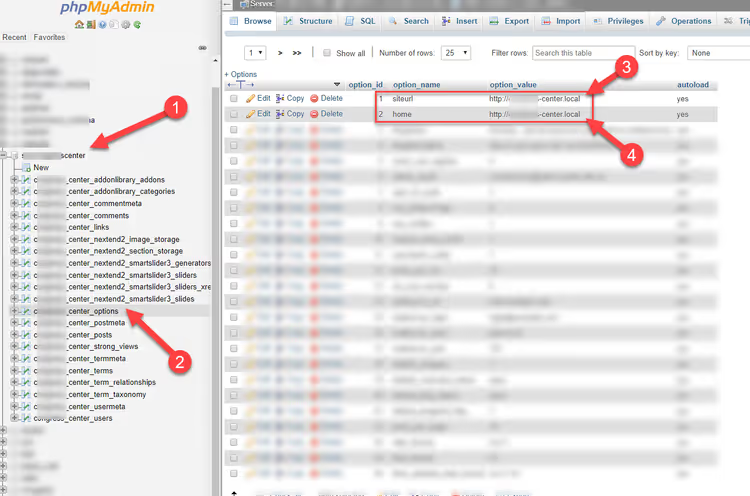
If the table prefix is non-standard (for example, mysite_ instead of wp_), look for the mysite_options table. You can find the prefix in the wp-config.php file: the $table_prefix variable.
Four SQL queries for a complete domain replacement
Run each query one by one in the "SQL" tab of phpMyAdmin. Before running them, make sure to back up the database: exporting via phpMyAdmin takes a minute and saves you from irreversible errors.
Replace http://www.oldurl with http://www.newurl in all queries below. If the site runs on HTTPS, use https:// in both addresses.
1. Updating HOME and SITEURL
This changes the two key addresses in wp_options. Without this step, the site simply won't open at the new domain; WordPress will keep trying to redirect to the old one.
1 UPDATE wp_options SET option_value = replace(option_value, 'http://www.oldurl', 'http://www.newurl') WHERE option_name = 'home' OR option_name = 'siteurl';
2. Updating post GUIDs
The guid field in wp_posts stores the permanent identifier for each post. Replacing it isn't critical for site operation; WordPress doesn't use GUID for routing. But if people read your site through RSS readers, GUID cleanliness matters: old URLs in the feed will lead to broken links.
1 UPDATE wp_posts SET guid = replace(guid, 'http://www.oldurl', 'http://www.newurl');
3. Updating post content
The most extensive query. post_content contains the text of all pages and posts, including embedded images and internal links. After running this, all images in the content will load from the new domain.
1 UPDATE wp_posts SET post_content = replace(post_content, 'http://www.oldurl', 'http://www.newurl');
4. Updating meta fields
Custom fields, plugin settings, theme data: all of this is stored in wp_postmeta. Skip this query, and you'll get broken links in seemingly unexpected places: the logo in the footer, the background in the customizer, the URL in your SEO plugin.
1 UPDATE wp_postmeta SET meta_value = replace(meta_value, 'http://www.oldurl', 'http://www.newurl');
After running all four queries, open the site at the new domain. If everything was done correctly, there should be no problems. But sometimes something else happens: an "Error establishing a database connection" message or the page opens without styles.
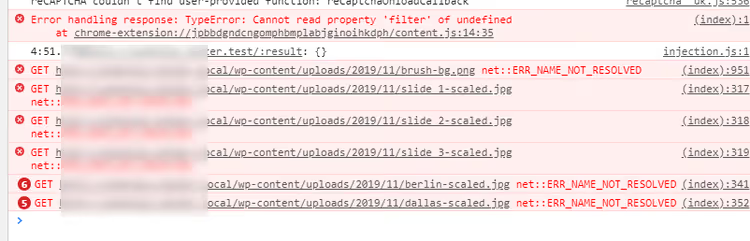
The first thing you need in this situation is access to the admin panel.
How to access the admin panel if the password is lost or the site won't let you in
The client didn't leave a password. Or you locked yourself out by changing the domain, and /wp-admin throws you into an endless redirect. Here are two ways to get administrator rights directly through the database.
Resetting the administrator password via phpMyAdmin
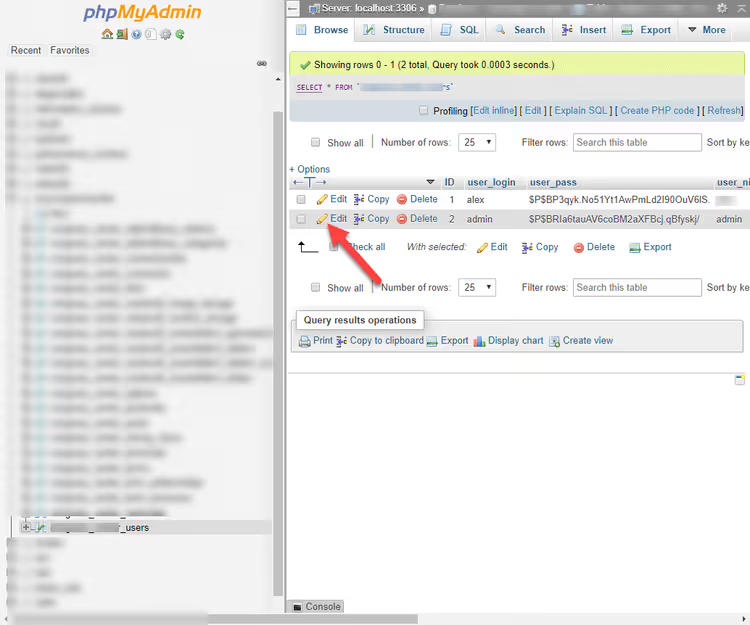
Open the wp_users table (your prefix may differ: mysite_users, etc.). Find the user with administrator rights and click "Edit":
In the user_pass row, select the MD5 function from the dropdown and enter the new password in the adjacent field. Click "Go":
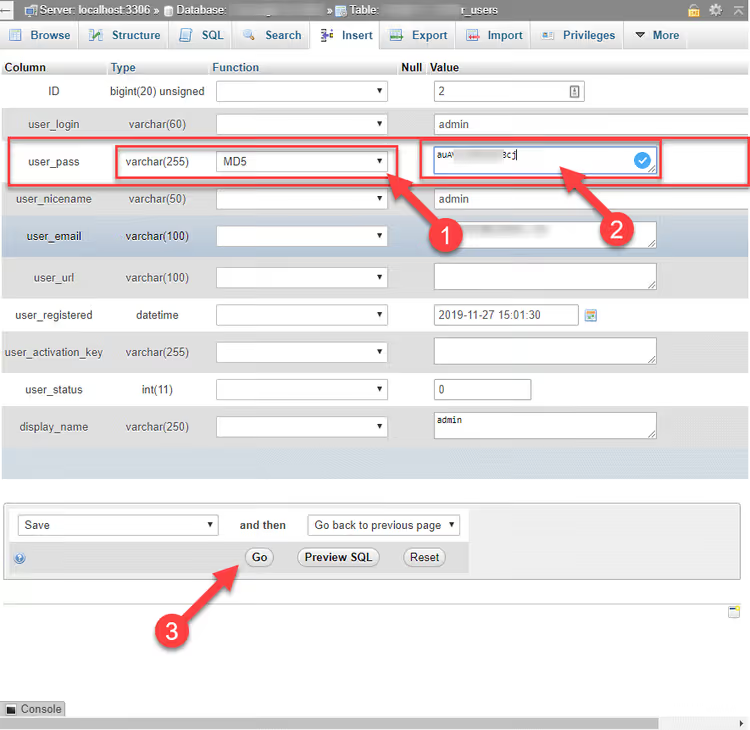
Note: modern WordPress uses phpass (bcrypt hashes), not MD5. But when you enter a WordPress password, it checks the hash in sequence: if the bcrypt check fails, it tries the MD5 fallback and immediately rehashes the password to the current format. That's why MD5 via phpMyAdmin works as a temporary key.
Creating an administrator via PHP
An alternative method is to add a new administrator user programmatically. The code is inserted into the active theme's functions.php or via an MU-plugin.
Add the following to your child theme's functions.php:
1 function sdstudio_add_admin_user() { 2 $userdata = array( 3 'user_login' => 'tempadmin', 4 'user_pass' => 'TempPass123!', 5 'user_email' => 'admin@example.com', 6 'role' => 'administrator', 7 ); 8 wp_insert_user( $userdata ); 9 } 10 add_action( 'init', 'sdstudio_add_admin_user' );
The wp_insert_user() function creates a user with the provided parameters, and the init hook fires on every WordPress request. Just open any page on the site once, and the user is created.
After logging into the admin panel, be sure to delete both the function from functions.php and the temporary user you created. Leaving tempadmin with a plaintext password is a security hole.
Fixing broken images and styles after domain replacement
You have access to the admin panel, but images won't load and the layout is broken. In nine cases out of ten, one simple operation helps.
Go to "Settings" → "Permalinks":
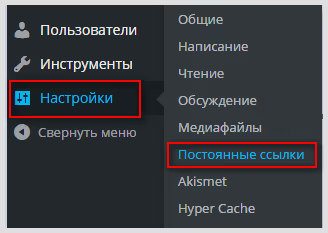
Don't change anything; just click "Save Changes":
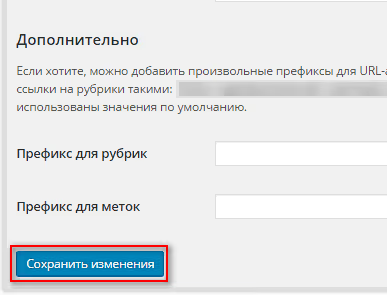
WordPress will rebuild the URL structure, update the rewrite rules cache, and clear the internal redirect cache. After this, images usually return to their places.
If that didn't help, it means the old domain is embedded in serialized arrays. A regular REPLACE in SQL breaks them: the string length in a serialized array is hardcoded as a number, and replacing "old-long-domain.ru" with "new-short.io" changes that length, making the array unreadable. Install the free Better Search Replace plugin; it correctly handles serialization and shows you how many matches were found in each table before replacing.
For sites with WP-CLI, it's even simpler with one command:
1 wp search-replace 'http://olddomain.ru' 'https://newdomain.io' --all-tables --dry-run
The --dry-run flag first shows what will be replaced without making changes. Once you're confident, run it without the flag. WP-CLI search-replace also handles serialized data and does it faster than the web interface.
The video below demonstrates the entire process from logging into phpMyAdmin to checking the site after replacement:
⁉️🤔 Frequently asked questions
Is it mandatory to use phpMyAdmin for domain replacement?
No. If the site hasn't been moved yet, Duplicator or All-in-One WP Migration perform the replacement automatically during deployment. If the site is already on the new hosting without admin access, you're left with SQL queries via phpMyAdmin, Adminer, or WP-CLI. For most webmasters, phpMyAdmin is the most direct and controlled method: you see every operation rather than trusting a plugin's black box.
What should I do if the table prefix is not wp_?
Check the
$table_prefixconstant value inwp-config.php. It's usuallywp_, but hosts or security plugins like Solid Security (formerly iThemes Security) sometimes change it to something random. In all the queries above, replacewp_with your prefix (for example,xyz123_optionsinstead ofwp_options).
Why does the site open without styles after replacement?
The old domain remains in theme settings, cache, or CDN. Reset permalinks (instructions above) and clear your caching plugin's cache. If you use Cloudflare or another CDN, invalidate the cache on the provider's side. If that didn't help, run Better Search Replace: the old URL is probably embedded in a serialized
theme_mods_*array.
The site is on HTTPS, but after the move the certificate doesn't work. What should I do?
Make sure you used
https://(nothttp://) in all queries. Check that both addresses in WordPress settings after logging into the admin panel start withhttps://. The SSL certificate itself is configured on the hosting side, through the control panel or free Let's Encrypt. This is a separate procedure unrelated to the database.
Can I replace the domain without access to phpMyAdmin?
Yes. WP-CLI:
wp search-replace 'http://olddomain' 'http://newdomain' --all-tables. FTP only: add the linesdefine('WP_HOME','http://newdomain');anddefine('WP_SITEURL','http://newdomain');towp-config.php. This temporarily overrides the addresses and gives you admin access. After logging in, remove the lines and save settings through the interface.
Do I need to change the GUID in wp_posts, or can I skip it?
It's not needed for site operation. WordPress doesn't use GUID for routing, only for identifying posts in RSS feeds. If people actively read your site via RSS, replacement makes sense. If not, you can skip the third of the four queries without consequences.
After replacing the domain via SQL, some plugin settings were lost. Why?
Plugins like WooCommerce, Advanced Custom Fields, and sliders store URLs in serialized arrays in
wp_postmeta. A regularREPLACEdoesn't account for the string length counter in serialization and breaks the structure. The solution is Better Search Replace orwp search-replace(they deserialize the array, replace the string, and serialize it back). If you've already broken it, restore the database from backup and repeat the replacement with the proper tool.
What to do in complex cases: stores, multisites, and large databases
Domain replacement via SQL is a five-minute procedure if you have direct access to phpMyAdmin and a standard table prefix. But there are situations where manual replacement via REPLACE is genuinely risky.
Online stores on WooCommerce with hundreds of thousands of orders. Multisite networks with dozens of separate tables for each subsite. Sites where URLs are hardcoded in serialized arrays (theme settings, page builders, sliders). In such cases, a single SQL REPLACE can damage the data structure, and restoring the database from backup will take more time than doing an accurate replacement the first time.
Better Search Replace or WP-CLI search-replace can handle serialization; use them. And if the database size exceeds a gigabyte and the cost of an error is high, an hour of a dev specialist's work will cost less than restoring a store whose downtime costs money.
We covered the topic of site migration while preserving SEO and without losing traffic in a separate guide. And if you encounter a specific error after replacement, write in the comments and we'll help with diagnostics.

A professional team of writers and editors specializing in creating quality content.