














📷 Installing PhotoScape and cropping images: a step by step guide
A paid photo editor subscription just to crop a screenshot is overkill. Basic Paint offers no real options. In between, there are dozens of free programs, but many are either stuffed with ads, require registration, or weigh a gigabyte for a couple of buttons.
PhotoScape is a free editor that installs in a minute and stays out of your wallet. No trial periods, no watermarks, no crippled export. We show the installation from download to first launch and the main workflow: cropping an image with exact proportions.
💡 Quick overview:
- Download the installer from the official Photoscape.org website
- Install as administrator (fewer permissions, fewer conflicts)
- Launch the editor and open a folder with photos
- Choose crop mode by proportions, entering width and height manually
- Save the result with the desired quality
What is PhotoScape
PhotoScape is a program for working with raster images on Windows. The developer is MOOII Tech; the product has been around since the late 2000s and is still updated. As of June 2026, the current version is 3.7 (the classic desktop version).
What it can do out of the box:
- Editor: crop, rotate, resize, color correction, filters, frames, text, clone brush
- Batch processing: run a folder of photos through a single filter
- Collage: combine multiple shots on one canvas
- Animated GIF: assemble frames into an animation
- Viewer: work with folders as galleries
- Screen Capture: built-in screenshot tool
- Print: print photos with layout settings
All of this comes without a subscription, without ad clutter in the interface, and with Russian language support. The program is lightweight: the installer is about 20 MB.
Installing PhotoScape on Windows
No hoops to jump through, just a standard download and install. One note: run the installer as administrator to avoid access errors with the registry and Program Files folder.
Download
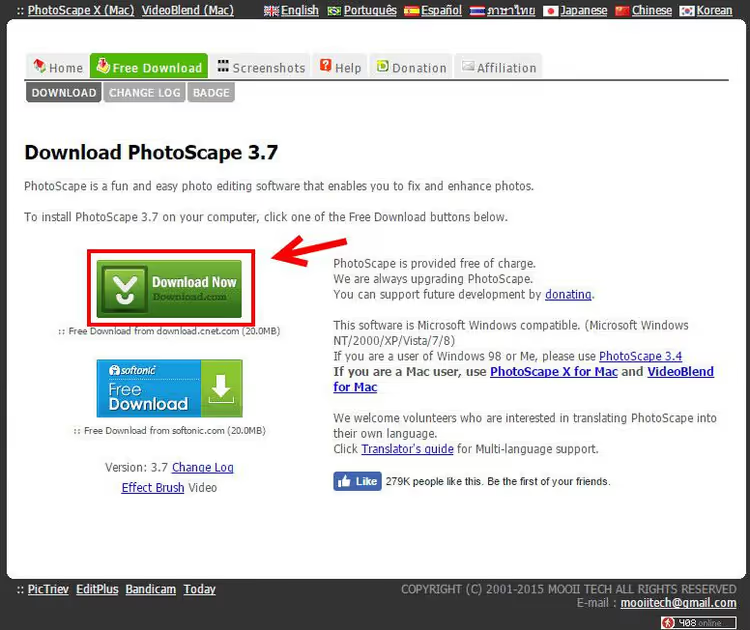
Go to the official Photoscape.org website and click "Download Now". The browser will download the installer to your Downloads folder.
Running the installer
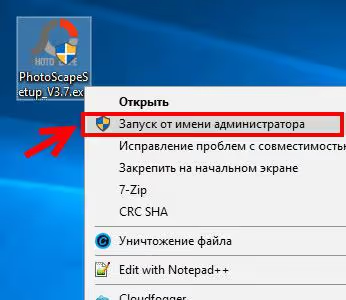
Right-click the downloaded file and select "Run as Administrator". This prevents potential permission conflicts during installation.
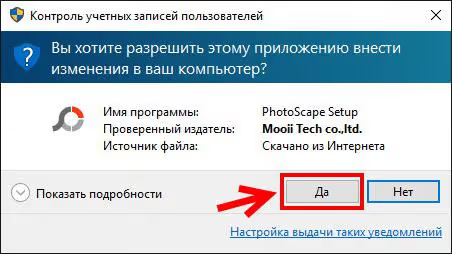
Windows will display the standard User Account Control prompt; confirm the action.
License and wait
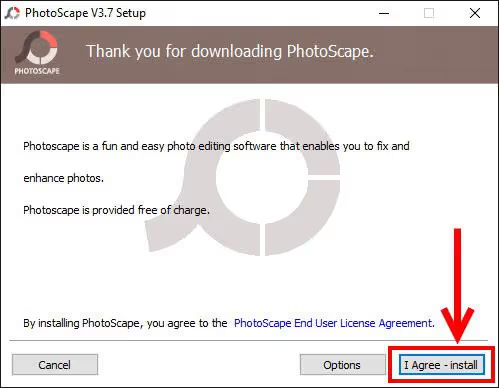
On the agreement screen, click "I Agree, Install". After that, just wait. No extra checkboxes, no "decline to install bundled antivirus," just a clean installation with no junk.
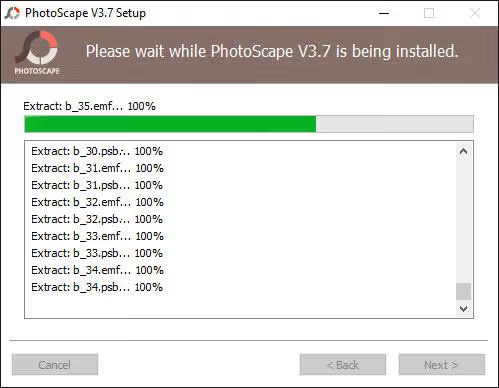
After you agree, the file extraction begins; the progress bar fills in 10-15 seconds on a modern computer.
Finish
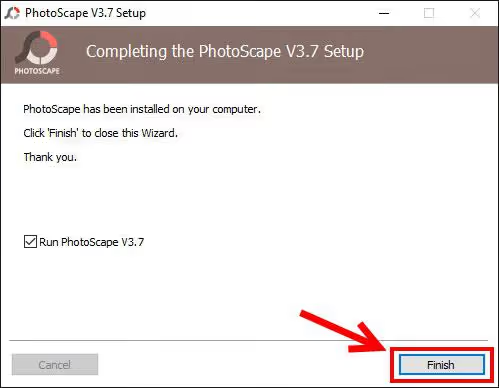
When the progress bar fills, the installer offers to launch the program immediately; the "Run PhotoScape" checkbox is selected by default. Click "Finish".
After completion, a browser window with the developer's website opens along with the editor itself. Here is what it looks like after first launch:
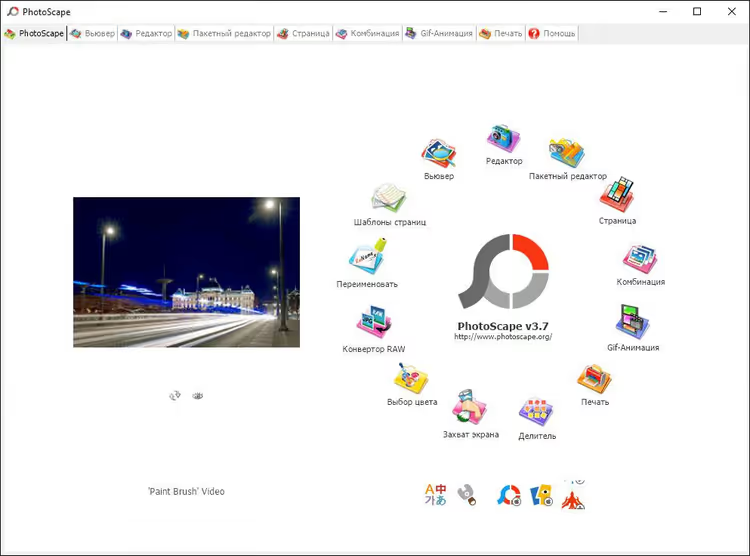
The interface is divided into mode tabs: "Editor," "Batch Processing," "Collage," "GIF Animation," "Print," and "Screenshot." For cropping, you need "Editor."
Cropping an image with exact proportions
In PhotoScape, you can crop a photo in freeform mode or with fixed proportions. The second option is for when you need a specific format: a square for Instagram, a preview for a product card, a banner with a 16:9 ratio.
Opening the editor
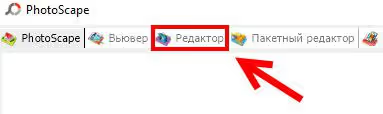
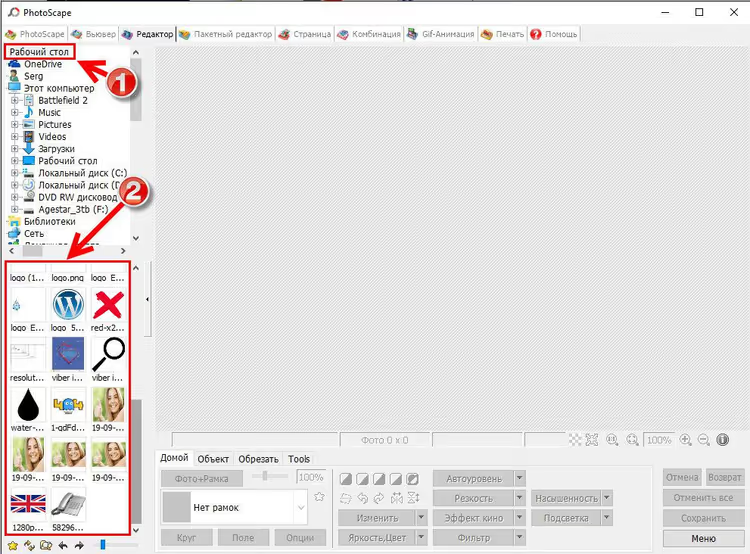
Click the "Editor" tab on the main screen.
Selecting a folder and image
On the left panel, you will see a folder tree. Select the one containing the photo you need. The program immediately loads all images from that folder as thumbnails in the center area. Click the one you want.
Setting the proportions
Now, open the "Crop" tab. In the dropdown menu, select "Proportions / Size"; this mode allows manual entry of width and height. In the window that appears, enter the values you need in pixels and click "OK."
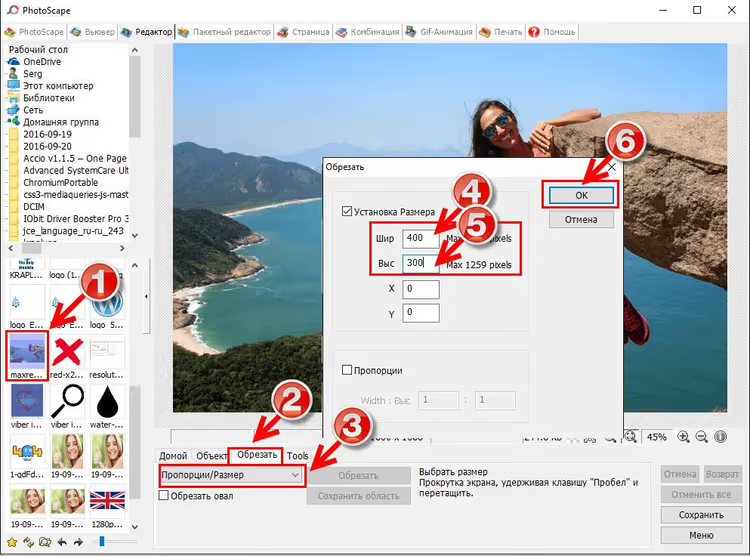
An important note: PhotoScape does not crop the image to the exact pixel dimensions you specify. It preserves the aspect ratio (the relationship of width to height) exactly as you set it, but the final pixel size depends on how much area you capture with the frame. If you need an output file with an exact pixel size, apply the "Resize" tool after cropping.
Selecting the area
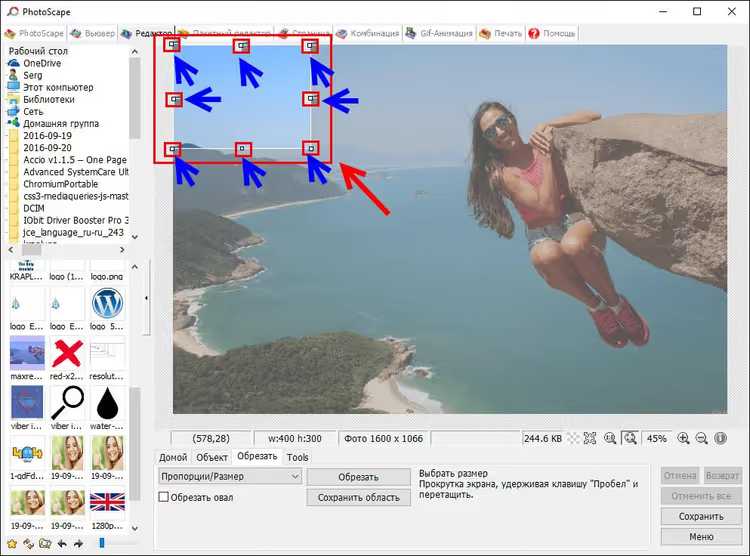
After clicking "OK," a crop frame with corner handles appears. Drag a handle to change the coverage, or grab the frame by its center and move it to the desired position. Everything outside will turn gray; this is the portion that will be cut off.
Saving
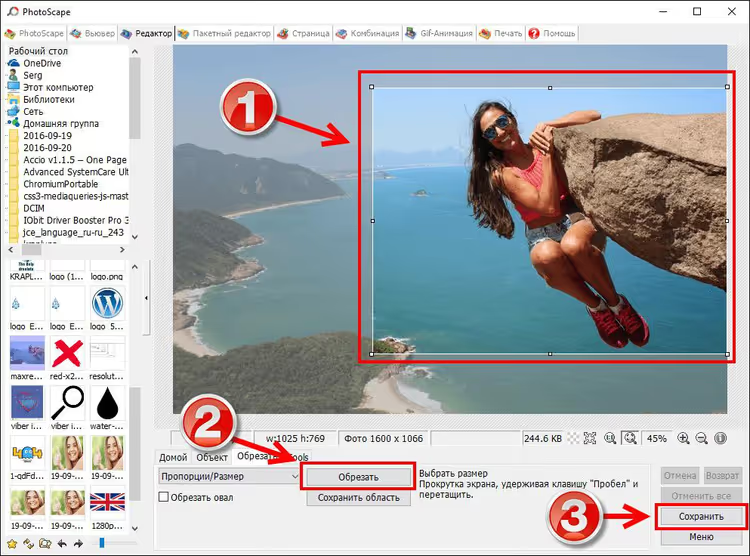
Once the area is selected, click "Save" on the right side of the toolbar.
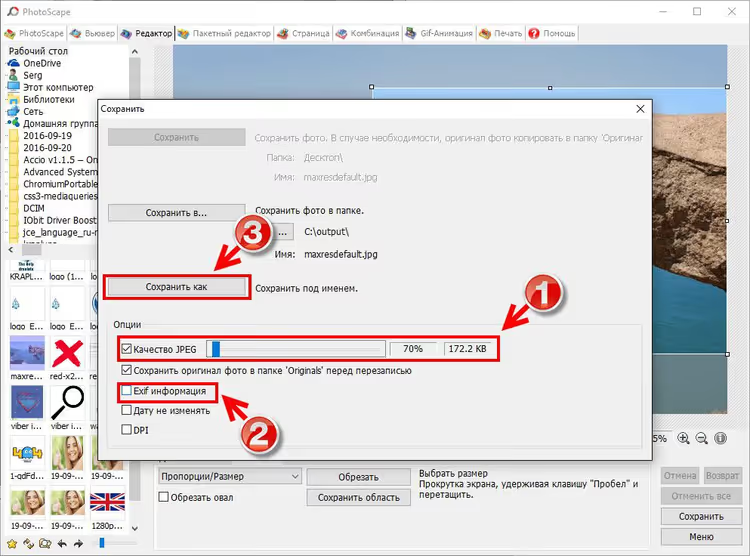
A save settings window will open. Two key points:
- The JPEG quality slider: the farther right, the higher the quality and the larger the file size. For web and social media, a level above average is usually enough; the file is lighter than the original, and artifacts are invisible to the eye.
- The "Exif information" checkbox: if unchecked, camera metadata (date, model, GPS) will not be included in the final file. For publishing online, this is a plus: the file is smaller, and no personal data is exposed.
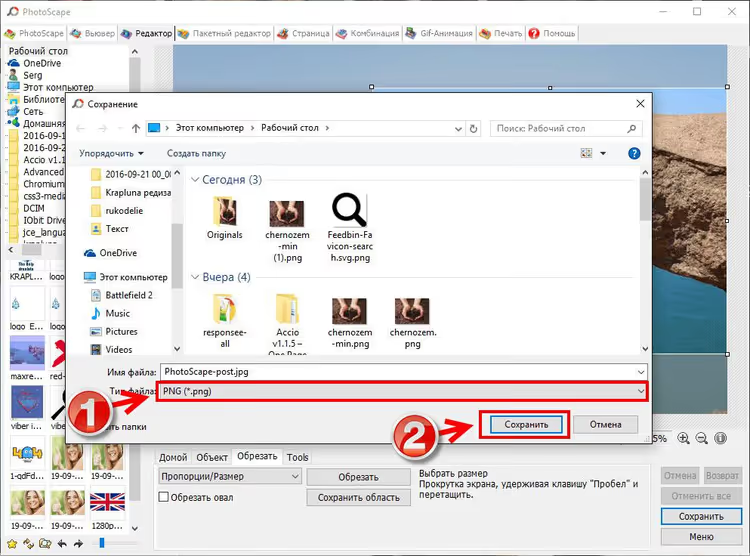
Click "Save as" and specify the destination folder.
After clicking "Save as," the standard Windows dialog opens; select a folder and confirm the file name.
Done. The cropped image is in the specified folder, proportions are preserved, and there is no Exif clutter.
In everyday work, the vast majority of image tasks involve cropping to specific formats. For everything else, PhotoScape offers batch processing (run a hundred photos through auto-contrast), a clone brush (remove unwanted objects), and collage (arrange a collection on one sheet). All without a subscription or registration.
⁉️🤔 Frequently asked questions
Is PhotoScape free forever or is there a paid version?
The classic PhotoScape 3.7 is completely free, with no time limits or feature restrictions. There is also PhotoScape X, a version from the Microsoft Store with a modern interface; some of its features are paid. But the "classic" 3.7 remains free and still receives updates.
How is PhotoScape better than Paint and worse than Photoshop?
Compared to Paint, it is night and day: layers (though limited), batch processing, cloning, filters, collage, GIF animation, none of which Paint has. It does not match Photoshop in professional tools: no curves, no CMYK, no non-destructive adjustment layers. But for web graphics, social media, blogs, and everyday tasks, what it offers is more than enough. Plus, it costs $0 and takes up zero gigabytes compared to an Adobe subscription.
Can I crop multiple photos to the same size at once?
Yes, through "Batch Processing." Load a folder of source files, select the "Crop" filter, and set the proportions. The program will process all files automatically, placing the results in an output folder.
Does PhotoScape preserve transparency in PNG?
No. PhotoScape 3.7 cannot work with the alpha channel and fills transparent areas with white when saving PNG. If transparency is critical, use GIMP or Photopea.
Is PhotoScape worth installing in 2026

If you need a photo editor for cropping, color correction, frames, collages, and batch processing without a monthly fee, install it. The utility does not try to be Photoshop, does not sell subscriptions, and does not slap a watermark on exports. Over the years, competitors offering the same combination of "free + lightweight + no ads" have barely appeared: GIMP is heavier and more complex, Paint.NET is closer but lacks batch processing, and online editors require internet and lose speed on large files.
For tasks like "crop a screenshot for an article" or "prepare three hundred product photos for an online store," PhotoScape wraps up the workday faster than you can finish this sentence. You can download it from the official website; installation takes a couple of minutes, and the learning curve for basic operations is practically zero.

A professional team of writers and editors specializing in creating quality content.