














📌 Pinterest Automatic Pin: a plugin for auto-posting WordPress to Pinterest
You write posts, pick images, publish, and Pinterest traffic trickles in. Manual pinning eats up hours, and by Friday you simply forget about it. Meanwhile, Pinterest drives more traffic than LinkedIn and YouTube combined if you approach it systematically.
Pinterest Automatic Pin is a plugin from ValvePress that handles the routine for you. It finds images in your posts, distributes them across boards, and maintains random intervals between pins so Pinterest's algorithms don't flag you as a spammer.
💡 Quick overview:
- Connect the plugin to Pinterest via a session cookie
- The plugin auto-detects images in posts and boards in your account
- Set up rules: which posts/categories to pin, to which board, with what text
- From there, it's automated: queue, random intervals, links back to your site
What is Pinterest Automatic Pin and why you need it
Pinterest Automatic Pin is a WordPress plugin from CodeCanyon (item #2203314) that automatically pins images from your posts to Pinterest. The developer, ValvePress, is known for their "WordPress Automatic" lineup for auto-posting from RSS, Amazon, YouTube, and dozens of other sources.
The core idea is simple: you create content on your site, and the plugin distributes it across Pinterest without your involvement. Each pin gets a direct link to the source post, meaning it's not just a "pretty picture" but a full-fledged traffic channel.
According to Pinterest's own data for 2025, the platform has over 520 million monthly active users, and 85% of them use it to plan purchases. Automatic pinning turns your site into a constantly running lead generator from this audience.
Plugin features: what it does out of the box
Auto-detection of images and boards
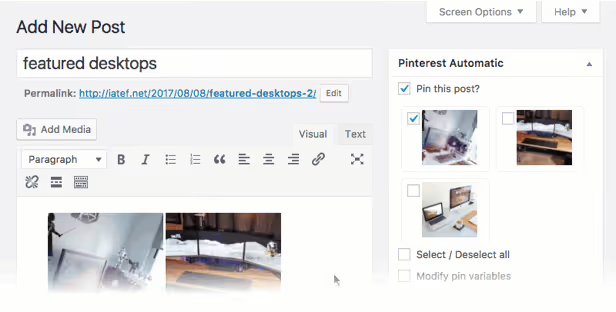
The plugin scans post content and finds ALL images: those in the editor, in the front-end, in gallery shortcodes, in custom fields. It then displays a list where you simply check the ones you need.
Simultaneously, Pinterest Automatic pulls your board list from your Pinterest account. You see them right in the WordPress admin and can choose where each pin will go.
Queue system and random intervals
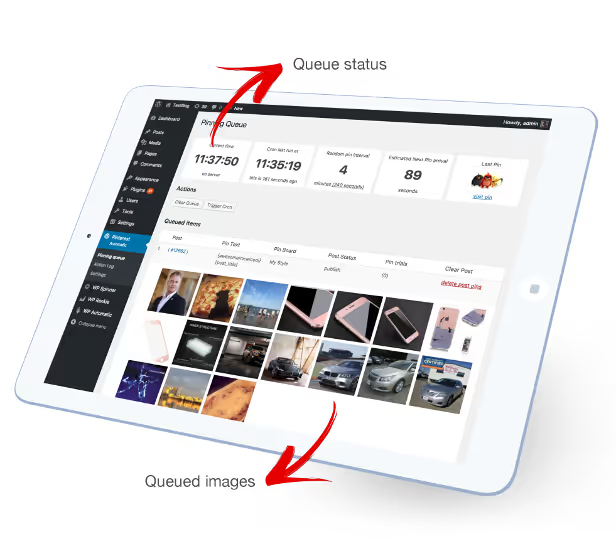
The plugin doesn't pin everything at once. It places images in a queue and releases them one by one at random intervals, from 3 minutes and up. This is critically important: Pinterest reacts negatively to mass simultaneous posting and may ban your account.
The queue runs through WordPress's built-in cron or through server cron (your choice).
Flexible board assignment
Simply "pinning everything to one board" is boring. The plugin lets you set rules:
- Board by WordPress category: a post from the "Recipes" category → "Cooking" board, a post from the "Workshops" category → "DIY" board
- Board by WordPress tag: a post tagged "vegan" → "Vegan Recipes" board
- Default board: for everything that doesn't match other rules
Each image is pinned to only one board, with no duplicates.
Pin text templates
Pin text can be built dynamically from 9 variable tags:
[post_title](post title)[post_excerpt](excerpt)[post_link](post link)[post_author](author)[post_category](category)[post_tags](tags, converted to Pinterest hashtags)[image_alt](image alt text)[product_price](WooCommerce product price)[customFieldName](custom field value)
All of this supports Spintax: the construct {great | awesome | useful} gives a random variant with each pin. Pinterest sees unique descriptions and doesn't count them as duplicates.
WooCommerce support
For online stores: the plugin can pin products directly from WooCommerce, pulling the product price and image. A product pin in Pinterest is a Rich Pin with current pricing and a link to the purchase page.
Bulk pinning
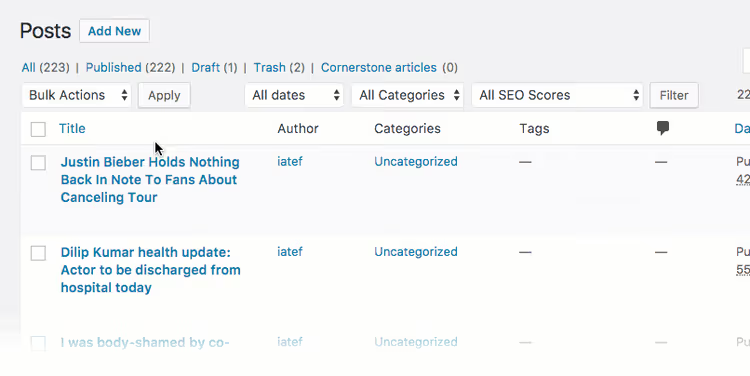
Select multiple posts in the admin, and all their visual content goes into the pinning queue. No need to open each post individually. Especially useful at launch: upload a hundred posts, select, and go.
Automatic linking
Each pin gets a direct link to the source post. Click on a pin, go to your site. The link can stay permanent or be pulled from a custom field. If desired, you can upload an image without a backlink, just like a manual upload from your computer.
Fine-tuning: filters and exclusions
Not everything should go to Pinterest. The plugin provides a set of filters:
- Exclude by category: posts from certain categories won't be pinned
- Exclude by text in image URL: if the image link contains a specific word, skip it
- Exclude small images: set a minimum width, anything smaller is ignored
- Skip duplicates: the same image from the same post won't be pinned twice
- Search and replace in links: mass replacement of URL parts in pins (useful during site migration)
Additionally:
- Custom post type support: portfolios, galleries, any CPT
- Image support from custom fields: image URL in ACF or any other field
- Custom jQuery selector: if images render non-standardly, just specify a CSS selector
- Auto-excerpt generation: the plugin generates text from post content at a specified length
- UTM parameters: automatically added to links for analytics tracking
- Proxy: connect to Pinterest through a proxy server
- Spintax in pin text: unique description for each pin
- Scheduled post support: images are pinned after scheduled publication
- Detailed log: every plugin action is recorded and viewable in the admin
Setup: how it works in practice
Installation comes down to three steps:
- Upload and activate the plugin (standard, through WordPress admin)
- Get a Pinterest session cookie (log into Pinterest through a browser and copy the cookie; ValvePress provides instructions in the documentation)
- Enter the cookie in plugin settings (and it's ready to work)
From there, configure the rules: default board, category-to-board mapping, pin text template, minimum and maximum interval between pins. Set it up once and forget about it.
The plugin updates automatically right from the WordPress dashboard. At the time of writing, the current version is 4.20.1 (October 2025).
Pricing and where to buy
The plugin is sold on CodeCanyon under ValvePress's standard model: a regular license gives you the right to use it on one site with lifetime updates. The price on CodeCanyon is around $35-40 for a regular license (as of June 2026). An extended license is for inclusion in a product you sell.
Given that one quality pin can drive traffic for years, and manual pinning consumes at least 3-5 hours per week, the plugin pays for itself quickly.
Pros and cons
Strengths:
- Full automation: set it and forget it
- Flexible rule system: categories, tags, boards, text templates
- Random intervals protect against Pinterest bans
- WooCommerce and Rich Pins support for products
- Bulk pinning: dozens of posts in a couple of clicks
- Spintax for unique descriptions
- Works with custom post types and fields
Limitations:
- Requires a Pinterest session cookie that needs manual renewal every few weeks (Pinterest resets sessions)
- No Pinterest API v5 support (uses a cookie approach that may break if Pinterest changes its logic)
- Not a replacement for a full Pinterest manager (the plugin pins but doesn't develop strategy)
⁉️🤔 Frequently asked questions
Does the plugin work with Pinterest's new interface in 2026?
Yes, the current version 4.20.1 supports the current Pinterest. ValvePress regularly updates the plugin when the platform changes.
Pinterest periodically changes page structure and authentication mechanisms. ValvePress tracks these changes and releases updates. As of June 2026, the plugin successfully pins images to Pinterest. It's important to keep the plugin version up to date.
Do I need a session cookie every time I pin?
No, the cookie is entered once and works until Pinterest resets the session (usually 2-4 weeks). After that, you need to update it.
A session cookie is an authentication method where the plugin "impersonates" you when connecting to Pinterest. It's not an API key but a snapshot of your browser login. Every few weeks, Pinterest forcibly logs out sessions; the plugin will then report an error, and you'll need to copy a fresh cookie from your browser.
Can I pin one image to multiple boards?
The plugin's rule system assigns one board per pin. However, you can add the same image to multiple posts, and each post will trigger its own board rule.
Technically, the plugin assigns exactly one board to each image according to rule priority: first it checks the category rule, then the tag rule, then the default board. For cross-posting to multiple boards, you can create multiple posts with the same image or use different campaigns.
Does the plugin slow down the site?
No. Pinning runs through background cron on the server side. Site visitors don't notice any load.
Pinning operations run asynchronously: the plugin queues tasks in WordPress Cron, and the server processes them in the background. For large volumes (hundreds of images), we recommend setting up server cron instead of built-in WP-Cron to eliminate load during site visits.
Does the plugin support multisite?
Technically, the plugin is designed for a single site. For multisite, you need a separate license for each site in the network, but the plugin works in subsites normally.
Pinterest Automatic Pin has no built-in multisite logic (no global network settings), but it functions without errors at the individual site level within a network. Each site uses its own cookie and board settings.
Is Pinterest Automatic Pin worth installing in 2026
If Pinterest is a significant traffic channel for you, manual pinning isn't an option. The plugin handles the most labor-intensive part: finding images, distributing them across boards, maintaining pauses, avoiding spam filters. It won't create a strategy for you (which boards to create, which keywords to use, how often to publish), but it completely eliminates the routine.
For WooCommerce online stores, this is especially valuable: product pins with prices automatically go to Pinterest right after publication, and Rich Pins pull current pricing. For content sites, it means steady additional traffic without manual work.
The plugin isn't free and requires cookie updates every couple of weeks. But if Pinterest brings you at least 500-1000 visits per month, automation pays for these minor inconveniences many times over.

A professional team of writers and editors specializing in creating quality content.