













🔧 How to set up Google Site Kit in WordPress: complete 2026 guide
What is Google Site Kit and why your WordPress site needs it

Google Site Kit is the official Google plugin for WordPress that brings the company's key marketing tools directly into your site's admin panel. You no longer need to open a dozen tabs to check traffic, search rankings, or page speed: everything is collected in one dashboard.
The plugin is free, open source, and active on millions of sites. As of 2026, it supports eight Google services: Search Console, Analytics, AdSense, PageSpeed Insights, Tag Manager, Sign in with Google, Reader Revenue Manager, and Google Ads. Google Optimize, previously included, was discontinued in September 2023.
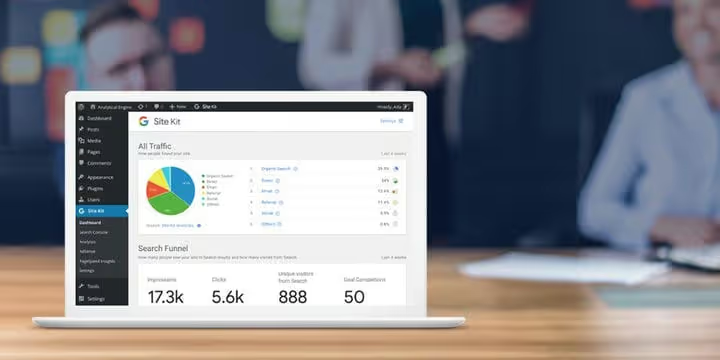
The main advantage of Site Kit is data at two levels: an overall site picture and detailed statistics for each post or page. The screenshot above shows an example of a summary for a specific page: Search Console, Analytics, and PageSpeed Insights in one window.
💡 Quick overview:
- Install the Google Site Kit plugin from the WordPress.org directory via "Plugins → Add New."
- Launch the setup wizard and sign in to the Google account linked to your site's Search Console and Analytics.
- Connect the services you need: Search Console activates immediately, the rest with one click from the Site Kit dashboard.
- After setup, all data is available in the WordPress admin: the main dashboard, sections for each service, and statistics at the individual page level.
Preparing for installation
Before installing Site Kit, make sure your site meets the minimum requirements: WordPress 5.2 or higher, PHP 7.4+, the site is publicly accessible (not in maintenance mode), and REST API is working. You can check the latter in "Tools → Site Health."
We also recommend setting up Google Analytics and Search Console for your site in advance. Site Kit can create new accounts in these services, but manual setup gives you a better understanding of each tool. If you haven't connected analytics yet, check out the official Google Analytics guide for WordPress.
How to install the Google Site Kit plugin
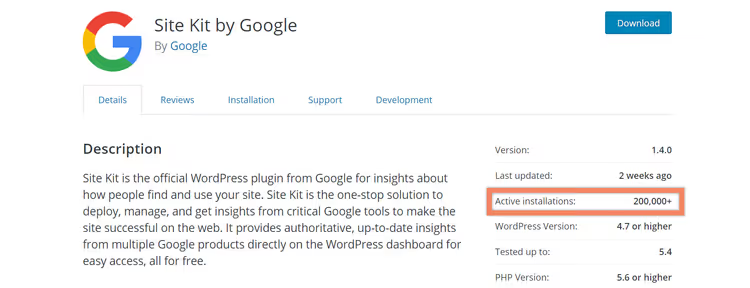
Google first announced Site Kit at WordCamp US in 2018. The first developer preview was released in June 2019, and today the plugin has millions of active installations and is maintained by the Google team.
Installation is standard for any WordPress plugin:

Step 1. Go to your WordPress admin, navigate to Plugins → Add New, and search for "Google Site Kit." Install and activate the plugin.

Step 2. Immediately after activation, the plugin will prompt you to launch the setup wizard. Click Start Setup to open the step-by-step Google account connection process.
Step-by-step Site Kit setup

Step 3. After clicking "Start setup," a new tab will open with the Site Kit configuration page. Click Sign in with Google.
Important: use the exact Google account linked to your site's Search Console and Analytics. If you sign in with a different address, Site Kit won't find the existing properties and will create new ones, leaving you with duplicate data and a broken configuration.
Step 4. Select the appropriate Google account. The screenshot above uses a personal address that serves as the primary account for all Google properties of this site.

Step 5. Site Kit will request permissions to access the connected Google services. Click Allow.

Step 6. After successful setup, you'll see a confirmation screen. It confirms three things: you are the domain owner, the domain is configured in Search Console, and Site Kit has access to general account data and Search Console. Each additional service will require separate permission.
Click Go to my Dashboard to return to the WordPress admin.

Step 7. At this stage, only Search Console is connected. Data displays immediately: you can see clicks, impressions, and positions right in the admin panel.

Step 8. Detailed Search Console data is available on the Site Kit → Search Console page. Graphs, queries, and pages are all here, just like in the web version, but inside WordPress.
How to connect Google Analytics in Site Kit

Step 1. Click the Connect Service button in the Analytics section of the Site Kit dashboard.

Step 2. Sign in to the same Google account you used for the initial setup.

Step 3. Click Allow, and Site Kit will gain access to your Google Analytics data.

Step 4. After returning to the admin, make sure the correct Google Analytics property (GA4 data stream) is selected, and click Configure Analytics.

Step 5. Done. Google Analytics data is now available in the Site Kit → Analytics section. Traffic, sources, user behavior: all key metrics are inside WordPress.
How to connect PageSpeed Insights

PageSpeed Insights connects just as easily: click the Connect Service button right on the Site Kit dashboard. After activation, performance data (Core Web Vitals, load speed) will appear both on the main dashboard and at the individual page level.
The screenshot shows the Site Kit dashboard with three active services: Search Console, Analytics, and PageSpeed Insights. This is the minimum we recommend setting up for every site.
What other Google services you can connect
As of 2026, Site Kit supports eight Google services:
- Search Console: search queries, positions, CTR.
- Google Analytics: traffic, sources, user behavior.
- AdSense: revenue from ads on your site.
- PageSpeed Insights: page performance and Core Web Vitals.
- Tag Manager: tag management without editing code.
- Sign in with Google: site login via Google account.
- Reader Revenue Manager: subscriptions, donations, and reader surveys.
- Google Ads: tracking ad campaign performance.
Google Optimize was previously on the list, but Google discontinued it in September 2023. If you used it for A/B testing, consider looking at alternatives.

You can manage connections in Site Kit → Settings → Connected Services. Here you can see all active services and their status.

To add a new service, go to the Connect More Services tab and select the one you need.

The Admin tab provides an overview of the plugin status, the ability to reset settings, and an option to send anonymous usage statistics to Google developers. It is disabled by default.
How to view data for individual pages
One of Site Kit's most useful features is statistics at the individual post and page level. Open any page of your site in a new tab (while logged into WordPress), hover over the Site Kit button in the admin bar, and you'll see a summary for that page from all connected services.
Clicking "More details" opens a full page with detailed data: queries from Search Console, traffic from Analytics, and PageSpeed Insights metrics, all for the specific URL. This saves a lot of time by eliminating the need to switch between tabs and services.
⁉️🤔 Frequently asked questions
Do I need to pay for Google Site Kit?
No. The plugin is completely free and open source. Individual Google services within Site Kit operate under standard terms: Analytics and Search Console are free, while AdSense and Google Ads have their own pricing unrelated to the plugin.
Why does the dashboard show "Gathering data" instead of numbers?
This is normal for new sites or recently connected services. Search Console and Analytics need time (usually 1-3 days) to accumulate data for display. If the message hasn't disappeared after a few days, check the service connection in Site Kit → Settings.
Can I use Site Kit on a test or staging environment?
Yes. Site Kit can display data from a production site on a staging environment. The official documentation describes this process at sitekit.withgoogle.com.
What should I do if Site Kit slows down the admin panel?
The Site Kit dashboard makes several parallel requests to the Google API when loading. On budget hosting, this can cause delays. The solution is to disable the dashboard widget via code in
functions.phpor an mu-plugin. The Site Kit dashboard itself remains accessible through the menu item.
Google Optimize no longer works. What can replace it?
Google shut down Optimize in September 2023. For A/B testing on WordPress, third-party plugins like Nelio A/B Testing or external SaaS solutions work well. Basic experiments can also be run through Google Ads.
Is Google Site Kit worth installing in 2026
The short answer is yes. Site Kit remains the simplest way to bring Google tools into the WordPress admin without editing code. You get official data straight from the source, not an interpretation from a third-party plugin.
Site Kit is especially useful for content site and blog owners: per-post statistics help you understand which topics drive traffic and which need improvement. For online stores on WooCommerce, the integration with Google Ads and Reader Revenue Manager is an added benefit.
If you have multiple administrators, each one connects their own Google account independently with granular access rights. This is convenient for team collaboration.
The only real downside is the load on the admin panel with a cold cache on weak hosting. But the problem is solved by disabling the dashboard widget, while the main functionality remains accessible through the Site Kit menu. Overall, the plugin's benefits outweigh this minor issue.

A professional team of writers and editors specializing in creating quality content.