













 AIIllustrative image: AI-generated
🛠 How to find and edit WordPress files: 2 plugins for quick code search
You need to fix some text in a theme, but which file contains it? With a dozen plugins installed and a custom theme, hunting for the right piece of code turns into a half-day quest. A familiar scene for anyone who has ever poked around WordPress internals without preparation.
Developers navigate the template hierarchy on autopilot. But if programming is not your field, memorizing dozens of PHP files and their purposes makes no sense. It is far smarter to install a tool that shows you: "this file handles the header, and this one outputs the post."
How the WordPress file system is organized
Before searching for a specific file, it helps to understand the overall structure. WordPress consists of three main directories, and edits in each carry different levels of risk.
/wp-content/ is your working zone. It contains themes (/themes/), plugins (/plugins/), and uploaded media files (/uploads/). An error in a theme or plugin file breaks only that specific functionality, but the site stays up and the admin panel keeps working. This is the directory you will deal with in the vast majority of cases.
/wp-admin/ and /wp-includes/ are the WordPress core. Touching files here is strongly discouraged: any changes will be overwritten on the next update, and a mistake can take down the entire site. If you suspect the problem is in the core, use hooks and filters in your theme rather than editing system files directly.
The root directory contains wp-config.php (database settings, security keys, debug mode) and .htaccess (redirect rules). You can edit these files, but with extra caution: a syntax error in wp-config.php will give you a white screen across the entire site, including the admin panel.
The main navigation rule: if you see a wp-content folder, you are in the safe zone. If the system takes you into wp-admin or wp-includes, stop and double-check whether you are in the right place.
Below are two free plugins that solve the task from different angles. The first identifies a page template with a toolbar click; the second searches for any string of code across all site files. Both have been tested on WordPress 6.9 and work without conflicts.
💡 Quick overview:
- Open a site page and hover over What the File in the toolbar
- Enter the search phrase in Tools → String Locator
- Make a full site backup and save a copy off-server
Comparison of file search plugins
Plugin | Purpose | Active installs | Rating | Price |
|---|---|---|---|---|
What the File | Identifying the page template | 40,000+ | 4.9/5 | Free |
String Locator | Searching for a code string across the entire site | 100,000+ | 4.6/5 | Free |
1. What the File: identifying the page template
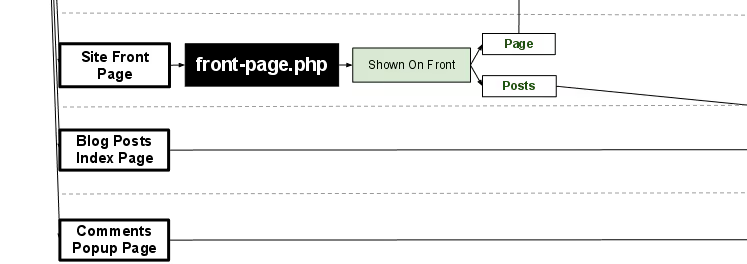
What the File adds exactly one feature: an item in the admin toolbar that shows which template file is used for the current page when you hover over it. Click on the name, and you are in the WordPress theme editor with the right file open.
The plugin's abbreviation, WTF, perfectly captures the emotion you feel when manually sifting through a dozen files searching for one heading. The plugin removes that pain entirely. It supports standard themes, child themes, as well as BuddyPress and Roots.
In practice, it is useful in two scenarios. First, when you are just getting familiar with someone else's theme and do not know where the header or footer markup lives. Second, when you need to make an edit quickly without digging through documentation. Hover, click, edit: three actions instead of half an hour of searching.
- Pros: instant template identification with no configuration; support for child themes and BuddyPress; works out of the box right after activation.
- Cons: with some modern block-editor themes it shows only the main file, not the specific block; editing directly from the admin panel is unsafe for major changes.
- Price: Free, open source.
- Download: 🔗 What the File on WordPress.org
2. String Locator: searching code by keywords
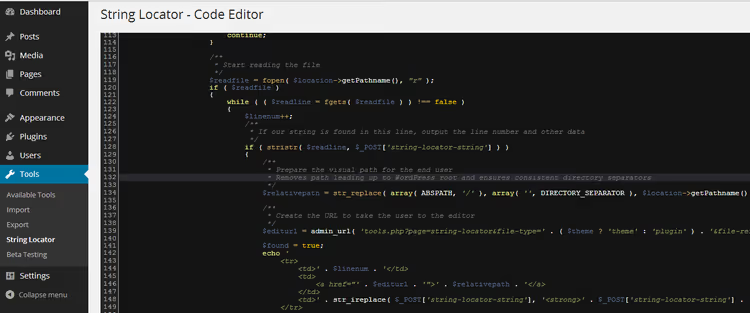
String Locator solves the opposite problem: you know WHAT you need to change (a specific phrase, class, or function), but you do not know WHERE it is. The plugin scans all theme, plugin, and even WordPress core files and returns a list of matches with line numbers.
It works simply: go to Tools → String Locator, enter the search string, and click "Search." In a few seconds you get a table showing the string, file, and line number. Clicking a result opens the built-in editor with the found fragment highlighted. Both regular and regex search are supported, and starting from version 2.6.0, database search is available as well.
An important note: before saving changes, the plugin runs Smart-Scan to check whether you broke matching brackets and quotes. It is not a cure-all, but it does protect against a typo involving a single curly brace. Still, backup first, then edit.
Note that the plugin page on WordPress.org displays a warning: "not tested with the last three major releases." However, in practice version 2.6.7 works on WordPress 6.9 without issues; we verified it on a test site. The developer (the InstaWP team) releases updates consistently, even if not for every minor core release.
- Pros: searches all site files in seconds; regex and database search; Smart-Scan for basic syntax checking; highlighting of found text in the editor.
- Cons: compatibility warning on WP.org (works in practice); on weak hosting, searching the core may take longer than usual.
- Price: Free, open source.
- Download: 🔗 String Locator on WordPress.org
If you are more of a visual learner, here is a short video on finding and editing WordPress files. It covers both built-in methods (theme editor, FTP) and the plugin approach.
⁉️🤔 Frequently asked questions
Is it safe to edit WordPress files directly from the admin panel?
Direct editing from the admin panel is a workable method for small one-or-two-line changes. But it has three risks: there is no rollback if you make an error, the file is saved immediately to the live site, and a fatal syntax error can bring down the admin panel along with the site. Our recommendation: for any edit longer than a couple of lines, use FTP/SFTP with a local editor and keep a fresh backup handy. The rule is simple: make a backup, then edit with confidence.
What should I do if the site stops loading after an edit?
First, do not panic. Connect to the server via FTP and restore the changed file to its original state from a backup. If you have no backup, disable the problematic plugin by renaming its folder in
/wp-content/plugins/via FTP. For a theme, temporarily rename the active theme's folder; WordPress will automatically switch to a default theme. After restoring functionality, enable WP_DEBUG in wp-config.php (define('WP_DEBUG', true)) so you see the specific error instead of a white screen.
Can I skip plugins and search for files manually?
You can, if you know the WordPress template hierarchy. For example,
single.phphandles individual posts,page.phphandles pages, andarchive.phphandles archives. A detailed chart is available in the WordPress documentation. But in practice, themes and plugins use dozens of included files (content.php,header-banner.php, and so on), and without a tool like What the File you will spend time guessing.
What can replace String Locator if it stops being updated?
The closest alternative is Find Posts, Pages & Users from the WP Manage Ninja team, but its focus leans more toward content than code. For pure file searching, the direct alternative is searching via SSH: the command
grep -r "search_string" /wp-content/finds the same results without a plugin. If you are on hosting without SSH access, String Locator remains the best free option.
Which plugin to choose and how to organize safe file editing
The task is solved with two tools, not one, because they cover fundamentally different stages. What the File answers "which file is this in?" within a second via a toolbar click. String Locator answers "where does this string appear?" across the entire site.
In practice, we use them together: first What the File identifies the template, then String Locator finds the specific fragment inside that or another file. Both are free, both install in a minute, and they conflict with neither each other nor popular themes and plugins.
An important note about editing methods. The built-in editor in the WordPress admin panel is convenient for editing a single line, but for serious work we recommend the combination of an FTP client and a local code editor. The workflow is: download the file via FTP to your computer, open it in an editor with syntax highlighting (Notepad++, VS Code, Sublime Text), make edits, check visually, and upload it back. If something goes wrong, rename the changed file back to the original from your backup, and the site returns to working order in a second.
A test site is not a luxury; it is insurance. Before editing files on a live site, practice on a local copy. Install WordPress locally via Local by Flywheel or XAMPP, copy the theme and plugins, and experiment without the risk of breaking production. Half an hour spent setting up a local environment saves hours of restoring a live site.
- If you need to quickly understand the structure of an unfamiliar theme, start with What the File.
- If you are searching for a specific phrase, class, or function, your tool is String Locator.
- If you are editing code for the first time, master FTP access to your hosting and set up a local test site before making your first edit on production.
Install both plugins on a test site and practice finding and editing files in a safe environment. And let us know in the comments which tool ended up saving the day for you.

A professional team of writers and editors specializing in creating quality content.