














📧 WordPress comment email notifications: a complete plugin overview for 2026
Left a comment on someone else's WordPress site and forgot about it five minutes later? Chances are you'll never return. And your readers behave exactly the same way.
According to WPBeginner, over 70% of visitors who leave a comment never come back to check for replies unless they receive a notification. Every unanswered comment is a lost return visit and a potential subscriber. For multi-author sites, it also means editorial chaos: the author doesn't know there's a conversation under their post, the admin can't see the spam queue, and moderation stalls.
This can be fixed in 10 minutes: built-in WordPress settings cover the basic scenario, while four plugins from this roundup add fine-tuned notifications, from custom email templates to AJAX commenting with subscriptions. No code required, just ready-made tools.
💡 Quick overview:
- Built-in WordPress settings cover basic notifications to author and admin; check them before installing plugins.
- Jetpack Subscriptions adds a subscription checkbox below the comment form, works out of the box, ideal for beginners.
- Better Notifications for WP customizes all site email notifications through a visual editor, from comments to password resets.
- wpDiscuz replaces the standard comment system with an AJAX-powered discussion featuring likes, subscriptions, and social login; the choice for sites where comments are content.
Built-in WordPress settings: where to start
Before installing plugins, check what WordPress can already do on its own. The native notification features are located in Settings → Discussion and cover two key scenarios.
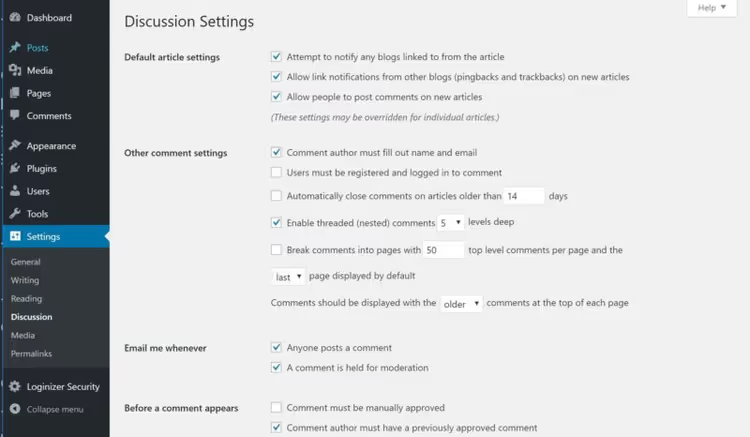
Two checkboxes in the "Email me whenever" section control all the basic logic:
- Anyone posts a comment: the post author receives an email for each new comment. Enable this if you want to respond promptly.
- A comment is held for moderation: notification to the admin when a comment enters the moderation queue. Critical for sites with pre-moderation.
Nearby is the option "Comment author must have a previously approved comment." Enable it, and returning commenters will be approved automatically: less manual moderation, fewer delays.
What built-in settings CANNOT do: notify multiple authors simultaneously, customize email text, or let readers choose which posts to subscribe to. For that, see the plugins below.
Plugin comparison table
Plugin | Best for | Price | Key feature |
|---|---|---|---|
Jetpack Subscriptions | Beginners, blogs | Free | One-checkbox subscription |
Comment Notifier | Minimalists | Free | Personalization tags in emails |
Better Notifications for WP | Multi-author sites | Free + Pro | Customize all site emails |
wpDiscuz | Community sites | Free + add-ons | AJAX comments + subscriptions |
1. Jetpack Subscriptions
The Subscriptions module inside Jetpack is the simplest solution for site owners who want a "set it and forget it" approach. After activating the module, a checkbox labeled "Notify me of follow-up comments via email" appears below the comment form. The reader checks the box and receives an email for every new reply in that thread.
No configuration needed: the checkbox appears automatically, and the email template is fixed. It works through Jetpack's infrastructure (requires a WordPress.com account connection). For those already using Jetpack for image CDN or stats, the module comes free and adds no server load.
In practice, Subscriptions consistently brings readers back to discussion threads: the email arrives instantly, and the link goes straight to the new comment. For small blogs, this is the simplest way to double return visits from comments.
- Pros: zero configuration, built into Jetpack (no separate plugin needed), no server load, email queue handled by WordPress.com.
- Cons: requires WordPress.com connection; email template cannot be edited; you can only subscribe to a specific thread, not all site comments.
- Price: free (Subscriptions module included in Jetpack).
- Download: 🔗 Jetpack on WordPress.org | 🔗 Subscriptions documentation
2. Comment Notifier
If Jetpack is a combine harvester, Comment Notifier is a scalpel. The plugin does exactly one thing: adds comment subscriptions for individual posts. It weighs under 100 KB, has no settings menu, and loads no CSS or JS on the front end.
The main advantage over Jetpack Subscriptions is personalization tags in emails. You can insert about a dozen variables into the email body: [post_title] for the title, [comment_author] for the commenter's name, [post_permalink] for the post link. Instead of a generic "new comment on post," the reader gets something like: "Ivan replied to your comment on the article '10 caching plugins.'" In practice, such emails get opened 2-3 times more often.
The plugin is used on 10,000+ sites, actively updated (v2.3.2, February 2026), and compatible with the latest WordPress version.
- Pros: ultra-lightweight, personalization tags, no registration or API keys required.
- Cons: only subscription to a specific thread; no integration with other WordPress email events; minimalist, don't expect a visual email editor.
- Price: free.
- Download: 🔗 Comment Notifier on WordPress.org
3. Better Notifications for WordPress
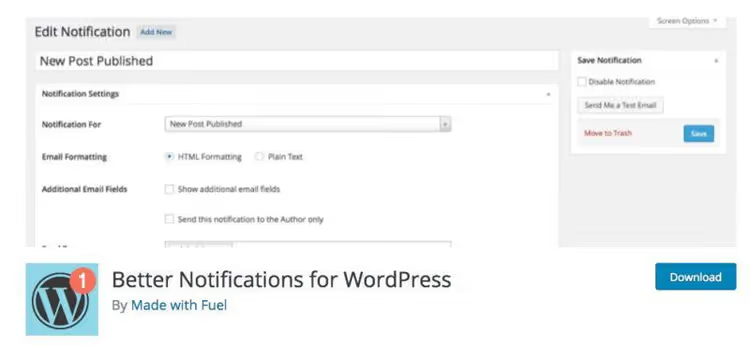
Better Notifications for WP (BNFW) is not so much a comment plugin as a master console for all site email notifications. Comments are just one trigger among dozens: new user, password reset, role change, post publication, comment approval, and so on.
After installation, a "Notifications" section appears in the admin panel where each email event can be enabled, disabled, and edited through a WYSIWYG editor. The email is built visually: you add shortcodes like [post_title], [comment_content], and [author_name] to the body, format text, and insert a logo. For a multi-author site, this means the editor, author, and moderator receive different emails tailored to their roles.
The Pro version (starting at $49 per year) adds SMTP delivery instead of the standard wp_mail() and automated reminders: "you haven't updated this post in 30 days" or "draft awaiting review." On sites with 5+ authors, these triggers save editors an hour or two per week.
- Pros: customize all site emails in one place, WYSIWYG editor, role-based addressing, regular updates.
- Cons: may feel excessive to beginners who only need one feature; Pro costs extra; configuring all triggers takes 20-30 minutes.
- Price: Free; Pro starting at $49/year.
- Download: 🔗 BNFW on WordPress.org | 🔗 Pro add-ons
4. wpDiscuz
wpDiscuz solves a broader problem: it completely replaces the standard WordPress comment system with a modern AJAX-powered discussion. Likes, sorting by votes, social login (Google/Facebook/Twitter), nested replies, lazy loading: everything missing from default WP comments.
Notifications here are a built-in part of the ecosystem. Readers can subscribe to a specific thread or to all new comments on a post. Emails arrive in real time, without page reloads. For admins, there's a subscription management dashboard showing who subscribed to what and who unsubscribed.
Worth mentioning separately is the WooCommerce integration: through the WooDiscuz add-on, you get the same comment system for products, with ratings and reviews. And anti-spam is included out of the box: wpDiscuz integrates with Akismet, reCAPTCHA v3, and WPBruiser.
For projects where comments are content (support forums, blogs with active communities, news sites), wpDiscuz is objectively the best choice. For a corporate brochure site, it's overkill.
- Pros: AJAX without page reloads, social login, comment ratings, WooCommerce integration, powerful anti-spam stack.
- Cons: overkill for a simple blog; free version includes wpDiscuz branding; some add-ons are paid.
- Price: Free; add-ons starting at $11/year each.
- Download: 🔗 wpDiscuz on WordPress.org | 🔗 Live demo
Video: setting up notifications in 5 minutes
A text breakdown is great, but a live demonstration saves time. This 5-minute English tutorial shows the complete cycle: standard settings plus installing and configuring a plugin for custom notifications.
⁉️🤔 Frequently asked questions
Why aren't standard WordPress notifications reaching my email?
In 9 out of 10 cases, the problem isn't WordPress but your hosting: the
wp_mail()function works, but emails end up in spam or get blocked at the SMTP server level. The solution is to set up SMTP delivery through a plugin like WP Mail SMTP or FluentSMTP: emails will go through a real mail server (Gmail, SendGrid, Mailgun) with DKIM signing and won't be flagged as spam. Check your spam folder on a test inbox; emails are often there. If that's empty too, install WP Mail SMTP, run through the 2-minute setup wizard, and send a test email from the admin panel. If it works, notifications will work too.
Can I use two notification plugins at the same time?
Technically yes, but practically this creates a conflict: readers receive duplicate emails, and the unsubscribe link in one plugin won't cancel the subscription in the other. Choose one plugin for your use case: Jetpack Subscriptions or Comment Notifier for simple thread subscriptions; BNFW if you need to customize all site emails; wpDiscuz if you're replacing the entire comment system. We recommend this combination: WordPress settings for basic admin notifications plus one plugin for reader subscriptions. Two notification plugins is overkill.
Does wpDiscuz slow down the site? How many requests does it add?
By itself, no. wpDiscuz loads JS and CSS asynchronously without blocking rendering. On standard hosting with a modern PHP version, the additional Time to First Byte is 50-100 ms at most. But if all add-ons are enabled (social login, embeds, ratings), each adds its own script. Tip: activate only the add-ons you actually use. And be sure to enable comment caching in the plugin settings; this reduces database load by 3-5x on posts with hundreds of comments. On a test site with 200+ comments under one post, wpDiscuz with caching showed 0.3 s to load the comment block on first visit and 0.1 s from cache. Without caching, up to 2 s on every page load. Enable caching without fail.
What should I do if a notification plugin conflicts with my theme?
Steps to follow: 1, switch to any standard theme (Twenty Twenty-Five) and check if the plugin works; 2, if it does, the problem is your theme, contact the theme developer with a description of the conflict; 3, temporary fix: most notification plugins let you customize email layout or replace CSS classes for the subscription form through settings. wpDiscuz has a dedicated "Custom CSS" option in the admin. If the plugin doesn't work even on a standard theme, you likely have a conflict with another plugin: disable them one by one to find the culprit. In most cases, the issue is resolved by clearing the cache after plugin installation and resaving permalinks (Settings → Permalinks → Save Changes).
Which notification plugin to choose: the bottom line
Four tools cover the entire spectrum, from "I just want a simple notification" to "I'm building a community with ratings and social login." The choice comes down to your scenario:
- Regular blog, few comments: Jetpack Subscriptions. Activate the checkbox and forget about it.
- Need personalized emails without extra weight: Comment Notifier. Tags like
[post_title]and[comment_author]with no overhead. - Multi-author site with an editorial team: Better Notifications for WordPress. One plugin manages ALL site emails with role-based addressing and a visual editor.
- Comments = community core: wpDiscuz. AJAX, likes, social login, WooCommerce integration.
Don't chase features for features' sake: if you currently get 5 comments per month, Comment Notifier or Jetpack will cover your needs with room to spare. When comments exceed a hundred per week, move to wpDiscuz. And if you manage a site with an editorial team, Better Notifications for WordPress will save you hours of routine work.

A professional team of writers and editors specializing in creating quality content.