



⚙️ How to disable automatic updates in WordPress
We updated a plugin late at night, and in the morning the site was down. White screen, admin panel won't open, clients are writing in a panic. Automatic updates in WordPress really do save time, but when something goes wrong, and it goes wrong more often than we'd like, you have to clean up the aftermath manually and without warning.
In our experience, at least one out of every ten auto-updates breaks the layout, disables critical functionality, or causes a conflict with another update queue. A plugin developer may not check compatibility with your PHP version, a theme author may break custom child-theme styles, and a minor WordPress core update may unexpectedly change REST API behavior. The good news: auto-updates can be disabled completely and selectively, using three methods, from the built-in admin panel to code filters.
Below, a step-by-step guide: how to take control of updates, disable automation where it's not needed, and set up a manual mode so your site doesn't turn into a pumpkin after six months without a single update.
💡 Quick overview:
- Disable auto-updates for plugins and themes via the admin panel: the simplest method, works for most sites.
- Check constants in
wp-config.phpif the admin panel doesn't save the setting: your hosting or dev mode may have forced automation on. - Add filters to your child theme's
functions.phpor via the Code Snippets plugin: they will override any third-party auto-update settings. - Set up a manual update schedule: check for updates at least once a month and install security patches immediately after release.
Why you should disable auto-updates
Starting with version 5.5, WordPress allows you to enable automatic updates for plugins, themes, and core with a single checkbox in the admin panel. For some users, this solves the problem: the site doesn't become outdated, security doesn't lapse, and the owner doesn't log into the admin panel for months.
In practice, the downsides outweigh the benefits. An auto-update triggers without staging testing: if an e-commerce plugin updated overnight and a new CSS class overrode the checkout button, you'll only find out from an angry customer's email. Typical auto-update problems:
- Layout breaks, a plugin update changes CSS selectors, and custom child-theme styles stop applying.
- Conflict between two updates, one plugin pulls in a new library version, the second doesn't support it → WSOD.
- PHP incompatibility, a plugin requires a PHP version higher than what's installed on the hosting → fatal error.
- Functions disappear, the developer removed a deprecated hook that the site's custom logic depends on.
A manual update mode lets you run updates deliberately: first on a test copy, then, with a backup and the ability to roll back instantly. A couple of minutes of checking versus a night of restoring a site from backup, the choice is obvious.
Method 1: disabling via the admin panel
The simplest and most accessible method, using WordPress's built-in settings. Suitable if your hosting or third-party plugins aren't forcibly overriding auto-update behavior.
Plugins
Go to Plugins → Installed Plugins. Select all plugins for which you want to disable auto-updates. In the "Bulk actions" dropdown, choose Disable auto-updates and click "Apply".
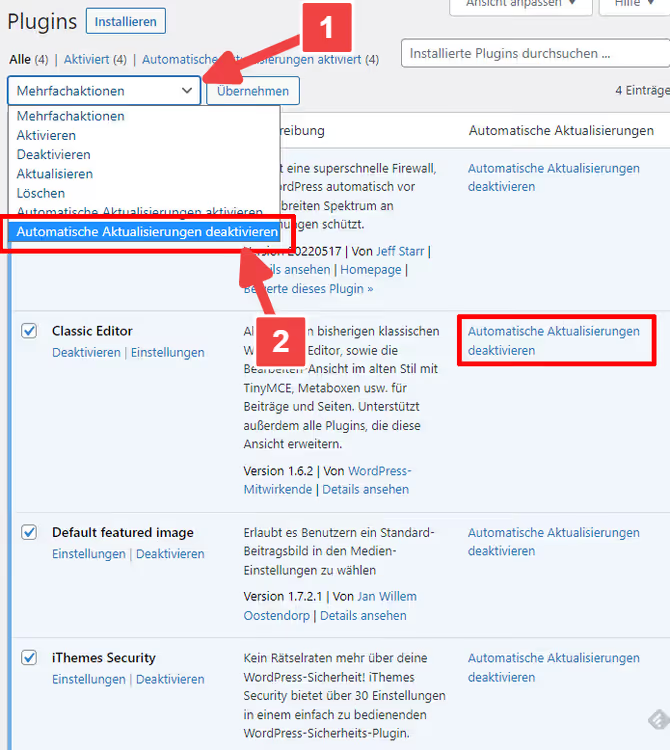
WordPress will save the setting individually for each plugin. Check the result: in the "Automatic updates" column, the status should change to "Disabled". If the page reloaded after saving but the status didn't change, the admin panel can't override an external setting (see methods 2 and 3).
Themes
The mechanics are the same: Appearance → Themes, click on the active theme (for a child theme, click on the parent theme, as the auto-update setting is tied to it). In the popup window, click Disable auto-updates.
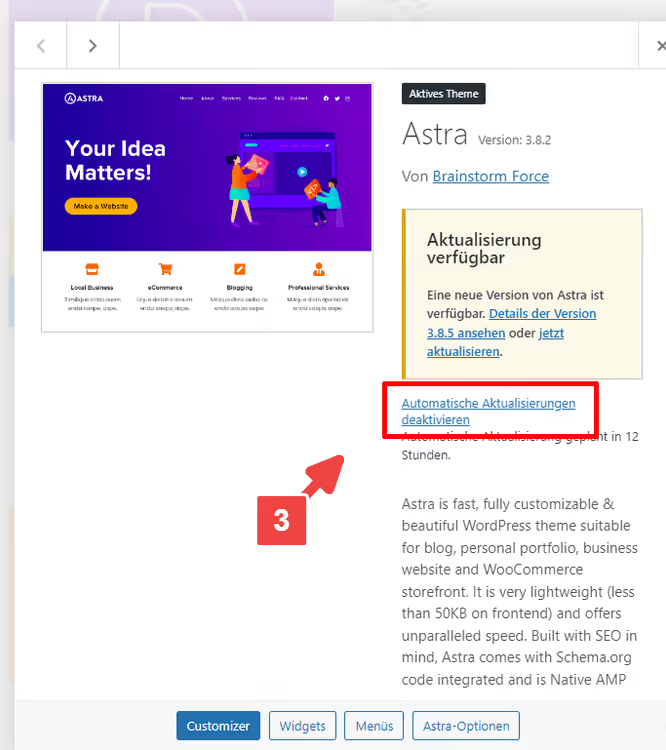
Note: the setting is per theme. If you have multiple themes active (for example, a primary theme + a backup for testing), disable auto-updates for each one.
WordPress core
Open Dashboard → Updates. If core auto-updates are enabled, you'll see a link like "Switch to manual updates" or similar. Click it, and WordPress Core will stop installing minor and major versions automatically.
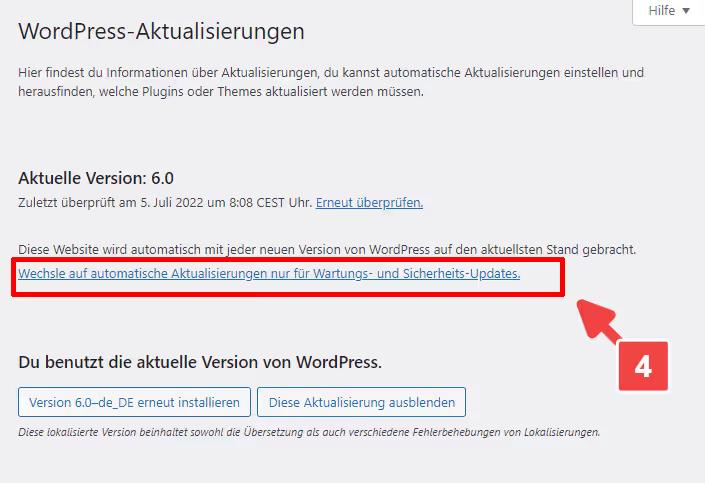
WordPress will continue to apply critical security updates even in manual mode; this is standard behavior that cannot be disabled from the admin panel (for full disabling, you need the constants from method 2).
Method 2: constants in wp-config.php
The admin panel doesn't save the setting, the checkbox resets after a page reload. This happens when hosting or a dev configuration forcibly enables auto-updates via wp-config.php. The solution is to explicitly define constants in the same file, right before the line /* That's all, stop editing! Happy blogging. */.
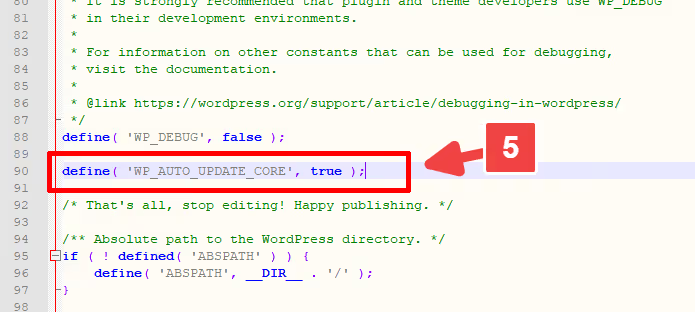
Three constants cover all auto-update scenarios, from core to plugins and themes. Add them to wp-config.php via FTP or your hosting file manager:
1 // Completely disable all WordPress auto-updates 2 define( 'AUTOMATIC_UPDATER_DISABLED', true ); 3 4 // Disable core auto-updates 5 define( 'WP_AUTO_UPDATE_CORE', false ); 6 7 // Disable plugin and theme auto-updates 8 define( 'CORE_UPGRADE_SKIP_NEW_BUNDLED', true );
AUTOMATIC_UPDATER_DISABLED, the master switch: true stops ALL auto-updates at once. Technically, this single constant is enough; we add the other two for explicit control over each component individually.
WP_AUTO_UPDATE_CORE accepts three values: true (all core updates), false (none), 'minor' (only minor updates, no major ones). With false, even critical security patches are NOT installed automatically; the responsibility is entirely yours.
CORE_UPGRADE_SKIP_NEW_BUNDLED, a less known but useful constant: it prevents WordPress from automatically pulling in new versions of plugins and themes bundled with core (Akismet, Hello Dolly, and bundled themes).
Before editing wp-config.php, make a full backup of the file. A syntax error in this file takes down the entire site, and you'll have to restore it via FTP.
Method 3: filters in functions.php
Constants give you binary control: all on / all off. If you need finer tuning, disabling auto-updates only for plugins but keeping them for themes, or vice versa, use filters. They are added to your child theme's functions.php or via the Code Snippets plugin, which lets you manage PHP snippets without FTP access.
Important: do NOT add filters directly to wp-config.php; WordPress hasn't initialized the hook system by the time that file loads. Only functions.php, a must-use plugin, or Code Snippets.
A basic set of five filters, each responsible for its own update type:
1 // Disable all auto-updates — master filter 2 add_filter( 'automatic_updater_disabled', '__return_false' ); 3 4 // Disable WordPress core auto-updates 5 add_filter( 'auto_update_core', '__return_false' ); 6 7 // Disable plugin auto-updates 8 add_filter( 'auto_update_plugin', '__return_false' ); 9 10 // Disable theme auto-updates 11 add_filter( 'auto_update_theme', '__return_false' ); 12 13 // Disable translation auto-updates 14 add_filter( 'auto_update_translation', '__return_false' );
automatic_updater_disabled, the master filter, analogous to the constant from method 2: a single __return_false stops all automation. The other four provide granular control: remove the lines you don't need and get exactly the configuration that suits your project.
For WordPress core, additional, finer filters are available: allow_dev_auto_core_updates, allow_minor_auto_core_updates, and allow_major_auto_core_updates, each acting as a toggle for its release type (dev builds, minor, major).
Where exactly to insert them. The safest way is the Code Snippets plugin: add a new snippet, paste the code, choose "Run snippet everywhere", and activate. The snippet can be disabled with one click without touching theme files. When using functions.php, only use a child theme, otherwise a parent theme update will wipe your code.
Video tutorial on the topic: a visual demonstration of all three methods, from the admin panel to filters. In English, but the steps are identical regardless of the interface language.
How often to update WordPress manually
You've disabled automation, so now the update frequency is entirely up to you. From practice: a WordPress site requires attention at least once a month. Plugins and themes accumulate updates, and the longer you delay, the higher the risk that the next update will be incompatible with the version you've been running for six months.
The schedule we use on our own projects:
- Security patches, on the day of release. Critical vulnerabilities in popular plugins are exploited within 24-48 hours after publication; waiting for a "convenient moment" is not an option.
- Minor plugin and theme updates, every 2-4 weeks, as a batch on a test copy of the site.
- Major WordPress core versions, within a month after release, with prior compatibility testing of all active plugins.
Before every batch update, a full backup (files + database). A plugin like UpdraftPlus or a hosting snapshot mechanism solves this task in two clicks. After updating, a 5-minute check: homepage, admin panel, two or three critical functions (cart, contact form, search). If you find a problem, roll back the backup and update plugins one by one to identify the conflict culprit.
⁉️🤔 Frequent questions
Can I disable auto-updates for just one specific plugin?
Yes, and this is the most common scenario. Via the admin panel, the checkbox next to the specific plugin (Method 1). Via code, the auto_update_plugin filter with a callback that checks the plugin slug and returns false only for it. For example: add_filter('auto_update_plugin', function($update, $item) { return $item->slug === 'woocommerce' ? false : $update; }, 10, 2);, WooCommerce will only update manually, while other plugins continue to update automatically.
Yes, via the admin panel, uncheck the box for the specific plugin in Plugins → Installed Plugins. Via code, the
auto_update_pluginfilter with a slug check:add_filter('auto_update_plugin', function($update, $item) { return $item->slug === 'woocommerce' ? false : $update; }, 10, 2);. Other plugins will continue to update automatically, while WooCommerce will only update manually.
Is it safe to completely disable security auto-updates?
Only if you have a schedule for manually installing patches on the day of release. Critical vulnerabilities in plugins with 500,000+ installs are exploited by bots within 24 hours of publication; miss a patch for a week, and the site is compromised. Without strict manual update discipline, it's better to leave security auto-updates enabled: define('WP_AUTO_UPDATE_CORE', 'minor'), minor core patches install themselves, major releases wait for you.
Only if you manually install security patches on the day they are released. Critical vulnerabilities are exploited by bots within 24 hours of publication; without manual update discipline, it's better to leave
define('WP_AUTO_UPDATE_CORE', 'minor'): minor core patches install themselves, major ones wait for you.
Why does the auto-update checkbox reset itself?
In nine out of ten cases, the reason is a constant in wp-config.php or a filter in theme/plugin code that forcibly enables auto-updates (see the screenshot in method 2). Check the file for 'WP_AUTO_UPDATE_CORE', true or 'AUTOMATIC_UPDATER_DISABLED', false. The second possible reason is a hosting panel (cPanel, Plesk) with its own WordPress auto-update mechanism that operates on top of admin settings. Disable it in the hosting panel and check again.
In nine out of ten cases, an external constant or filter that forcibly enables auto-updates on top of the admin panel. Check
wp-config.phpfor'WP_AUTO_UPDATE_CORE', trueor'AUTOMATIC_UPDATER_DISABLED', false. The second reason is a hosting panel with its own WordPress update mechanism (cPanel / Plesk): disable it in the hosting panel and check the admin panel again.
What should I do if the site breaks after an auto-update?
First, enable WordPress debug mode: add the lines define('WP_DEBUG', true); and define('WP_DEBUG_LOG', true); to wp-config.php. The error log will appear in /wp-content/debug.log. Second, via FTP, rename the folder of the last updated plugin (add _disabled to the name); WordPress will deactivate it, and the site will come back to life. Third, roll back the backup if you have one. Only then investigate the cause of the conflict.
Enable debug mode: add the lines
define('WP_DEBUG', true);anddefine('WP_DEBUG_LOG', true);towp-config.php; the log will be written to/wp-content/debug.log. Via FTP, rename the suspected plugin's folder; WordPress will deactivate it, and the site will come back to life. If you have a backup, roll it back. Only then investigate the cause of the conflict.
Should I disable auto-updates on a multisite?
On a multisite, auto-updates are especially dangerous: one problematic plugin update takes down the entire network, not just a single site. Disable centrally, using the AUTOMATIC_UPDATER_DISABLED constant in wp-config.php (applies to the entire network) or by network-activating Code Snippets with the snippet from method 3. On a multisite, only run updates after testing on an isolated copy of a sub-network; the cost of an error is too high.
On a multisite, absolutely. One problematic update takes down the entire network, not an individual site. Disable centrally: the
AUTOMATIC_UPDATER_DISABLEDconstant inwp-config.phpapplies to the entire network at once. Only run updates after testing on an isolated copy of a sub-network; the cost of an error on a multisite is exponentially higher.
What to do about updates after disabling automation
Auto-updates are disabled, now the site's fate is in your hands. The main rule: do not ignore updates. A site that hasn't been updated for a year turns into a time bomb: the PHP version becomes outdated, plugins accumulate incompatibilities, and a single leap across six months of patches will almost certainly break something.
A quick checklist for manual mode:
- Check for updates every 2 weeks, go to Dashboard → Updates and review the list.
- Before any batch update, a full backup (files + database). Do not update anything without a backup.
- Major updates (core major version, WooCommerce, Page Builder), first on staging, then on production.
- After updating, a 5-minute smoke test: homepage, admin panel, cart, contact form. Something's wrong → roll back the backup.
- Once a quarter, a full plugin audit: which ones haven't been updated in over 6 months, which are closed in the WordPress.org directory, which can be removed as unnecessary.
If the prospect of manual maintenance stresses you out, consider managed WordPress hosting (Kinsta, WP Engine, SiteGround): they offer automatic updates with prior visual testing on a site copy. It's more expensive, but it takes the headache off the owner.
Start small: disable auto-updates right now and set a calendar reminder for the next check in 2 weeks. And what auto-update problems have you faced, plugin conflicts, broken layouts, or something else? Tell us in the comments.

A professional team of writers and editors specializing in creating quality content.