













📦 How to back up a WordPress site with the Solid Backups plugin
Your WordPress site runs smoothly, content gets updated, customers keep coming. Then a hacker attack, a fatal plugin conflict, or a hosting error strikes, and your data is gone forever. Most site owners know they should make backups. But how many have actually set up automatic backup?
Manual backups are a thankless task. Skip a day or two, and when disaster strikes, your latest copy turns out to be a week old. Automation removes the human factor: the system creates copies on schedule and stores them in the cloud.
Solid Backups is the very plugin that used to be called BackupBuddy. The product has been protecting WordPress sites since 2010 and now operates under the SolidWP umbrella. This guide covers the complete cycle: from installation to one-click site restoration.
💡 Quick overview:
- Install the Solid Backups plugin through the WordPress admin panel: standard ZIP upload, activation, and a quick setup wizard in 2 minutes
- Choose a backup profile: full site backup, database only, themes, plugins, or media files
- Set up a schedule and cloud storage: Solid Backups supports Dropbox, Google Drive, Amazon S3, FTP, and its own Stash
- Restore your site with one click from the admin panel or migrate to a new domain via ImportBuddy in 5 minutes
What is Solid Backups and how does BackupBuddy fit in
BackupBuddy launched in 2010 and has protected over a million WordPress sites over the past fifteen years. In 2024, the product moved under the SolidWP brand and was renamed Solid Backups. The core functionality remains the same: the plugin automatically creates backups, stores them in the cloud, and restores your site in one click. The interface has been updated and new features added, but all the familiar BackupBuddy capabilities are still there.
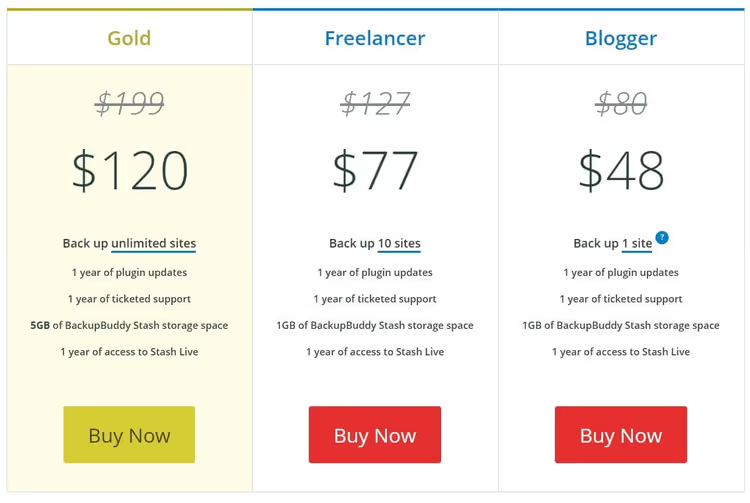
The plugin is paid. As of 2026, pricing is as follows: Basic at $99 per year for 1 site and 1 GB of Stash cloud storage, Plus at $199 per year for 5 sites, Agency at $299 per year for 10 sites. If 1 GB is not enough, you can purchase additional space: 5 GB for $35 per year, 10 GB for $60 per year.

You can watch this video to see the setup process:
Installing and activating Solid Backups
Purchase a license from the SolidWP website and download the plugin ZIP archive. Log into your WordPress admin panel, go to Plugins → Add New, and click "Upload Plugin." Select the downloaded archive, install, and activate.
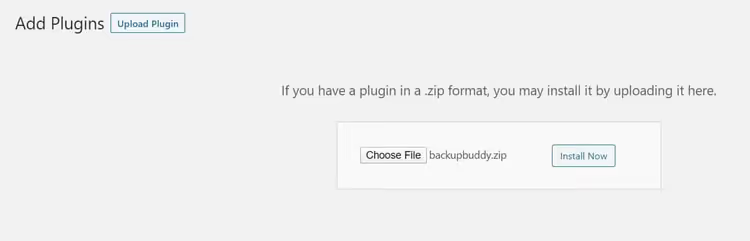
Right after activation, you will be greeted by the quick setup wizard. You can skip it, but it is better to complete it: it takes 2 minutes at most, and in return you get a working backup system right away.
Quick setup wizard
In the first step of the wizard, enter your email and set a password for restoring backups. This password will come in handy when you need to migrate your site via ImportBuddy. Next, choose where to send backups. There are many options:
- Solid Backups Stash (v2), the proprietary SolidWP cloud (the recommended option);
- Dropbox, Google Drive, OneDrive (familiar cloud storage services);
- Amazon S3 (object storage for those who need full control);
- sFTP / FTP (transfer to another server);
- Local directory (a copy stored directly on the site's server).
After selecting your storage, fill in the credentials and configure the frequency. The dropdown menu offers options ranging from daily to monthly backups. For an active blog with daily posts, set it to daily. For a business card site with rare updates, once a week is enough. When finished, click "Save Settings," and the plugin will immediately launch the first full backup.
Backup profiles
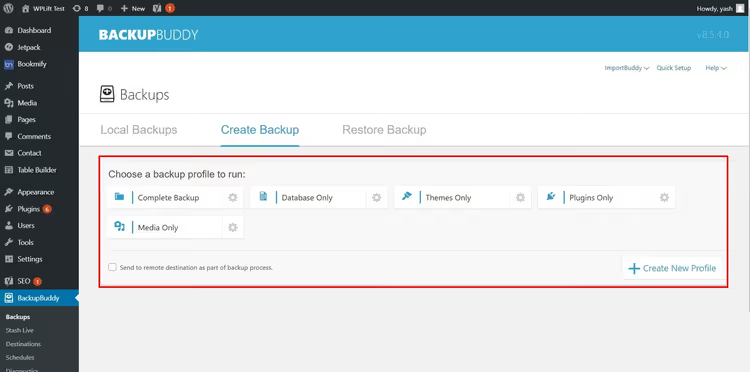
After the setup wizard, you will land in the BackupBuddy → Backups section. The "Create Backups" tab shows six profiles to choose from.
Full backup
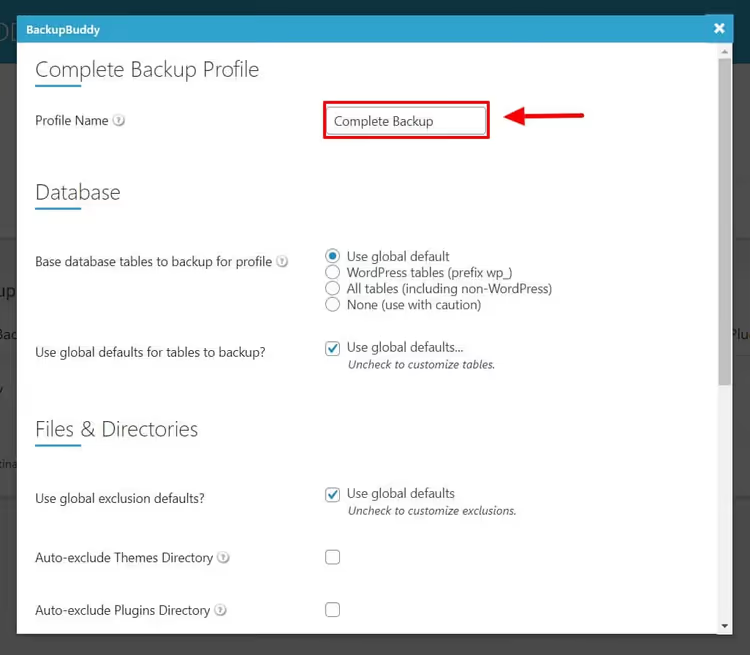
Creates a copy of the entire site at once: files, database, media library, themes, plugins. In the profile settings, you can exclude specific directories (for example, the cache folder or heavy videos that do not need daily backups).
Database
Backs up only the database tables: posts, pages, settings, users. Faster than a full backup and takes up minimal space. Useful for blogs where content changes frequently but theme and plugin files rarely do. In the advanced settings (gear icon), you can specify particular tables.
Themes only
Saves only the themes directory. No database, no media files. Handy before updating the active theme or when experimenting with a child theme and wanting a rollback point.
Plugins only
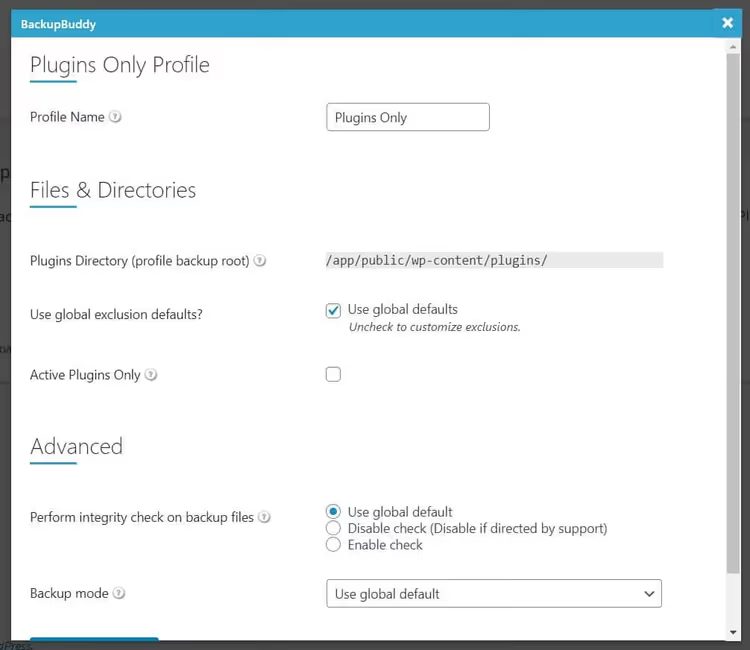
Saves plugin files. You can check the "Active plugins only" option to avoid wasting space on deactivated ones.
Media files only
Backs up images, audio, video, and other files from the media library. Settings allow you to select the directory and exclusions.
Custom profile
The "+ Create New Profile" button opens a builder: give it a name, select what to back up, and specify the storage. For example, you can create a "Database + Media" profile for a news site where themes and plugins are stable.
Restoring a site from a backup
Restoring in Solid Backups takes just one click. Go to BackupBuddy → Backups and open the "Restore" tab. Find the copy you need in the list and click "Restore."
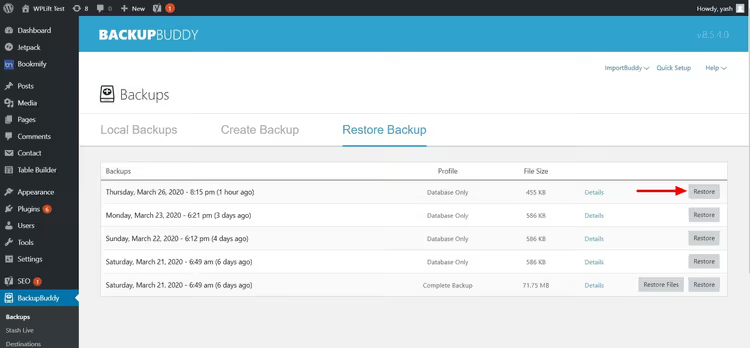
The plugin will overwrite the current files and database with the selected copy. Important: the current state of the site will be lost, so it makes sense to create a fresh backup before restoring, even if the site is partially broken.
For migrating to a new domain or server, Solid Backups uses the ImportBuddy script. Upload the backup and the importbuddy.php file to the new server, launch the script in your browser, and follow the wizard steps. The entire process takes about 5 minutes.
Setting up a schedule
In the BackupBuddy → Schedules section, you will see a table of active schedules. To add a new one, go to the "Add Schedule" tab:
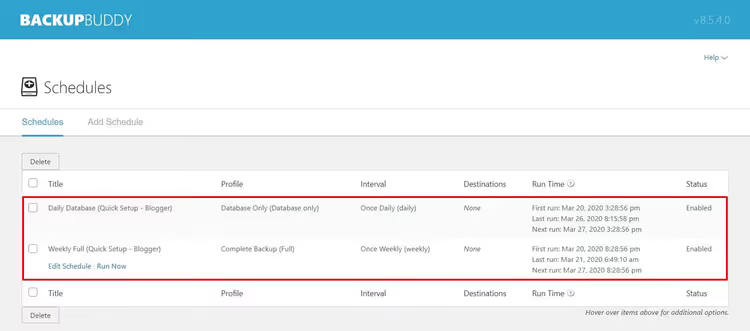
Give the schedule a name, select a profile (full, database, or custom), set the interval (from daily to monthly), and click "Add Schedule." The plugin will automatically run the backup on timer and send a notification to your email upon completion.
A practical scenario for most sites: daily database backup and weekly full backup. The database is small and copies quickly, while the full backup on weekends does not load the server during business hours.
⁉️🤔 Frequently asked questions
How does Solid Backups differ from free plugins like UpdraftPlus?
Solid Backups is a premium solution with priority support, a built-in malware scanner, and the proprietary Stash cloud. UpdraftPlus in its free version can also back up to the cloud, but additional storage destinations (Dropbox, Google Drive, OneDrive) and migration capabilities require the premium version. The choice between them comes down to budget and support needs.
Can I use my old BackupBuddy license?
Yes. All active BackupBuddy licenses continued working after the rebrand to Solid Backups. You receive the same updates and support; the plugin is simply named differently now and the interface has been updated. If your license has expired, renewal is handled on solidwp.com.
How much space does a typical WordPress site backup take?
A full backup of an average site (theme, plugins, media library up to 500 MB) takes 300-700 MB when compressed. The included gigabyte of Stash storage is enough for 1-2 full copies. If your media library has grown to several gigabytes, consider purchasing additional space or connecting Amazon S3 (it is cheaper for large volumes).
What should I do if the site is down and the admin panel is inaccessible?
This is a scenario for ImportBuddy. Download the latest backup from your cloud storage (it is accessible regardless of the site's state), upload it along with
importbuddy.phpto the server via FTP or your host's file manager, and launch the restoration. It is important to downloadimportbuddy.phpfrom the Solid Backups section in the admin panel beforehand; this file does not depend on WordPress being operational.
Does Solid Backups protect against malware?
The plugin includes a built-in scanner that checks your site through Google Safe Browsing, Norton Safe Web, PhishTank, and SiteAdvisor. If the scanner finds a threat, you receive a notification and can roll back the site to a clean backup. However, this is not a replacement for a full-fledged security plugin; the scanner detects malware that has already infiltrated the site but does not prevent attacks.
Is Solid Backups worth paying for in 2026
The WordPress backup market is saturated today: there are free all-in-one solutions, cloud SaaS services, and subscription-based plugins. Solid Backups occupies the "pay and forget" niche: the plugin creates a full backup immediately after the setup wizard completes, stores copies in the cloud, and restores your site with one click, without manual SQL exports or phpMyAdmin hassle.
If you manage a single site and are willing to spend the Basic tier price for peace of mind, Solid Backups looks like a sensible choice. For agencies with a dozen client sites, the Agency plan at $299 per year delivers tenfold savings compared to purchasing separate licenses. And if you need a free solution, consider UpdraftPlus or Duplicator: each handles basic tasks, but without the proprietary cloud and built-in antivirus.
Try Solid Backups on your site and see for yourself: the first full backup launches within 2 minutes of activation, faster than you can finish your coffee.

A professional team of writers and editors specializing in creating quality content.