














🗂 How to back up a WordPress theme
You spent weeks fine-tuning your theme: custom styles, template edits, brand-matched colors and fonts. Then something goes wrong. A botched update, a plugin conflict, an accidental file deletion, and all your work is at risk. Reinstalling the theme from the repository means starting from scratch and losing everything you changed by hand.
A backup of your WordPress theme is not the same as a full site backup. A full backup weighs gigabytes and includes the database, plugins, and media files. A theme backup is a lightweight snapshot of your specific settings and edits that you can restore in a minute. This guide covers four working methods: from simple FTP to programmatic code. You will learn how to copy both template files and customizer settings, which are stored separately in the database. Whichever method you choose, after reading you will have a ready action plan for any theme emergency.
💡 Quick overview:
- Download and install the FileZilla FTP client, connect to your server, and copy the theme folder from
wp-content/themes/to your computer - Install the UpdraftPlus plugin from the WordPress repository, check only "Themes" in the backup settings, and click "Backup Now"
- Open the built-in WordPress theme editor, copy the contents of each file one by one, and save them with the same names
- Add PHP code to your active theme's
functions.phpto create a page for exporting and importing theme settings via the database

1. Backing up your theme via FTP (FileZilla)
FTP access is available with any hosting provider, and it is the most direct path to your theme files on the server. Among FTP clients we recommend FileZilla: free, open source, and works on Windows, macOS, and Linux.
What you need: the FileZilla FTP client and FTP credentials from your hosting provider (host, username, password). If you have lost these details, request them from your hosting support; this is a standard procedure.
Steps:
- Install FileZilla from the official site and launch it.
- In the top bar enter the host (usually ftp.your-domain.com), username and password, port 21. Click "Quickconnect."
- After connecting, in the right panel (server) navigate to
wp-content/themes/. - Inside the
themesfolder you will see all installed themes. Find the active one; you can check its name in the admin area: Appearance → Themes, the active theme is marked.

- In the left panel (local computer) choose the folder where you want to save the copy.
- Drag the active theme folder from the right panel to the left, or right-click and select "Download."
- Wait for the transfer to complete. FileZilla shows the status of each file in the bottom panel; make sure all files transferred successfully.

Done: you now have an exact copy of the theme folder with all its files on your computer. To restore, simply upload the folder back to wp-content/themes/ the same way.
The advantage of this method is full control with no plugins. The downside is that you must remember to do it manually: an FTP copy does not run on a schedule, so you will need to repeat it before every major theme change.
2. Backing up your theme with the UpdraftPlus plugin
Do not want to deal with FTP? The UpdraftPlus plugin is one of the most popular backup tools for WordPress: over 2 million active installations and full compatibility with the current WordPress version. The free version can upload backups to Dropbox, Google Drive, Amazon S3, and a dozen other cloud storage services.
The main advantage of UpdraftPlus for our task is the ability to create a copy of only the theme, without downloading the entire database and media files. This is fast and saves space.
How to back up your theme with UpdraftPlus:
- In the WordPress admin go to: Plugins → Add New, search for "UpdraftPlus."
- Click "Install Now," then "Activate."

- After activation a new section appears in the menu: Settings → UpdraftPlus Backups. Open it.
- You are on the "Backup / Restore" tab. Click the blue "Backup Now" button.
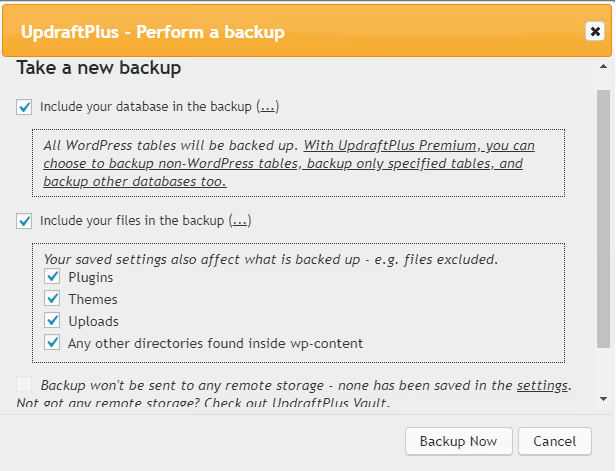
- In the dialog that appears, check "Themes" and uncheck everything else. Click "Backup Now."
- In a few seconds the process will finish, and you will see a confirmation and a new entry in the backup list.
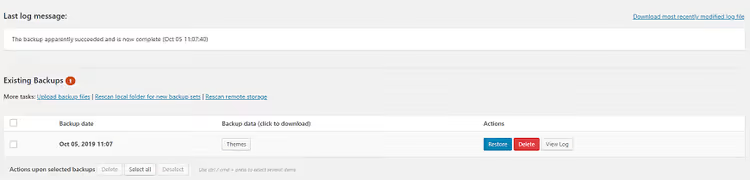
- Click the "Themes" button under the backup entry, and the plugin will offer to download an archive with the theme files to your computer.
Advantages: scheduling (in the paid version), cloud upload, and the ability to select only themes. Disadvantage: one more plugin in your admin. If you already use UpdraftPlus for full backups, this method is the obvious choice. Simply check "Themes" and uncheck the rest during your next manual backup to get a lightweight archive containing only the theme files.
3. Backing up via the WordPress theme editor
If extra plugins are undesirable and you do not have FTP access at hand, the built-in WordPress theme editor lets you copy the contents of each file manually. This method is labor-intensive but works and requires no third-party software.
- In the admin go to: Appearance → Theme Editor.
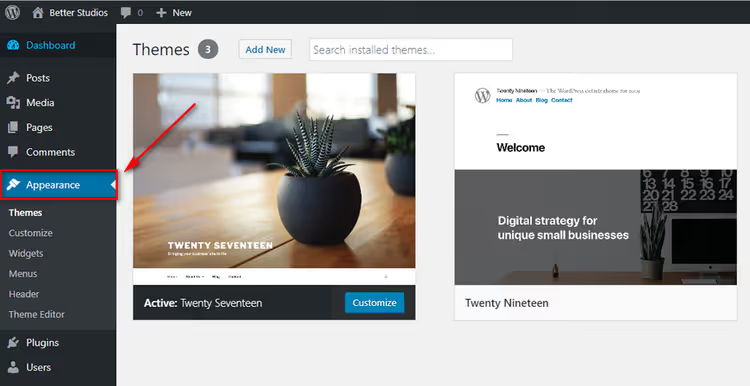
- In the right column you will see a list of all files in the active theme. A code editor with the contents of the selected file opens on the right.
- Select all the code (Ctrl+A), copy it (Ctrl+C).
- Open an empty file in a text editor (Notepad, Notepad++, VS Code), paste the code, and save with the same name as the original file.
- Repeat for each theme file:
style.cssfunctions.phpheader.phpfooter.phpindex.phpsingle.phppage.phpand the other templates in the list on the right.

Manually going through all files takes time; depending on the theme there may be 15 to 30 of them. But as a fallback when you have no FTP access and do not want to install a plugin, the theme editor saves the day. To restore, copy the code back into the corresponding files through the same editor. Tip: start with the most important files first. style.css controls appearance, functions.php controls functionality, header.php and footer.php control the site header and footer. These are the most frequently edited and their loss is the most noticeable. You can copy the other templates afterward.
4. Backing up and restoring theme settings via code
The three previous methods copy the theme files. But theme settings (colors, fonts, logo, customizer options) are stored in the WordPress database, and they are not in the theme files. To back up the settings specifically, you need a programmatic approach.
The code below adds a page called Appearance → Backup Options to the admin with two buttons: "Download as file" (export settings to a file) and "Upload file" (import from a file). The code goes into your active theme's functions.php.
⚠ Important: before editing
functions.phpmake a backup copy of the file itself. A PHP syntax error will cause a white screen, and you will lose access to the admin. Work via FTP or your hosting's File Manager so you can roll back changes.
1 /* 2 Backup/Restore Theme Options 3 Adds a page «Appearance → Backup Options» for 4 exporting and importing theme settings via the database. 5 */ 6 7 class backup_restore_theme_options { 8 9 function backup_restore_theme_options() { 10 add_action('admin_menu', array(&$this, 'admin_menu')); 11 } 12 function admin_menu() { 13 $page = add_theme_page( 14 'Backup Options', 15 'Backup Options', 16 'manage_options', 17 'backup-options', 18 array(&$this, 'options_page') 19 ); 20 add_action("load-{$page}", array(&$this, 'import_export')); 21 } 22 function import_export() { 23 if (isset($_GET['action']) && ($_GET['action'] == 'download')) { 24 header("Cache-Control: public, must-revalidate"); 25 header("Pragma: hack"); 26 header("Content-Type: text/plain"); 27 header('Content-Disposition: attachment; filename="theme-options-' 28 . date("dMy") . '.dat"'); 29 echo serialize($this->_get_options()); 30 die(); 31 } 32 if (isset($_POST['upload']) && check_admin_referer( 33 'shapeSpace_restoreOptions', 'shapeSpace_restoreOptions' 34 )) { 35 if ($_FILES["file"]["error"] > 0) { 36 // file upload error 37 } else { 38 $options = unserialize( 39 file_get_contents($_FILES["file"]["tmp_name"]) 40 ); 41 if ($options) { 42 foreach ($options as $option) { 43 update_option( 44 $option->option_name, 45 unserialize($option->option_value) 46 ); 47 } 48 } 49 } 50 wp_redirect(admin_url('themes.php?page=backup-options')); 51 exit; 52 } 53 } 54 function options_page() { ?> 55 56 <div class="wrap"> 57 <?php screen_icon(); ?> 58 <h2>Backup/Restore Theme Options</h2> 59 <form action="" method="POST" enctype="multipart/form-data"> 60 <style> 61 #backup-options td { 62 display: block; 63 margin-bottom: 20px; 64 } 65 </style> 66 <table id="backup-options"> 67 <tr> 68 <td> 69 <h3>Backup/Export</h3> 70 <p>Current theme settings:</p> 71 <p><textarea class="widefat code" rows="20" cols="100" 72 onclick="this.select()"><?php 73 echo serialize($this->_get_options()); 74 ?></textarea></p> 75 <p><a href="?page=backup-options&action=download" 76 class="button-secondary">Download as file</a></p> 77 </td> 78 <td> 79 <h3>Restore/Import</h3> 80 <p><label class="description" for="upload"> 81 Restore settings from file</label></p> 82 <p><input type="file" name="file" /> 83 <input type="submit" name="upload" id="upload" 84 class="button-primary" value="Upload file" /></p> 85 <?php if (function_exists('wp_nonce_field')) 86 wp_nonce_field('shapeSpace_restoreOptions', 87 'shapeSpace_restoreOptions'); 88 ?> 89 </td> 90 </tr> 91 </table> 92 </form> 93 </div> 94 95 <?php } 96 function _get_options() { 97 global $wpdb; 98 return $wpdb->get_results( 99 "SELECT option_name, option_value FROM {$wpdb->options} 100 WHERE option_name = 'shapeSpace_options'" 101 ); 102 // replace 'shapeSpace_options' with your theme's options key 103 } 104 } 105 new backup_restore_theme_options();
The code looks for database entries with the key shapeSpace_options; this is a placeholder value. Replace it with the actual options key for your theme. You can find the key in your functions.php: look for calls to get_option('your_key') or update_option('your_key', ...). After replacing the key and inserting the code, the Backup Options page will appear in the "Appearance" menu.
To back up, go to the page and click "Download as file." To restore, upload the saved .dat file via the "Upload file" form. The settings are applied instantly.
⁉️🤔 Frequently asked questions
How does a theme backup differ from a full WordPress backup?
A full backup via a plugin like UpdraftPlus or a hosting tool copies everything: database, plugins, media files, themes, WordPress core. Such an archive weighs hundreds of megabytes and takes dozens of minutes to restore. A theme-only backup is 2 to 10 MB of text PHP/CSS/JS files, transfers in seconds, and is needed before targeted template edits.
How often should I back up my theme?
Before every change to theme files. About to edit
header.php, make a copy. Planning to update the theme to a new version, make a copy. The rest of the time a regular full site backup is enough; it includes the theme automatically. A manual theme backup is insurance for a specific operation, not a replacement for a full backup.
Can I restore a theme from a full site backup?
Yes. From a full backup (UpdraftPlus archive, hosting backup) you can extract only the theme folder from
wp-content/themes/; these are the same files as with FTP copying. But if only a 3 GB full backup is available and you need to restore a single folder, it is easier to have a separate theme copy on hand.
Which method is the most reliable?
A combination: the UpdraftPlus plugin for regular automatic backups plus a manual FTP backup of the theme folder before major edits. The plugin guards against human forgetfulness, and FTP gives instant access to files without the WordPress admin.
What should I do if the site stops loading after editing functions.php?
Connect to the server via FTP, download
functions.php, remove or comment out the erroneous code in the file on the server, and upload it back. The site will recover. This is exactly why we insist: always make a copy offunctions.phpbefore editing.
What to do with your theme backup next
A theme backup is not an end in itself but part of a healthy development process. Here is a practical checklist that will protect your theme from loss:
- Before updating the theme, make an FTP copy of the theme folder to your local drive. Takes a minute, saves hours of recovery.
- Before editing
functions.php, make a separate copy of that file specifically. A PHP syntax error brings the site down. With a copy you restore access via FTP in 30 seconds. - Once a week, if the theme is being actively developed, keep UpdraftPlus handy with a configured schedule (even the free version lets you run a backup manually in two clicks).
How to organize backup storage
Storing a single copy on the same computer where you work is risky. The drive can fail, or the laptop can be stolen. A minimally sufficient approach: a local copy plus one copy in the cloud.
For cloud storage any solution you are comfortable with will work. Dropbox, Google Drive, Yandex Disk, any service with folder sync. After FTP copying simply move the theme folder to a synced directory, and the copy will automatically go to the cloud. UpdraftPlus can upload backups directly to Dropbox, Google Drive, and Amazon S3 without manual copying.
For those who work with their theme regularly, it is useful to add the date to the folder name: mytheme-backup-2025-03-17. A month later you will easily tell the March copy from the April one and avoid confusion.
Special case: child themes
If you use a child theme, you need to back up both themes: parent and child. The parent theme is usually not edited, but you still need a copy before updating it. In case the new version of the parent theme breaks compatibility with your child theme, you can roll back. Back up the child theme before every change; that is where all your edits are collected.
Choose the method that fits your situation. If you work with code every day, master the code from section 4: one settings export button saves a lot of time. If you come in to tweak a button color once a month, FTP or UpdraftPlus will cover your needs with room to spare. The main thing is not to put off your first backup until "later." Do it now, while the theme is in working order.

A professional team of writers and editors specializing in creating quality content.