














🔙 8 best WordPress backup plugins 2026 (free and premium)
You finish editing at three in the morning. You update the plugin, and the screen goes white. No admin panel, no front end, just cold dread inside. Hosting support is asleep, and there's no backup. Months of content, settings, SEO, all at risk because you "didn't get around to it."
WordPress backup isn't a checkbox on a to-do list, it's insurance that pays out exactly once: when everything's already gone wrong. Hosting kills a disk, a theme breaks the layout after an update, a plugin conflict crashes the database, and an SQL injection quietly wipes out posts. Without a backup you start from scratch. With a backup, you restore your site in two minutes and go to bed.
We tested 8 WordPress backup plugins in 2026, from the familiar UpdraftPlus with its 3 million installs to specialized tools like WP Time Capsule with real-time incremental backups. We broke down what the free version can do, what's worth paying Premium for, where the pitfalls are and which plugin solves your specific problem.
💡 Quick overview:
- Choose a plugin for your scenario: daily blog backups, UpdraftPlus, SaaS with no server load, BlogVault, migration between hosts, Duplicator.
- Store copies in the cloud (Google Drive, Dropbox, Amazon S3), not on the hosting disk: if the server physically fails, a local backup burns with the site.
- Set the schedule to match your update rhythm: daily for an active blog, weekly for a business card site, real-time for WooCommerce.
Comparison table: 8 WordPress backup plugins
Plugin | Free version | Premium price | Cloud storage | Auto backup | Migration | Feature |
|---|---|---|---|---|---|---|
UpdraftPlus | ✅ | from $70/year | Dropbox, GDrive, S3, OneDrive, Backblaze and more | ✅ | ✅ | 3M+ installs, WP-CLI |
BlogVault | ✅ (wp.org) | from $99/year | BlogVault proprietary cloud | ✅ | ✅ | SaaS, incremental, real-time |
BackWPup | ✅ | $69/year (1st year) | Dropbox, FTP, email | ✅ | ❌ | Simple, backup calendar |
Solid Backups | ❌ | from $99/year | Stash Live, Dropbox, S3, FTP | ✅ | ✅ | NextGen cloud, malware scan |
Total Upkeep | ✅ | from $2.50/mo | Amazon S3, GDrive, FTP/SFTP | ✅ | ✅ | Auto rollback on failed updates |
Duplicator | ✅ | from $69.30/year | Dropbox, GDrive, S3, OneDrive | ✅ | ✅ | Migration wizard, 1.5M+ installs |
WP Time Capsule | ✅ | ❌ | GDrive, Dropbox, S3 | ✅ (real-time) | ❌ | Real-time incremental |
All-in-One WP Migration | ✅ | ❌ | ❌ (local) | ❌ | ✅ | 2M+ installs, ultra-simple UI |
1. UpdraftPlus
UpdraftPlus on WordPress.org | Official site
The most popular backup plugin in the WordPress ecosystem: over 3 million active installs and a 5-star rating on wordpress.org. Developed by TeamUpdraft, updated in June 2026 (v1.26.5).
The free version covers basic needs with room to spare: full backup of files, database, themes and plugins with saves to Dropbox, Google Drive, Amazon S3, Rackspace Cloud, FTP and via email. The schedule is flexible, from every 2 hours to monthly. In practice this is enough for 90% of blogs and business card sites.
Premium (from $70/year, up to 2 sites) adds incremental backups, after the first full copy only changes are saved, radically saving space and server resources. You also get automatic backup before WordPress updates, additional storage (OneDrive, Backblaze B2, Azure, SFTP, pCloud, WebDAV), database encryption, WP-CLI and multisite support. Separately there's UpdraftVault, an integrated cloud storage with 1 GB included.
Another practical plus: UpdraftPlus can restore backups created by other plugins, BackWPup, BackupWordPress. When migrating from another solution this saves an hour of manual hassle.
Pros:
- Huge community and active support on wordpress.org
- Record number of cloud storage options (14+)
- Restores backups from other plugins (BackWPup, BackupWordPress)
- Premium migration directly from source site
Cons:
- Free version doesn't back up before updates
- Interface is dense, a newcomer needs an hour to get oriented
Price: Free (Lite) or from $70/year (Personal, 2 sites, 1 GB UpdraftVault).
2. BlogVault
BlogVault on WordPress.org | Official site
BlogVault is a SaaS solution: backups run on BlogVault's external servers, not on your hosting. This means zero load on your site's server during backup. The plugin was updated in June 2026 (v6.48).
The key advantage is incremental backups: after the first full copy, only changes are saved. For large sites and online stores this is critical: you don't need to push dozens of gigabytes every day. The WooCommerce tier adds real-time backup, every change (order, payment, status update) is captured instantly, without delay.
The built-in staging environment lets you test WordPress, theme and plugin updates on a site copy before applying to production. Bundled automatic malware scanning via MalCare means double value for online stores: backup plus security in one subscription.
Pros:
- Zero load on site server (external execution)
- Incremental backups save resources
- Built-in staging for safe testing
- Automatic malware scanning (MalCare)
Cons:
- More expensive than competitors on higher tiers
- Dependence on external service (no offline backups)
Price: Personal $99/year (1 site, 20 GB, daily backup, 30 days retention). Business $299/year (50 GB, 2 backups/day, multisite up to 25 subsites). WooCommerce $499/year (100 GB, real-time, 365 days retention).
3. BackWPup

BackWPup on WordPress.org | Official site
BackWPup is a veteran of the WordPress catalog with over 600,000 downloads. Actively maintained: version 5.7.2 came out in June 2026. It wins with simplicity: install, choose storage, set schedule and forget.
The free version does a full site backup (files + database) and saves it to Dropbox, via FTP, to email or locally on hosting. There's a backup calendar, a visual bar where you can immediately see when the last copy was and when the next one is scheduled. The Pro version ($69 for the first year) adds Google Drive to the storage list, priority support and backup restore directly from the WordPress admin panel.
Important nuance: in the free version, restoring a backup requires manual work with the database via phpMyAdmin. This isn't tragic for those who've opened phpMyAdmin at least once, but a newcomer might find it uncomfortable.
Pros:
- Extremely simple interface
- Backup calendar for visual control
- Separate backup of media files, plugins, themes
- Send backups to email
Cons:
- Restore from free version is via DB (not from admin panel)
- Fewer cloud storage options than UpdraftPlus
Price: Free (Lite) or $69/year (Premium, first year).
4. Solid Backups (formerly BackupBuddy)
BackupBuddy, familiar to half a million sites, moved under the SolidWP brand in 2025 and is now called Solid Backups. The product is split into two branches: Legacy (the classic plugin familiar to old-timers) and NextGen (cloud solution, backups initiated from SolidWP servers, not from your site).
The NextGen version comes bundled with Kadence Pro and includes: daily incremental backups, one-click restore (full or partial), off-site cloud storage, flexible scheduling and separation of database from file backup. The Legacy version (from $99/year) retains all classic features: backup to Dropbox, Amazon S3, FTP, Stash Live, plus virus and trojan scanning.
The ImportBuddy tool (included) lets you restore a site even if WordPress itself won't load. Just upload the ImportBuddy file and backup archive to the server, and the site is alive again. For mission-critical projects this is priceless.
Pros:
- NextGen cloud: minimal load on hosting
- Restore even when WordPress isn't working
- Built-in virus and trojan scanning
- Site transfer between domains with auto URL replacement
Cons:
- No free version anymore (paid only)
- Naming confusion (BackupBuddy, Solid Backups Legacy, Solid Backups NextGen)
Price: from $99/year (Legacy, 1 site). NextGen included with Kadence Pro.
5. Total Upkeep (formerly BoldGrid Backup)
Total Upkeep on WordPress.org | Official site
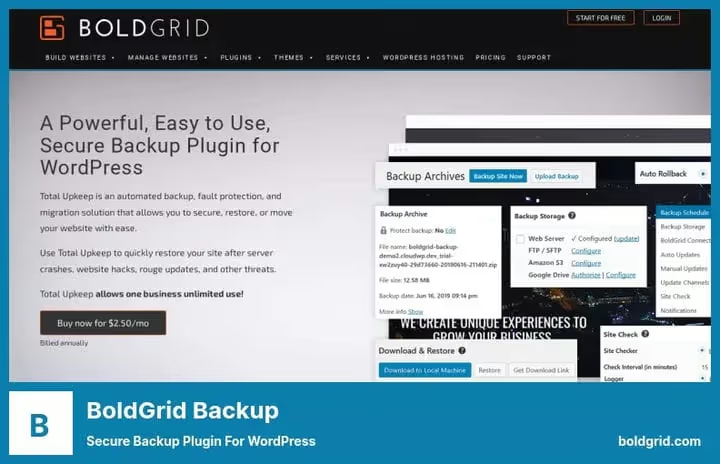
The plugin formerly known as BoldGrid Backup is now called Total Upkeep. Version 1.17.2 was updated in May 2026. The main feature is automatic backup before every WordPress, theme and plugin update with the ability to instantly roll back if an update breaks something.
In practice it works like this: you click "Update", the plugin silently takes a snapshot of the site, launches the update and checks if the site is alive afterward. If it crashed, it rolls back in seconds. No other plugin in this roundup does this in the free version.
Total Upkeep can create full and partial backups, save them to Amazon S3, Google Drive or FTP/SFTP, restore individual files via the built-in backup browser. The automatic update feature for core, themes and plugins is configured separately, you can, for example, auto-update only plugins but not themes.
Pros:
- Auto rollback after failed update (unique feature)
- Restore individual files
- Budget price
- Configure auto-updates by component
Cons:
- Fewer cloud storage options than leaders (only S3, GDrive and FTP/SFTP)
- Brand changed name (confusion when searching)
Price: Free or from $2.50/mo (Premium).
6. Duplicator

Duplicator on WordPress.org | Official site
Duplicator is one of the main WordPress migration tools with over 1.5 million active installs. Version 1.5.16.1 was updated in May 2026. Its strength is moving a site between hosts, domains and even from localhost to production without headaches.
The principle: the plugin bundles the entire site (files, database, themes, plugins, media) into a ZIP archive, a "package". This package is deployed on any server via a step-by-step wizard. The free version handles most migration scenarios.
The Pro version (from $69.30/year) adds: scheduled automatic backups, cloud storage (Dropbox, Google Drive, Amazon S3, OneDrive, Cloudflare R2, FTP/SFTP), one-click restore (Recovery Points), backup encryption, multisite support and server-to-server migration without downloading the archive.
Disaster Recovery is a feature that saves you when WordPress won't load anymore: you upload a couple of files to the server, run the wizard, and the site is restored without logging into the admin panel.
Pros:
- Best migration wizard on the market
- Site restore without logging into admin panel (Disaster Recovery)
- Partial backups to save space
- Support for large sites and multisites
Cons:
- Free version has no scheduled automatic backups
- Backup in ZIP, for very large sites can be slow
Price: Free (Lite) or from $69.30/year (Pro, 1 site).
7. WP Time Capsule
WP Time Capsule on WordPress.org
WP Time Capsule uses an incremental approach: after the first full backup it tracks changes in real-time and saves only updated files. This radically saves space in cloud storage and server resources. Version 1.22.27 was updated in June 2026.
The plugin is free and doesn't compress files into ZIP, which further reduces server load. Backups are saved to your Google Drive, Dropbox or Amazon S3. You need a WP Time Capsule account (free) to work, after which you link cloud storage to the plugin.
The staging feature works in one click. You can test any change before rolling it out to the live site. Restore is selective: you don't have to deploy the entire backup, you can retrieve just the needed file or database table.
Pros:
- Real-time incremental backups
- Minimal server load (no ZIP compression)
- Free and functional
- Selective file restore
Cons:
- For backup only (no migration tools)
- Requires external account
- No premium tier (dependence on a single developer)
Price: Free.
8. All-in-One WP Migration

All-in-One WP Migration on WordPress.org
An extremely popular migration tool with over 2 million active installs. The plugin was updated in April 2026. The plugin's philosophy is "one-click export": you press a button, download a file, upload it on a new server via the same plugin, site is migrated.
The interface is minimalist: a newcomer will figure it out in 5 minutes. The plugin automatically replaces all URLs in the database on import, supports custom folders (uploads, themes, plugins), meets WCAG 2.1 AA accessibility standards. Works on any hosting and any operating system.
The free version is limited by export size (depends on hosting, usually up to 512 MB). To bypass the limit there are dozens of premium extensions: upload to Dropbox, Google Drive, Amazon S3, OneDrive, Box, FTP and others.
Pros:
- Maximally simple interface
- Automatic URL replacement on import
- 2M+ installs, huge community
- Works everywhere (any hosting, OS, PHP version)
Cons:
- This is a migration tool, not for regular backups
- File size limit in free version
- No automatic scheduling
Price: Free. Premium extensions are paid separately.
🔗 Download All-in-One WP Migration
Before moving to conclusions, watch a short video on why backups are the first thing you should set up on a WordPress site:
⁉️🤔 Frequently asked questions
What to choose: free or paid backup plugin?
Free plugins (UpdraftPlus, BackWPup, Duplicator Lite) cover the basic needs of a regular blog or business card site: full backup, cloud storage and manual restore. Paid is better if the site generates revenue: incremental backups save resources, auto-backup before updates protects against conflicts, and priority support saves time in a critical moment.
Where is it better to save backups, locally or in the cloud?
A local backup (on hosting) is useless if the server physically fails. The "3-2-1" rule: three copies of data, on two different types of media, one off-site. Minimum is backup to Google Drive or Dropbox. Ideal is two different clouds simultaneously (for example, Google Drive + Amazon S3).
Do I need a separate backup plugin if hosting already makes backups?
Hosting backups are good insurance, but they're limited. You don't control the schedule, you can't restore an individual file and often don't know if backups are working at all. A plugin gives transparency: you see logs, manage storage and restore the site in minutes without opening a hosting support ticket.
How often should I back up a WordPress site?
For a blog with a couple of posts per week, weekly is enough. An active content site, daily. A WooCommerce online store, real-time (every order changes the database, losing even an hour of transactions is critical). The main rule: backup frequency should equal the volume of data you're prepared to lose.
Why is incremental backup better than full?
A full backup copies the entire site every time: 5 GB today, 5 GB tomorrow, 5 GB the day after. In a month, 150 GB of space. An incremental backup after the first full copy saves only changes: new posts, uploaded images, updated settings. The difference in storage volume is 5-10 times.
Which backup plugin to install in 2026
Choosing a backup plugin comes down to three scenarios.
If you need a universal free plugin with cloud storage and scheduling, get UpdraftPlus. Three million sites can't be wrong: it works, it's flexible, and the free version is enough for a long time.
If the site is a source of income and you don't want to deal with settings, look at BlogVault or Solid Backups NextGen. The SaaS approach removes the load from the server, and premium support solves problems before they become disasters.
If the task is to move a site to new hosting, Duplicator. The step-by-step migration wizard, restore even with crashed WordPress and support for large sites make it the best in its class. For simple "one-click" migration, All-in-One WP Migration works too, the interface couldn't be simpler.
And finally: whatever plugin you choose, set it up today. Tomorrow might be too late.

A professional team of writers and editors specializing in creating quality content.