













 AIIllustrative image: AI-generated
⚙️ Solutions for cloning and duplicating WordPress sites in 2026: free and paid
Moving a WordPress site to a new domain, deploying a copy for testing, or creating a template with your favorite plugins and settings sounds like a task for a system administrator. In reality, it's all solved by a single plugin or cloud service, and there's no need to mess with phpMyAdmin and FTP anymore.

The problem is that there are dozens of cloning tools, and it's unclear which one to choose. A free plugin will handle a one-time migration, but for regularly creating staging copies or working with multisite, you'll need something more serious.
We tested the main WordPress duplication solutions in practice: from the popular Duplicator to cloud all-in-one solutions like ManageWP and specialized utilities for multisite networks. We break down what to install for your task and budget.
💡 Quick overview:
- Choose a tool for the task: one-time migration, regular staging, or cloning within multisite
- Install the Duplicator plugin or connect your site to a cloud service and create a site package
- Upload the package to the target server and deploy the clone through the control panel or FTP
- Check link functionality and internal paths, configure automatic backups
Comparison table: all WordPress cloning tools
Tool | Type | Free version | Multisite | Backups | Best scenario |
|---|---|---|---|---|---|
Duplicator | Plugin | Yes, full functionality | Pro version | Yes | One-time migration and staging |
ManageWP | Cloud service | Trial period | No | Yes, cloud | Agencies with dozens of sites |
Cloner (WPMU DEV) | Plugin | No, part of subscription | Yes, main feature | Through host | Multisite network owners |
Solid Backups | Plugin | No, paid only | Yes | Yes, main profile | When you need both migration and backups |
1. Duplicator, a free all-in-one for cloning and backups

Duplicator, the most popular free plugin for migrating WordPress sites with an audience of over 1.5 million active installations. It solves exactly two tasks: pack a site into an archive and deploy it in a new location. No magic, just a reliable pipeline.
The plugin works on a classic scheme: you create a "package," an archive with all files, themes, plugins, and a database dump, download it along with the installer file installer.php, upload both to the target server, and run the installer. It unpacks the archive, substitutes new database parameters, and automatically fixes URLs in the content. In practice, the entire process takes 10-15 minutes for an average site, in our experience, Duplicator handles sites from 50 MB to 2 GB without errors in 9 out of 10 cases.
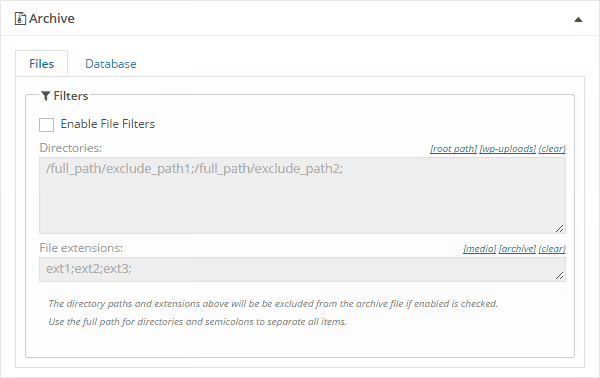
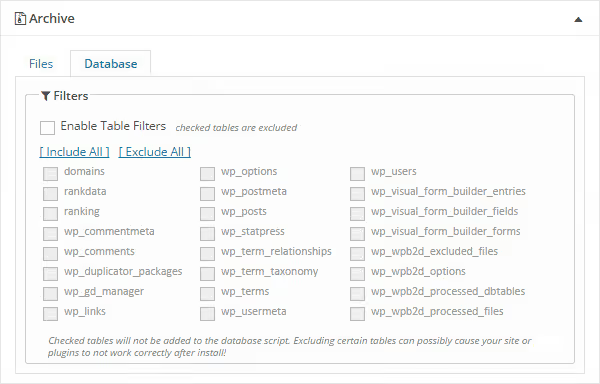
When building a package, you can exclude unnecessary directories, for example, the cache folder or a giant media library if you're only transferring code and database. The same goes for database tables: exclude logs, post revisions, temporary data, the archive becomes lighter, and installation faster.
At the build stage, you can fill in the future database details, host, name, user, password. But this is optional: if the new database hasn't been created yet, you leave the fields empty and enter them later when running installer.php. We usually enter them on the spot, there's less chance of making a mistake.
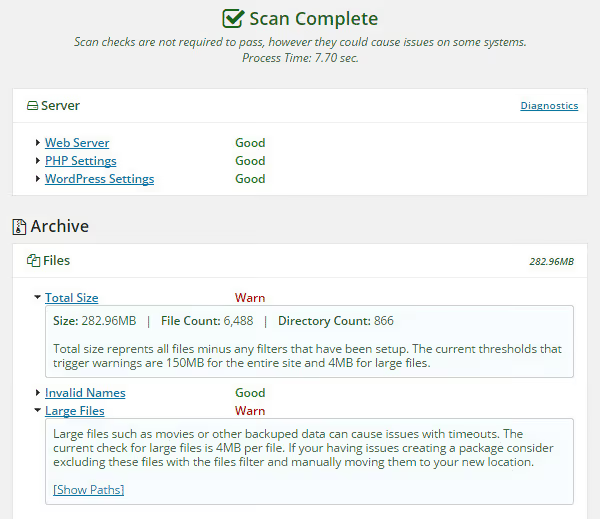
Before building, the plugin scans the site and shows warnings: archive too large, non-standard paths, permission issues. Yellow notifications (Notice) usually don't block the build, red ones (Fail) are worth fixing. In our experience, on standard hosting, Duplicator passes the scan cleanly in 9 out of 10 cases.
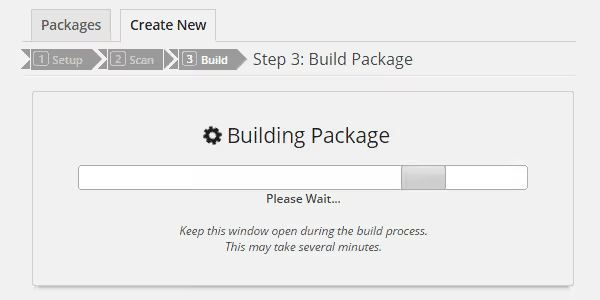
After building, you download two files: archive.zip (or .daf, Duplicator's proprietary format) and installer.php. Upload both to the root of the new site via FTP or hosting file manager, open http://new-site/installer.php, and follow the three-step wizard. The plugin will automatically replace all old URLs with new ones and write the paths.
Pros:
- Full cloning functionality, free
- Exclude files and tables from package
- Automatic URL replacement during deployment
- Built-in backup
Cons:
- Manual file upload to target server (no cloud migration)
- Pro features (cloud backups, multisite) available in paid version
- On weak hosting, building a large site may fail due to timeout
2. ManageWP, cloud cloning with centralized management

ManageWP, a cloud panel for managing dozens and hundreds of WordPress sites from one dashboard. Cloning here is one of the premium features built into the general ecosystem: plugin updates, uptime monitoring, SEO audits, and automatic backups all live in the same interface.
The workflow differs from plugins: you connect a site to ManageWP through a free worker plugin, the service creates a full cloud backup, and then deploys this backup on a new server as a full clone. You don't need to download anything to your computer, everything happens between servers through the cloud. For an agency managing fifty client sites, this saves hours per week.
Cloning in ManageWP solves three typical scenarios: moving a site to new hosting, creating a staging copy for development, and deploying a template site with a preconfigured theme and plugin set. Built-in URL replacement works automatically, including serialized data in the database.
Pros:
- Cloud migration without downloading archives
- Centralized management of all sites
- Automatic backups included in subscription
- Suitable for agencies with large site portfolios
Cons:
- Cloning is a premium feature (separate addon to subscription)
- Doesn't work with multisite networks
- Excessive for a one-time migration of one site
3. Cloner, duplicating sites within a WordPress multisite network

Cloner from WPMU DEV, a specialized tool for those working with WordPress multisite networks. Its task is to copy an entire site (or part of it) and deploy the copy on another site within the same network. No archives, FTP, or installer.php, the process fits into a couple of clicks from the admin panel.
The plugin can clone not only content and settings but also users with their roles, useful when you need to copy the access structure from one subsite to another. You can also selectively transfer only themes, only plugins, or only media files without touching the rest.
Cloner is included in the WPMU DEV subscription, which in addition to it includes hosting, CDN, monitoring, automatic backups, and a dozen more plugins for multisite. For the owner of a network of 20+ subsites, this is a justified investment: one tool covers a whole spectrum of administration tasks.
Pros:
- Tailored for multisite, cloning, users, selective copy
- Full integration with WPMU DEV ecosystem
- User cloning with role preservation
- Selective cloning: theme only, plugins only, content only
Cons:
- Requires WPMU DEV subscription (not sold separately)
- Doesn't work with regular (non-multisite) WordPress installations
- Excessive if you have one site
4. Solid Backups (formerly BackupBuddy), migration with emphasis on backup
Solid Backups, previously known as BackupBuddy, and even earlier as iThemes' flagship product, went through a 2023 rebrand and is now developing under the SolidWP wing. This is a market veteran: the plugin has been working since 2010 and during this time has accumulated a solid set of features, where site migration is just one of many.
Solid Backups' main profile is full-fledged backup with schedules, incremental backups, and Stash Live cloud storage. The migration tool is built into this foundation: you create a full site backup, and then deploy it on a new domain or server through the same recovery mechanism. URL changes happen automatically.
For those who haven't yet set up WordPress backup, Solid Backups kills two birds with one stone: you get both a reliable backup system and the ability to migrate a site in a few clicks. In practice, this is especially convenient when moving to new hosting and you want to immediately enable daily backups at the new location.
Pros:
- Mature product with 15 years of development history
- Full-fledged backup + migration in one plugin
- Stash Live cloud storage for backups
- Automatic URL replacement during migration
- Works with multisite
Cons:
- No free version (only paid plans)
- Main focus on backups, migration is a secondary feature
- Heavier and more complex than "pure" migration plugins
In the video, a step-by-step guide to cloning a WordPress site from scratch to finished result. Suitable for beginners and those who want to see the entire process before trying it themselves.
⁉️🤔 Frequently asked questions
Can you clone a WordPress site for free?
Yes, and the easiest way is the Duplicator plugin. It's available in the WordPress.org catalog for free and covers the full cycle: creating a site package, downloading the archive with
installer.php, uploading to a new server, and automatic deployment. For a one-time migration of an average site, it's more than enough. The alternative, All-in-One WP Migration, is also free but with archive size limitations in the free version.
What's the difference between cloning and backup?
Cloning creates a complete copy of the site ready to launch on another domain or server, with automatic URL and path replacement. Backup saves the site for restoration in the same place in case of failure. Many plugins (Duplicator, Solid Backups) can do both, but the scenarios are different: backup is insurance, clone is migration or staging.
Do you need to manually edit the database after cloning?
Modern tools, Duplicator, ManageWP, Solid Backups, automatically replace all URLs in the database, including serialized arrays. Manual editing through SQL queries like
UPDATE wp_posts SET post_content = REPLACE(...)is almost never needed and moreover breaks serialized data. If something displays incorrectly after migration, it's easier to recreate the clone through the plugin than to edit the database manually.
Does cloning work with WordPress multisite network?
Yes, but there are fewer tools for this. Duplicator Pro supports multisite in the paid version. Cloner from WPMU DEV is a specialized plugin specifically for cloning sites within a multisite network, but requires a WPMU DEV subscription. Solid Backups also works with multisite. Free solutions for multisite cloning are rare.
What to do if the site is too large and Duplicator fails due to timeout?
First, exclude the
/wp-content/uploads/folder from the package, media files can be transferred separately via FTP. Second, increase PHP limits (max_execution_time,memory_limit) in hosting settings or throughwp-config.php. If that doesn't help, switch to cloud tools like ManageWP, they don't run into specific server limitations.
Which cloning tool to choose for your task?
The choice comes down to three questions. Are you migrating one site or managing dozens? Do you need a one-time migration or regular staging creation? Do you have a regular WordPress installation or a multisite network?
For a one-time migration of one site, take Duplicator, it's free, simple, and reliable. We've migrated sites from 50 MB to 2 GB with it in practice, and in 9 out of 10 cases the process goes without errors. If you manage a pool of client sites and need cloning regularly, look toward ManageWP: cloud migration saves hours of routine. Multisite network owners have a direct path to Cloner from WPMU DEV, it's the only tool that makes the network itself, rather than a single installation, the entry point. Finally, if you don't have backups yet and migration is overdue, Solid Backups will close both needs in one bottle.
Try Duplicator first, it's free and takes 15 minutes. If it can't handle your volume or scenario, move to the next level. Share your experience in the comments: which tool saved you during your last move?

A professional team of writers and editors specializing in creating quality content.