













🔒 UpdraftPlus review: free WordPress backup without a paywall in 2026
Updated the plugin and the site went down. The hosting crashed along with the database. Worse yet, the backup was sitting on the same server and went down with it. A situation familiar to anyone who has been managing WordPress for more than a month.
With a backup, it takes five minutes of stress and one button. Without a backup, you face lost orders, articles and search rankings. Most free plugins for backup pull a trick: they let you create a copy, but restoring requires payment. UpdraftPlus breaks this pattern completely.
This plugin has over 3 million active installs and a 4.9 rating on WordPress.org. The full cycle from creating a backup to restoring works without spending a penny. Below we break down what the free version can do, where the line with Premium lies, why migration is now free, and what lesson the critical vulnerability of June 2026 taught us.
💡 Quick overview:
- Install UpdraftPlus from the WordPress.org directory.
- Connect a cloud storage: Dropbox, Google Drive or OneDrive.
- Set up an automatic schedule based on your publishing frequency.
- Test the restoration on a staging site (this is the key step).
What makes UpdraftPlus unique
Most free backup plugins follow a common pattern: installation, setup and creating a copy are free. But restoring is behind a paywall. You can understand the developers: the plugin needs to make money. But the site owner finds out about this limitation at the moment when the site is already down. An unpleasant surprise.
UpdraftPlus breaks this model. The free version includes:
- Full backup: WordPress files, database, media library, themes and plugins with one click.
- Full restoration: the same button, no restrictions and no paywalls.
- Migration with built-in search and replace for URLs: download the backup on the source site, upload it on the target site, and the plugin automatically replaces old links with new ones.
- Sending backups to the cloud: Dropbox, Google Drive and Microsoft OneDrive are free, plus a dozen destinations in Premium.
- Flexible scheduling: from hourly to monthly, separately for files and the database.
- Manual retention management: how many copies to keep before overwriting old ones.
The plugin is translated into over twenty languages, including Russian. It works on all current versions of WordPress and PHP. The interface is right in the admin panel, no separate dashboards.
Installation and setup: from zero to first backup in 5 minutes
The full path from an empty site to automatic cloud backup takes less than five minutes. We demonstrate on a test site with the Total theme and imported demo content to get closer to a real scenario.
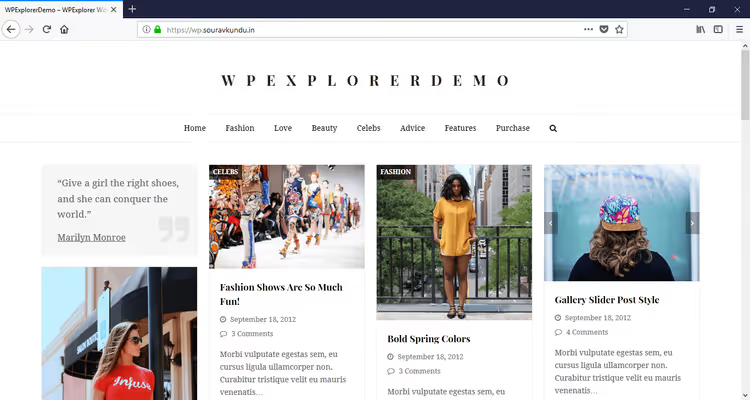
The test site where we run through the full backup cycle.
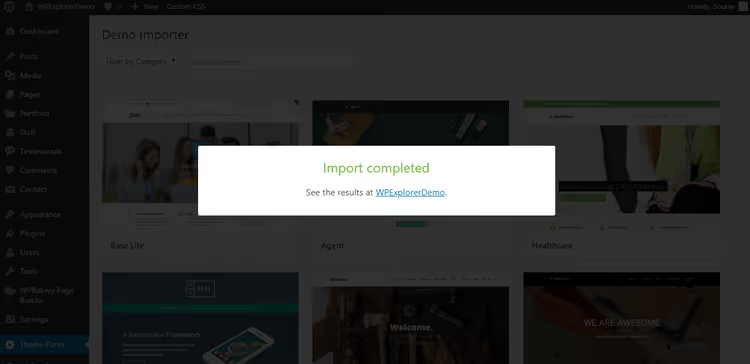
Importing the demo layout via Theme Panel → Demo Importer in the Total theme.
Step 1: Installation and first launch
Installation is standard: WordPress Dashboard → Plugins → Add New, search for "UpdraftPlus", click "Install" and "Activate".
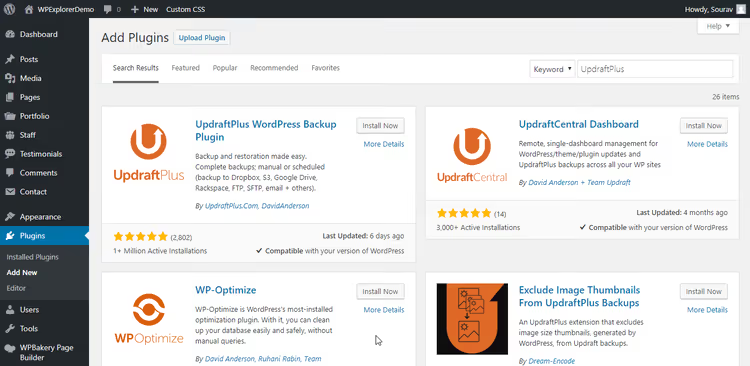
After installation, click "Activate" and the plugin is immediately ready for setup.
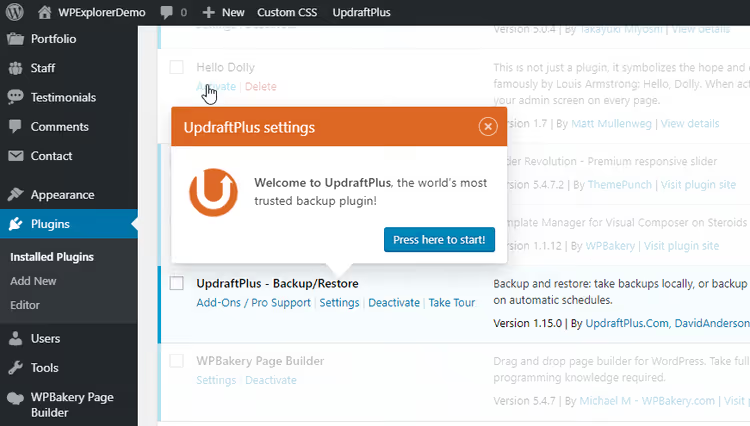
Right after activation, an onboarding tour launches with a short product overview. On the welcome screen, select "Press here to start".
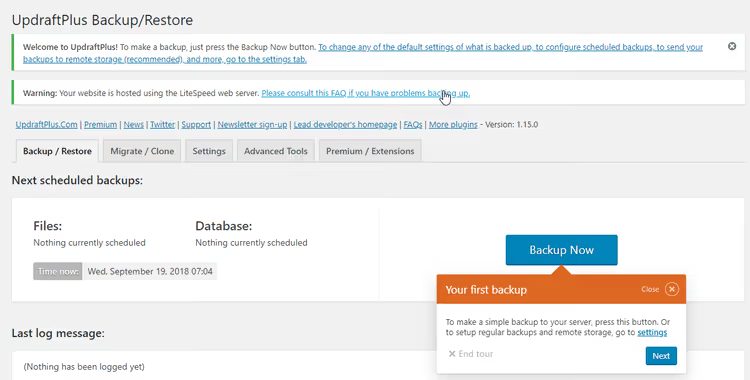
On the second step, the wizard offers to create your first backup right away. Skip this urge and click "Next". First you need to configure the schedule and cloud storage. Without them, the backup will stay on the same server as the site.
Step 2: Backup schedule
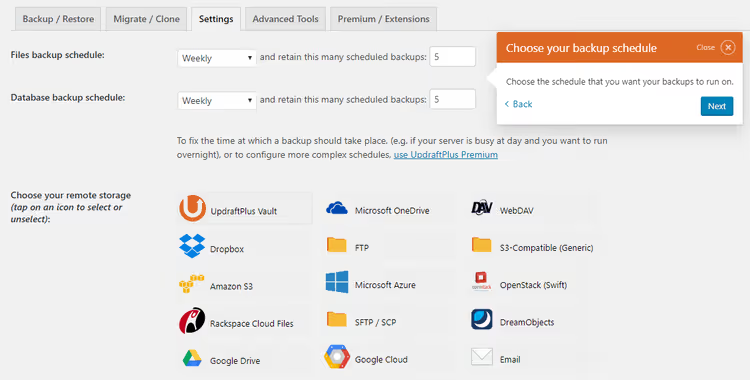
The rule is simple: backup frequency equals publishing intensity. Two or three posts a week, daily backup is enough. Multiple editors and two posts a day, hourly is better. A portfolio site without an active blog, weekly.
Do not chase overly frequent backups. Backup operations load the CPU. On shared hosting, three or four backups a day can make the site slow or lead to account suspension.
The screenshot above shows weekly backup configured for both files and database. The retention period is 5 copies. At any given time, you have backups covering the last 1.25 months.
Step 3: Connecting cloud storage
The main rule: the backup must not be stored on the same server as the site. This sounds obvious. In practice, beginners regularly fall into this trap: the hosting goes down, and the backups go down with it.
The free version supports Dropbox, Google Drive and Microsoft OneDrive. We show Dropbox connection, and the process is similar for the others.

Log into Dropbox in the same browser, as this is needed to link accounts.
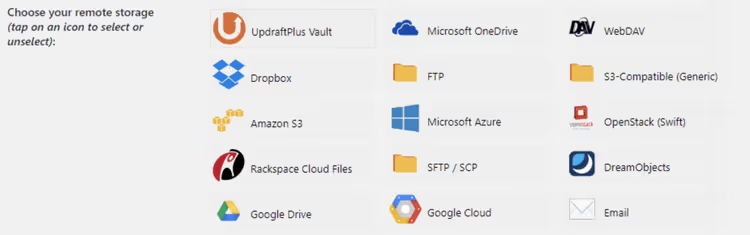
In UpdraftPlus settings, select Dropbox as the remote storage.
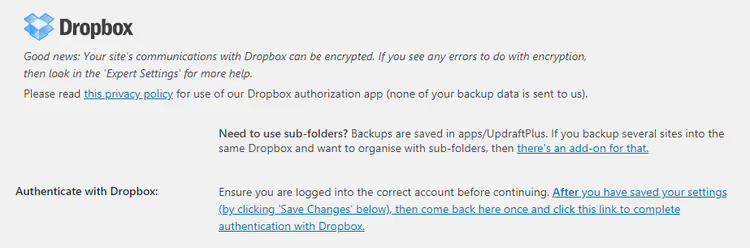
Scroll down and click "Save Changes".
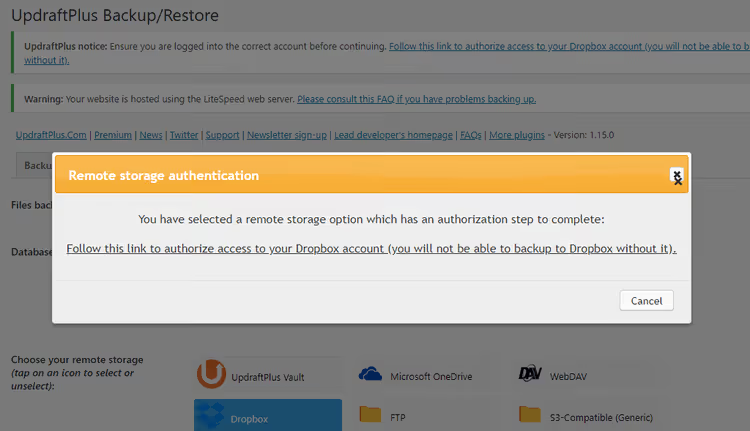
The plugin will show a dialog with a link for Dropbox authentication.
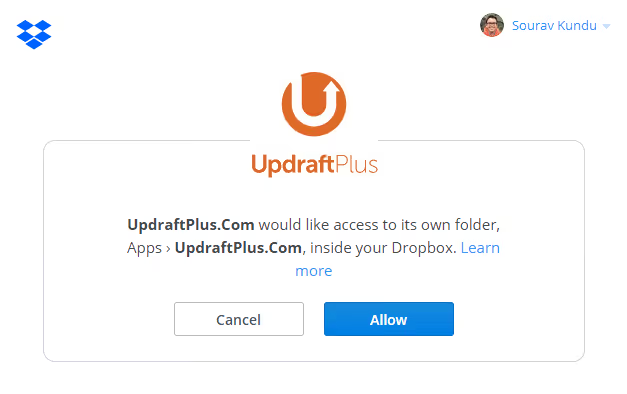
Since you are already in Dropbox, the system will request permission. Click "Allow". UpdraftPlus will only gain access to the Dropbox → Apps → UpdraftPlus.Com folder and nothing else. It can read, write and delete files only in this folder.
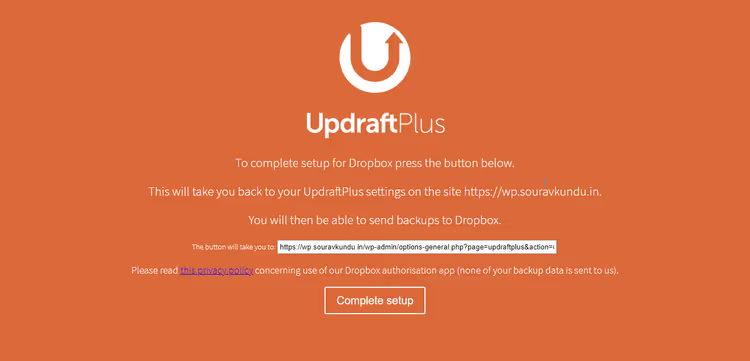
The plugin will confirm successful connection with a short notification.
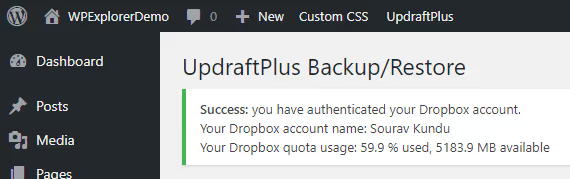
Final screen: click "Complete setup" and return to the admin panel. Connection is complete.
Step 4: First backup
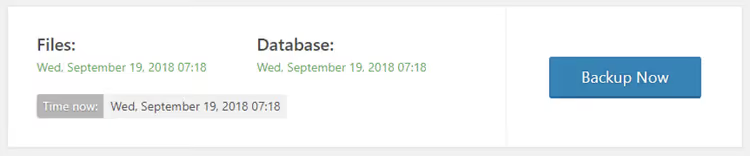
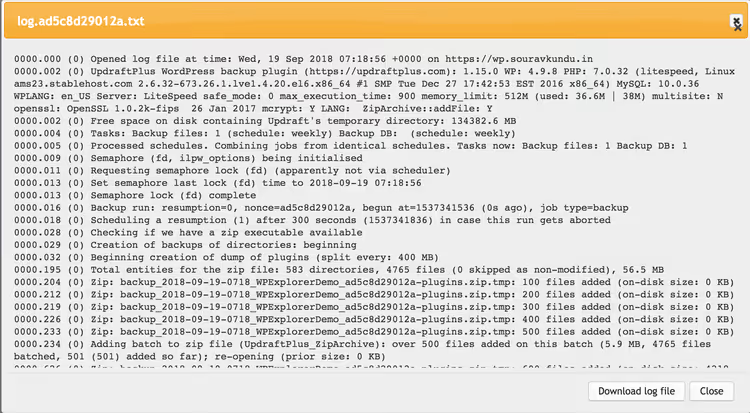
Click the large blue "Backup Now" button. UpdraftPlus shows a progress bar and logs messages in real time.
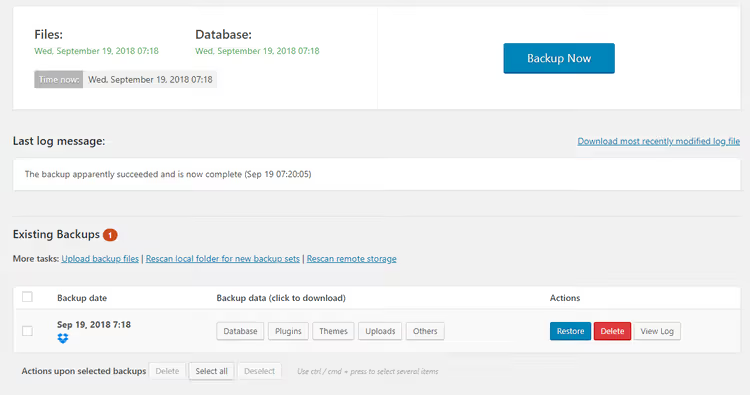
After completion, the entry appears in the "Existing backups" section. From here you can restore, delete or download individual files from any backup.
The backup files are also visible on the cloud storage side, in the UpdraftPlus.Com folder.
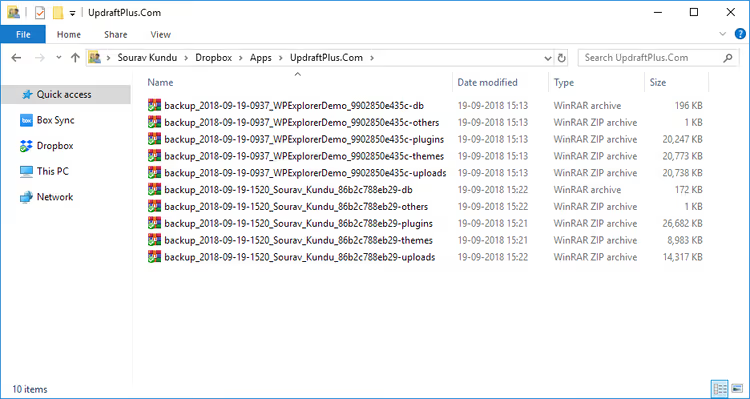
On a computer with Dropbox installed, you will see the UpdraftPlus.Com folder in Dropbox → Apps. Inside are all backup files: themes, plugins, database, media library and other directories.
Restoration: where competitors ask for money
This is the key section. Most alternatives put up a paywall right here: you made a copy, thank you, and now to restore, please subscribe. The free version of UpdraftPlus gives you the full restoration cycle.
Resetting the site to clean WordPress
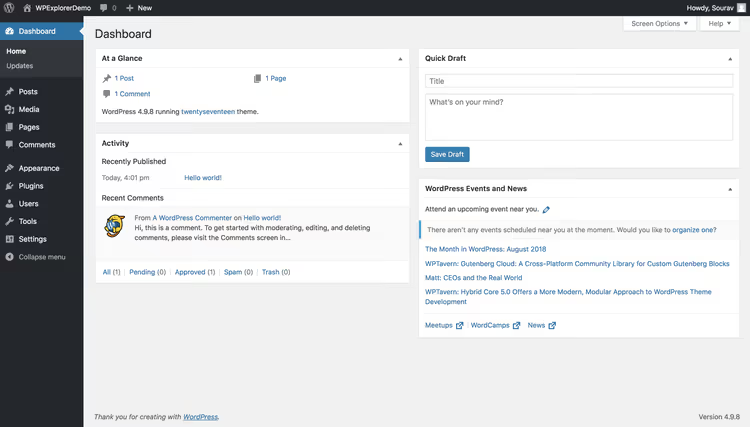
For the purity of the experiment, we reset the site to factory state using the Advanced WordPress Reset plugin. Analogy: formatting your phone before restoring from a backup. The reset deletes all themes, plugins, posts, pages, comments and settings. Only the WordPress account and password remain.
Connecting to the same cloud
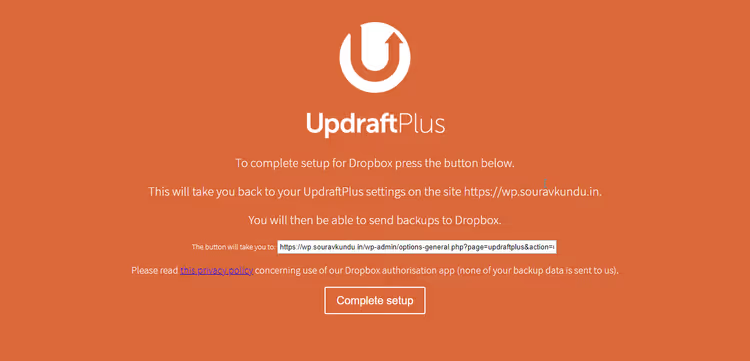
After the reset, install UpdraftPlus again and repeat the Dropbox connection steps (section above). You will see the same successful authentication screen.
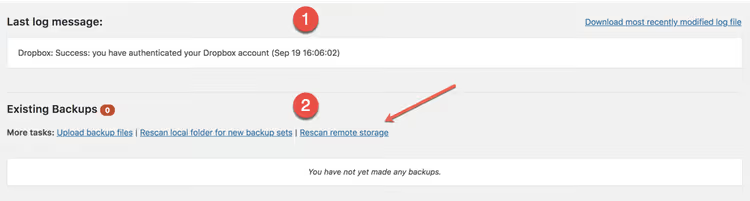
Click "Rescan remote storage" and the plugin will find all archives in the Dropbox folder and register them.
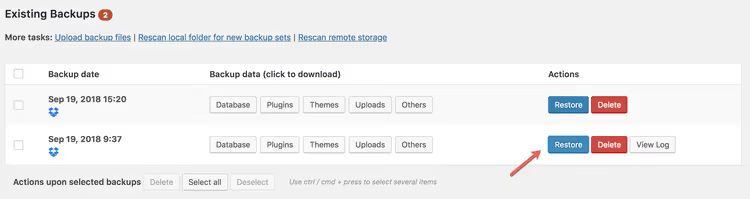
Select the version you need and click "Restore".
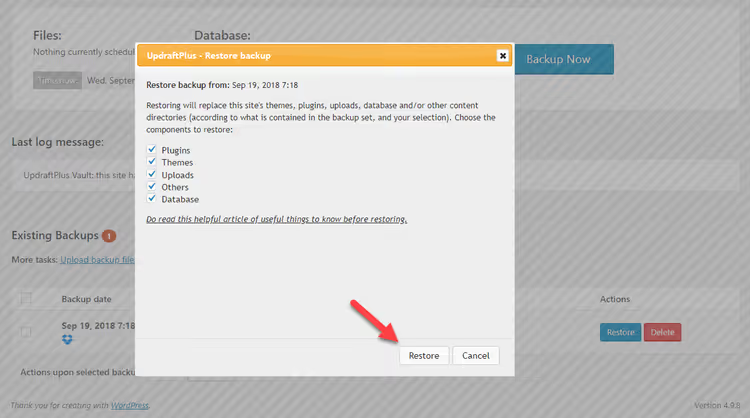
In the dialog that opens, check the components for restoration: themes, plugins, uploads (media library) and database. For a full restoration, we select everything.
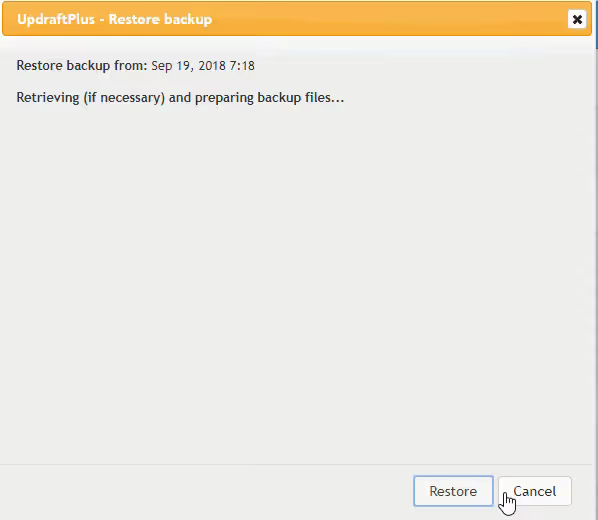
The process takes from 2 to 10 minutes depending on backup size. The plugin scans each archive and compares sizes for integrity verification.
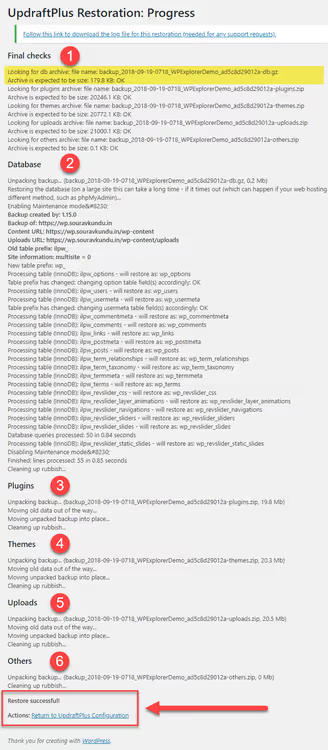
After completion, UpdraftPlus outputs a detailed log: what was restored, and whether there are any warnings or errors.
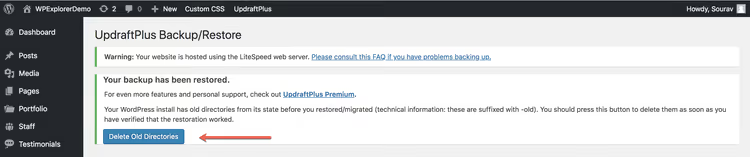
The plugin reports old directories moved to a ~old folder. Check the restored site (pages, posts, comments, permalinks) and then delete these directories.
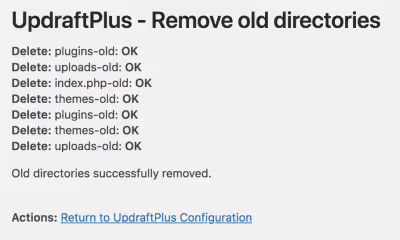
The cycle is complete: backup created, site reset, restored and working. This very scenario (a full cycle in the free version) is what makes UpdraftPlus unique in the market.
Free version versus Premium: what you get for money
The free version covers the needs of most single sites. Premium is justified when migration, cloning and managing a dozen sites become necessary.
What you get in Premium:
- Automatic backup before updates: a backup is created before each theme, plugin or WordPress core update. A bad update means rollback in one click. After the vulnerability of June 2026, this feature moved from the "nice to have" category to "essential".
- Incremental backups: changes are appended to a master copy, saving server resources compared to full re-copying.
- Extended cloud options: Microsoft OneDrive, Azure, Google Cloud, Backblaze B2, SFTP, SCP, pCloud, WebDAV and UpdraftVault (the team's own S3 storage with 99.999% availability).
- One-click migration: direct transfer from source site to target site, without manually downloading and uploading files.
- Importing third-party backups: restoration from BackWPup, Simple Backups, InfiniteWP archives and plain
.sqldumps. Convenient when switching from another plugin. - Backup of non-WP files and databases: e-commerce tables, custom core modifications.
- Database encryption, WP-CLI support and WordPress Multisite.
- Password protection: access to full backups only for administrators.
Current Premium pricing (2026):
Plan | Sites | Price per year |
|---|---|---|
Personal | up to 2 | $70 |
Business | up to 10 | $95 |
Agency | up to 35 | $145 |
Enterprise | unlimited | $195 |
All plans include the full set of Premium features, 1 GB of UpdraftVault storage, premium support and one year of updates. You can check prices and details on the TeamUpdraft license page.
Pros of the free version:
- Full backup and restoration cycle without payments.
- Over 3 million active installs and a 4.9 rating on WordPress.org.
- Three cloud storages for free.
- Built-in search and replace for URLs during migration.
Cons of the free version:
- No incremental backups, each run copies everything anew.
- Backups from all sites are merged into one cloud storage folder.
- No automatic backup before updates.
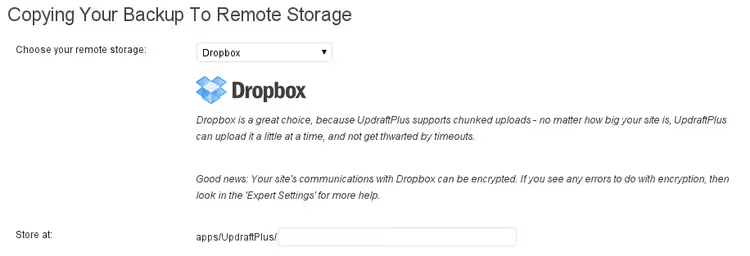
Previously, the shared folder problem was solved by the separate Dropbox Subfolders add-on. Now the TeamUpdraft site only sells comprehensive Premium licenses, and individual add-ons from the old store are no longer available for separate purchase. All their features are included in Premium.
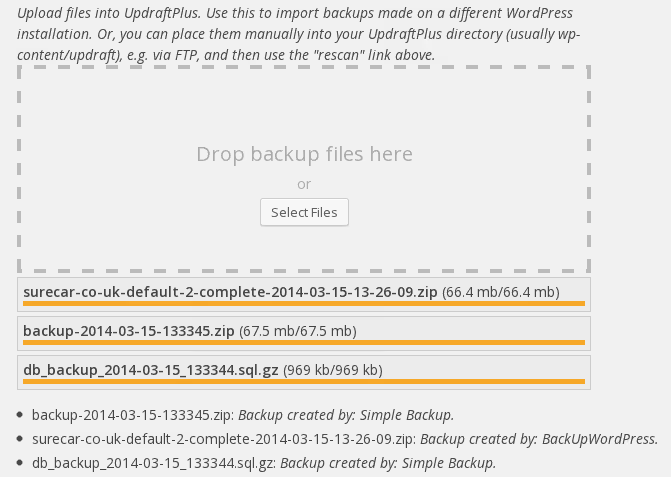
The same applies to Importer: restoring backups from other plugins is now part of the Premium package, not a separate purchase. When migrating from another plugin, this feature saves hours of manual transfer.
The TeamUpdraft ecosystem: more than backup
In UpdraftPlus settings, there is an option "Connect this site to UpdraftCentral Cloud". This is the entry point to the cloud WordPress management panel from the Updraft team. Up to 5 sites connect for free.
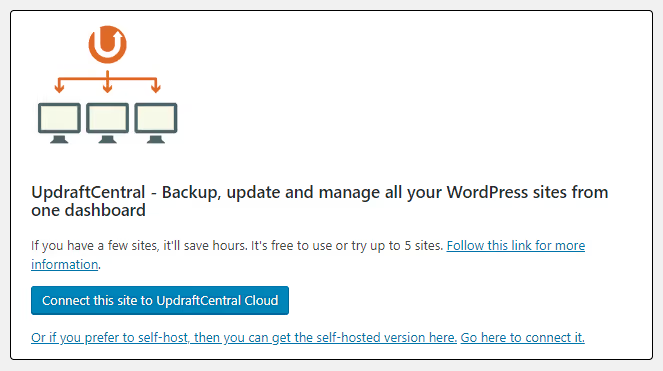
After connecting, complete the registration, as email and password will create or find your account.
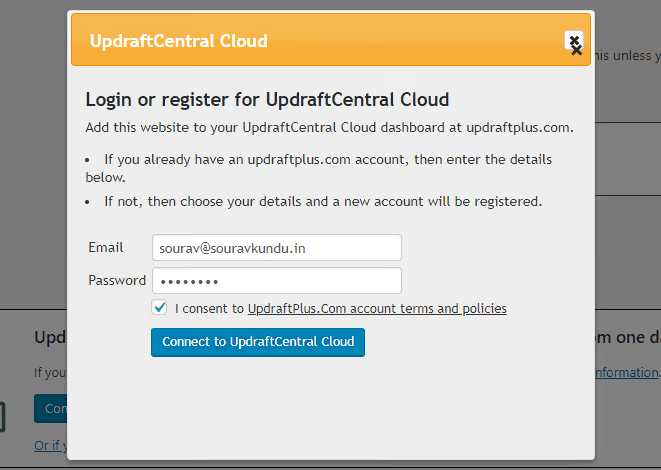
Registration is combined with login: enter your email and password. A new email creates an account. An existing one just logs you in. Important: there is no separate password recovery form. Remember the email you used.
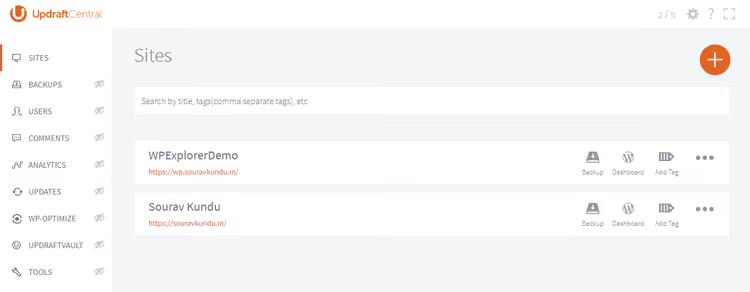
On the dashboard, you can see each connected site and launch backups from here.
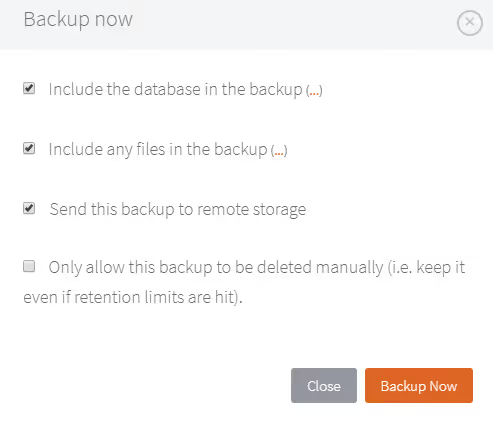
From the panel, you can launch a backup on any connected site, configure its parameters and view history.
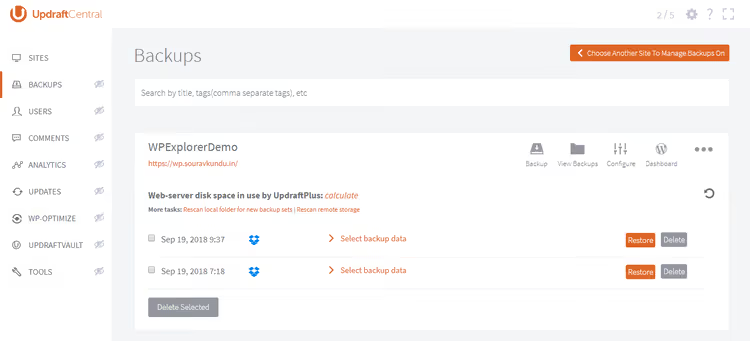
UpdraftCentral is also available as a separate self-hosted plugin, without being tied to someone else's cloud.
UpdraftCentral also exists as a separate plugin for installation on your own server. The self-hosted version does not tie you to someone else's cloud.
The TeamUpdraft team develops an entire family of products: WP-Optimize (optimization and caching, 1+ million installs), All-In-One Security (WordPress protection, 1+ million installs), Burst Statistics (privacy-focused analytics). In total, TeamUpdraft plugins are installed on more than 5 million sites. For owners of multiple projects, this is one of the most well-thought-out ecosystems on the market.
June 2026: the vulnerability that reminded us about the importance of auto-backups
On June 2, 2026, researchers discovered a critical vulnerability in UpdraftPlus, CVE-2026-10795, an authentication bypass without logging into the system. The vulnerability affected versions up to and including 1.26.4 on sites connected to UpdraftCentral. An attacker could execute arbitrary RPC commands on behalf of an administrator: upload a malicious plugin, execute PHP code on the server and gain full control over the site. According to Wordfence, the vulnerability received the maximum severity level.
The UpdraftPlus team reacted instantly: disclosure received on June 3, confirmation on June 4, patch in version 1.26.5 on June 5. The vulnerability was closed.
This incident is the best illustration of why automatic backup before updates is needed. When a critical patch is released, you must update immediately. But every update carries a risk of breaking the site. The Premium auto-backup feature before updates eliminates this conflict: you update right away, and if something goes wrong, rollback is one click away.
If your site has ever been connected to UpdraftCentral, check the plugin version. Anything below 1.26.5 requires immediate update.
⁉️🤔 Frequently asked questions
Does the free version of UpdraftPlus really allow full site restoration?
Yes, full restoration works without restrictions. Premium adds one-click migration with URL replacement, cloning and auto-backups before updates. But the basic cycle of "created a backup, restored" is completely free.
Where is the best place to save backups?
In cloud storage that is physically separate from the server with the site. The free version supports Dropbox, Google Drive and Microsoft OneDrive. Dropbox is the most popular choice: integration has been refined over the years, and two-factor authentication does not require API keys (regular browser login is enough).
How much space does one backup take?
For an average blog with three hundred posts and several plugins, from 50 to 200 MB for a full backup. Large sites with a media library of several gigabytes are proportionally larger. Free Dropbox gives 2 GB, which is enough for several full copies of a small site.
Does UpdraftPlus slow down the site during backup?
CPU load increases while creating a backup. On weak shared hosting, this may be noticeable. Solution: schedule backups for hours of minimal traffic (at night or early morning). Hourly backups without a real need are excessive for most sites.
Can I restore an UpdraftPlus backup on a different host?
Yes, the free version includes a built-in URL search and replace mechanism. But this is a manual process: download from one site, upload to another. Premium migration does the same thing in one click directly from the source site. If the domain does not change and only the hosting changes, the free version is sufficient.
What should I do if a backup is corrupted?
UpdraftPlus checks the integrity of each archive during restoration: it compares sizes and cross-references log entries. If there is a discrepancy, the plugin will report an error before restoration begins. Keep at least 2-3 recent copies, as the chance of simultaneous corruption of all of them is negligible.
UpdraftPlus or built-in hosting backup?
Built-in hosting backups work at the server level and do not load WordPress. But they are almost always stored on the same physical server, so if the hosting goes down, the backups go down with it. UpdraftPlus sends a copy to an independent cloud. The ideal strategy is to keep both.
Do I need to update UpdraftPlus after the June 2026 vulnerability?
Absolutely. Version 1.26.5 closes the critical authentication bypass CVE-2026-10795. If your site has ever been connected to UpdraftCentral, the update is critical. Even without an active UpdraftCentral connection, update anyway, as security patches should never be postponed.
Is UpdraftPlus still the best choice in 2026?
With three million active installs, a 4.9 rating and a full restoration cycle in the free version, yes. The team's response speed to the critical vulnerability (three days from discovery to patch) confirms that the product is alive, actively developed and backed by a serious team.
Is UpdraftPlus worth installing in 2026?
UpdraftPlus is the gold standard of free WordPress backup. In over ten years of development, it has accumulated more than 3 million active installs and a 4.9 rating on WordPress.org. But the numbers are not the main point. The main point is the honesty of the model: a full backup and restoration cycle without forced payment. And the team's response to the June 2026 vulnerability (three days from discovery to patch) says more about the product than any marketing promises.
For a single site, the free version is more than enough. Premium becomes justified when migration, cloning and managing a dozen sites from one panel become relevant. And when every hour of downtime costs real money, automatic backup before updates pays for itself with the first bad update.
Start with the free version. Set up a daily backup to Dropbox, wait for the first automatic copy and run through the full restoration cycle once on a test site. A backup that has never been restored is not a backup, it is a file filled with hope. Check your plugin version right now: anything below 1.26.5, update immediately. And sleep well: your site is protected, your data is in the cloud, and your "Restore" button works.

A professional team of writers and editors specializing in creating quality content.