














🥇 5 best WordPress database plugins 2026 (free and paid)
WordPress databases get cluttered over time. Drafts, revisions, spam comments, expired transients, deleted plugin metadata, all of this accumulates for years, bloats tables and slows down the site.
A bloated database doesn't just take up space. Backups become heavier, migrations take longer, and every query to wp_options or wp_postmeta is slightly slower. On a high-traffic site, these milliseconds add up to seconds.
We've selected 5 plugins that solve this problem in different ways. Some are designed for automatic scheduled cleanup, others for a complete reset and fresh start. All tested on WordPress 7.0, all updated in 2026.
💡 Quick overview:
- Step 1: define your task and choose the right plugin from the selection below
- Step 2: install the plugin, run the first database cleanup and check the result
- Step 3: configure an automatic schedule so the plugin cleans the database without your involvement
Comparison table
Plugin | Main function | Automation | Price |
|---|---|---|---|
| Deep cleaning and optimization | Yes, scheduled | Free / Premium |
| Backup, restore, migration | Yes, scheduled | Free / from $70/year |
| Cleanup, caching, image compression | Yes, scheduled | Free / from $49/year |
| Database backup to cloud | Yes, scheduled | Free / $1 per 50 GB |
| Complete table reset to factory state | No | Free |
1. Advanced Database Cleaner
Advanced Database Cleaner is a specialized tool for deep WordPress database cleanup. Unlike "all-in-one" plugins, it doesn't do caching or image compression, but focuses on one task: finding and removing junk from the database.
The plugin scans tables and shows exactly how much space is taken up by old revisions, auto-drafts, spam comments, expired transients, and unused post and user metadata. Before cleanup, you can review each element, which protects against accidentally deleting needed data.
Pros:
- Preview of all elements before deletion, including serialized and JSON values
- "Keep last X days" filter for each data type
- Detection of tables with incorrect prefix (leftovers from old WordPress installations)
- Built-in optimization and repair of corrupted tables
Cons:
- Only database cleanup, no caching, no image compression
- Some advanced filters and analytics are only available in Premium
Price: free version on WordPress.org, Premium with remote SmartScan and database growth analytics.
🔗 Advanced Database Cleaner on WordPress.org
2. UpdraftPlus
UpdraftPlus is the world's most popular plugin for WordPress backup: over 3 million active installations. Its main role is backup, but no database cleanup should begin without a database backup.
The plugin can create full and incremental backups, upload them to Dropbox, Google Drive, Amazon S3, FTP and a dozen other cloud storages, and restore the site in three clicks. Built-in search-and-replace automatically fixes URLs during migration.
Pros:
- Automatic backup before WordPress and plugin updates (Premium)
- Incremental backups, only changes, not the entire site
- WP-CLI support for managing backups from the command line
- Restore backups from other plugins (BackWPup, BackupWordPress, Simple Backups)
Cons:
- Doesn't directly clean the database, a separate plugin from this selection is needed for that
- Some cloud storages (OneDrive, Backblaze B2, Google Cloud) only in Premium
Price: free Lite version on WordPress.org, Premium from $70/year for 2 sites.
🔗 UpdraftPlus on WordPress.org🔗 UpdraftPlus Premium site
3. WP-Optimize

WP-Optimize from Team Updraft is a site acceleration toolkit in which database cleanup is one of three key functions alongside page caching and image compression.
The plugin cleans revisions, drafts, spam, transients and pingbacks, optimizes database tables and can do this automatically on a schedule. The Premium version adds lazy image loading, WebP conversion, preloading of key requests and removal of unused images from the media library.
Pros:
- Three tools in one: database cleanup, caching and image optimization
- Caching enabled with one click, compression of new images automatically on upload
- Cleanup scheduler with flexible period settings
- From the UpdraftPlus team, proven expertise in backups and optimization
Cons:
- Due to the breadth of functions, the interface is slightly more complex than specialized plugins
- Lazy loading and preloading of key requests only in Premium
Price: free version on WordPress.org, Premium from $49/year for 2 sites.
🔗 WP-Optimize on WordPress.org
4. WP Database Backup
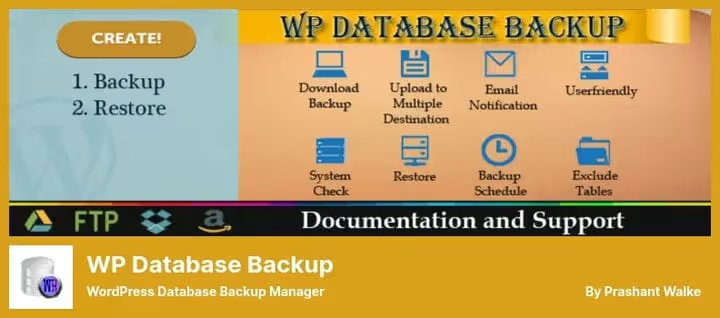
WP Database Backup solves one task and does it without excess: scheduled database backup to the cloud. No full file backups, no caching, only the database and only to the selected cloud storage.
After installation, setup takes less than a minute. You choose the schedule (daily, weekly, monthly), specify the destination folder, Dropbox, Google Drive, Amazon S3, FTP, Backblaze B2, email, sFTP, and the plugin silently does its job. The latest version (7.12, June 2026) closed an OS Command Injection vulnerability found by Wordfence.
Pros:
- Minimal setup: literally one minute to the first automatic backup
- Search and replace in the backup file before restore
- Sending backups to email along with a report
- Excluding individual tables from backup
Cons:
- Only database, doesn't back up site files (UpdraftPlus is needed for that)
- Plugin cloud storage is an additional service, not included in the free version
Price: free version on WordPress.org, cloud storage from $1/month for 50 GB.
🔗 WP Database Backup on WordPress.org
5. Database Reset
Database Reset from WebFactory is a tool not for everyday cleanup, but for a complete reset. One click, and the selected database tables return to factory WordPress state, as if the installation just completed.
This is an indispensable thing for theme and plugin developers: you roll out test data, check the work, reset the database and start over. Through WP-CLI, the reset is performed with one command: wp reset database. You can reset the entire database or only specified tables, and active theme and plugins will remain in place.
Pros:
- Reset entire database or selected tables in one click
- WP-CLI support:
wp reset database --tables='posts, comments, options' - Accidental click protection: requires confirmation with security code
- No need to reinstall WordPress for a clean database
Cons:
- The plugin is gradually being replaced by the more functional
WP Resetfrom the same developer - Not for production: reset deletes data without recovery possibility (if there's no backup)
Price: free on WordPress.org.
🔗 Database Reset on WordPress.org
Real scenario: how we clean the database on our sites
In practice, we use a combination of two plugins. UpdraftPlus makes a full site backup to Google Drive every night, this is insurance against any failure. Advanced Database Cleaner automatically deletes old revisions, auto-drafts and expired transients once a week.
On a site with a 3-year history and ~500 posts, this combination reduced the database size from 280 MB to 95 MB. At the same time, not a single needed file was damaged, previewing elements before cleanup eliminates surprises.
If the site is smaller and you want one plugin for everything, install WP-Optimize. It will clean the database, enable cache, and compress images.
⁉️🤔 Frequently asked questions
Is it mandatory to clean the WordPress database?
No, WordPress works without cleanup. But in practice, a database without maintenance grows on average by 15-30 MB per year just from post revisions and transients. After 2-3 years, the difference in query speed becomes noticeable, and backups become noticeably heavier. On hosting with a database limit (for example, 1 GB on a cheap plan), cleanup can postpone the need for an upgrade.
What is safe to delete and what should not be touched?
Absolutely safe: post revisions (keep the last 2-3), auto-drafts, spam comments, expired transients, pingbacks and trackbacks. Never delete tables with the
wp_prefix entirely without understanding what is stored in them, and always make a backup before the first deep cleanup. Plugins with preview (Advanced Database Cleaner,WP-Optimize) show exactly what will be deleted.
Is WP-Optimize alone enough instead of two or three separate plugins?
For most sites, yes.
WP-Optimizecovers three tasks: database cleanup, page caching and image compression. But if you have a high-traffic project with strict backup requirements, it's better to separate:UpdraftPlusfor backups andAdvanced Database Cleanerfor fine cleanup. A specialized tool in each niche gives more control.
How is Database Reset different from regular database cleanup?
Cleanup removes junk, revisions, transients, spam, but preserves content, settings and users. Reset returns tables to the state "right after WordPress installation": all posts, pages, plugin settings and user data are deleted irretrievably. This is a developer's tool, not for a live site.
How often should the database be cleaned?
Once a month is the optimal interval for an actively updated site. If you publish posts once a week, once a quarter is enough. All plugins from this selection support automatic scheduling: set it to once a month and forget. Every six months, check the database size in the "Site Health" tool, rapid growth may indicate a plugin that doesn't clean up its transients.
Final breakdown
If the budget is zero and you need one solution for all optimization tasks, take WP-Optimize. It will clean the database, enable cache, and compress images.
If the site makes money and backup is critical, the combination of UpdraftPlus (nightly backup to cloud) and Advanced Database Cleaner (weekly scheduled cleanup) will cover the scenario with margin. Cost: $70/year for UpdraftPlus Personal plus free Advanced Database Cleaner.
If you're a theme or plugin developer and you need a "reset everything and start over" button, Database Reset will solve the task in a second, not 5 minutes through phpMyAdmin.
For minimalists who only need database backup and nothing more, WP Database Backup with automatic sending to email or cloud. One minute of setup and you can forget.
Choose for your specific task, not someone else's rating. Write in the comments which plugin you use and how much space you managed to free after the first cleanup.

A professional team of writers and editors specializing in creating quality content.