














🥇 5 best WordPress debugging tools to find errors 2026
Your site is down with a white screen. A plugin updated, and the admin panel won't load. Error 500, but the logs are empty. Without the right tools, debugging WordPress turns into guesswork: you spend hours randomly trying plugins and can't find the cause.
A good debugging tool highlights the problem in seconds. It shows which plugin or theme is causing the conflict, which PHP errors are piling up in the background, and where the bottleneck is. Without such a tool, you're blind. And a bad one just adds noise.
In this roundup, 5 tools for debugging and troubleshooting WordPress in 2026. Three of them solve the direct task: isolating conflicts, logging, and automatically writing constants to wp-config.php. The other two cover related scenarios without which troubleshooting is impossible: filtering spam and protecting against attacks. Each has been tested on real projects.
💡 Quick overview:
- Run
Health Checkto isolate plugin and theme conflicts without downtime - Connect
Akismetfor automatic filtering of comment spam and contact forms - Use
Plugin Detectiveto find the conflicting plugin through a step-by-step wizard - Activate
WP Debuggingto write debug constants towp-config.phpwithout a code editor - Install
Solid Securityfor vulnerability scanning and an entry-point firewall
Tool comparison table:
Tool | Debug type | Free | Pro | Key feature |
|---|---|---|---|---|
Health Check & Troubleshooting | Conflict isolation | Yes | - | Troubleshooting Mode without affecting visitors |
Akismet | Spam filtering | Yes | from $10/mo | Global spam signature database |
Plugin Detective | Conflict detection | Yes | - | Step-by-step wizard, works during WSOD |
WP Debugging | Error logging | Yes | - | Auto-constants in wp-config.php |
Solid Security | Attack protection | Yes | $80/yr | Vulnerability scanner + firewall |
1. Health Check & Troubleshooting
Official plugin from the WordPress.org team. The first tool to run in any emergency situation. Its main feature, Troubleshooting Mode: you enable debug mode, the plugin disables ALL active plugins and switches the theme to a default one. But ONLY for you. Site visitors continue to see the normal version. No downtime.
Then you turn plugins back on one by one and watch at which point the error returns. The process of elimination, automated and safe. In practice, this reduces the search for a conflicting plugin from hours to 10-15 minutes.
The Site Status tab checks server configuration: PHP version, memory limits, presence of required modules, HTTPS status. The Integrity tool verifies WordPress file checksums to see if system files have been tampered with. The Debug Information section compiles a full report about the site configuration, which you can copy and send to a developer or hosting support.
Pros:
- Official tool, updated along with the WordPress core
- Troubleshooting Mode doesn't affect visitors
- Full server configuration report in one click
- System file integrity check
Cons:
- Doesn't show PHP errors in real time, only confirms their presence
- Troubleshooting Mode works less flexibly with themes than with plugins
Price: free.
🔗 Health Check & Troubleshooting on WordPress.org
2. Akismet
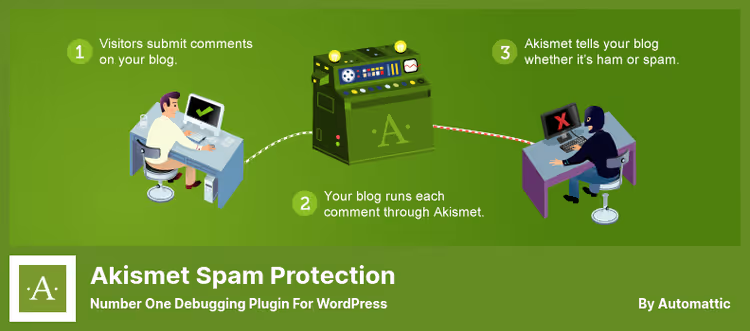
Akismet is not a debugger in the classic sense. But when you're looking for the cause of site problems, hundreds of spam comments in the database are noise that masks real errors. A clogged database slows down wp-admin. Fake comments with broken links generate 404s in the logs. Akismet solves this task: it cleans spam automatically, without your involvement.
The plugin comes preinstalled in WordPress and works through a global spam signature database. When a comment arrives on the site, Akismet checks it against this database and instantly filters out trash. You only see real comments. And real errors, not obscured by spam.
Comment status history shows which moderators approved or rejected what. Integration with Contact Form 7, Gravity Forms and Jetpack out of the box: the spam filter works not only in comments, but also in contact forms. Cleaning the database of spam indirectly speeds up the site, less garbage in wp_comments and wp_commentmeta.
Pros:
- Preinstalled, requires no separate installation
- Global spam database updated in real time
- Filters spam in contact forms through integrations
- Saves database space
Cons:
- Not a debugging tool as such: protects against noise, but doesn't search for errors
- Sometimes flags real comments as spam, manual Spam folder review needed
- Pro version is paid for commercial sites
Price: free Lite version for personal blogs; Pro: from $10/mo (annual subscription: from $100/yr, two months free compared to monthly plan).
🔗 Akismet on WordPress.org🔗 Akismet Pro
3. Plugin Detective
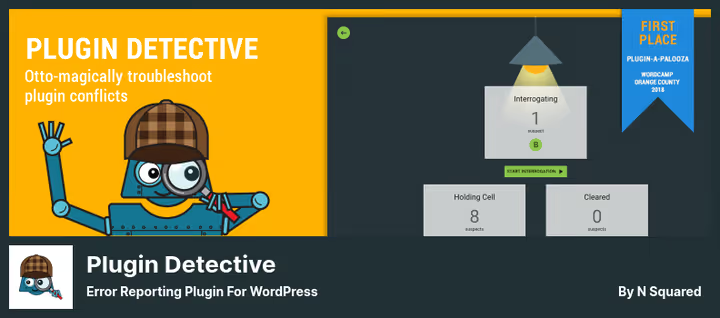
Plugin Detective solves one task, and solves it perfectly: it finds the plugin that's causing the site to crash. Unlike Health Check, it does NOT simulate deactivation. It actually deactivates plugins and asks you questions in a step-by-step wizard format.
You launch the wizard on any page, whether in the admin panel or on the frontend. The plugin deactivates groups of plugins one by one and asks: "Did the error disappear?" You answer "Yes" or "No", and Plugin Detective narrows down the suspects. After a few iterations, it points to the specific culprit plugin. No code, no logs, just buttons.
Critical advantage: works even when you only see a white screen of death (WSOD). If the admin panel is inaccessible, Plugin Detective can still be launched, it doesn't depend on the WordPress visual interface. And if the site is stuck in "brief maintenance" mode after a failed update, the plugin can remove the .maintenance lock.
Pros:
- Wizard interface: any user without technical background can handle it
- Works during WSOD and fatal errors
- Actually deactivates plugins, doesn't simulate
- Removes stuck
.maintenancefile
Cons:
- Doesn't debug themes, only plugins
- Doesn't show PHP errors or logs
- No Pro version with extended features
Price: free.
🔗 Plugin Detective on WordPress.org
4. WP Debugging
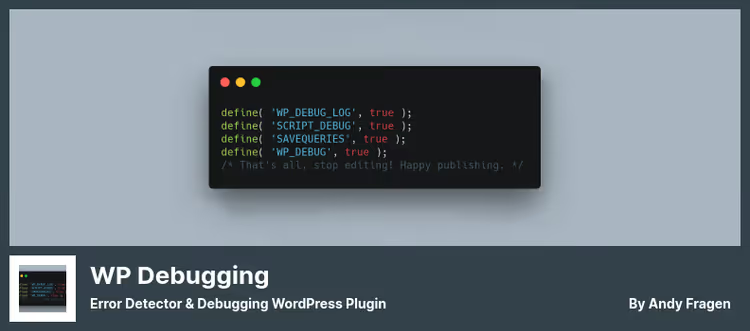
The most straightforward tool in this roundup. WP Debugging does exactly what an experienced developer would do manually: writes debug constants to wp-config.php. Activate the plugin, constants are added. Deactivate, they're removed. No code editor, no FTP, no risk of a typo breaking the site.
The plugin adds the WP_DEBUG constant to wp-config.php. Along with it, WP_DEBUG_LOG, WP_DEBUG_DISPLAY and SCRIPT_DEBUG are activated. This is the full set for logging WordPress errors. After activation, errors are written to /wp-content/debug.log, and you can read this file directly from the admin panel. No more SSH access to the server needed.
Important nuance: WP Debugging doesn't show errors to site visitors, unlike manual WP_DEBUG_DISPLAY = true. It writes them to the log, quietly and safely. When deactivated, the plugin restores original constant values, if they were previously set in wp-config.php. No artifacts.
The plugin also works well with Query Monitor and Debug Bar: if they're installed, WP Debugging integrates and extends their functionality. And the built-in wp_debugging_constants filter lets you customize the constant set for specific project needs.
Pros:
- Automatic writing and removal of debug constants
- Read debug.log directly from the admin panel
- Doesn't show errors to visitors
- Restores original constant values on deactivation
- Integration with Query Monitor and Debug Bar
Cons:
- Doesn't find conflicting plugins
- Doesn't check file integrity
- Requires basic understanding of PHP errors to interpret logs
Price: free.
🔗 WP Debugging on WordPress.org
5. Solid Security
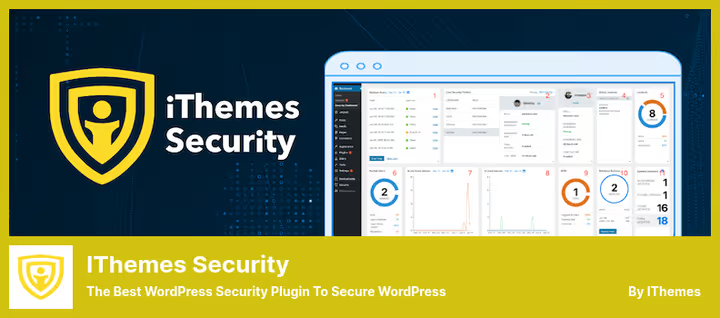
Solid Security (formerly iThemes Security) covers a scenario often overlooked: the site crashes not because of a code bug, but because of a hack or attack. A DDoS bot floods the server with requests. A plugin vulnerability allows malicious code to be uploaded. Brute force cracks the admin password. These aren't PHP errors. But the result is the same: the site is down.
The plugin offers 30+ protection methods. The vulnerability scanner checks installed plugins and themes for known CVEs and alerts you if any version is no longer being patched. The firewall blocks suspicious requests before they reach WordPress. Two-factor authentication cuts off brute force attacks on user accounts.
Malicious User Agent blocking, password guessing protection, file change monitoring, all this works in the background without your involvement. In practice, Solid Security prevents problems that would otherwise have to be "debugged" after the fact: cleaning infected files, restoring the database, resetting passwords.
Pros:
- Comprehensive protection: firewall, vulnerability scanner and 2FA in one plugin
- Prevents attacks before they break the site
- CVE scanner with alerts about outdated plugins
- Free version covers basic needs
Cons:
- Not a debugging tool: protection, not bug hunting
- Pro version $80/yr, more expensive than other plugins in the roundup
- Overkill for simple brochure sites without forms and users
Price: free Lite version; Pro: annual license $80 (two sites, upgrade for more, additional fee).
🔗 Solid Security on WordPress.org🔗 Solid Security Pro
Basic debugging techniques: logs, constants, call stack, shown in this 15-minute video from WordPress Developer Resources:
⁉️🤔 Frequently asked questions
What to do if no plugin is identified as the problem?
This happens when the problem is not in plugins, but in the theme or in the WordPress core itself. Run Troubleshooting Mode in
Health Check & Troubleshooting, it will switch the theme to a default one (Twenty Twenty-Five in 2026). If the error disappeared, the problem is in your theme. If not, reinstall the WordPress core through "Updates" in the admin panel. Still doesn't help, check server logs through the hosting panel: memory errors, timeouts, process limits.
Why is WP Debugging better than manually adding constants to wp-config.php?
Safety and speed. Manual editing of
wp-config.phpthrough FTP or file manager is risky for typos: one missing quote or semicolon breaks the site.WP Debuggingdoes this automatically and cleanly. Second plus, deactivation: the plugin restores original constant values, whereas with the manual method you might forget to removeWP_DEBUG_DISPLAY = trueand show errors to visitors for weeks.
Why is Akismet in a debugging tools roundup?
Spam is noise that masks real problems. When the database has 50,000 spam comments, the admin panel slows down, and wp-cron chokes on cleanup. Logs are filled with 404 errors from broken spam links.
Akismetremoves this noise, and you see real errors, not the consequences of a spam attack. It's not a debugger, but without clean data, diagnostics is impossible.
Solid Security, a security plugin. Why is it in a debugging list?
Because in practice, a third of WordPress site "crashes" are related not to code bugs, but to hacking: malicious code in the theme, a DDoS attack on xmlrpc.php, a cracked password and uploaded shell. Debugging this is useless, you need to prevent it.
Solid Securitycloses this class of problems at the entry point, and "debugging" comes down to reading the attack log, not restoring the site from backup.
How to choose between Health Check and Plugin Detective?
If the site is working and you can access the admin panel, take
Health Check. Its Troubleshooting Mode is safer: it simulates deactivation, visitors don't see changes. If the site is down with a white screen of death and the admin panel is inaccessible, takePlugin Detective. It launches bypassing the broken interface and actually deactivates plugins to bring the site back to life. Ideally have both: they complement each other.
What to install for debugging WordPress in 2026
Each tool in the roundup covers its own part of the troubleshooting workflow. Choose not "the best plugin in general", but a combination for your task.
If the site crashed right now and the admin panel won't load, launch Plugin Detective. It will bring the site back to life in 5-10 minutes without code and logs. Once the admin panel is accessible again, connect Health Check & Troubleshooting and go through Troubleshooting Mode, you'll find the exact cause of the conflict.
For prevention, keep WP Debugging active always: it quietly writes errors to the log without showing them to visitors. Check debug.log once a week, and you'll see problems BEFORE they break the site. Let Akismet clean spam, less noise in the database, faster admin panel, cleaner logs. And use Solid Security to close vulnerabilities at the entry point: CVE scanner, firewall, 2FA. This is the combination we use on our projects.
Write in the comments which tool has helped you when debugging WordPress, or ask a question if you don't know what to choose for your case. Subscribe to the blog to not miss the next roundups and tutorials.

A professional team of writers and editors specializing in creating quality content.