













🔧 Contact Form 7: configuring email delivery and fixing submission errors
How Contact Form 7 sends emails and why they fail to arrive
Contact Form 7 is used on 5+ million websites, making it the most popular form plugin for WordPress. Setting up a three-field form takes just a few minutes, but when emails stop arriving, the headaches begin: site owners lose leads, have no idea what went wrong, and end up diving into forum threads.
The problem is almost never the plugin itself. CF7 hands the email to the wp_mail() function, which passes it to your server. From there, what happens depends on your hosting, PHP settings, active plugins, and a dozen other factors. One disabled REST API or an incorrect "From" field, and the form works but no emails come through.
We have compiled a step-by-step guide to configuring the CF7 email template and analyzed all the common reasons for delivery failure, with specific solutions tested on dozens of sites.
💡 Quick overview:
- Filling in the To, From, and Subject fields in the email settings
- Copying a ready-made HTML email body template
- Checking the main reasons why emails fail to send
- Configuring SMTP for reliable delivery
Configuring the email template: step by step
Open your form in the admin panel: Contact Form → select your form → "Mail" tab. This is where CF7 assembles the email from three parts: headers, subject, and body. An error in any field breaks delivery, so let's go through each one.
To, From, and Subject
To is your working email address where submissions arrive. For example, info@your-domain.com or a Gmail address if you're using an SMTP plugin.
From has one key rule: the sender's domain must match your site's domain. Most hosts reject emails where the "From" field contains user@gmail.com while the site runs on mysite.com. Use site@your-domain.com; the mailbox doesn't have to actually exist, and that's fine. The mail server checks the domain, not whether the address is real.
Subject can include CF7 macros for dynamic data:
1 [_site_title] — Form "Contact Form"
[_site_title] automatically inserts your site name from the WordPress settings. This way you immediately see which project the submission came from.
Additional headers: leave Reply-to alone; CF7 will automatically set the email from the form field you specify in the email body.
Email body: HTML template
The default CF7 email is plain text with field tags. It looks cheap and is hard to read. Here's the template we use on all our projects, with a logo, proper layout, and clickable email/phone links:
1 <img src="https://YOUR_DOMAIN.COM/wp-content/uploads/2024/logo-150x150.png" 2 style="max-width: 150px !important;"> 3 4 <h3>The user submitted the following information:</h3> 5 6 <p><b>Name:</b> [text-59]</p> 7 <p><b>E-mail:</b> <a href="mailto:[Email]">[Email]</a></p> 8 <p><b>Phone:</b> <a href="tel:[tel-116]">[tel-116]</a></p> 9 <p><b>Message:</b> [textarea-102]</p> 10 11 <p>Message sent from [_site_title] ([_site_url])</p>
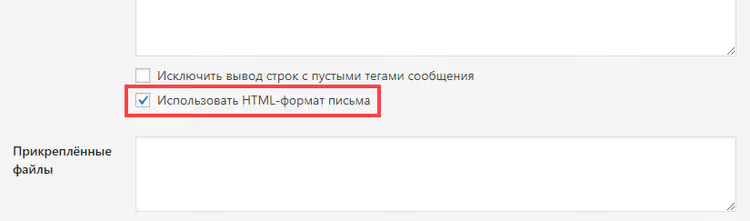
Key points: the logo should be square and compact (about 150 px per side), otherwise it will break in email clients. The macros in square brackets ([text-59], [Email]) are your form field tags; replace them with your own names from the "Form" tab. And be sure to check the "Use HTML content type" box below the template editor, otherwise the HTML tags will arrive as plain text.
6 reasons why emails fail to send and how to fix them
1. Incorrect "From" field
The most common mistake: the "From" field contains the customer's email from the form, [Email]. The recipient server sees an email from a gmail.com domain sent from your hosting and blocks it as spoofing. Solution: "From" must always be an address on your site's domain. Put the customer's email in Reply-to via an additional header:
1 Reply-To: [Email]
2. Security plugin conflicts
Plugins like Wordfence, iThemes Security (now Solid Security), and All-In-One Security can block outgoing WordPress HTTP requests, including email sending. Diagnosis is simple: disable all plugins except Contact Form 7 and test the form. If it works, enable plugins one by one to find the culprit.
3. REST API is disabled
Contact Form 7 uses the WordPress REST API to submit forms via AJAX. Optimization plugins, such as Clearfy Cache (note: as of October 2025, the project has been absorbed by Super Page Cache and is no longer developed separately; current users are advised to migrate to Super Page Cache), may disable REST API to speed up the site. Check your optimizer's settings: the REST API toggle should be "Off," meaning REST API is enabled and working.
4. Hosting blocks the mail() function
On cheap hosting, the PHP mail() function is often disabled or restricted. Contact Form 7 sends emails through it by default. Contact your host's support and ask whether mail() is allowed on your plan. If not, switch to SMTP (see section below); this solves the problem completely.
5. Emails land in spam
Even if the email was sent, Gmail or your host's mail service may put it in spam. Reasons include: missing SPF/DKIM records for the domain, a "suspicious" From header, HTML without a text part. Solution: an SMTP plugin that sends through an external service (Gmail API, Mailgun, SendGrid). They sign every email with a DKIM signature and use reputable SMTP servers, making deliverability nearly 100%.
6. PHP and WordPress version sensitivity
CF7 is actively updated (check the current version on wordpress.org; as of mid-2026, it's the 6.x branch, running on PHP 7.4 and above). If your hosting runs ancient PHP 5.6, or conversely, you enabled experimental PHP 8.4 without checking compatibility, emails may silently fail. Stick with PHP 8.1-8.2; this is the sweet spot.
Configuring SMTP: solving the delivery problem once and for all
SMTP is a protocol that transmits email not through your server's mail() function, but through a full-fledged mail service. WordPress has a dozen plugins that intercept wp_mail() and route emails through an external SMTP server.
What to choose:
- Gmail API: free up to 500 emails per day via Google Workspace or a personal Gmail account. Pros: excellent deliverability. Cons: you need to create a project in Google Cloud Console and obtain OAuth keys.
- Brevo (formerly Sendinblue): 300 free emails per day, simple SMTP with login and password. No OAuth required.
- Mailgun: 100 free emails per day, get an API key and you're done. For developers.
Install any SMTP plugin (WP Mail SMTP, Post SMTP, FluentSMTP; all are free in the WordPress repository), enter your provider credentials, and you no longer need the mail() function. CF7 continues to work as usual, but emails go through a reliable channel.
CSS and custom fonts in CF7 emails
If you're sending not just contact submissions but, say, order confirmations with brief product details, it makes sense to style the email. CSS in email works through inline styles (style=""); email clients ignore external stylesheets. Here's an example of a styled template:
1 <img src="https://YOUR_DOMAIN.COM/logo.png" 2 style="max-width: 150px !important;"> 3 4 <h2 style="font-family: Arial, sans-serif; color: #333;"> 5 The user selected a product: 6 </h2> 7 <h2 style="font-family: Arial, sans-serif;">[hidden-120]</h2> 8 9 <hr style="border: 1px solid #eee;"> 10 11 <h3 style="font-family: Arial, sans-serif; color: #555;"> 12 The user submitted the following information: 13 </h3> 14 15 <p style="font-size: 14px;"><b>Name:</b> [text-59]</p> 16 <p style="font-size: 14px;"><b>Phone:</b> <a href="tel:[tel-116]">[tel-116]</a></p> 17 <p style="font-size: 14px;"><b>Email:</b> [Email]</p> 18 19 <p style="color: #999; font-size: 12px;"> 20 Message sent from <b>[_site_title] ([_site_url])</b> 21 </p>
Same rules apply: logo square, HTML format checkbox enabled, macros replaced with your own. Custom fonts from Google Fonts don't work in email; use system font stacks (Arial, Helvetica, sans-serif).
⁉️🤔 Frequently asked questions
Why does CF7 show "Message sent" but there's no email?
CF7 is responsible for collecting data and passing it to WordPress, not for final delivery. The "success" response means the AJAX request completed without errors. The actual email sending happens in the background via
wp_mail(), and if something goes wrong at that step (hosting blockedmail(), the From address failed validation, the email went to spam), CF7 won't show an error. That's why you should always test the form by sending to a real mailbox after configuration.
Is an SMTP plugin mandatory?
Not mandatory, but strongly recommended. Without SMTP, your emails are sent by the PHP
mail()function, which doesn't authenticate the sender, doesn't sign DKIM, and is often blocked by spam filters. An SMTP plugin adds authentication and dramatically improves deliverability. In practice, we've seen dozens of sites where the form "worked" but emails went to spam or never arrived at all. After enabling SMTP via Post SMTP or FluentSMTP, the problem disappeared in 5 minutes.
What should I do if CF7 stopped working after a WordPress update?
First, check your PHP version; CF7 requires PHP 7.4 or higher (verify in the official documentation). Then disable caching and optimization plugins: they often break REST API when the core updates. If that doesn't help, temporarily switch to a default WordPress theme and test the form. In most cases, it's a conflict with a caching or security plugin that hasn't yet adapted to the new core version.
How do I check if REST API is working?
Open
https://your-site.com/wp-json/in your browser. If you see JSON with a list of available endpoints, REST API is alive. If you get a 404 or a blank page, REST API has been disabled by an optimization or security plugin. This is the quickest diagnostic method: if the endpoint returns JSON, CF7 has everything it needs to work. Look for REST API settings in plugins like Clearfy, Perfmatters, WP-Optimize, or in security solutions like Wordfence.
Can I send emails with attachments through CF7?
Yes, CF7 supports file uploads via the
[file]field. In the email settings, in the "Attachments" field, enter the macro for that field, and the file will be attached to the email. Most hosts limit attachment size viaupload_max_filesizein PHP (usually 2-8 MB). For multiple uploads, use separate fields. If emails with attachments don't send while the form works without attachments, the issue is the size limit; reduce file sizes or ask your host to increase the limit.
What to use in 2026: CF7 + SMTP or alternatives?
Contact Form 7 remains the best free plugin for WordPress forms if you need customization and aren't afraid to dig into settings. But the email delivery problem is baked into WordPress architecture itself: the mail() function is inherently unreliable.
So the 2026 formula is: Contact Form 7 + SMTP plugin. Install FluentSMTP (free, lightweight, no ads in admin) or Post SMTP and configure sending through Gmail API, Brevo, or Mailgun. These two components together give you: unlimited form customization + enterprise-level deliverability. Cost: $0, setup time: 10 minutes.
If you want a form that works "out of the box" without any hassle, consider WPForms or Ninja Forms. They're paid, but SMTP sending is built in by default through their own servers. The choice is yours: CF7's flexibility or the simplicity of commercial solutions.

A professional team of writers and editors specializing in creating quality content.