














🪄 Contact Form 7: popups after submission, DOM events and a ready-made jQuery script
A user filled out a form, clicked "Submit," and nothing happened. The page reloaded, the fields cleared, but whether the email was actually sent remains unclear.
Contact Form 7 doesn't show visual notifications after submission out of the box. Success or error messages hide below the form in small text, without animation, without emphasis. Users simply don't notice them and leave without knowing whether their submission was received.
You can fix this in 10 minutes. All you need is Contact Form 7 itself, any popup plugin with a JavaScript API, and 25 lines of code. The result: after form submission, a large window smoothly appears over the page (green for success, red for error) and disappears automatically after a set interval. No page reload, no lost leads.
💡 Quick overview:
- Which DOM events Contact Form 7 fires and how modern names differ from legacy ones
- How to create success and error popups in any WordPress popup plugin
- CSS styles for popups: overlay, animation, z-index
- A ready-to-use jQuery script: binding CF7 events to popup opening and auto-closing
- A modern alternative using
addEventListenerwithout jQuery - Configuring display duration separately for success and error
Which DOM events Contact Form 7 fires
Contact Form 7 generates custom DOM events at each stage of form processing. Here is the complete list from the official documentation:
Event | When it fires |
|---|---|
| AJAX submission completed, but the form contains fields with invalid data |
| Submission blocked by spam filter |
| Email successfully sent |
| Submission processed, but email failed to send (mail server issue) |
| Submission completed, regardless of result |
For post-submission popups, you need two events: wpcf7mailsent (success) and wpcf7invalid (validation error). You could also use wpcf7spam for a separate warning window, but in practice the first two are enough.
Important note: in older guides and snippets, events are written with a colon. For example, wpcf7:mailsent and wpcf7:invalid. This syntax was used in jQuery hooks of earlier CF7 versions. Today it still works for backward compatibility, but the canonical names don't include the colon. In the code below I'll provide both variants: the modern one using addEventListener and the jQuery variant for projects where jQuery is already loaded.
The event.detail object contains useful properties: contactFormId (the specific form's ID), pluginVersion (CF7 version), inputs (array of entered data). If you have multiple forms on a page, filter by contactFormId so the popup opens only for the intended form.
Step 1: choose a popup plugin and create windows
You need a popup plugin with a JavaScript API so the window can be opened programmatically from a script. Two proven free options from the WordPress.org plugin directory:
- Popup Maker, 700,000+ active installations, 4.9/5 rating. Call:
PUM.open(popup_id). Powerful free core, page targeting, time and scroll triggers, integration with popular forms. The largest community where you'll find answers to any question. - WP Popups, 20,000+ active installations. Call:
SPU.show(popup_id). Visual Gutenberg-based editor, display filters, Contact Form 7 support out of the box. Lightweight and fast.
Create two popups: one for successful submission, another for errors. In each, place an image, text, and optionally a "Close" button. Note the ID of each window since you'll need them in the script in step 3. The examples below use IDs 1068 (success) and 1065 (error); yours will be different.
Here's what the popups look like with configured styles:
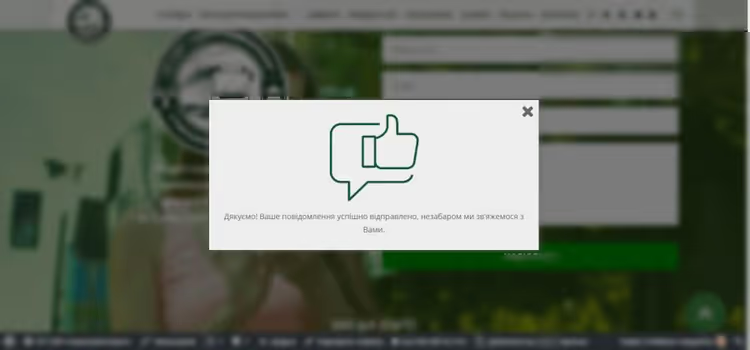
Successful submission popup: green background, confirmation icon, and text.
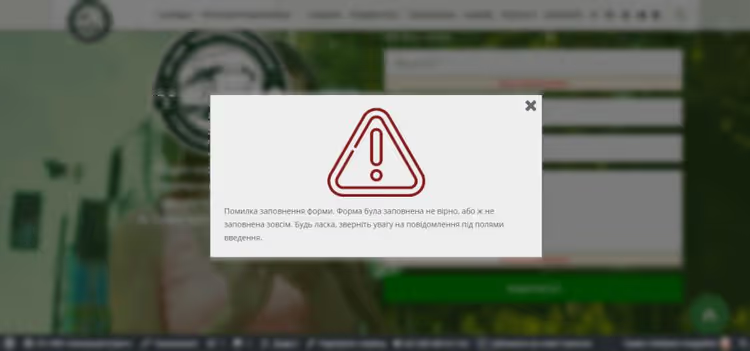
Error window: red background, warning icon, and a request to check entered data.
And here are the images for placing inside the popups:

You can replace these images with your own by specifying different paths in the popup plugin settings.
Step 2: CSS styles for popups
Popup plugins don't always export custom CSS. If styles aren't applied after creating the windows, add them manually: Plugin Settings → Custom CSS, or Appearance → Customize → Additional CSS.
Styles for the successful submission popup (green overlay, maximum z-index):
1 div#spu-bg-1068 { 2 opacity: 0.6; 3 background-color: green; 4 z-index: 9999999; 5 } 6 div#spu-1068 { 7 z-index: 99999999; 8 }
Styles for the error popup (red overlay):
1 div#spu-bg-1065 { 2 opacity: 0.6; 3 background-color: #F44336; 4 z-index: 9999999; 5 } 6 div#spu-1065 { 7 z-index: 99999999; 8 }
What's happening here: #spu-bg-N is the semi-transparent backdrop (overlay). #spu-N is the window itself. The high z-index ensures the popup covers all page elements, including the admin bar.
If you're using a different popup plugin, replace the selectors. Popup Maker generates #pum-N and .pum-overlay[data-popmake*="N"]. WP Popups uses its own prefixes; check the browser inspector (F12) for the actual IDs of your windows.
Step 3: jQuery script linking CF7 and popups
The script can be inserted in one of three ways: in your child theme's functions.php, via the Code Snippets plugin, or in your theme's custom JavaScript section. Before editing functions.php, make a backup; one syntax error will crash the site.
Below is the complete code with comments. It catches two Contact Form 7 events and calls the popup plugin API:
1 // START: Contact Form 7 + Popups — popups for success and error 2 jQuery(document).ready(function($) { 3 4 // Popup for validation ERROR (fields empty or invalid) 5 $(".wpcf7").on('wpcf7:invalid', function(event) { 6 SPU.show(1065); // Error popup ID — replace with yours 7 setTimeout(function() { 8 $('div#spu-1065, div#spu-bg-1065').fadeOut(600, 'swing'); 9 }, 5500); // auto-close after 5.5 seconds 10 }); 11 12 // Popup for SUCCESSFUL submission 13 $(".wpcf7").on('wpcf7:mailsent', function(event) { 14 SPU.show(1068); // Success popup ID — replace with yours 15 setTimeout(function() { 16 $('div#spu-1068, div#spu-bg-1068').fadeOut(600, 'swing'); 17 }, 3500); // auto-close after 3.5 seconds 18 }); 19 20 }); 21 // END: Contact Form 7 + Popups
What you need to replace for your project:
SPU.show(N)with your popup plugin's method. For Popup Maker:PUM.open(N).1065and1068with your popup IDs. Find them in the plugin's admin panel.- Time in
setTimeout(milliseconds).5500= 5.5 seconds,3500= 3.5 seconds. Adjust to your preference. - Selectors
div#spu-Nanddiv#spu-bg-N; replace if your plugin generates different IDs.
Modern alternative without jQuery. If your theme doesn't load jQuery or you want a lighter option, use native CF7 events via addEventListener:
1 document.addEventListener('wpcf7mailsent', function(event) { 2 // event.detail.contactFormId — ID of specific form (if there are multiple) 3 PUM.open(1068); 4 setTimeout(function() { 5 document.querySelector('#pum-1068').style.display = 'none'; 6 document.querySelector('.pum-overlay[data-popmake*="1068"]').style.display = 'none'; 7 }, 3500); 8 }, false); 9 10 document.addEventListener('wpcf7invalid', function(event) { 11 PUM.open(1065); 12 setTimeout(function() { 13 document.querySelector('#pum-1065').style.display = 'none'; 14 document.querySelector('.pum-overlay[data-popmake*="1065"]').style.display = 'none'; 15 }, 5500); 16 }, false);
This variant works with Popup Maker and doesn't require jQuery. The events wpcf7mailsent and wpcf7invalid (without the colon) are the modern standard.
If you have multiple forms on a page, filter by contactFormId:
1 document.addEventListener('wpcf7mailsent', function(event) { 2 if ('123' === event.detail.contactFormId) { 3 PUM.open(1068); // popup only for form ID=123 4 } 5 }, false);
Configuring auto-close timing
The interval for each popup is set separately using the second argument of setTimeout in milliseconds. Practical recommendations:
- Success: 3-5 seconds. The user has already read "sent," so there's no need to hold it longer.
- Error: 5-7 seconds. The person needs time to process the problem, re-read the message, and understand which fields to fix.
- Spam (
wpcf7spam): 8-10 seconds. Give enough time to read the warning completely, but don't lock up the page entirely.
The value 600 in fadeOut(600, 'swing') is the fade-out animation duration in milliseconds. Less than 400 looks jerky, more than 800 feels slow. 600 is the sweet spot.
If you have multiple popups and want different durations for different forms, wrap the setTimeout call in a contactFormId check, as shown in the example above.
Step-by-step video tutorial: setting up a popup after Contact Form 7 submission from scratch. If you're new to WordPress or prefer watching over reading code, these 8 minutes of screen time cover half the article.
⁉️🤔 Frequently asked questions
The popup doesn't open after form submission. What's wrong?
The most common cause: the popup ID doesn't match what's specified in the script. Go to your popup plugin's admin panel, find the actual window ID, and substitute it in the
SPU.show(N)orPUM.open(N)call. The second cause: jQuery isn't loaded or is conflicting. Check the browser console (F12 → Console) for errors. Popup plugins assign new numbers to windows during cloning or importing while the old ID from the snippet remains; always verify the numbers after importing.
Do I have to install a separate popup plugin? Can I just use an alert?
Technically yes: replace
SPU.show(N)withalert('Thank you!')and a notification will appear. But alert blocks the page, looks foreign, and annoys visitors. A custom popup with your design, icon, and smooth animation is part of the site rather than a browser system dialog. In our experience across several projects, replacing alert with a branded popup noticeably reduces the immediate bounce rate.
The code only works for one form. How do I make it work for multiple forms?
Use filtering by
event.detail.contactFormId. For the jQuery variant, wrap the call in a check:if (event.detail.contactFormId === 123) { SPU.show(1068); }. For vanilla JS, an example with a condition is provided in step 3.
What if jQuery isn't loaded on the site?
Use the
addEventListenervariant from step 3. It doesn't require jQuery and works in all modern browsers. The only nuance: closing the popup via native DOM is done by manually hiding the element since thefadeOutmethod isn't available. As an alternative, add a CSS class withtransitionand toggle it.
Can I use one popup for all forms on the site?
Yes, if the notification text is universal. Create one success popup and one error popup, then open them for all
wpcf7mailsentandwpcf7invalidevents without filtering bycontactFormId. However, if forms on different pages have different contexts, it's better to create separate windows. "Consultation request received" and "Subscription confirmed" look different.
Popup Maker or WP Popups: which one to choose for your project
The choice comes down to three scenarios:
- Need maximum features and integrations? Go with Popup Maker. Page targeting, time and scroll triggers, integration with dozens of form plugins, huge community. The free core covers 90% of use cases.
- Want simplicity and a Gutenberg visual editor? Your choice is WP Popups. Modern interface, quick setup, less overhead. Works with Contact Form 7 out of the box.
- Need a popup with a Contact Form 7 form inside? That's a different scenario (not notifications after submission, but a form in a modal window triggered by a button click). For this, there's the specialized WPB Popup for Contact Form 7, which opens a CF7 form in a popup rather than reacting to its submission.
Both notification plugins are free and available in the WordPress.org directory. Choose whichever fits your stack better and substitute its API call in the script from step 3. The popup topic itself can be explored endlessly: A/B testing notification text, delays based on reading time, different windows for different forms. But the foundation (CF7 event + popup call + auto-close) covers the vast majority of real-world tasks on WordPress sites.

A professional team of writers and editors specializing in creating quality content.