














🧹 Are you a plugin hoarder? How to clean up your WordPress site
Do you know this feeling: you log into your WordPress admin panel, look at the plugin list, and realize you haven't opened half of them in months. Or even years. "It might come in handy," you tell yourself. "This one's free, why delete it," you add. And before you know it, you become what the community calls a plugin hoarder.
The problem isn't the quantity. The problem is that every unnecessary plugin means an additional HTTP request, a potential security hole, and another headache waiting to happen during updates. Over years of working with WordPress, we've tried hundreds of plugins: for social media, for caching, for pop-ups, for security. And you know what? A significant portion of them were just dead weight. Below is a system that will help you conduct an audit, keep what you truly need, and ruthlessly get rid of the ballast.
💡 Quick overview:
- Go through the 7 warning signs of a plugin hoarder and honestly evaluate your site
- Build a matrix of useful and useless plugins based on their impact on revenue and speed
- Make a full backup and measure your site speed before starting the cleanup
- Deactivate removal candidates one at a time and monitor metrics for 2-3 days
- Delete the ballast completely along with residual data in the database
7 warning signs of a plugin hoarder
An honest checklist. Answer "yes" or "no," but no self-deception.
1. You can't remember why you installed half your plugins
If a plugin is activated but you can't immediately say what task it solves and when you last used its functionality, that's a red flag. Plugins exist to serve a purpose, not to pad your collection.
2. You postpone WordPress updates because of outdated plugins
The developer abandoned the plugin, the new WordPress version isn't compatible with it, yet you're clinging to the old core. The result: you miss out on new features, security fixes, and risk being stuck with a vulnerable site.
3. You have more plugins than published posts
This is especially telling if the site has been around for more than a month. Two dozen plugins on a blog with five articles isn't foresight, it's clutter.
4. Updating plugins has become a separate job
When maintaining your plugin zoo takes a couple of hours per week or even requires hiring someone, you're feeding the plugins instead of them working for you. Ironically, that specialist might suggest reducing their number first thing.
5. You're running a "Swiss army knife" plugin for just one or two features
Multifunctional giant plugins are a common trap. Jetpack, JetEngine, or similar behemoths offer dozens of capabilities, but if you only use lazy loading for images and visitor statistics, you're paying with server resources for the overwhelming majority of unused code. Replace the all-in-one tool with a couple of lightweight specialized solutions.
6. Your site still has plugins you "replaced with better alternatives"
Found a better alternative? Delete the old one. Don't "deactivate it just in case," actually delete it. A deactivated plugin doesn't execute PHP, but its files sit on the server, and its tables in the database take up space and slow down backups.
7. You have plugins installed "for the future"
"I'll launch an online store someday, WooCommerce will come in handy." "I'll start a newsletter and connect MailPoet." Until that "someday" arrives, plugins are dead weight. Keep a text document with a list of candidates and return to it when you're actually ready for the task.
Why plugin overload hurts your site

Many people reason like this: the plugin is deactivated, so it doesn't affect the site. This is a dangerous oversimplification. Even a disabled plugin leaves behind files and database entries, while an active one adds HTTP requests on every page load. The visitor's browser has to download extra scripts and styles, and the server spends CPU time processing code you don't need.
The impact of loading speed on business metrics has been confirmed by years of research. A 2019 Portent report showed that sites loading in 1 second convert three times better than sites loading in 5 seconds. According to Google, bounce probability on mobile devices increases by 32% when loading time goes from 1 to 3 seconds. Every extra plugin means milliseconds that add up to seconds.
The security question is even more pressing. According to WPScan statistics, plugins are responsible for over 90% of known WordPress vulnerabilities. Each additional plugin is an additional attack vector and another line on the list of things that need monitoring and updating. Fewer plugins means a smaller attack surface.
And there's a third aspect: cognitive load. The more plugins you maintain, the less attention goes to truly important things like content, design, and promotion strategy. The WordPress admin panel should be a working tool, not a warehouse of forgotten experiments.
Which plugins deserve a place on your site
The principle is simple: keep only what directly or indirectly impacts achieving your site's goals. Below are the categories that actually affect results.
Security plugins
Security isn't a place for compromises. A hacked site loses search rankings, undermines audience trust, and costs money to restore. WP Ghost (formerly Hide My WP) masks signs that a site runs on WordPress, making it harder for attackers to automatically scan for vulnerabilities. We have a detailed review of this plugin. The rule is simple: one quality security plugin is better than three mediocre ones plus five more deactivated "just in case."
Caching and speed plugins
Caching provides the most noticeable loading speed improvement among all types of optimization. A properly configured caching plugin reduces page generation time from several seconds to tens of milliseconds. We published a detailed guide on configuring W3 Total Cache, which is one of the most flexible and powerful caching tools. One caching plugin is always justified. Two? Almost never.
User engagement plugins
Social buttons, "Share" blocks, recommendation widgets: if they bring traffic, they work for you. We compiled a list of 35 best social media plugins. Choose one or two that best fit your design and delete the rest. Four sets of "Share" buttons from different developers won't multiply your reposts.
Conversion and subscription plugins
Pop-up windows, lead magnets, and subscription forms directly impact revenue. OptinMonster remains one of the leaders in this niche. Its A/B testing for popups and smart triggers show consistently high conversion rates. We also have a collection of 8 best WordPress popup plugins. Same principle: one proven tool instead of a zoo.
How to measure plugin impact on loading speed

Without numbers, any cleanup is guesswork. You'll need a speed measurement tool. Pingdom Tools and GTmetrix are free and show loading time, HTTP request count, and page size. Google PageSpeed Insights adds Core Web Vitals metrics.
Testing methodology:
- Choose one specific test server location (for example, Frankfurt for a European audience) and lock it in
- Take three speed measurements of the homepage one minute apart and average them
- Disable ONE suspicious plugin and repeat the measurements
- Compare the number of HTTP requests before and after, as this metric is often more revealing than seconds
Important: test during minimum load hours. If the site is commercial and constantly has visitors, don't experiment on the live server. Clone it to a wpclone subdomain and test on the copy. The Duplicator plugin handles cloning in just minutes.
A separate scenario is plugin conflict. A powerful but heavy subscription plugin can both increase conversion and slow down the site simultaneously. Here, the decision is made by the ratio of "conversion gain / speed loss." If a slowdown of fractions of a second delivers a noticeable increase in subscribers, it's worth it. If it's seconds for fractions of a percent, it's not.
Step-by-step cleanup: from audit to deletion
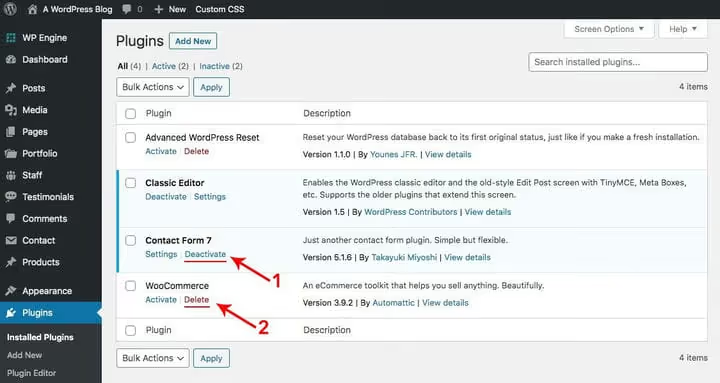
Let's get practical. This sequence of actions has been refined across dozens of sites.
Step 1. Full backup. Before any cleanup, make a backup of your site (files and database). Solid Backups (formerly BackupBuddy) or your hosting's backup tool will work. A backup isn't a recommendation but a mandatory condition if your site generates income.
Step 2. Audit. Open your plugin list and go through each one with three questions:
- What specific task does it solve?
- When did I last consciously use its functionality?
- What will happen to the site if I delete it?
Create three lists: "Keep," "Questionable," and "Delete."
Step 3. Deactivation and testing. Disable plugins from the "Questionable" list one at a time. After each deactivation, do a quick site inspection: check if the layout broke, if forms work, and if critical elements disappeared. Keep the plugin disabled for 48-72 hours, during which time you'll notice if something goes wrong.
Step 4. Complete deletion. When you're confident the plugin isn't needed, delete it rather than just deactivating it. Most plugins clean up after themselves when deleted through the standard WordPress interface, but some leave tables in the database. After a mass cleanup, it makes sense to run WP-Optimize or a similar tool to clear remaining data. Orphaned rows in wp_options and wp_postmeta can sit as dead weight for years.
Step 5. Final measurement. After completing the cleanup, repeat the speed test. Compare the number of HTTP requests before and after. You'll likely see a double-digit reduction. Record the result: these numbers will come in handy when, in six months, your hand reaches for "just one more free little plugin."
Video guide on cleanup
This is a comprehensive topic, and sometimes it's easier to see the process once than read instructions. This video shows a complete WordPress site cleanup of unused themes, plugins, and pages:
⁉️🤔 Frequently asked questions
How many WordPress plugins is considered a "normal" amount?
There's no universal number. A business card site with five plugins can work perfectly, while a large portal with thirty can lag. Focus not on quantity but on code quality and speed impact. If every plugin solves a specific business task and doesn't create conflicts, you can have twenty. The warning sign is when you can't list the functions of all plugins from memory.
Is it safe to delete a plugin I haven't used for a year?
Yes, in the vast majority of cases. But first, deactivate it for 2-3 days and browse your site. Check if any functionality broke. Some plugins leave shortcodes in post text, and after deletion, they'll display as plain text in square brackets. If you notice this, either restore the plugin or manually clean the shortcodes from posts.
What should I do with old plugins that are no longer in the WordPress repository?
If a plugin has been removed from the official repository and hasn't been updated in over two years, delete it without hesitation. No updates means no security fixes. The exception is a specialized plugin from a verified developer that receives updates outside wordpress.org.
Can deleting a plugin break the site's database?
A properly written plugin should offer to clean up its data upon deletion. But in practice, not all developers follow standards. That's why you need a backup before mass cleanup. After deletion, you can run WP-Optimize or Advanced Database Cleaner to remove orphaned tables and rows.
Should I keep unused plugins for "history" or "in case I need them"?
No. A plugin that "might come in handy someday" will almost certainly never come in handy. And if it does, you'll install a fresh version rather than the one that sat deactivated for two years and became hopelessly outdated. Keep a list of interesting plugins in your browser bookmarks or a text file, not on your production server.
Time to clean up: what to do right after reading
Plugin cleanup isn't a one-time event but a habit. Conduct an audit once a quarter: in 20 minutes, you'll go through the list, delete a couple of candidates, and check speed metrics. It's the same hygiene as backing up, just easier to forget about.
Matrix for quick decisions:
- Plugin you haven't opened in six months and don't know why it's there: delete
- All-in-one plugin with just one function being used: replace with a lightweight alternative
- Security / caching / conversion plugin that actually works: keep and update
- Plugin "for the future": delete, write down the name in your notes
After you've put things in order, lock in the results: set up caching. Without it, even a perfectly cleaned site won't reach its full speed potential. Close the plugin chapter and open the next one.

A professional team of writers and editors specializing in creating quality content.