













🔧 50 most common WordPress errors and how to fix them
A white screen instead of a website. The message "Error establishing a database connection" across the entire monitor. Or worse, silence: the site simply won't open, and traffic drops with every passing minute. A familiar scenario for anyone working with WordPress.
The thing is, the error text almost never tells you where to dig. "Internal Server Error" is not a diagnosis, just a statement: something went wrong. The server doesn't explain, plugins stay silent, and the client is waiting.
We've analyzed 50 real WordPress errors, from harmless Maintenance Mode to a complete database lockout. For each one: a clear symptom, likely cause, and specific action steps. With copyable snippets and WP-CLI commands, no fluff or guesswork.
💡 Quick overview:
- Find your error in the summary table below, 50 problems broken into 6 categories with quick solutions
- Go to the relevant section and follow the steps: each error is described following the chain "symptom → cause → solution"
- For technical errors, copy ready-made PHP snippets and WP-CLI commands, code tested on the current WordPress version
- Watch the video breakdown of the most common WordPress errors, embedded in the post
Summary table: 50 errors, symptoms, and quick solutions
# | Error | Symptom | Category | Quick solution |
|---|---|---|---|---|
1 | Internal Server Error (500) | White screen / 500 message | Server | Check |
2 | Site is experiencing technical difficulties | Message "This site is experiencing technical difficulties" | Core | Check admin email, enable |
3 | PHP syntax error |
| Code | Fix syntax in |
4 | Database connection error | "Error establishing a database connection" | Database | Check |
5 | White screen of death (WSOD) | Completely white screen | Server | Increase memory limit, deactivate plugins/theme |
6 | 404 error on post pages | Posts return 404 | Content | Reset permalinks: Settings → Permalinks → Save |
7 | Sidebar below content | Sidebar moved down | Themes | Check unclosed |
8 | White text / missing editor buttons | Visual editor empty / buttons not visible | Plugins | Clear browser cache, check TinyMCE, plugin conflict |
9 | PHP memory limit exhausted |
| Server | Increase |
10 | Locked out of wp-admin | No access to admin panel | Access | Reset password via DB / FTP, remove security plugins |
11 | Login page redirect loop | Endless redirection when logging in | Access | Clear cookies, check |
12 | Login error: cookies blocked | "Cookies are blocked" | Access | Check |
13 | Unable to add media file | Error uploading to media library | Files | Check |
14 | Image problems | Wrong alignment, cropping, galleries | Content | Review media settings: |
15 | "Are you sure you want to do this?" | Message in admin when performing action | Plugins | Nonce key conflict in plugin/theme |
16 | "Briefly unavailable" (Maintenance) | Site in maintenance mode | Core | Delete |
17 | WordPress not sending email | Emails not arriving | Server | Configure SMTP plugin (Post SMTP, WP Mail SMTP) |
18 | RSS feed errors |
| Content | Check |
19 | 403 Forbidden error | Access denied | Security | File permissions (644) / folders (755), security plugins |
20 | Too many redirects |
| Server | Check site URL ( |
21 | Failed to write file to disk |
| Files |
|
22 | Site contains malware | Google warning "Site ahead contains malware" | Security | Scan site (Wordfence/Sucuri), remove infected files |
23 | Missed scheduled posts | Post didn't publish on schedule | Core | Check |
24 | Maximum execution time exceeded |
| Server | Increase |
25 | Wrong Facebook thumbnail | Wrong image when sharing | SEO | Configure Open Graph (Yoast/Rank Math), |
26 | Constant logout from WordPress | Getting kicked out of admin | Access | Check |
27 | Changes not saving | Edits not applying | Cache | Clear browser cache + caching plugin cache + server cache |
28 | Plugin / theme conflict | Site breaks after activation | Plugins | Deactivate all → enable one by one, find the culprit |
29 | WordPress update problem | Auto-update failure | Core | Manual update via FTP: |
30 | Corrupted database | Errors accessing tables | Database | Repair DB via phpMyAdmin / WP-CLI: |
31 | "Headers already sent" error |
| Code | Remove spaces/line breaks before |
32 | cURL error in WordPress |
| Server | Check |
33 | jQuery / JavaScript conflict | Admin not working, drag & drop broken | Plugins | Check browser console, jQuery version conflict |
34 | Timezone problem | Wrong publication time | Core | Settings → General → Timezone |
35 | "Table doesn't exist" error | Table missing in DB | Database | Restore table from backup / recreate |
36 | Mixed Content | Green padlock disappeared after switching to HTTPS | Content | Search and replace |
37 | "Another update in process" error | Core update blocked | Core | Delete |
38 | Password reset key error | Password reset link not working | Access | Free up disk space on hosting |
39 | Missing temporary folder |
| Files | Add |
40 |
|
| Code | Check custom code in |
41 | SSL / HTTPS problems | Certificate errors, mixed content | Security | Reinstall SSL certificate, Really Simple SSL plugin |
42 | File and folder permissions | Write, read errors | Files | Set folders → 755, files → 644 |
43 | HTTP error when uploading images | Can't upload image to media library | Files | Check memory limits, file size, folder permissions |
44 | Connection is not private |
| Security | Check SSL certificate (expiration, issuing authority) |
45 | Link has expired |
| Server | Increase |
46 | Site not updating immediately | Edits not visible after saving | Cache | Clear cache: browser → plugin → server (Cloudflare/LiteSpeed) |
47 | Failed to load resource |
| Content | Check resource URL (404?), access permissions |
48 | Missing temporary folder (repeat) | Media file upload not working | Files |
|
49 | Google reCAPTCHA error | Endless "I'm not a robot" verification | Plugins | Update reCAPTCHA v2/v3 keys, check plugin |
50 | Site not loading after domain change | White screen / DB error | Database | Replace old domain with new in DB via WP-CLI / Better Search Replace |
Category 1: Server errors and hosting limits
Panic starts with these errors. The good news: almost all WordPress server failures are fixed by editing one or two files or raising PHP limits.
1. Internal Server Error (500)
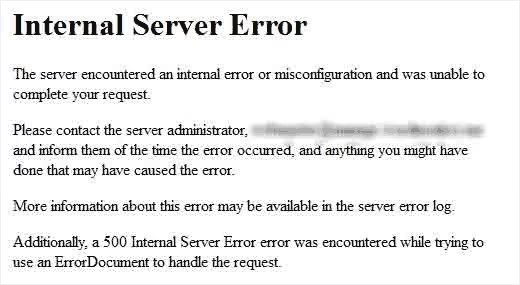
The most mysterious WordPress error. The server says "something's wrong" but doesn't say what. Usual culprits: corrupted .htaccess, exhausted PHP memory limit, or plugin conflict.
How to fix:
- Rename
.htaccessto.htaccess_oldand re-save permalinks:Settings → Permalinks → Save - Increase PHP memory limit in
wp-config.php:define('WP_MEMORY_LIMIT', '256M'); - Deactivate all plugins via FTP (rename the
wp-content/plugins/folder), then enable one by one
2. Site is experiencing technical difficulties
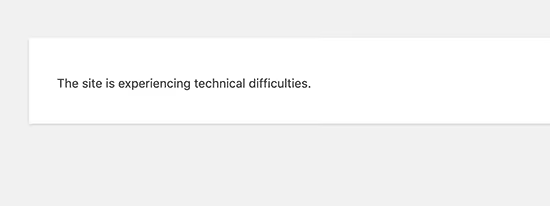
Since version 5.2, WordPress shows this message instead of a fatal error and sends an email to the administrator with a link to enter recovery mode.
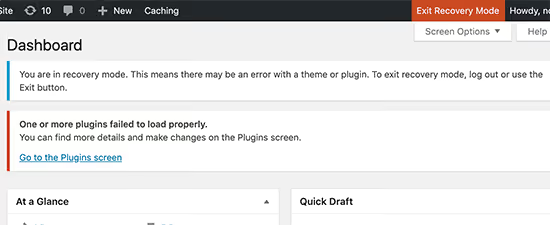
How to fix: check your WordPress administrator's email. The email contains a direct link to log into the admin panel with the problematic plugin/theme temporarily disabled. If there's no email, enable WP_DEBUG in wp-config.php: define('WP_DEBUG', true);, and refresh the page to see the specific error.
3. PHP syntax error
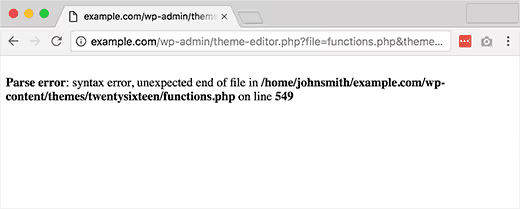
Parse error: syntax error, unexpected..., you added a snippet to functions.php, and the site went down. The error tells you which file and which line has the problem.
How to fix: open the file mentioned in the error via FTP, find the indicated line, and fix the syntax. Most often it's a missing semicolon ; or unclosed bracket. If you don't remember what you changed, roll back the file from backup.
4. Database connection error
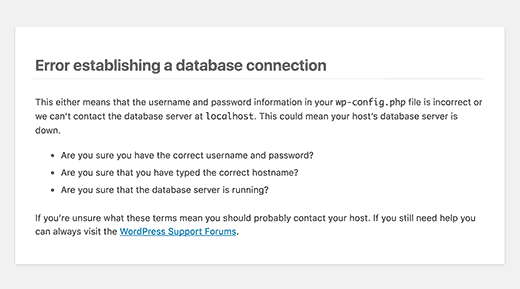
"Error establishing a database connection" means WordPress can't reach the database. In most cases, the cause is incorrect data in wp-config.php.
How to fix: open wp-config.php via FTP and check three lines: DB_NAME, DB_USER, and DB_PASSWORD. Compare them with the data in your hosting panel (MySQL section). If the data is correct, contact your host, the MySQL server might be overloaded or down.
5. White screen of death (WSOD)
A completely white screen without a single message. In the vast majority of cases, the cause is exhausted PHP memory limit.
How to fix:
- Add to
wp-config.php:define('WP_MEMORY_LIMIT', '256M'); - If that doesn't help, rename the active theme folder (
wp-content/themes/your-theme/), WordPress will switch to the default theme - Then rename the
plugins/folder, if the screen disappears, one of the plugins is to blame
9. PHP memory limit exhausted
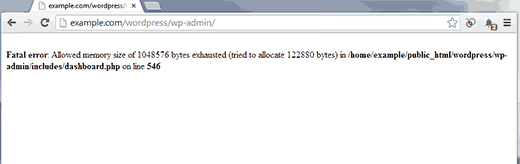
Message: Fatal error: Allowed memory size of 33554432 bytes exhausted. The typical limit on cheap hosting is 32 MB, while a WordPress site with several plugins needs at least 128 MB.
How to fix:
1 // wp-config.php — before the line /* That's all, stop editing! */ 2 define('WP_MEMORY_LIMIT', '256M'); 3 define('WP_MAX_MEMORY_LIMIT', '512M');
If your host blocks changing the limit, contact support or upgrade your plan.
20. Too many redirects
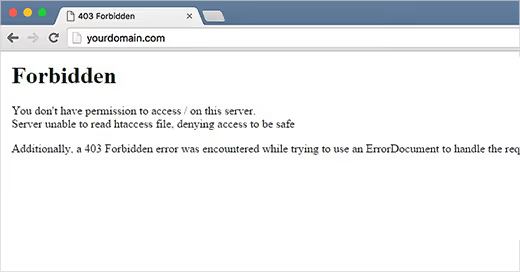
ERR_TOO_MANY_REDIRECTS, the browser got caught in an endless redirect loop. The usual cause: mismatch between the site URL in settings (siteurl/home) and the actual address (http vs https, with www or without).
How to fix: check the siteurl and home values in the wp_options table via phpMyAdmin. They should match and correspond to the actual site URL. If the site is on HTTPS, both values should start with https://.
24. Maximum execution time exceeded

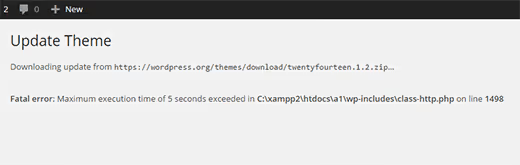
Fatal error: Maximum execution time of 30 seconds exceeded. The PHP script ran longer than the server allows. Often occurs when importing a large demo content file or mass-updating posts.
How to fix:
1 // wp-config.php 2 set_time_limit(300); // 5 minutes 3 // or in php.ini: 4 max_execution_time = 300
For bulk operations, use WP-CLI, commands run outside the web context and have no time limits.
32. cURL error in WordPress
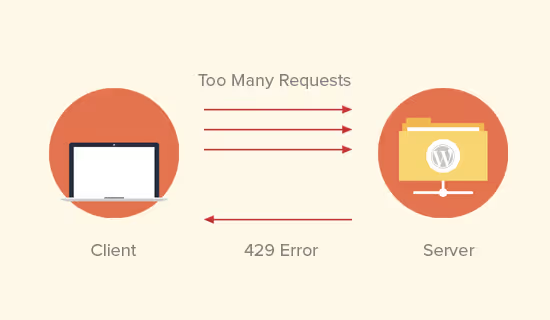
cURL error 28: Connection timed out or cURL error 7: Failed to connect. WordPress can't communicate with an external server (for updates, plugin downloads, or API requests).
How to fix: check if cURL is enabled on the server (phpinfo()). If it's enabled but the error persists, the problem is with the hosting firewall or DNS. Contact hosting support with the error text.
45. Link has expired

"The link you followed has expired" appears when uploading a large file or during a lengthy operation in the admin panel. The server time or upload size limit cut off the request.
How to fix: increase PHP limits in php.ini or .htaccess: upload_max_filesize = 64M, post_max_size = 64M, and max_execution_time = 300. Then restart the web server.
Category 2: Access and admin login
Can't log into the admin panel, work stops. Here's what to do if WordPress won't let you in.
10. Locked out of wp-admin
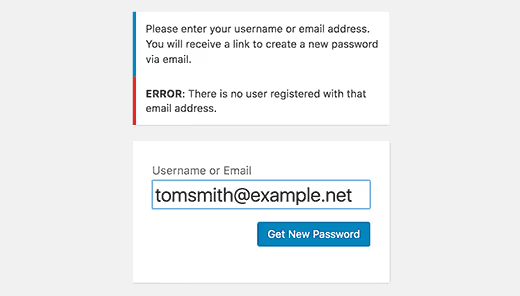
/wp-admin/ won't open, showing a blank page or "You don't have permission" message. Typical causes: a security plugin blocked your IP after several failed login attempts, or the .htaccess file in the wp-admin/ folder is corrupted.
How to fix: via FTP, rename the wp-content/plugins/security-plugin-name/ folder (Wordfence, Sucuri, iThemes), this will remove the block. If that doesn't help, reset your password via phpMyAdmin:
1 UPDATE wp_users SET user_pass = MD5('new_password') WHERE user_login = 'your_login';
11. Login page redirect loop
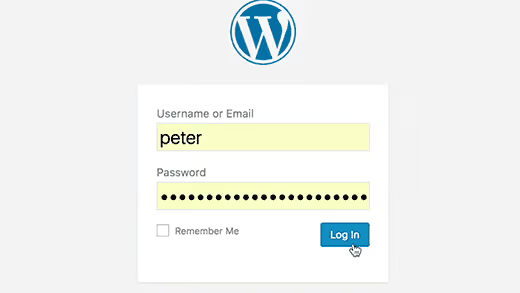
You enter your login and password, but /wp-admin/ keeps reloading endlessly. You don't log in, but there's no error either.
How to fix: clear browser cookies for the site domain. If that doesn't help, check the siteurl and home values in the wp_options table (they should be identical). Check if wp-config.php is forcing SSL: define('FORCE_SSL_ADMIN', true); when there's no certificate on the server.
12. Login error: cookies blocked
"Cookies are blocked or not supported by your browser", WordPress can't set an authorization cookie. Often happens after migrating a site or changing domains.
How to fix: add explicit URLs to wp-config.php:
1 define('WP_HOME', 'https://your-site.com'); 2 define('WP_SITEURL', 'https://your-site.com');
If the site is on HTTPS, make sure both values start with https://.
26. Constant logout from WordPress
You log into the admin panel, and a minute later you're kicked out (back to the login page). The root of the problem: the site URL doesn't match the actual address (with www and without www are considered different domains for cookies).
How to fix: choose one option (with www or without), set it in siteurl and home in the wp_options table, and configure a redirect from the unused option to the main one in .htaccess.
38. Password reset key error
The "Reset Password" link from the email doesn't work (key expired or invalid).
How to fix: a possible cause is the hosting disk ran out of space. PHP can't write the temporary key to the DB, and the link ends up empty. Free up space on hosting and request a password reset again.
Category 3: WordPress core problems
Errors related to WordPress itself: updates, cron, maintenance mode.
16. "Briefly unavailable" (Maintenance mode)
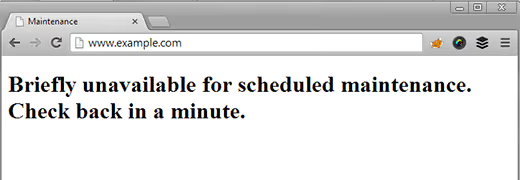
After a failed update, the site shows "Briefly unavailable for scheduled maintenance. Check back in a minute" and stays that way for hours.
How to fix: delete the .maintenance file from the site root via FTP. WordPress creates it during updates but doesn't delete it if the update fails. After deletion, the site will immediately return to working order.
23. Missed scheduled posts
The post was supposed to go live at 9:00, but at 10:00 it's still showing "Scheduled." WordPress uses wp-cron for delayed tasks, and it doesn't always fire.
How to fix: install the Scheduled Post Trigger plugin or set up system cron instead of the built-in wp-cron. Add to wp-config.php: define('DISABLE_WP_CRON', true); and configure calling wp-cron.php via system cron every 5 minutes.
29. WordPress update problem
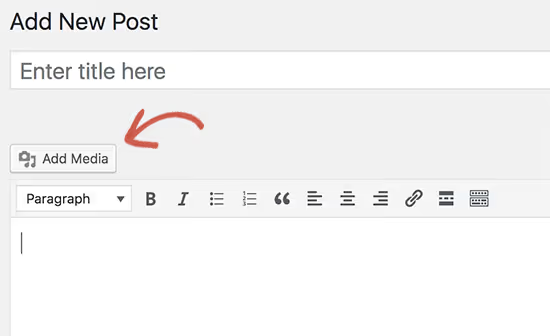
WordPress auto-update got stuck midway. The site doesn't work, the admin panel is inaccessible.
How to fix: update the core manually via FTP. Download the fresh ZIP from wordpress.org, extract it, and upload the wp-admin/ and wp-includes/ folders to the server with replacement. Don't touch files in the root (including wp-config.php).
34. Timezone problem
Posts are publishing with the wrong time or date.
How to fix: Settings → General → Timezone, select your city. For Moscow time: Europe/Moscow (UTC+3).
37. "Another update in process" error
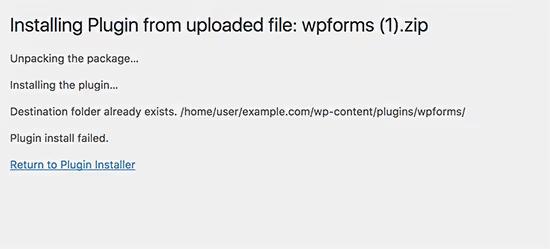
When trying to update WordPress core, you get: "Another update is currently in progress." The previous update didn't complete and left a lock.
How to fix: delete the core_updater.lock option from the wp_options table via phpMyAdmin. WP-CLI command: wp option delete core_updater.lock. The lock will be removed instantly.
Category 4: Content, files, and media
Texts, images, RSS, and permalinks: problems with site content.
6. 404 error on post pages

All post pages return 404, even though they exist in the admin panel. The easiest WordPress error to fix.
How to fix: Settings → Permalinks → Save Changes. Don't change anything, just click "Save," and WordPress will regenerate .htaccess and the link structure. Takes 5 seconds.
7. Sidebar below content
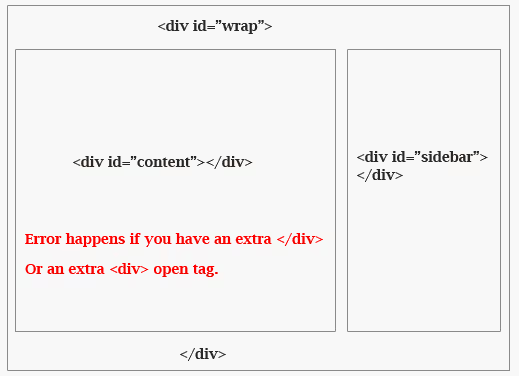
The sidebar ended up not to the right of the text, but below it. A layout classic.
How to fix: check the theme for unclosed HTML <div> tags or recently added CSS. Open the browser console (F12) and see which element is wider than expected (most likely an image with a width attribute set to full width or a block without max-width).
8. White text / missing editor buttons
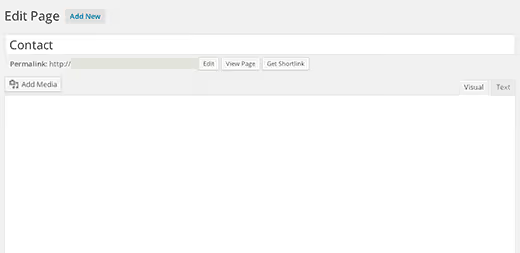
The visual editor is blank even though there's text in it, or TinyMCE buttons aren't displaying. A minor but annoying problem.
How to fix: clear browser cache (Ctrl+F5). If that doesn't help, deactivate plugins and enable them one by one (some plugin is conflicting with TinyMCE). Check the browser console for JavaScript errors.
13. Unable to add media file
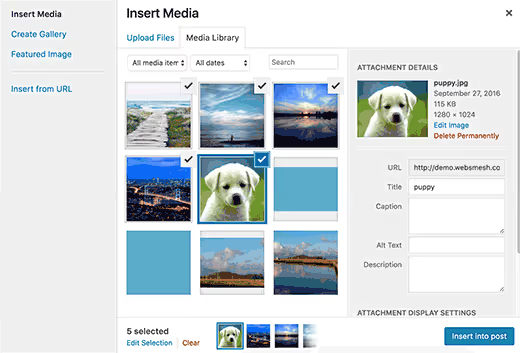
When uploading an image, you get "Unable to add media file" with no explanation.
How to fix: check the permissions for the wp-content/uploads/ folder (should be 755). Increase upload_max_filesize in php.ini to 64M or higher. Make sure there's free space on the hosting.
14. Image problems
Wrong alignment, incorrect thumbnail cropping, galleries breaking.
How to fix: open Settings → Media and check thumbnail sizes. If you changed them after uploading hundreds of images, regenerate thumbnails with the Regenerate Thumbnails plugin.
18. RSS feed errors
XML Parsing Error: not well-formed, the RSS feed is broken, subscribers aren't getting updates.
How to fix: open the theme's functions.php and check for extra spaces or line breaks before the opening <?php or after the closing ?>. One space outside PHP tags breaks XML output. It's better to remove the closing ?> at the end of the file entirely (WordPress coding standards recommend this).
21. Failed to write file to disk error
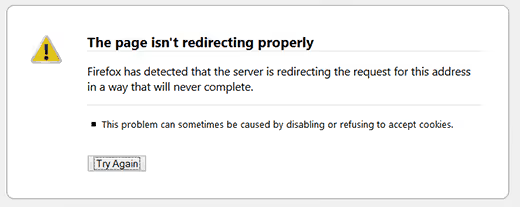
Upload: Failed to write file to disk, the server physically can't write the uploaded file.
How to fix: uploads/ folder permissions → 755. If that doesn't help, check the PHP temp folder: in phpinfo() find upload_tmp_dir and make sure it exists and is writable.
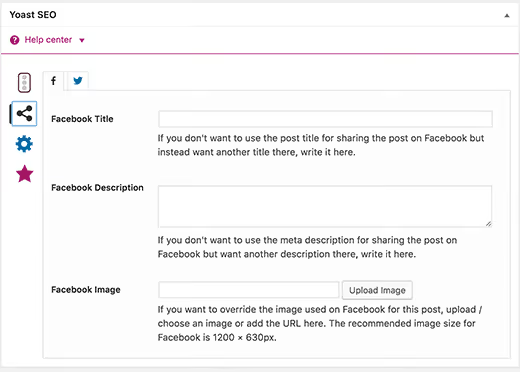
25. Wrong Facebook thumbnail
You share a post on Facebook, and it grabs a random image or shows nothing at all.
How to fix: configure Open Graph via Yoast SEO or Rank Math. Check the tags via Facebook Sharing Debugger, click "Scrape Again." Make sure og:image contains the correct URL for the post cover.
36. Mixed Content
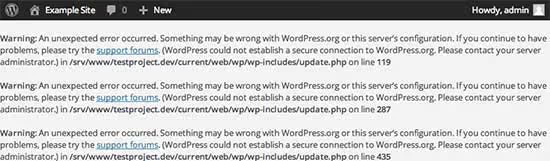
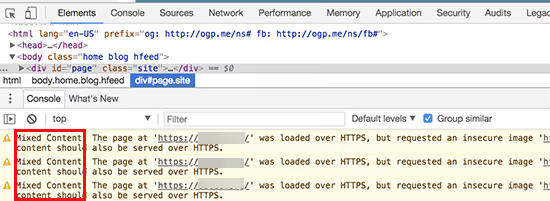
Switched to HTTPS, but the green padlock disappeared. The browser console shows "Mixed Content" (there are links to http:// on the page).
How to fix: the Better Search Replace plugin finds http://your-site.com and replaces it with https://your-site.com throughout the database. Before replacing, make a mandatory DB backup. Clear cache after replacement.
42. File and folder permissions
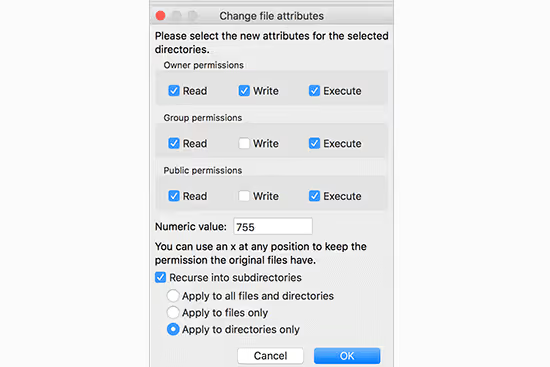
Write errors, file read errors, inability to install plugins.
How to fix: canonical WordPress permissions are folders 755, files 644. wp-config.php can be set to 640 or 400 for additional security. Don't set 777 (that's a security hole).
43. HTTP error when uploading images
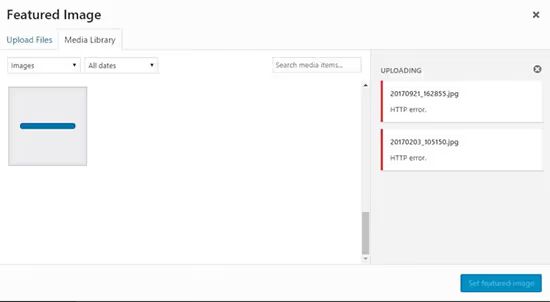
When uploading an image to the media library, a red "HTTP error" box appears.
How to fix: check PHP memory limits (WP_MEMORY_LIMIT → 256M), upload file size (upload_max_filesize → 64M), and folder permissions (755). Refresh the page and try again (sometimes it's a one-time issue with temporary memory shortage).
47. Failed to load resource
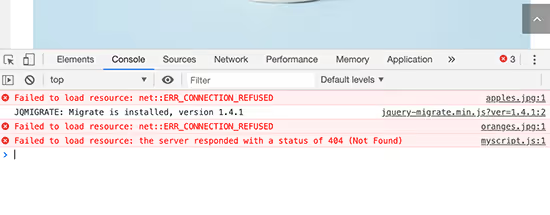
Failed to load resource: the server responded with a status of 404 in the console. Some file (CSS, JS, font) isn't loading.
How to fix: find the file URL in the console, open it in the browser. If 404, check if the file exists on the server. If it's a plugin or theme file, reinstall the plugin/theme. If it's an external resource, find a replacement or remove the call.
48. Missing temporary folder (alternative solution)
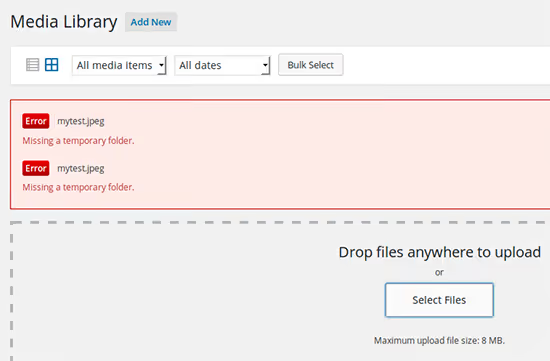
Same symptom, different approach: if the first solution didn't work, check that the upload_tmp_dir directive in php.ini points to an existing folder with write permissions. Or contact your host (the problem may be at the PHP configuration level).
Category 5: Plugins, themes, and conflicts
Most WordPress errors come from plugins. One incompatible plugin can take down the entire site.
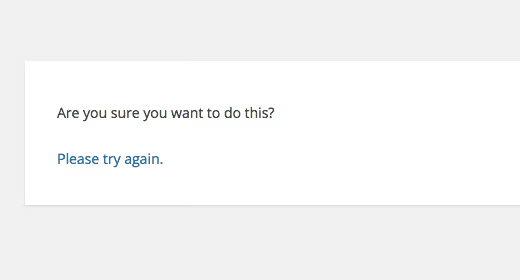
15. "Are you sure you want to do this?"
Message in admin when saving a post, installing a plugin, or any other action. The security nonce key didn't match.
How to fix: nonce key conflict in a plugin or theme. Deactivate plugins and enable them one by one, checking which one triggers the error. Found it? Replace the plugin with an alternative.
28. Plugin / theme conflict
The site breaks immediately after activating a new plugin or theme. Typical scenario: you clicked "Activate" and got a white screen.
How to fix: via FTP, rename the problematic plugin folder (wp-content/plugins/plugin-name/). The site will return, and the plugin will be deactivated. Then enable the remaining plugins one by one to rule out a chain conflict.
33. jQuery / JavaScript conflict
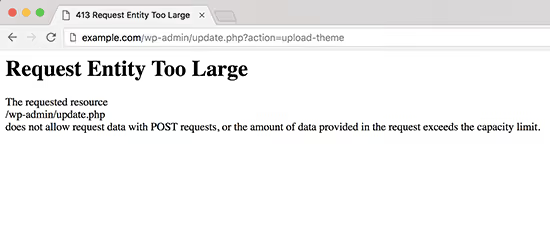
The admin panel works intermittently: drag & drop doesn't work, meta boxes don't collapse, buttons don't click.
How to fix: open the browser console (F12) on the problematic admin page. A red JavaScript error will point to the culprit plugin. Usually the problem is a plugin that loads its own version of jQuery, conflicting with the built-in WordPress version.
49. Google reCAPTCHA error
Endless reCAPTCHA verification ("I'm not a robot") or complete login block.
How to fix: update reCAPTCHA keys in the plugin settings (Contact Form 7, WPForms, security plugin). Use reCAPTCHA v3 (invisible) instead of v2 if the problem is the frequency of verification prompts.
Category 6: Security and SSL
Problems that cause the browser to show "site not secure."
19. 403 Forbidden error
"403 Forbidden, access denied" when trying to open the site or a section of it.
How to fix: check file permissions (644) and folder permissions (755) via FTP. Temporarily deactivate security plugins (they may have blacklisted your IP). Check .htaccess for Deny from rules.
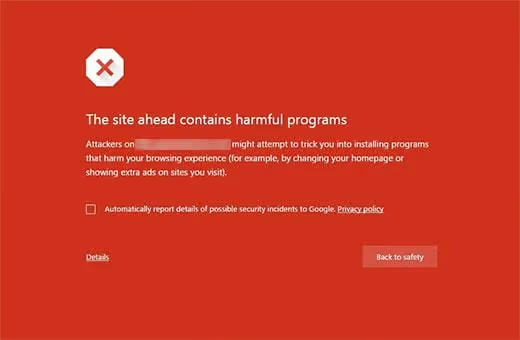
22. Site contains malware
In Google search, there's a red banner before the site: "Site ahead contains malware" or "This site may contain harmful programs."
How to fix: scan the site with the Wordfence plugin or via Sucuri SiteCheck. Remove infected files, change all passwords (FTP, DB, admin), and submit a review request in Google Search Console.
41. SSL / HTTPS problems
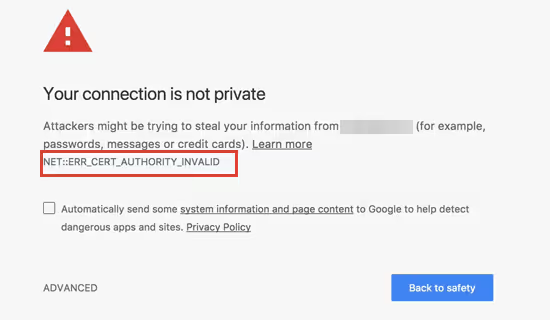
Certificate errors, mixed content, or site won't open via HTTPS.
How to fix: install a free SSL certificate via your hosting panel (Let's Encrypt) or the Really Simple SSL plugin. The plugin will automatically fix mixed content and configure redirects. After activation, check the site via https:// (all links should lead to the HTTPS version).
44. Connection is not private
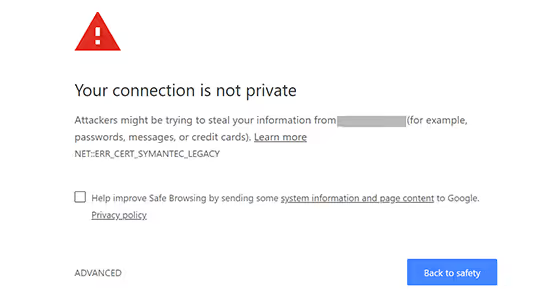
"Your connection is not private", the browser blocks access to the site. The SSL certificate has expired, is invalid, or was issued by an untrusted authority.
How to fix: check the certificate expiration date (click the padlock in the address bar). If expired, reissue it in your hosting panel. If the certificate is self-signed, replace it with Let's Encrypt. Make sure the domain in the certificate matches the site domain.
Category 7: Database
Database errors are the most dangerous because all content lives in the DB. But most of them are fixable.
30. Corrupted database
Errors when accessing tables: "Table 'wp_options' is marked as crashed."
How to fix: via WP-CLI:
1 wp db repair 2 // or via phpMyAdmin: select DB → all tables → "Repair"
If the database won't repair, restore from a fresh backup.
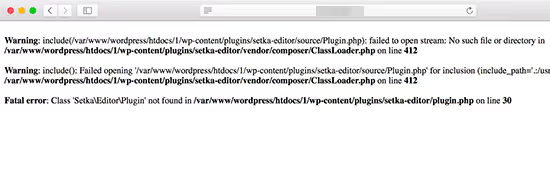
35. "Table doesn't exist" error
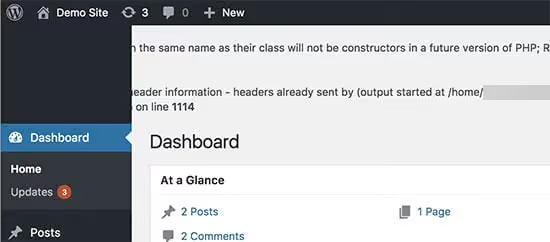
Table 'wp_db.wp_xyz' doesn't exist, MySQL doesn't see the table. It was either deleted or corrupted so badly that it can't be read.
How to fix: if you have a DB backup, restore the missing table via phpMyAdmin (import, select only the needed table). If there's no backup, try WP-CLI: wp db repair. For custom plugin tables, reinstall the plugin (it will recreate the structure).
50. Site not loading after domain change
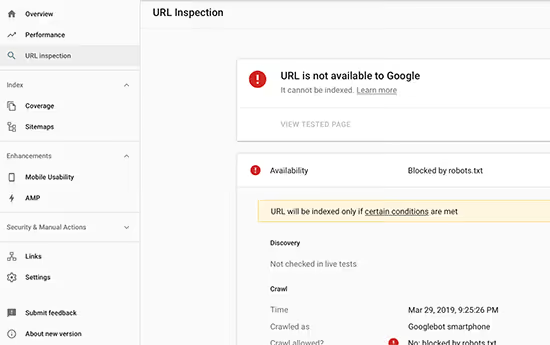
Moved the site to a new domain, and it won't open. White screen, DB error, or endless redirect to the old domain.
How to fix: replace the old domain with the new one throughout the database. Via WP-CLI:
1 wp search-replace 'old-domain.com' 'new-domain.com' --all-tables --dry-run 2 // Remove --dry-run for actual replacement
Or via the Better Search Replace plugin in the admin panel (if the admin panel is accessible). Make sure to back up the DB before replacement.
Category 8: Code and PHP
Errors related to custom code in the theme or functions.php.
31. "Headers already sent" error
Cannot modify header information, headers already sent by... with file and line indicated.
How to fix: open the file indicated in the error and check the beginning and end:
- No spaces or blank lines before
<?php - No spaces or line breaks after
?>(or better yet, remove?>at the end of the file entirely) - No BOM (Byte Order Mark): open the file in a code editor and save as UTF-8 without BOM
40. pluggable.php file error
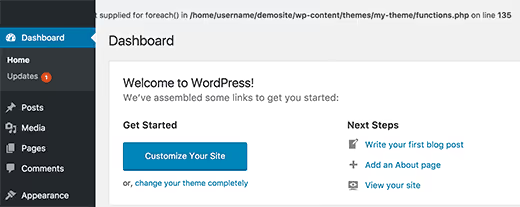
Cannot modify header information error pointing to wp-includes/pluggable.php. But the problem isn't in the core.
How to fix: the real culprit is your code in functions.php. pluggable.php contains functions that modify HTTP headers (wp_redirect(), wp_set_auth_cookie()), and any custom function called before them that outputs a space or character breaks the headers. Check functions.php for extra spaces, especially at the end of the file.
3. PHP syntax error
(Described in Category 1)
Category 9: Cache and performance
The site works, but changes don't show up or everything is slow.
27. Changes not saving
Changed text on a page, clicked "Save," but the site still shows the old version.
How to fix: clear cache in sequence: browser (Ctrl+F5) → caching plugin (WP Rocket, W3 Total Cache) → server cache (Cloudflare, LiteSpeed). If the problem persists, temporarily disable the caching plugin.
46. Site not updating immediately

Edits aren't visible on the site for minutes or hours after saving. Stacked caches (browser, server, CDN) create the delay.
How to fix: clear cache sequentially: browser → plugin → server (Cloudflare/LiteSpeed). For development, set up caching exclusions for the admin panel. On production, enable automatic cache clearing when content is saved.
Category 10: Files, FTP, and temporary folders
Problems with the server file system.
39. Missing temporary folder
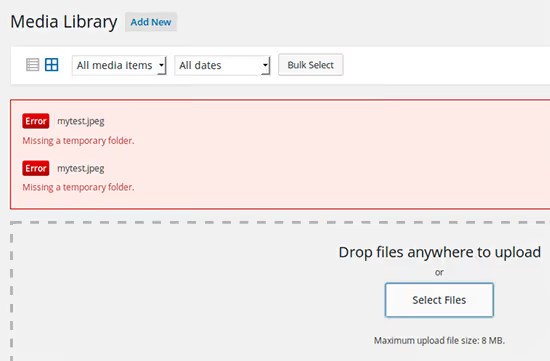
Missing a temporary folder, PHP can't create a temporary file during upload.
How to fix: add to wp-config.php:
1 define('WP_TEMP_DIR', WP_CONTENT_DIR . '/temp/');
Then create the /wp-content/temp/ folder with 755 permissions.
13, 21, 42, 43: see Category 4 (Content and files)
17. WordPress not sending email
WordPress emails aren't arriving: no comment notifications, no password reset emails, no contact form submissions.
How to fix: by default, WordPress sends emails via PHP's mail() function, which most hosts cripple for security reasons. Install an SMTP plugin (Post SMTP or WP Mail SMTP) and configure sending via an external SMTP server. Free option: Mailgun (up to 100 emails/day) or SendLayer.
⁉️🤔 Frequently asked questions
Can these errors be prevented before they appear?
Most WordPress errors are prevented by three habits. First: regular cloud backups (UpdraftPlus on a weekly schedule). Second: a test subdomain for checking updates and new snippets before pushing to the live site. Third: the rule "don't install more than 20 plugins at once." In our experience, the lion's share of errors from this list happen due to plugin conflicts or manually adding code without testing. Keep a fresh backup, and any error becomes a 10-minute rollback instead of a day of panic.
What should I do first for any WordPress error?
Action sequence: 1) don't panic and don't click everything randomly; 2) enable
WP_DEBUGinwp-config.php(define('WP_DEBUG', true);), you'll see the specific error instead of a white screen; 3) deactivate all plugins (rename theplugins/folder via FTP), if the error disappears, a plugin is to blame; 4) switch to a default theme (Twenty Twenty-Five), if the error disappears, the theme is to blame; 5) restore the site from backup if nothing helps. This algorithm solves the vast majority of problems.
Why is my WordPress site running slowly, is that an error?
A slow site isn't always an error in the classic sense, but it's a problem that needs to be solved. Typical causes: no caching (install WP Rocket or W3 Total Cache), unoptimized images (ShortPixel or EWWW Image Optimizer plugin), cheap hosting with overloaded servers, too many external scripts (Google fonts, Facebook Pixel, ad networks). Check speed via PageSpeed Insights and GTmetrix (they'll point to specific bottlenecks).
How do I figure out which plugin is causing the conflict?
Enable plugins one by one. Rename the
wp-content/plugins/folder toplugins_disabled/. Did the site start working? Create a newplugins/folder and move plugins into it one by one, checking the site after each. Found the culprit? Look for an alternative or contact the developer. To speed things up, enable plugins in groups of 5, narrowing down the search. The process takes 15-20 minutes.
Do I need to hire a developer to fix WordPress errors?
Of the 50 errors in this article, 35 are fixed without code and specialized knowledge: via admin settings, replacing a file via FTP, or installing the right plugin. The remaining 15 require a basic understanding of PHP and willingness to copy a snippet into
wp-config.phporfunctions.php. A developer is needed in two cases: the error is related to custom code you don't understand, or the site didn't start working after completing all the steps in this article. Otherwise, you can handle it yourself.
Where to start with any WordPress error
Let's reinforce the main algorithm. When you see an error on the site, follow this chain, and in most cases the problem will be solved in 5-10 minutes:
- Backup. If the site is still showing signs of life, make a fresh backup. UpdraftPlus lets you do this even from the admin panel.
- WP_DEBUG. Add
define('WP_DEBUG', true);towp-config.php, and you'll immediately see which file and which line are causing the error. - Plugins → theme. Deactivate everything. Did it start working? Enable one by one, find the culprit.
- PHP limits. Most server errors are solved by raising
WP_MEMORY_LIMITto 256M. - Backup (again). Nothing helped? Roll back the site from backup. This isn't defeat; it's the fastest way to bring the site back to life.
Keep this article bookmarked. Over the course of working with WordPress, you'll surely encounter more than one error from this list. And when it happens, you'll already know what to do.

A professional team of writers and editors specializing in creating quality content.