














📝 How to add custom code to a WordPress site
A WordPress site works fine, but you want a bit more: remove the date from a specific block, change the font in headings, add microdata that your theme doesn't support. Sound familiar? Every WP site owner eventually runs into the limits of themes and plugins. Below are five safe ways to add your own code, from installing a plugin in one minute to writing your own mini-plugin.
The web is full of ready-made PHP and CSS snippets for any task. The problem isn't finding the code, the problem is where to put it so you don't kill your site at the next theme update. We've collected all working methods in one place, with specific execution points, warnings, and examples.
💡 Quick overview:
- Install WPCode or Code Snippets, the safest method for beginners: code doesn't get lost when you switch themes, and each snippet can be toggled individually.
- If you're editing CSS, start with Customizer (Appearance → Customize → Additional CSS), it's built into WordPress and requires no plugins.
- For functions.php and template edits, create a child theme: this preserves your changes when the parent theme updates.
- When snippets pile up or they change site logic globally, wrap them into your own plugin.
Method 1: snippet insertion plugins
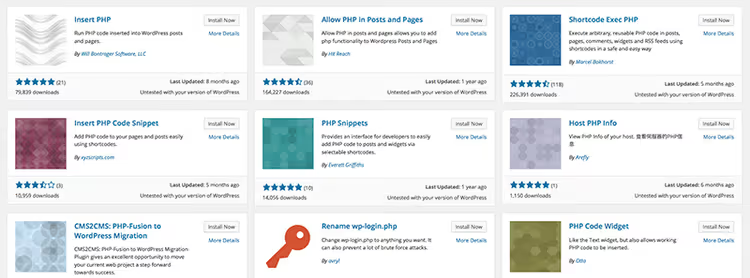
The safest method for a beginner, a dedicated snippet manager plugin. You insert PHP, CSS, or JavaScript in the admin through a regular text field, and the plugin executes the code where needed. If the code has an error, such a plugin catches the fatal error and disables the snippet automatically, the site doesn't crash, you don't lose access to the admin panel.
Two main candidates in 2026:
WPCode (formerly Insert Headers and Footers), the most popular one, 2+ million active installs and a 4.9 rating on WordPress.org. The free version can insert code into header, footer, before and after content. The Pro tier adds conditional logic (show a snippet only on certain pages), snippet generator by description, and a library of ready-made recipes.
Code Snippets, 700,000+ installs, 4.8 rating. Fully free, with a graphical editor and syntax highlighting. Snippets are stored in the database and don't depend on the theme. You can export a set of snippets to JSON and move them to another site.
Both plugins work on the same principle: you create a new snippet, choose the code type (PHP / CSS / JS), paste the code, and hit "Activate". If the snippet causes a fatal error, WordPress automatically deactivates it on the next request, the white screen of death won't threaten you.
Before inserting any code, make a full backup. In practice, the free version of WPCode covers most typical tasks: additional analytics pixels, microdata, hiding elements via CSS.
Method 2: built-in WordPress CSS editor

Check that the theme doesn't override your styles: open the site in incognito mode after adding CSS.
If the task is purely cosmetic (button color, widget margin, footer font size), you don't need a plugin. WordPress since version 4.7 includes a built-in Additional CSS editor right in Customizer:
- Appearance → Customize → Additional CSS.
- Paste the CSS rule in the left panel.
- On the right, a live preview: you see changes before publishing.
This method is good because CSS is stored in the database along with theme settings, a theme update won't erase it. The downside is that the editor is basic, no syntax highlighting or error checking. For a dozen lines of CSS, it's perfect, for a hundred, grab a plugin like Simple Custom CSS and JS (200,000+ installs), which gives an editor with highlighting and allows you to link CSS as an external file for better caching.
Important nuance: CSS cascades from top to bottom, a rule written later overrides an earlier one. That's why CSS from Additional CSS or a plugin always beats theme styles. If your rule didn't apply, add !important or refine the selector to a more specific one.
Method 3: child theme for PHP and template edits

A child theme inherits everything from the parent but lets you override any template file or function. This is the classic way to make changes to site logic without fear of losing them on update.
When you need a child theme:
- You're changing page markup (header.php, single.php, footer.php).
- You're adding code to the parent theme's functions.php, you can't do this directly because an update will overwrite the file.
- You're overriding WooCommerce templates for your store.
Creation, 5 minutes:
Create a folder in /wp-content/themes/, for example twentytwentyfive-child. Inside, two files:
1 /* 2 Theme Name: Twenty Twenty-Five Child 3 Template: twentytwentyfive 4 */ 5 @import url("../twentytwentyfive/style.css");
The functions.php file:
1 <?php 2 add_action('wp_enqueue_scripts', function () { 3 wp_enqueue_style( 4 'child-style', 5 get_stylesheet_directory_uri() . '/style.css', 6 ['parent-style'], 7 wp_get_theme()->get('Version') 8 ); 9 });
Archive the folder as a ZIP, upload via Appearance → Themes → Add New, and activate. For more details, see our WordPress child theme guide.
The only downside of a child theme is that you need to study the parent's structure so you don't break dependencies. If you're only editing CSS and adding a couple of PHP hooks, a snippet plugin from method 1 is enough, a child theme isn't needed.
Method 4: your own plugin for permanent code
If you've accumulated more than ten snippets and some of them are critical for site operation (custom post types, REST API endpoint overrides, your own taxonomy), wrap them into your own plugin. It won't turn off when you switch themes and won't get lost on update.
Minimal plugin, one PHP file:
Create a my-site-core folder in /wp-content/plugins/. Inside, my-site-core.php:
1 <?php 2 /** 3 * Plugin Name: My Site Core 4 * Description: Custom site code: CPT, hooks, shortcodes 5 * Version: 1.0.0 6 * Requires at least: 6.0 7 * Requires PHP: 8.0 8 */
Write all custom PHP below this header. The plugin will appear in the Plugins list, you can activate and deactivate it like a regular one.
For code that must always run (for example, registering a custom post type critical for content), use must-use plugins. Create a /wp-content/mu-plugins/ folder and put a PHP file there. MU plugins execute automatically and have no toggle in the admin panel, you can't accidentally disable them.
Note: if you just drop PHP files into mu-plugins without a loader, WordPress won't pick them up from subfolders. Either put the file in the mu-plugins root, or add a loader, a one-line PHP file that includes files from subfolders via require_once.
Method 5: displaying code in a post without execution
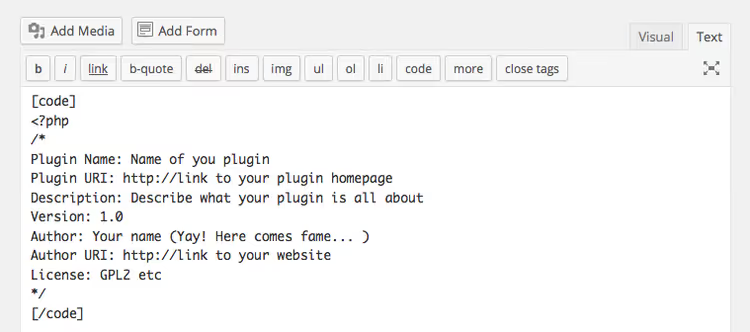
A separate task is not adding code to the site but showing it to readers in an article. WordPress by default executes HTML and PHP inserted in the visual editor, which can break post layout. The solution depends on which editor you're using:
Gutenberg (block editor): use the Code or Custom HTML block. The Code block displays code in a monospace font in a frame without executing it. For PHP and CSS syntax highlighting, install the Syntax-highlighting Code Block plugin, it colorizes code inside the Code block by language.
Classic Editor: in the visual tab, inserting code as regular text works for display (but doesn't give monospace formatting). In the HTML tab, code is interpreted as real, WordPress will execute tags and break the page. To avoid this, replace active characters with HTML entities:
Character | Replacement |
|---|---|
|
|
|
|
|
|
|
|
For a single tag, manual replacement works. For a block of 20 lines, use an online encoder or plugin. A complete list of character entities is in the WordPress reference.
⁉️🤔 Common questions
Can I insert PHP code directly into a WordPress post?
No, WordPress doesn't execute PHP inside post content for security reasons. If you need to execute PHP on a specific page, use a shortcode registered in the child theme's
functions.phpor in a snippet plugin. An alternative is plugins like Insert PHP Code Snippet, which let you create a snippet and insert it via shortcode in any post.
What's safer for a beginner: snippet plugin or child theme?
The WPCode or Code Snippets plugin. It isolates each code fragment: an error in one snippet doesn't affect the others, and WordPress catches fatal errors and deactivates the problematic snippet automatically. A child theme doesn't provide such a mechanism, a typo in
functions.phpcrashes the entire site. Additionally, the plugin isn't tied to the theme: you switched themes, the code remained.
How do I test code before running it on a live site?
Create a staging copy of the site. Most hosts (SiteGround, Cloudways, Kinsta) offer a "Create Staging" button in the control panel. Locally, deploy a copy via Local or XAMPP. Test on the copy, move to the production site. For quick CSS rules, just open DevTools in Chrome (F12), find the element, and apply the style right in the browser, it's temporary and only visible to you.
Do I have to create a child theme if I'm only editing CSS?
No. Start with the built-in Additional CSS in Customizer (Appearance → Customize). It's enough for most visual edits, it doesn't get erased on theme update, and requires neither a plugin nor a child theme. A child theme is needed when you override PHP template files (header.php, single.php, theme functions).
Which method should I choose for critical code that can't be lost?
Must-use plugin (
/wp-content/mu-plugins/). Code in MU plugins always executes, it's impossible to disable from the admin panel, and it survives theme switches and regular plugin updates. Suitable for registering custom post types (CPT), taxonomies, and critical REST API overrides. Not suitable for cosmetic edits, Additional CSS or a snippet plugin is enough for those.
What to choose for your task
If you need to fix a button color once, open Appearance → Customize → Additional CSS, paste the rule, and forget it. If you're collecting useful PHP snippets for the site, install WPCode: it's free, safe, and doesn't depend on the theme. If you're editing page templates or connecting your own scripts via wp_enqueue_scripts, create a child theme. And when snippets exceed ten and half of them are critical for site operation, wrap them into your own plugin.
Start small: open Customizer and add your first CSS rule right now. Write in the comments which method you use and which snippet turned out to be the most useful on your site.

A professional team of writers and editors specializing in creating quality content.